ariadng/metatrader-mcp-server
GitHub: ariadng/metatrader-mcp-server
该项目通过 MCP 协议在 AI 助手与 MetaTrader 5 之间搭建桥梁,让用户用自然语言即可完成交易下单、行情查询和账户管理。
Stars: 655 | Forks: 220
MetaTrader MCP Server
[](https://pypi.org/project/metatrader-mcp-server/)
[](https://www.python.org/downloads/)
[](https://opensource.org/licenses/MIT)
**让 AI 助手使用自然语言为您进行交易**
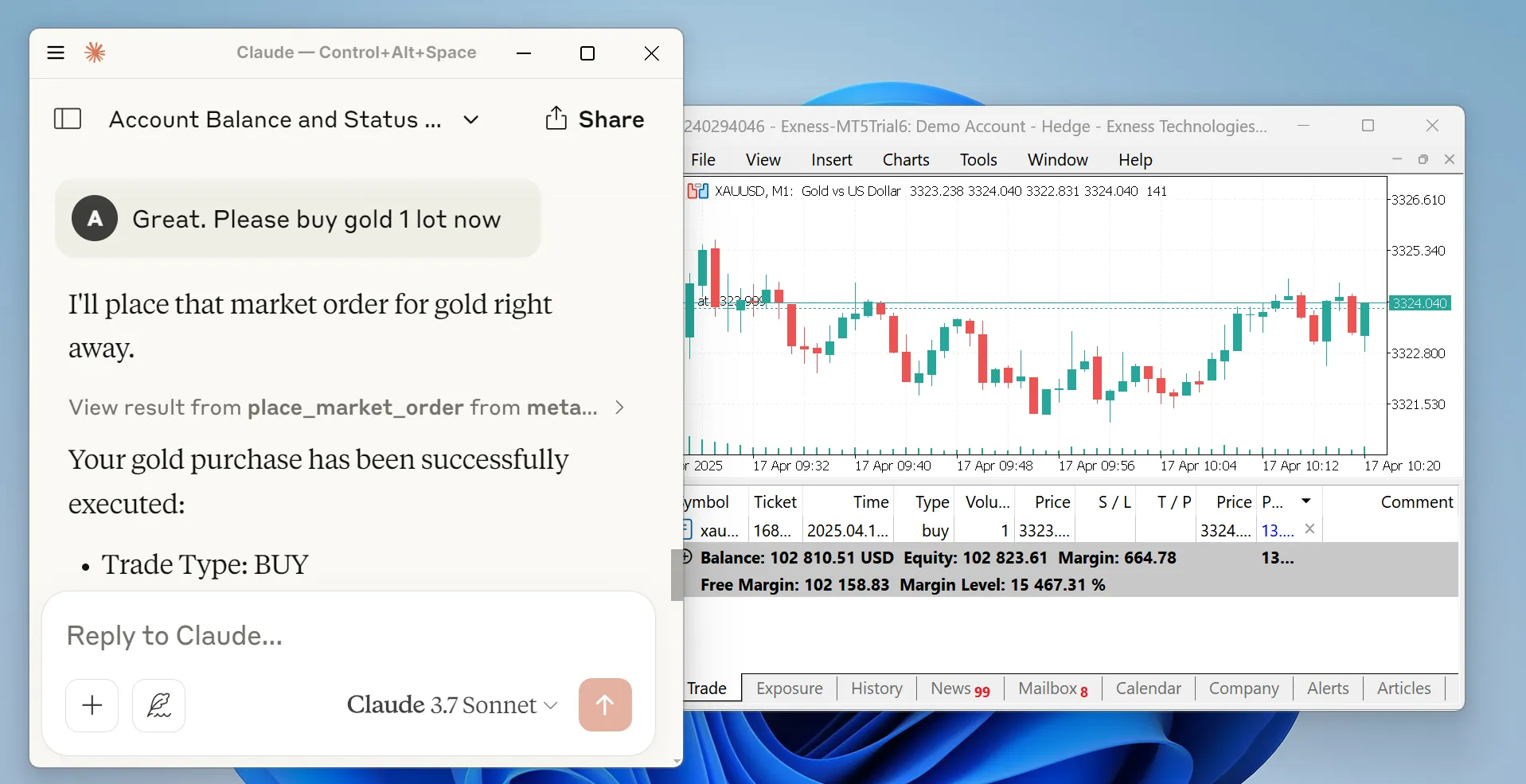
## 📑 目录 - [这是什么?](#-what-is-this) - [功能](#-features) - [适用人群](#-who-is-this-for) - [重要免责声明](#%EF%B8%8F-important-disclaimer) - [前置条件](#-prerequisites) - [快速开始](#-quick-start) - [交易助手技能](#-trading-assistant-skill-claude-code--claude-desktop) - [用法示例](#-usage-examples) - [可用操作](#-available-operations) - [WebSocket 行情服务器](#-websocket-quote-server) - [高级配置](#-advanced-configuration) - [路线图](#%EF%B8%8F-roadmap) - [开发](#%EF%B8%8F-development) - [贡献](#-contributing) - [文档](#-documentation) - [获取帮助](#-getting-help) - [许可证](#-license) ## 🌟 这是什么? **MetaTrader MCP Server** 是一座连接 AI 助手(如 Claude、ChatGPT)与 MetaTrader 5 交易平台的桥梁。你只需用简单的语言告诉 AI 助手要做什么,而无需再手动点击按钮: AI 会理解你的请求,并自动在 MetaTrader 5 上执行。 ### 工作原理 ``` You → AI Assistant → MCP Server → MetaTrader 5 → Your Trades ``` ## ✨ 功能 - **🗣️ 自然语言交易** - 使用日常英语与 AI 交流以执行交易 - **🤖 多 AI 支持** - 兼容 Claude Desktop、ChatGPT(通过 Open WebUI)等 - **📊 全面市场访问** - 获取实时价格、历史数据和交易品种信息 - **💼 完整账户控制** - 查询余额、净值、保证金和交易统计信息 - **⚡ 订单管理** - 通过简单的命令下单、修改订单和平仓 - **🔒 安全** - 所有凭证仅保存在你的本地计算机上 - **🌐 灵活的接口** - 可用作 MCP server、REST API 或 WebSocket stream - **📖 详尽的文档** - 提供详尽的指南和示例 ## 🎯 适用人群 - 希望使用 AI 自动化交易的**交易者** - 正在构建交易机器人或分析工具的**开发者** - 需要快速获取市场数据的**分析师** - 对将 AI 与金融市场结合感兴趣的**任何人** ## ⚠️ 重要免责声明 **请仔细阅读:** 交易金融工具存在严重的损失风险。本软件按“原样”提供,开发者对任何交易损失、收益或使用本软件产生的后果**不承担任何责任**。 使用本软件即表示你承认: - 你了解金融交易的风险 - 你对通过本系统执行的所有交易负责 - 你不会就任何结果追究开发者的责任 - 你是在自担风险的情况下使用本软件 **这不是财务建议。请始终理性交易。** ## 📋 前置条件 在开始之前,请确保你已具备: 1. **Python 3.10 或更高版本** - [在此下载](https://www.python.org/downloads/) 2. **MetaTrader 5 终端** - [在此下载](https://www.metatrader5.com/en/download) 3. **MT5 交易账户** - 模拟或真实账户凭证 - 登录号 - 密码 - 服务器名称(例如:“MetaQuotes-Demo”) ## 🚀 快速开始 ### 第一步:安装软件包 打开你的终端或命令提示符,并运行: ``` pip install metatrader-mcp-server ``` ### 第二步:启用算法交易 1. 打开 MetaTrader 5 2. 转到 `工具` -> `选项` 3. 点击 `EA 交易` 标签页 4. 勾选 `允许算法交易` 复选框 5. 点击 `确定` ### 第三步:选择你的接口 根据你想如何使用它,选择一个: #### 选项 A:与 Claude Desktop 一起使用(本地 STDIO) 1. 找到你的 Claude Desktop 配置文件: - **Windows**: `%APPDATA%\Claude\claude_desktop_config.json` - **Mac**: `~/Library/Application Support/Claude/claude_desktop_config.json` 2. 打开文件并添加以下配置: ``` { "mcpServers": { "metatrader": { "command": "metatrader-mcp-server", "args": [ "--login", "YOUR_MT5_LOGIN", "--password", "YOUR_MT5_PASSWORD", "--server", "YOUR_MT5_SERVER", "--transport", "stdio" ] } } } ``` **可选:指定自定义 MT5 终端路径** 如果你的 MT5 终端安装在非标准位置,请添加 `--path` 参数: ``` { "mcpServers": { "metatrader": { "command": "metatrader-mcp-server", "args": [ "--login", "YOUR_MT5_LOGIN", "--password", "YOUR_MT5_PASSWORD", "--server", "YOUR_MT5_SERVER", "--transport", "stdio", "--path", "C:\\Program Files\\MetaTrader 5\\terminal64.exe" ] } } } ``` 3. 将 `YOUR_MT5_LOGIN`、`YOUR_MT5_PASSWORD` 和 `YOUR_MT5_SERVER` 替换为你的实际凭证 4. 重启 Claude Desktop 5. 开始聊天吧!试试:*“我的账户余额是多少?”* #### 选项 B:与 Open WebUI 一起使用(适用于 ChatGPT 和其他 LLM) 1. 启动 HTTP 服务器: ``` metatrader-http-server --login YOUR_LOGIN --password YOUR_PASSWORD --server YOUR_SERVER --host 0.0.0.0 --port 8000 ``` **可选:指定自定义 MT5 终端路径** 如果你的 MT5 终端安装在非标准位置,请添加 `--path` 参数: ``` metatrader-http-server --login YOUR_LOGIN --password YOUR_PASSWORD --server YOUR_SERVER --path "C:\Program Files\MetaTrader 5\terminal64.exe" --host 0.0.0.0 --port 8000 ``` 2. 在浏览器中打开 `http://localhost:8000/docs` 查看 API 文档 3. 在 Open WebUI 中: - 进入 **Settings** -> **Tools** - 点击 **Add Tool Server** - 输入 `http://localhost:8000` - 保存 4. 现在你可以在 Open WebUI 聊天中使用交易工具了! #### 选项 C:通过 WebSocket 获取实时报价 通过 WebSocket 传输实时 tick 数据(买价、卖价、点差、成交量),适用于仪表板、机器人或监控: ``` metatrader-quote-server --login YOUR_LOGIN --password YOUR_PASSWORD --server YOUR_SERVER ``` 使用任何 WebSocket 客户端进行连接: ``` websocat ws://localhost:8765 ``` 你将收到一条 `connected` 消息,随后是以 JSON 格式连续发送的 tick 更新。有关完整详细信息,请参阅 [WebSocket 行情服务器](#-websocket-quote-server)。 #### 选项 D:远程 MCP 服务器 (SSE) 在 Windows VPS(安装了 MT5 的地方)上运行 MCP 服务器,并从 Claude Desktop 或 Claude Code 远程连接到它。 **服务端**(在 Windows VPS 上): ``` metatrader-mcp-server --login YOUR_LOGIN --password YOUR_PASSWORD --server YOUR_SERVER ``` 这默认在 `0.0.0.0:8080` 上启动 SSE 服务器。使用 `--host` 和 `--port` 进行自定义: ``` metatrader-mcp-server --login YOUR_LOGIN --password YOUR_PASSWORD --server YOUR_SERVER --host 127.0.0.1 --port 9000 ``` **客户端**(本地机器上的 Claude Desktop 配置): ``` { "mcpServers": { "metatrader": { "url": "http://VPS_IP:8080/sse" } } } ``` 将 `VPS_IP` 替换为你服务器的 IP 地址。 ## 🤖 交易助手技能 (Claude Code / Claude Desktop) `claude-skill/` 目录中包含了一个预构建的**交易终端助手**技能。它为 Claude 提供了关于所有 32 个交易工具的结构化知识、输出格式以及 MetaTrader 5 领域的专业能力。 ### 为 Claude Code 安装 **选项 1:符号链接(推荐)** 创建一个从标准 Claude Code 技能目录到 `claude-skill/` 的符号链接: ``` cd metatrader-mcp-server mkdir -p .claude ln -s ../claude-skill .claude/skills ``` 该技能将被自动发现,并可通过 `/trading` 使用。 **选项 2:复制** 将技能文件复制到 Claude Code 技能目录中: ``` cd metatrader-mcp-server mkdir -p .claude/skills cp -r claude-skill/trading .claude/skills/trading ``` ### 为 Claude Desktop 安装 对于 Claude Desktop,请将该技能复制到全局 Claude 技能目录: ``` # macOS mkdir -p ~/Library/Application\ Support/Claude/skills cp -r claude-skill/trading ~/Library/Application\ Support/Claude/skills/trading # Windows mkdir "%APPDATA%\Claude\skills" xcopy /E claude-skill\trading "%APPDATA%\Claude\skills\trading\" ``` ### 技能的作用 - **直接执行**:在收到请求时立即执行交易,无需额外确认 - **工作流**:知道如何将工具链接起来以执行复杂操作(例如,下市价单然后设置 SL/TP) - **格式化**:以简洁的终端风格表格展示账户数据、仓位、订单和价格 - **领域知识**:了解 MT5 订单类型、时间周期、品种格式和成交模式 ### 用法 安装后,使用 `/trading` 调用,或直接自然地提出与交易相关的问题: ``` /trading > Show me my account dashboard > Buy 0.1 lots of EURUSD with SL at 1.0800 > Close all profitable positions > Show me GBPUSD H4 candles ``` ## 📡 WebSocket 行情服务器 WebSocket 行情服务器将来自 MetaTrader 5 的实时 tick 数据流式传输到任何 WebSocket 客户端。它非常适合实时仪表板、算法交易前端和实时监控。 ### 启动服务器 ``` metatrader-quote-server --login YOUR_LOGIN --password YOUR_PASSWORD --server YOUR_SERVER ``` 服务器默认在 `ws://0.0.0.0:8765` 上启动。 ### 自定义 ``` metatrader-quote-server \ --login YOUR_LOGIN \ --password YOUR_PASSWORD \ --server YOUR_SERVER \ --host 127.0.0.1 \ --port 9000 \ --symbols "EURUSD,GBPUSD,XAUUSD" \ --poll-interval 200 ``` ### 配置 | 标志 | 环境变量 | 默认值 | 描述 | |------|---------|---------|-------------| | `--host` | `QUOTE_HOST` | `0.0.0.0` | 要绑定的主机 | | `--port` | `QUOTE_PORT` | `8765` | 要绑定的端口 | | `--symbols` | `QUOTE_SYMBOLS` | `XAUUSD,USOIL,GBPUSD,USDJPY,EURUSD,BTCUSD` | 要流式传输的逗号分隔的品种 | | `--poll-interval` | `QUOTE_POLL_INTERVAL_MS` | `100` | tick 轮询间隔(毫秒) | CLI 标志的优先级高于环境变量,而环境变量的优先级高于默认值。 ### 消息格式 **连接时** — 服务器发送带有品种列表的 `connected` 消息,随后是任何缓存的 tick 数据: ``` {"type": "connected", "symbols": ["XAUUSD", "EURUSD", "GBPUSD"], "poll_interval_ms": 100} ``` **tick 更新** — 每当买价、卖价或成交量发生变化时发送: ``` {"type": "tick", "symbol": "XAUUSD", "bid": 2345.67, "ask": 2345.89, "spread": 0.22, "volume": 1234, "time": "2026-03-14T10:30:45+00:00"} ``` **错误** — 如果无法获取某个品种的数据,则发送此消息: ``` {"type": "error", "symbol": "INVALID", "message": "Symbol not found or data unavailable"} ``` ### 示例:使用 Python 连接 ``` import asyncio import json from websockets.asyncio.client import connect async def main(): async with connect("ws://localhost:8765") as ws: async for message in ws: tick = json.loads(message) if tick["type"] == "tick": print(f"{tick['symbol']}: {tick['bid']}/{tick['ask']} (spread: {tick['spread']})") asyncio.run(main()) ``` ### 设计说明 - **变动检测**:仅当买价、卖价或成交量实际发生变化时才进行广播,从而减少不必要的流量。 - **后加入者**:新客户端在连接时会立即收到缓存的 tick 数据,因此无需等待下一次变动。 - **MT5 线程安全**:所有 MT5 SDK 调用都通过单线程执行器进行序列化,以防止并发访问问题。 - **多个客户端**:任意数量的 WebSocket 客户端都可以同时连接。 ## 💡 用法示例 ### 与 Claude Desktop 一起使用 配置完成后,你可以自然地聊天: **查询你的账户:** **获取市场数据:** **进行交易:** **管理仓位:** **分析历史记录:** ### 与 HTTP API 一起使用 ``` # 获取账户信息 curl http://localhost:8000/api/v1/account/info # 获取当前价格 curl "http://localhost:8000/api/v1/market/price?symbol_name=EURUSD" # 下市价订单 curl -X POST http://localhost:8000/api/v1/order/market \ -H "Content-Type: application/json" \ -d '{ "symbol": "EURUSD", "volume": 0.01, "type": "BUY", "stop_loss": 1.0990, "take_profit": 1.1010 }' # 获取所有未平仓位 curl http://localhost:8000/api/v1/positions # 平掉特定仓位 curl -X DELETE http://localhost:8000/api/v1/positions/12345 ``` ### 作为 Python 库使用 ``` from metatrader_client import MT5Client # 连接到 MT5 config = { "login": 12345678, "password": "your_password", "server": "MetaQuotes-Demo" } client = MT5Client(config) client.connect() # 获取账户统计信息 stats = client.account.get_trade_statistics() print(f"Balance: ${stats['balance']}") print(f"Equity: ${stats['equity']}") # 获取当前价格 price = client.market.get_symbol_price("EURUSD") print(f"EUR/USD Bid: {price['bid']}, Ask: {price['ask']}") # 下市价订单 result = client.order.place_market_order( type="BUY", symbol="EURUSD", volume=0.01, stop_loss=1.0990, take_profit=1.1010 ) print(result['message']) # 平掉所有仓位 client.order.close_all_positions() # 断开连接 client.disconnect() ``` ## 📚 可用操作 ### 账户管理 - `get_account_info` - 获取余额、净值、利润、保证金水平、杠杆、货币 ### 市场数据 - `get_symbols` - 列出所有可交易的品种 - `get_symbol_price` - 获取某个品种的当前买价/卖价 - `get_candles_latest` - 获取最新的价格蜡烛图 (OHLCV 数据) - `get_candles_by_date` - 获取特定日期范围内的历史蜡烛图 - `get_symbol_info` - 获取详细的品种信息 ### 订单执行 - `place_market_order` - 执行即时买入/卖出订单 - `place_pending_order` - 下达限价/停损订单以便将来执行 - `modify_position` - 更新止损或止盈 - `modify_pending_order` - 修改挂单参数 ### 仓位管理 - `get_all_positions` - 查看所有未平仓位 - `get_positions_by_symbol` - 按交易品种筛选仓位 - `get_positions_by_id` - 获取特定仓位详情 - `close_position` - 平掉特定仓位 - `close_all_positions` - 平掉所有未平仓位 - `close_all_positions_by_symbol` - 平掉特定品种的所有仓位 - `close_all_profitable_positions` - 仅平仓盈利单 - `close_all_losing_positions` - 仅平仓亏损单 ### 挂单 - `get_all_pending_orders` - 列出所有挂单 - `get_pending_orders_by_symbol` - 按品种筛选挂单 - `cancel_pending_order` - 取消特定挂单 - `cancel_all_pending_orders` - 取消所有挂单 - `cancel_pending_orders_by_symbol` - 取消特定品种的挂单 ### 交易历史 - `get_deals` - 获取历史成交记录 - `get_orders` - 获取历史订单记录 ## 🔧 高级配置 ### 使用环境变量 无需在命令行中放置凭证,你可以创建一个 `.env` 文件: ``` LOGIN=12345678 PASSWORD=your_password SERVER=MetaQuotes-Demo # 可选:指定自定义 MT5 terminal 路径(如果未提供则自动检测) # MT5_PATH=C:\Program Files\MetaTrader 5\terminal64.exe ``` 然后在不加参数的情况下启动服务器: ``` metatrader-http-server ``` 服务器将自动从 `.env` 文件加载凭证。 ### MCP 传输配置 MCP 服务器支持多种传输模式: | 标志 | 环境变量 | 默认值 | 描述 | |------|---------|---------|-------------| | `transport` | `MCP_TRANSPORT` | `sse` | 传输类型:`sse`、`stdio`、`streamable-http` | | `--host` | `MCP_HOST` | `0.0.0.0` | 要绑定的主机(仅限 SSE/HTTP) | | `--port` | `MCP_PORT` | `8080` | 要绑定的端口(仅限 SSE/HTTP) | CLI 标志的优先级高于环境变量,而环境变量的优先级高于默认值。 ### 自定义端口和主机 (HTTP API) ``` metatrader-http-server --host 127.0.0.1 --port 9000 ``` ### 连接参数 MT5 客户端支持额外的配置: ``` config = { "login": 12345678, "password": "your_password", "server": "MetaQuotes-Demo", "path": None, # Path to MT5 terminal executable (default: auto-detect) "timeout": 60000, # Connection timeout in milliseconds (default: 60000) "portable": False, # Use portable mode (default: False) "max_retries": 3, # Maximum connection retry attempts (default: 3) "backoff_factor": 1.5, # Delay multiplier between retries (default: 1.5) "cooldown_time": 2.0, # Seconds to wait between connections (default: 2.0) "debug": True # Enable debug logging (default: False) } ``` **配置选项:** - **login** (int, 必填):你的 MT5 账户登录号 - **password** (str, 必填):你的 MT5 账户密码 - **server** (str, 必填):MT5 服务器名称(例如:“MetaQuotes-Demo”) - **path** (str, 可选):MT5 终端可执行文件的完整路径。如未指定,客户端将自动搜索标准安装目录 - **timeout** (int, 可选):连接超时时间(以毫秒为单位)。默认值:60000(60 秒) - **portable** (bool, 可选):为 MT5 终端启用便携模式。默认值:False - **max_retries** (int, 可选):最大连接重试次数。默认值:3 - **backoff_factor** (float, 可选):重试延迟的指数退避因子。默认值:1.5 - **cooldown_time** (float, 可选):连接尝试之间的最短间隔时间(以秒为单位)。默认值:2.0 - **debug** (bool, 可选):启用详细的调试日志以进行故障排除。默认值:False ## 🗺️ 路线图 | 功能 | 状态 | |---------|--------| | MetaTrader 5 连接 | ✅ 完成 | | Python 客户端库 | ✅ 完成 | | MCP Server | ✅ 完成 | | Claude Desktop 集成 | ✅ 完成 | | HTTP/REST API Server | ✅ 完成 | | Open WebUI 集成 | ✅ 完成 | | OpenAPI 文档 | ✅ 完成 | | PyPI 包 | ✅ 已发布 | | SSE 传输支持 | ✅ 完成 | | Google ADK 集成 | 🚧 进行中 | | WebSocket 行情服务器 | ✅ 完成 | | Docker 容器 | 📋 已计划 | ## 🛠️ 开发 ### 搭建开发环境 ``` # Clone 仓库 git clone https://github.com/ariadng/metatrader-mcp-server.git cd metatrader-mcp-server # 以开发模式安装 pip install -e . # 安装开发依赖 pip install pytest python-dotenv # 运行 tests pytest tests/ ``` ### 项目结构 ``` metatrader-mcp-server/ ├── src/ │ ├── metatrader_client/ # Core MT5 client library │ │ ├── account/ # Account operations │ │ ├── connection/ # Connection management │ │ ├── history/ # Historical data │ │ ├── market/ # Market data │ │ ├── order/ # Order execution │ │ └── types/ # Type definitions │ ├── metatrader_mcp/ # MCP server implementation │ ├── metatrader_openapi/ # HTTP/REST API server │ └── metatrader_quote/ # WebSocket quote streamer ├── tests/ # Test suite ├── docs/ # Documentation └── pyproject.toml # Project configuration ``` ## 🤝 贡献 欢迎各种贡献!以下是你能提供帮助的方式: 1. **报告 Bug** - [提交 issue](https://github.com/ariadng/metatrader-mcp-server/issues) 2. **建议功能** - 在 issues 中分享你的想法 3. **提交 Pull Request** - 修复 bug 或添加新功能 4. **改进文档** - 协助使文档更清晰 5. **分享示例** - 展示你是如何使用它的 ### 贡献指南 - Fork 该仓库 - 创建一个功能分支 (`git checkout -b feature/amazing-feature`) - 进行你的修改 - 编写或更新测试 - 确保测试通过 (`pytest`) - 提交你的修改 (`git commit -m 'Add amazing feature'`) - 推送到该分支 (`git push origin feature/amazing-feature`) - 发起一个 Pull Request ## 📖 文档 - **[开发者文档](docs/README.md)** - 详尽的技术文档 - **[API 参考](docs/api-reference.md)** - 完整的 API 文档 - **[示例](docs/examples/)** - 代码示例和教程 - **[路线图](docs/roadmap/version-checklist.md)** - 功能开发时间表 ## 🆘 获取帮助 - **问题**:[GitHub Issues](https://github.com/ariadng/metatrader-mcp-server/issues) - **讨论**:[GitHub Discussions](https://github.com/ariadng/metatrader-mcp-server/discussions) - **LinkedIn**:[与我联系](https://linkedin.com/in/ariadhanang) ### 常见问题 **“连接失败”** - 确保 MT5 终端正在运行 - 检查是否已启用算法交易 - 验证你的登录凭证是否正确 **“找不到模块”** - 确保你已安装该软件包:`pip install metatrader-mcp-server` - 检查你的 Python 版本是否为 3.10 或更高 **“订单执行失败”** - 验证你的经纪商是否提供该品种 - 检查市场是否处于开盘状态 - 确保你有足够的保证金 ## 📝 许可证 本项目基于 MIT 许可证授权 - 有关详细信息,请参阅 [LICENSE](LICENSE) 文件。 ## 🙏 鸣谢 - 使用 [FastMCP](https://github.com/jlowin/fastmcp) 提供 MCP 协议支持 - 使用 [MetaTrader5](https://pypi.org/project/MetaTrader5/) Python 包 - 由 [FastAPI](https://fastapi.tiangolo.com/) 为 REST API 提供动力 ## 📊 项目统计 - **版本**:0.5.1 - **Python**:3.10+ - **许可证**:MIT - **状态**:积极开发中
**由 [Aria Dhanang](https://github.com/ariadng) 用 ❤️ 制作**
如果觉得有用,请给本仓库点个 ⭐!
[PyPI](https://pypi.org/project/metatrader-mcp-server/) • [GitHub](https://github.com/ariadng/metatrader-mcp-server) • [Issues](https://github.com/ariadng/metatrader-mcp-server/issues)
标签:AI应用, MCP, MetaTrader, Python, 无后门, 自动化交易, 逆向工具, 量化交易, 金融科技