misiektoja/github_monitor
GitHub: misiektoja/github_monitor
一款实时监控 GitHub 用户与仓库活动变化的命令行工具,支持邮件通知和 CSV 数据导出。
Stars: 52 | Forks: 10
# github_monitor
-t "your_github_classic_personal_access_token"
```
或者如果你是[手动安装](#manual-installation)的:
```
python3 github_monitor.py -t "your_github_classic_personal_access_token"
```
获取所有支持的命令行参数/标志列表:
```
github_monitor --help
```
## 配置
### 配置文件
大多数设置可以通过命令行参数进行配置。
如果你想持久化存储它,请生成一个默认的配置模板并将其保存到名为 `github_monitor.conf` 的文件中:
```
# 在 macOS Linux 和 Windows Command Prompt (cmd.exe) 上
github_monitor --generate-config > github_monitor.conf
# 在 Windows PowerShell 上(推荐使用以避免编码问题)
github_monitor --generate-config github_monitor.conf
```
编辑 `github_monitor.conf` 文件并更改任何所需的配置选项(每个选项都提供了详细的注释)。
### GitHub 个人访问令牌
转到你的 GitHub Apps 设置:[https://github.com/settings/apps](https://github.com/settings/apps)
然后点击 **Personal access tokens → Tokens (classic) → Generate new token (classic)**。
使用以下方法之一提供 `GITHUB_TOKEN` 密钥:
- 在运行时使用 `-t` / `--github-token` 传递它
- 将其设置为[环境变量](#storing-secrets)(例如 `export GITHUB_TOKEN=...`)
- 将其添加到 [.env 文件](#storing-secrets)(`GITHUB_TOKEN=...`)以供持久使用
- 后备方案:将其硬编码在代码或配置文件中
如果你将 `GITHUB_TOKEN` 存储在 dotenv 文件中,你可以更新其值并发送 `SIGHUP` 信号以使用新令牌重新加载文件,而无需重新启动工具。更多信息请参见[存储密钥](#storing-secrets)和[信号控制 (macOS/Linux/Unix)](#signal-controls-macoslinuxunix)。
### GitHub API URL
默认情况下,该工具使用 Public Web GitHub API URL:[https://api.github.com](https://api.github.com)
如果你想使用 GitHub Enterprise API URL,请将 `GITHUB_API_URL`(或使用 `-x` 标志)更改为:`https://{your_hostname}/api/v3`
### 要监控的事件
你可以限制工具将监控和报告的事件类型。你可以通过更改 `EVENTS_TO_MONITOR` 配置选项来实现。
默认情况下会监控所有事件,但如果你想对其进行限制,请删除 `ALL` 关键字并保留你感兴趣的事件,例如:
```
EVENTS_TO_MONITOR=['PushEvent','PullRequestEvent', 'IssuesEvent', 'ForkEvent', 'ReleaseEvent']
```
### 要监控的仓库
在跟踪仓库变化时(`-j` 标志),你可以限制哪些仓库将被监控以进行详细更改(stargazers、watchers、fork、issue、PR 等)。你可以通过更改 `REPOS_TO_MONITOR` 配置选项或通过 `--repos` 命令行参数来实现(参见[监控模式](#monitoring-mode))。
默认情况下会监控所有仓库(`REPOS_TO_MONITOR = ['ALL']`),但如果你只想监控特定的仓库,可以使用 `'user/repo_name'` 格式:
```
REPOS_TO_MONITOR = ['user1/repo1', 'user2/repo2', 'user1/repo3']
```
这允许你为不同的用户设置不同的仓库列表。当工具为特定用户运行时,它只会监控用户与列表中用户相匹配的仓库。
注意:使用特定列表(而不是 `'ALL'`)时,新创建的仓库将不会被自动监控——只有明确列出的仓库才会被监控。
### 时区
默认情况下,使用 `tzlocal` 自动检测时区。你可以在 `github_monitor.conf` 中手动设置它:
```
LOCAL_TIMEZONE='Europe/Warsaw'
```
你可以像这样获取 pytz 支持的所有时区列表:
```
python3 -c "import pytz; print('\n'.join(pytz.all_timezones))"
```
### SMTP 设置
如果你想使用邮件通知功能,请在 `github_monitor.conf` 文件中配置 SMTP 设置。
使用 `--send-test-email` 标志验证你的 SMTP 设置(工具将尝试发送一封测试邮件通知):
```
github_monitor --send-test-email
```
### 存储密钥
建议将 `GITHUB_TOKEN` 或 `SMTP_PASSWORD` 等密钥作为环境变量或存储在 dotenv 文件中。
在 **Linux/Unix/macOS/WSL** 系统上使用 `export` 设置环境变量:
```
export GITHUB_TOKEN="your_github_classic_personal_access_token"
export SMTP_PASSWORD="your_smtp_password"
```
在 **Windows 命令提示符** 上使用 `set` 代替 `export`,在 **Windows PowerShell** 上使用 `$env`。
或者将它们持久地存储在 dotenv 文件中(推荐):
```
GITHUB_TOKEN="your_github_classic_personal_access_token"
SMTP_PASSWORD="your_smtp_password"
```
默认情况下,该工具会自动在当前目录及其上层目录中搜索名为 `.env` 的 dotenv 文件。
你可以使用 `DOTENV_FILE` 或 `--env-file` 标志指定自定义文件:
```
github_monitor --env-file /path/.env-github_monitor
```
你也可以使用 `DOTENV_FILE = "none"` 或 `--env-file none` 来禁用 `.env` 自动搜索:
```
github_monitor --env-file none
```
作为后备方案,你也可以将密钥存储在配置文件或源代码中。
## 用法
### 监控模式
要监控特定的用户活动和个人资料变化,只需输入 GitHub 用户名作为命令行参数(在下面的示例中为 `github_username`):
```
github_monitor github_username
```
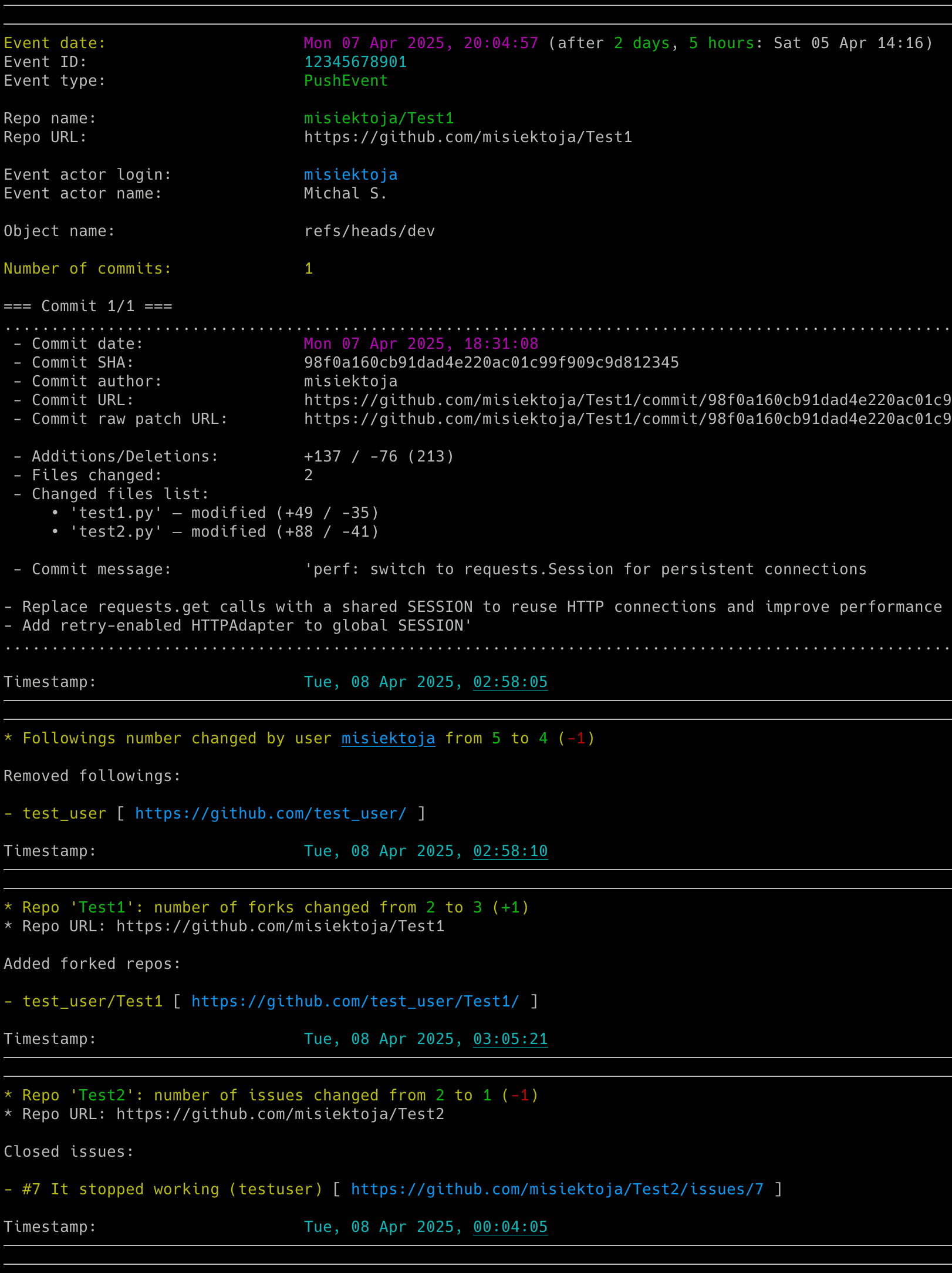
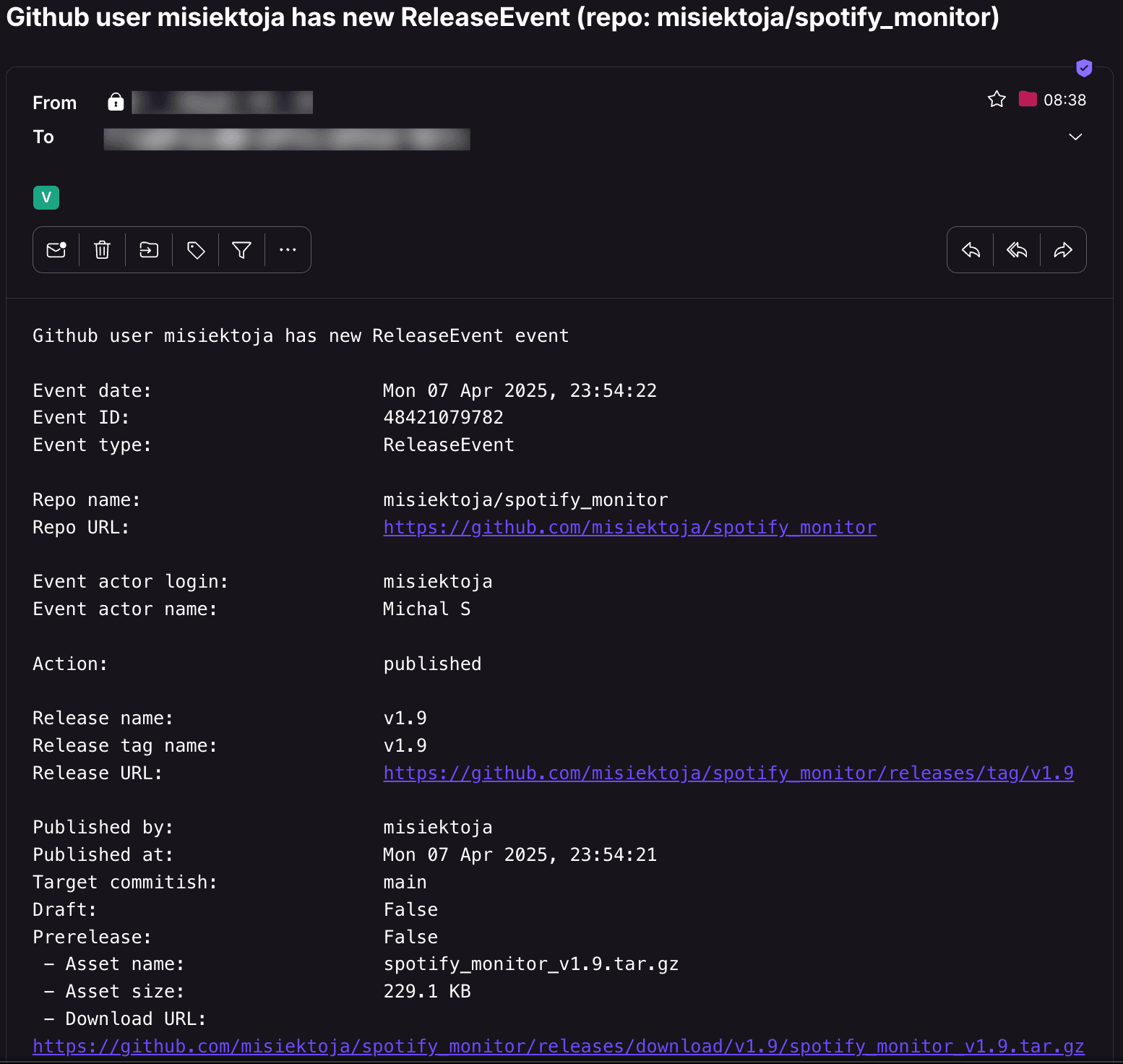
它将跟踪所有用户个人资料的变化(例如更改的 followers、followings、starred repositories、用户名、电子邮件、简介、位置、博客 URL、仓库数量)以及所有 GitHub 事件(例如新的 push、PR、issue、fork、release 等)。
如果你尚未设置 `GITHUB_TOKEN` 密钥,可以使用 `-t` 标志:
```
github_monitor github_username -t "your_github_classic_personal_access_token"
```
默认情况下,该工具会在以下位置查找名为 `github_monitor.conf` 的配置文件:
- 当前目录
- 主目录(`~`)
- 脚本目录
如果你按照[配置](#configuration)中的说明生成了配置文件,但以不同的名称或保存在不同的目录中,你可以使用 `--config-file` 标志指定其位置:
```
github_monitor --config-file /path/github_monitor_new.conf
```
如果你想监控用户公开仓库的变化(例如新的 stargazers、watchers、fork、更改的描述等),请使用 `-j` 标志:
```
github_monitor github_username -j
```
默认情况下,仅跟踪用户拥有的仓库。要包含 fork 和协作仓库,请将 `GET_ALL_REPOS` 设置为 `True` 或使用 `-a` 标志:
```
github_monitor github_username -j -a
```
如果你只想监控特定仓库而不是所有用户拥有的仓库,可以通过 `--repos` 命令行标志或 `REPOS_TO_MONITOR` 配置选项来实现(参见[要监控的仓库](#repositories-to-monitor))。使用带有逗号分隔的仓库名称列表的 `--repos` 标志:
```
github_monitor github_username -j --repos "repo1,repo2,repo3"
```
这只会监控指定仓库的详细变化(stargazers、watchers、fork、issue、PR 等)。`--repos` 标志需要启用 `-j` 标志,并会覆盖 `REPOS_TO_MONITOR` 配置选项。
注意:使用特定列表时,新创建的仓库将不会被自动监控——只有明确列出的仓库才会被监控。
如果你想跟踪用户的每日贡献,请使用 `-m` 标志:
```
github_monitor github_username -m
```
如果出于任何原因你不想监控用户的 GitHub 事件(例如新的 push、PR、issue、fork、release 等),请使用 `-k` 标志:
```
github_monitor github_username -k
```
该工具会一直运行直到被中断(`Ctrl+C`)。使用 `tmux` 或 `screen` 来保持持久性。
你可以通过运行多个脚本实例来监控多个 GitHub 用户。
该工具会自动将其输出保存到 `github_monitor_.log` 文件中。可以在设置中通过 `GITHUB_LOGFILE` 配置选项进行更改,或通过 `DISABLE_LOGGING` / `-d` 标志完全禁用。
### 列表模式
该工具还有另一种模式,可以显示各种请求的信息(`-r`、`-g`、`-f` 和 `-l` 标志)。
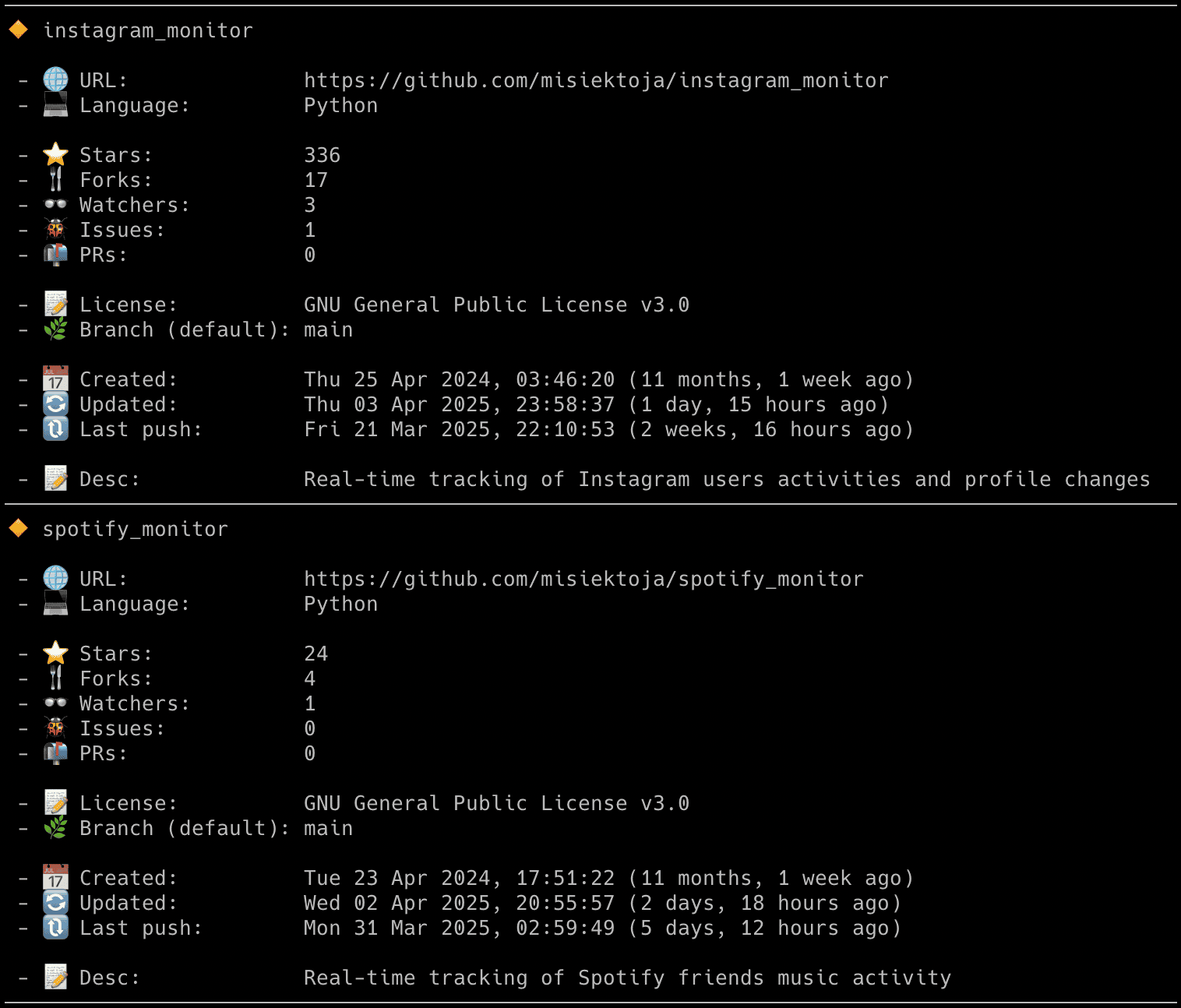
如果你想显示用户的公开仓库列表(带有一些基本统计信息),请使用 `-r` 标志:
```
github_monitor github_username -r
```
-b github_username.csv
```
如果该文件不存在,将会自动创建。
### 检查间隔
如果你想自定义轮询间隔,请使用 `-c` 标志(或 `GITHUB_CHECK_INTERVAL` 配置选项):
```
github_monitor -c 900
```
通常不建议使用低于 10 分钟的值,因为新事件经常会被 GitHub API 延迟。
### 信号控制 (macOS/Linux/Unix)
该工具实现了多个信号处理程序,允许在无需使用新配置选项/标志重新启动工具的情况下更改其行为。
支持的信号列表:
| 信号 | 描述 |
| ----------- | ----------- |
| USR1 | 切换所有用户个人资料变化的邮件通知 (-p) |
| USR2 | 切换新 GitHub 事件的邮件通知 (-s) |
| CONT | 切换用户仓库变化的邮件通知(更新日期除外)(-q) |
| PIPE | 切换用户仓库更新日期变化的邮件通知 (-u) |
| URG | 切换用户每日贡献变化的邮件通知 (-y) |
| TRAP | 增加用户检查间隔(增加 1 分钟) |
| ABRT | 减少用户检查间隔(减少 1 分钟) |
| HUP | 从 .env 文件重新加载密钥 |
使用 `kill` 或 `pkill` 发送信号,例如:
```
pkill -USR1 -f "github_monitor "
```
由于 Windows 支持的信号数量有限,此功能仅在 Linux/Unix/macOS 上可用。
### 使用 GRC 为日志输出着色
你可以使用 [GRC](https://github.com/garabik/grc) 为日志着色。
添加到你的 GRC 配置(`~/.grc/grc.conf`)中:
```
# 监控日志文件
.*_monitor_.*\.log
conf.monitor_logs
```
现在将 [conf.monitor_logs](https://raw.githubusercontent.com/misiektoja/github_monitor/refs/heads/main/grc/conf.monitor_logs) 复制到你的 `~/.grc/` 目录中,这样在使用 `grc` 工具时,日志文件应该会被完美着色。
示例:
```
grc tail -F -n 100 github_monitor_.log
```
## 更新日志
有关详细信息,请参见 [RELEASE_NOTES.md](https://github.com/misiektoja/github_monitor/blob/main/RELEASE_NOTES.md)。
## 许可证
根据 GPLv3 获得许可。请参见 [LICENSE](https://github.com/misiektoja/github_monitor/blob/main/LICENSE)。



标签:ESC4, OSINT, Python, SOC Prime, 实时处理, 开发工具, 数据泄露, 无后门, 监控工具, 逆向工具