

## 概要
* [描述](#description)
* [演示服务器](#demo)
* [命令行](#cmd)
* [示例](#examples)
* [发布](#release)
* [说明](#note)
* [基准测试](#bench)
* [如何构建](#build)
## 描述
大多数情况下,当你使用公共网络时,你都会处于某种防火墙或代理之后。它们的
目的之一是限制你只能使用特定类型的协议,并且只能访问网络的一部分。如今,
最普及的协议是 http,实际上它已被第三方设备默认允许。
Wstunnel 使用与 http 兼容的 websocket 协议来绕过防火墙和代理。Wstunnel
允许你隧道传输任何你想要的流量,并访问你需要的任何资源/网站。
我的灵感来自于[这个项目](https://www.npmjs.com/package/wstunnel),但由于我不想为了使用这个工具而去安装 npm 和
nodejs,我用 ~~Haskell~~ Rust 重新编写并改进了它。
**预期功能:**
* 易于使用
* 良好的错误信息和调试信息
* 静态转发(反向)隧道(TCP、UDP、Unix socket、Stdio)
* 动态(反向)隧道(Socks5 代理、HTTP 代理和透明代理)
* 支持将 http 代理(当处于其后时)作为网关使用
* 支持 proxy protocol
* 支持带有证书自动重载(使用内置的自签名证书或你自己的证书)的 tls/https 服务器
* 支持带有证书自动重载的 mTLS - [文档在此](https://github.com/erebe/wstunnel/blob/main/docs/using_mtls.md)
* 支持 IPv6
* 支持 Websocket 和 HTTP2 作为传输协议(websocket 性能更高)
* **独立二进制文件**(只需将其复制到任何你想要的地方)[在此获取](https://github.com/erebe/wstunnel/releases)
## 说明
v7.0.0 是 wstunnel 使用 Rust 的完全重写版本,与之前的版本不兼容。
之前使用 Haskell 编写的代码可以在分支 https://github.com/erebe/wstunnel/tree/haskell 找到
相比之前的版本,你可以期待:
* 由于没有 Haskell GC,吞吐量更高且抖动更小。你们大多数人可能并不关心这个,因为它之前已经足够高效了。但是
现在你可以用单条连接占满一张千兆以太网卡
* 命令行更加统一/具有更好的用户体验。所有隧道都可以被多次指定
* 隧道协议试图看起来像正常流量,以避免被标记
* 支持反向隧道
* 会有新的 bug,毕竟这是一次重写 (╯'□')╯︵ ┻━┻ ¯\\_(ツ)_/¯
* 主要是为了让我更轻松地维护这个项目。我现在已经不怎么写 haskell 了,随着时间的推移,由于我对 Haskell 的生态系统和
新版本发布逐渐失去了解,继续维护这个项目对我来说变得更加困难。
* 支持 Armv7 构建(即树莓派),因为新版本的 GHC(Haskell 编译器)放弃了对它的支持
## 演示服务器
如果你只是想验证一下你是否能绕过你的代理/防火墙。
你可以试一试 wstunnel 的演示服务器。
```
# 在终端中启动 wstunnel client
# 您可以将任何您想要的域名设置为 tls-sni-override。只有该 tunnel 将被允许。
wstunnel client -L 'tcp://4443:10.43.0.11:444' -P demo --tls-sni-override=google.fr wss://49.13.58.9
# 在另一个终端中,运行 curl,它应该会返回此问候信息
curl -k https://localhost:4443
> Memento mori !
```
## 命令行
```
Usage: wstunnel client [OPTIONS]
Arguments:
Address of the wstunnel server
You can either use websocket or http2 as transport protocol. Use websocket if you are unsure.
Example: For websocket with TLS wss://wstunnel.example.com or without ws://wstunnel.example.com
For http2 with TLS https://wstunnel.example.com or without http://wstunnel.example.com
*WARNING* HTTP2 as transport protocol is harder to make it works because:
- If you are behind a (reverse) proxy/CDN they are going to buffer the whole request before forwarding it to the server
Obviously, this is not going to work for tunneling traffic
- if you have wstunnel behind a reverse proxy, most of them (i.e: nginx) are going to turn http2 request into http1
This is not going to work, because http1 does not support streaming naturally
The only way to make it works with http2 is to have wstunnel directly exposed to the internet without any reverse proxy in front of it
Options:
-L, --local-to-remote <{tcp,udp,socks5,stdio,unix}://[BIND:]PORT:HOST:PORT>
Listen on local and forwards traffic from remote. Can be specified multiple times
examples:
'tcp://1212:google.com:443' => listen locally on tcp on port 1212 and forward to google.com on port 443
'tcp://2:n.lan:4?proxy_protocol' => listen locally on tcp on port 2 and forward to n.lan on port 4
Send a proxy protocol header v2 when establishing connection to n.lan
'udp://1212:1.1.1.1:53' => listen locally on udp on port 1212 and forward to cloudflare dns 1.1.1.1 on port 53
'udp://1212:1.1.1.1:53?timeout_sec=10' timeout_sec on udp force close the tunnel after 10sec. Set it to 0 to disable the timeout [default: 30]
'socks5://[::1]:1212' => listen locally with socks5 on port 1212 and forward dynamically requested tunnel
'socks5://[::1]:1212?login=admin&password=admin' => listen locally with socks5 on port 1212 and only accept connection with login=admin and password=admin
'http://[::1]:1212' => start a http proxy on port 1212 and forward dynamically requested tunnel
'http://[::1]:1212?login=admin&password=admin' => start a http proxy on port 1212 and only accept connection with login=admin and password=admin
'tproxy+tcp://[::1]:1212' => listen locally on tcp on port 1212 as a *transparent proxy* and forward dynamically requested tunnel
'tproxy+udp://[::1]:1212?timeout_sec=10' listen locally on udp on port 1212 as a *transparent proxy* and forward dynamically requested tunnel
linux only and requires sudo/CAP_NET_ADMIN
'stdio://google.com:443' => listen for data from stdio, mainly for `ssh -o ProxyCommand="wstunnel client --log-lvl=off -L stdio://%h:%p ws://localhost:8080" my-server`
'unix:///tmp/wstunnel.sock:g.com:443' => listen for data from unix socket of path /tmp/wstunnel.sock and forward to g.com:443
-R, --remote-to-local <{tcp,udp,socks5,unix}://[BIND:]PORT:HOST:PORT>
Listen on remote and forwards traffic from local. Can be specified multiple times. Only tcp is supported
examples:
'tcp://1212:google.com:443' => listen on server for incoming tcp cnx on port 1212 and forward to google.com on port 443 from local machine
'udp://1212:1.1.1.1:53' => listen on server for incoming udp on port 1212 and forward to cloudflare dns 1.1.1.1 on port 53 from local machine
'socks5://[::1]:1212' => listen on server for incoming socks5 request on port 1212 and forward dynamically request from local machine
'http://[::1]:1212' => listen on server for incoming http proxy request on port 1212 and forward dynamically request from local machine (login/password is supported)
'unix://wstunnel.sock:g.com:443' => listen on server for incoming data from unix socket of path wstunnel.sock and forward to g.com:443 from local machine
--no-color
Disable color output in logs
[env: NO_COLOR=]
--socket-so-mark
(linux only) Mark network packet with SO_MARK sockoption with the specified value.
You need to use {root, sudo, capabilities} to run wstunnel when using this option
-c, --connection-min-idle
Client will maintain a pool of open connection to the server, in order to speed up the connection process.
This option set the maximum number of connection that will be kept open.
This is useful if you plan to create/destroy a lot of tunnel (i.e: with socks5 to navigate with a browser)
It will avoid the latency of doing tcp + tls handshake with the server
[default: 0]
--nb-worker-threads
*WARNING* The flag does nothing, you need to set the env variable *WARNING*
Control the number of threads that will be used.
By default, it is equal the number of cpus
[env: TOKIO_WORKER_THREADS=]
--log-lvl
Control the log verbosity. i.e: TRACE, DEBUG, INFO, WARN, ERROR, OFF
for more details: https://docs.rs/tracing-subscriber/latest/tracing_subscriber/filter/struct.EnvFilter.html#example-syntax
[env: RUST_LOG=]
[default: INFO]
--tls-sni-override
Domain name that will be used as SNI during TLS handshake
Warning: If you are behind a CDN (i.e: Cloudflare) you must set this domain also in the http HOST header.
or it will be flagged as fishy and your request rejected
--tls-sni-disable
Disable sending SNI during TLS handshake
Warning: Most reverse proxies rely on it
--tls-ech-enable
Enable ECH (encrypted sni) during TLS handshake to wstunnel server.
Warning: Ech DNS config is not refreshed over time. It is retrieved only once at startup of the program
--tls-verify-certificate
Enable TLS certificate verification.
Disabled by default. The client will happily connect to any server with self-signed certificate.
-p, --http-proxy
If set, will use this http proxy to connect to the server
[env: HTTP_PROXY=]
--http-proxy-login
If set, will use this login to connect to the http proxy. Override the one from --http-proxy
[env: WSTUNNEL_HTTP_PROXY_LOGIN=]
--http-proxy-password
If set, will use this password to connect to the http proxy. Override the one from --http-proxy
[env: WSTUNNEL_HTTP_PROXY_PASSWORD=]
-P, --http-upgrade-path-prefix
Use a specific prefix that will show up in the http path during the upgrade request.
Useful if you need to route requests server side but don't have vhosts
[env: WSTUNNEL_HTTP_UPGRADE_PATH_PREFIX=]
[default: v1]
--http-upgrade-credentials
Pass authorization header with basic auth credentials during the upgrade request.
If you need more customization, you can use the http_headers option.
--websocket-ping-frequency-sec
Frequency at which the client will send websocket ping to the server.
[default: 30]
--websocket-mask-frame
Enable the masking of websocket frames. Default is false
Enable this option only if you use unsecure (non TLS) websocket server, and you see some issues. Otherwise, it is just overhead.
-H, --http-headers
Send custom headers in the upgrade request
Can be specified multiple time
--http-headers-file
Send custom headers in the upgrade request reading them from a file.
It overrides http_headers specified from command line.
File is read everytime and file format must contain lines with `HEADER_NAME: HEADER_VALUE`
--tls-certificate
[Optional] Certificate (pem) to present to the server when connecting over TLS (HTTPS).
Used when the server requires clients to authenticate themselves with a certificate (i.e. mTLS).
The certificate will be automatically reloaded if it changes
--tls-private-key
[Optional] The private key for the corresponding certificate used with mTLS.
The certificate will be automatically reloaded if it changes
--dns-resolver
Dns resolver to use to lookup ips of domain name. Can be specified multiple time
Example:
dns://1.1.1.1 for using udp
dns+https://1.1.1.1?sni=cloudflare-dns.com for using dns over HTTPS
dns+tls://8.8.8.8?sni=dns.google for using dns over TLS
For Dns over HTTPS/TLS if an HTTP proxy is configured, it will be used also
To use libc resolver, use
system://0.0.0.0
**WARN** On windows you may want to specify explicitly the DNS resolver to avoid excessive DNS queries
```
```
SERVER
Usage: wstunnel server [OPTIONS]
Arguments:
Address of the wstunnel server to bind to
Example: With TLS wss://0.0.0.0:8080 or without ws://[::]:8080
The server is capable of detecting by itself if the request is websocket or http2. So you don't need to specify it.
Options:
--socket-so-mark
(linux only) Mark network packet with SO_MARK sockoption with the specified value.
You need to use {root, sudo, capabilities} to run wstunnel when using this option
--websocket-ping-frequency-sec
Frequency at which the server will send websocket ping to client.
--no-color
Disable color output in logs
[env: NO_COLOR=]
--websocket-mask-frame
Enable the masking of websocket frames. Default is false
Enable this option only if you use unsecure (non TLS) websocket server, and you see some issues. Otherwise, it is just overhead.
--nb-worker-threads
*WARNING* The flag does nothing, you need to set the env variable *WARNING*
Control the number of threads that will be used.
By default, it is equal the number of cpus
[env: TOKIO_WORKER_THREADS=]
--restrict-to
Server will only accept connection from the specified tunnel information.
Can be specified multiple time
Example: --restrict-to "google.com:443" --restrict-to "localhost:22"
--dns-resolver
Dns resolver to use to lookup ips of domain name
This option is not going to work if you use transparent proxy
Can be specified multiple time
Example:
dns://1.1.1.1 for using udp
dns+https://1.1.1.1?sni=loudflare-dns.com for using dns over HTTPS
dns+tls://8.8.8.8?sni=dns.google for using dns over TLS
To use libc resolver, use
system://0.0.0.0
--log-lvl
Control the log verbosity. i.e: TRACE, DEBUG, INFO, WARN, ERROR, OFF
for more details: https://docs.rs/tracing-subscriber/latest/tracing_subscriber/filter/struct.EnvFilter.html#example-syntax
[env: RUST_LOG=]
[default: INFO]
-r, --restrict-http-upgrade-path-prefix
Server will only accept connection from if this specific path prefix is used during websocket upgrade.
Useful if you specify in the client a custom path prefix, and you want the server to only allow this one.
The path prefix act as a secret to authenticate clients
Disabled by default. Accept all path prefix. Can be specified multiple time
[env: WSTUNNEL_RESTRICT_HTTP_UPGRADE_PATH_PREFIX=]
--restrict-config
Path to the location of the restriction yaml config file.
Restriction file is automatically reloaded if it changes
--tls-certificate
[Optional] Use custom certificate (pem) instead of the default embedded self-signed certificate.
The certificate will be automatically reloaded if it changes
--tls-private-key
[Optional] Use a custom tls key (pem, ec, rsa) that the server will use instead of the default embedded one
The private key will be automatically reloaded if it changes
--tls-client-ca-certs
[Optional] Enables mTLS (client authentication with certificate). Argument must be PEM file
containing one or more certificates of CA's of which the certificate of clients needs to be signed with.
The ca will be automatically reloaded if it changes
-p, --http-proxy
If set, will use this http proxy to connect to the client
[env: HTTP_PROXY=]
--http-proxy-login
If set, will use this login to connect to the http proxy. Override the one from --http-proxy
[env: WSTUNNEL_HTTP_PROXY_LOGIN=]
--http-proxy-password
If set, will use this password to connect to the http proxy. Override the one from --http-proxy
[env: WSTUNNEL_HTTP_PROXY_PASSWORD=]
```
## 发布
静态二进制文件可在[发布部分](https://github.com/erebe/wstunnel/releases)获取
docker 镜像可在 https://github.com/erebe/wstunnel/pkgs/container/wstunnel 获取
```
docker pull ghcr.io/erebe/wstunnel:latest
```
## 示例
* [理解命令行语法](#syntax)
* [使用 socks5 的最简单方式 - 适合浏览互联网](#simple)
* [代理 SSH](#ssh)
* [绕过企业代理](#corporate)
* [代理 Wireguard 流量](#wireguard)
* [Android](#android)
* [使用透明代理轻松代理任何流量(仅限 linux)](#tproxy)
* [反向隧道](#reverse)
* [如何保护你的 wstunnel 服务器的访问安全](#secure)
* [使用 HTTP2 代替 websocket 作为传输协议](#http2)
* [最大化你的隐蔽性/让你的流量保持低调](#stealth)
### 理解命令行语法
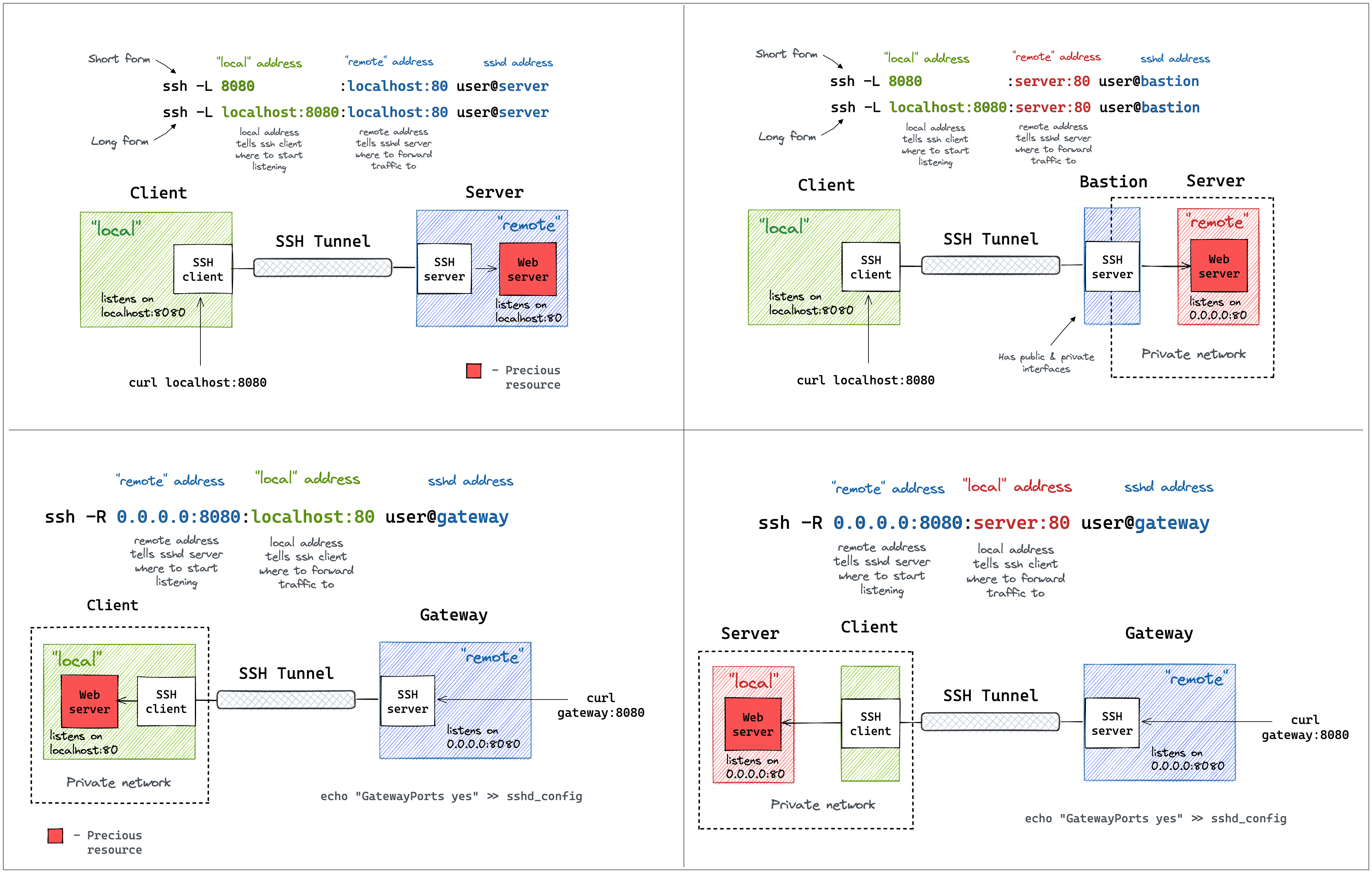
Wstunnel 的命令行模仿了 ssh 隧道的语法。
你可以参考[这篇文章](https://iximiuz.com/en/posts/ssh-tunnels/),或者这张图表来理解
 ### 最简方式
在你的远程主机上,在终端中输入以下命令来启动 wstunnel 服务器
```
wstunnel server wss://[::]:8080
```
这将创建一个监听所有接口上 8080 端口的 websocket 服务器。
在客户端,使用此命令通过 websocket 隧道转发流量
```
wstunnel client -L socks5://127.0.0.1:8888 --connection-min-idle 5 wss://myRemoteHost:8080
```
此命令将创建一个监听回环接口 8888 端口的 socks5 服务器,并动态地转发流量。
`connection-min-idle 10` 是一项优化措施,它会创建一个包含 10 个连接到服务器的连接池,以加快
新隧道的建立速度。
使用 Firefox 时,你可以通过在网络设置中配置 127.0.0.1:8888 并选择
socks5 代理来设置使用此隧道的代理。
确保选中 `Proxy DNS when using SOCKS v5` 选项,以便由服务器来解析 DNS 名称,而不是由你的本地
机器来解析。
或者使用 curl
```
curl -x socks5h://127.0.0.1:8888 http://google.com/
#Please note h after the 5, it is to avoid curl resolving DNS name locally
```
### 作为 SSH 的代理命令
如果你希望将 wstunnel 用作 ssh 代理命令的一部分,你可以在客户端将 `stdio` 指定为源端口
```
ssh -o ProxyCommand="wstunnel client --log-lvl=off -L stdio://%h:%p ws://myRemoteHost:8080" my-server
```
### 处于企业代理后时
另一个实用的例子是当你想要绕过 http 代理(例如企业代理)时
最可靠的方法是如下所述使用 wstunnel
启动 wstunnel 服务器并激活 tls
```
wstunnel server wss://[::]:443 --restrict-to 127.0.0.1:22
```
服务器将监听所有接口上的 443 (https) 端口,并限制流量仅被转发到 ssh
守护进程。
**请注意,服务器将使用带有弱加密算法的自签名证书。
这是为了在保持与 tls 兼容的同时,尽可能减少额外的开销。**
**不要指望 wstunnel 来保护你的隐私,如果你有这方面的顾虑,你应该只转发那些
在设计上就已经是安全的流量(即:https 或 vpn 流量)**
现在在客户端,使用以下命令启动客户端
```
wstunnel client -L tcp://9999:127.0.0.1:22 -p http://mycorporateproxy:8080 wss://myRemoteHost:443
```
它将在 9999 端口上启动一个 tcp 服务器,该服务器将联系企业代理,与远程主机协商 tls 连接
并将流量转发到远程主机上的 ssh 守护进程。
现在你可以使用以下命令从本地机器通过 ssh 访问你的服务器
```
ssh -p 9999 login@127.0.0.1
```
### Wireguard 与 wstunnel
你可以在[这里](https://community.hetzner.com/tutorials/obfuscating-wireguard-using-wstunnel)找到一个完整的[教程](https://community.hetzner.com/tutorials/obfuscating-wireguard-using-wstunnel),解释如何设置 wstunnel 和 wireguard。
如需快速了解,请看下文。
假设你有一个名为 `wg0.conf` 的、可以正常工作的 wireguard 客户端配置。如下所示:
```
[Interface]
Address = 10.200.0.2/32, fd00:cafe::2/128
PrivateKey = xxxxxxxxxxxxxxxxxxxxxxxxxxxxxxxxxxxxxxxxxxx=
[Peer]
PublicKey = 9iicV7Stdl/U0RH1BNf3VvlVjaa4Eus6QPEfEz6cR0c=
AllowedIPs = 0.0.0.0/0, ::/0
Endpoint = my.server.com:51820
```
像这样在 my.server.com 上启动 wstunnel 服务器
```
wstunnel server --restrict-to localhost:51820 wss://[::]:443
```
在你的本地机器上像这样启动客户端
```
wstunnel client -L 'udp://51820:localhost:51820?timeout_sec=0' wss://my.server.com:443
```
将你的 wireguard 客户端配置修改为类似这样
```
[Interface]
Address = 10.200.0.2/32, fd00:cafe::2/128
PrivateKey = xxxxxxxxxxxxxxxxxxxxxxxxxxxxxxxxxxxxxxxxxxx=
# 替换为您的服务器可以访问的 dns
dns = 8.8.8.8
# 使用 https://github.com/nitred/nr-wg-mtu-finder 为您找到最佳的 mtu
MTU = 1400
[Peer]
PublicKey = 9iicV7Stdl/U0RH1BNf3VvlVjaa4Eus6QPEfEz6cR0c=
AllowedIPs = 0.0.0.0/0, ::/0
# 应指向 wstunnel client 正在监听的 port
Endpoint = localhost:51820
# 如果您启用了 wstunnel client websocket ping,则应该没有必要
PersistentKeepalive = 20
```
为你的服务器添加一条默认路由,因为你的 AllowedIps 是全匹配的(catch-all),这是为了避免流量循环。
```
sudo ip route add ip.of.my.server.com dev eth0 via 192.168.0.1
# 将 eth0 (interface) 和 192.168.0.1 (router gateway) 替换为由 `ip route get ip.of.my.server.com` 返回的值
```
启动你的 wireguard,它应该就能正常工作了
```
sudo wg-quick up wg0
ping 10.200.0.1 # ping another ip of your vpn network
```
常见问题解答 (FAQ)
- 禁用默认的 udp 隧道超时设置,该设置会在 30 秒后自动关闭它。 `例如: udp://1212:127.0.0.1:5201?timeout_sec=0`
- 如果你发现了一些吞吐量问题,请务必降低你的 wireguard 接口的 MTU(你可以通过配置文件进行设置),
将其设为 1300 左右,否则你最终会导致 udp 数据报分片(由于其他层的开销造成),这总是会引发问题
- 如果在 wireguard 开启时 wstunnel 无法连接到服务器,请确保你已通过主网关
为 wstunnel 服务器的 IP 添加了静态路由。
否则,如果你在未设定静态路由的情况下转发了所有流量,你最终会使你的流量陷入循环:wireguard 接口 -> wstunnel 客户端 -> wireguard 接口
- 如果你在 Windows 上遇到了运行问题,请查看此 issue
https://github.com/erebe/wstunnel/issues/252
### Android
你可以使用 android 的二进制文件,并使用 termux 在手机上运行它。
如果你需要一份关于如何在 Android 上使用 wstunnel 的指南,你可以跟随这个[指南](https://community.hetzner.com/tutorials/obfuscating-wireguard-using-wstunnel)
### 透明代理(仅限 linux)
透明代理让你能够轻松代理任何程序。
使用以下命令启动 wstunnel
```
sudo wstunnel client -L 'tproxy+tcp://1080' -L 'tproxy+udp://1080' wss://my.server.com:443
```
使用这个项目来无缝路由流量 https://github.com/NOBLES5E/cproxy。它适用于任何程序
```
cproxy --port 1080 --mode tproxy -- curl https://google.com
```
你甚至可以启动一个所有命令都会被代理的新 shell
```
cproxy --port 1080 --mode tproxy -- bash
```
### 反向隧道
使用以下命令启动 wstunnel
```
sudo wstunnel client -R 'tcp://[::]:8000:localhost:8000' wss://my.server.com:443
```
在另一个终端,在你的本地机器上启动一个简单的 web 服务器
```
python3 -m http.server
```
现在你可以从你的 my.server.com 机器/网络中执行以下命令
```
curl http://localhost:8000
```
### 如何保护你的 wstunnel 服务器的访问安全
生成一个密钥(secret),假设为 `h3GywpDrP6gJEdZ6xbJbZZVFmvFZDCa4KcRd`
现在使用以下命令启动你的服务器
```
wstunnel server --restrict-http-upgrade-path-prefix h3GywpDrP6gJEdZ6xbJbZZVFmvFZDCa4KcRd wss://[::]:443
```
并使用以下命令启动你的客户端
```
wstunnel client --http-upgrade-path-prefix h3GywpDrP6gJEdZ6xbJbZZVFmvFZDCa4KcRd ... wss://myRemoteHost
```
现在你的 wstunnel 服务器将仅接受在升级请求期间指定了正确路径前缀的
客户端连接。
如果你需要更多的自定义设置,你可以使用配置文件通过 `--restrict-config` 来指定特定规则。
你可以在[那里](https://github.com/erebe/wstunnel/blob/main/restrictions.yaml)找到限制规则的示例
### 使用 HTTP2 代替 websocket 作为传输协议
仅在你的防火墙/代理阻止了 websocket 时才使用此功能。否则,它的性能不如 websocket。
像往常一样启动你的 wstunnel 服务器
```
wstunnel server wss://[::]:8080
```
在客户端,唯一的区别是需指定 https:// 而不是 wss://
```
wstunnel client -L socks5://127.0.0.1:8888 https://myRemoteHost:8080
```
**警告** 将 HTTP2 作为传输协议更难让其正常工作,原因在于:
- 如果你处于(反向)代理/CDN 之后,它们可能会缓存整个请求后再将其转发给服务器。
Cloudflare 就是这么做的,很显然,这在隧道传输流量时是行不通的
- 如果你的 wstunnel 位于反向代理之后,它们中的大多数(例如:nginx)会将 http2 请求转换为 http1
这将无法工作,因为 http1 本身并不支持流式传输(streaming)
让 HTTP2 正常工作的唯一方法是让你的 wstunnel 服务器直接暴露在互联网上,其前面不要有任何反向代理
此外,你可能还需要调整请求头(例如:content-length 和 content-type),使其看起来像正常流量,以绕过你的防火墙/代理。
某些防火墙可能不喜欢看到未设置 content-length,或者 content-type 设置为 application/octet-stream 的请求
### 最大化你的隐蔽性/让你的流量保持低调
* 在激活 TLS (wss://) 的情况下使用 wstunnel,并使用你自己的证书
* 内置的证书是自签名的,并且所有人使用的都是同一份,因此很容易被指纹识别/标记
* 使用有效的证书(例如:通过 Let's Encrypt),自签名证书是很可疑的
* 使用自定义的 http 路径前缀(参见 `--http-upgrade-path-prefix` 选项)
* 以避免和其他所有 wstunnel 用户使用相同的 URL
* 将你的 tls-sni-override 修改为一个已知被允许的域名(例如:google.com、baidu.com 等...)
* 如果你的 wstunnel 服务器位于反向代理之后(例如:Nginx、Cloudflare、HAProxy 等),这将不起作用
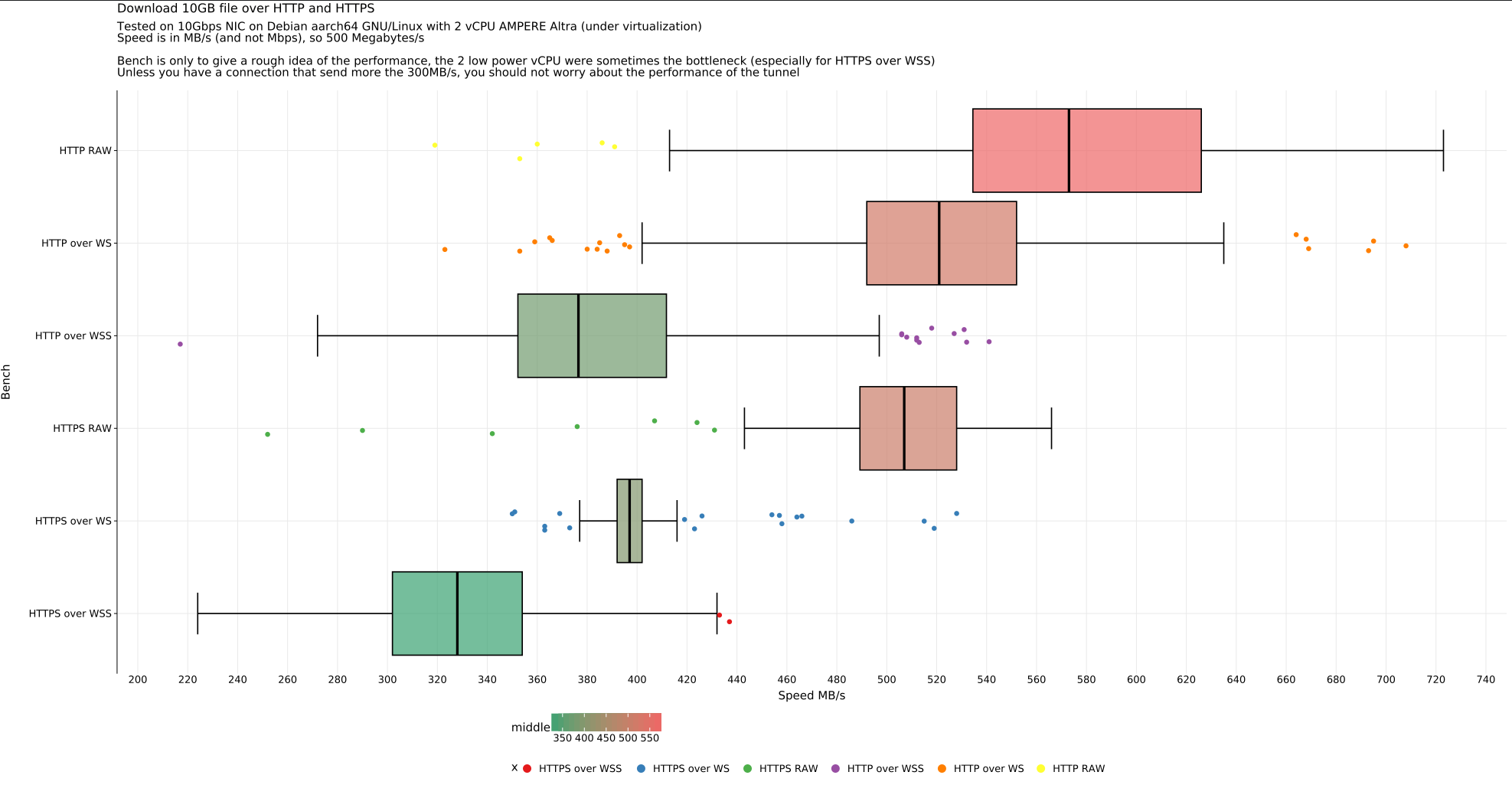
## 基准测试
## 如何构建
安装 Rust https://www.rust-lang.org/tools/install ,或者你是一个 Rust 信徒的话
### 最简方式
在你的远程主机上,在终端中输入以下命令来启动 wstunnel 服务器
```
wstunnel server wss://[::]:8080
```
这将创建一个监听所有接口上 8080 端口的 websocket 服务器。
在客户端,使用此命令通过 websocket 隧道转发流量
```
wstunnel client -L socks5://127.0.0.1:8888 --connection-min-idle 5 wss://myRemoteHost:8080
```
此命令将创建一个监听回环接口 8888 端口的 socks5 服务器,并动态地转发流量。
`connection-min-idle 10` 是一项优化措施,它会创建一个包含 10 个连接到服务器的连接池,以加快
新隧道的建立速度。
使用 Firefox 时,你可以通过在网络设置中配置 127.0.0.1:8888 并选择
socks5 代理来设置使用此隧道的代理。
确保选中 `Proxy DNS when using SOCKS v5` 选项,以便由服务器来解析 DNS 名称,而不是由你的本地
机器来解析。
或者使用 curl
```
curl -x socks5h://127.0.0.1:8888 http://google.com/
#Please note h after the 5, it is to avoid curl resolving DNS name locally
```
### 作为 SSH 的代理命令
如果你希望将 wstunnel 用作 ssh 代理命令的一部分,你可以在客户端将 `stdio` 指定为源端口
```
ssh -o ProxyCommand="wstunnel client --log-lvl=off -L stdio://%h:%p ws://myRemoteHost:8080" my-server
```
### 处于企业代理后时
另一个实用的例子是当你想要绕过 http 代理(例如企业代理)时
最可靠的方法是如下所述使用 wstunnel
启动 wstunnel 服务器并激活 tls
```
wstunnel server wss://[::]:443 --restrict-to 127.0.0.1:22
```
服务器将监听所有接口上的 443 (https) 端口,并限制流量仅被转发到 ssh
守护进程。
**请注意,服务器将使用带有弱加密算法的自签名证书。
这是为了在保持与 tls 兼容的同时,尽可能减少额外的开销。**
**不要指望 wstunnel 来保护你的隐私,如果你有这方面的顾虑,你应该只转发那些
在设计上就已经是安全的流量(即:https 或 vpn 流量)**
现在在客户端,使用以下命令启动客户端
```
wstunnel client -L tcp://9999:127.0.0.1:22 -p http://mycorporateproxy:8080 wss://myRemoteHost:443
```
它将在 9999 端口上启动一个 tcp 服务器,该服务器将联系企业代理,与远程主机协商 tls 连接
并将流量转发到远程主机上的 ssh 守护进程。
现在你可以使用以下命令从本地机器通过 ssh 访问你的服务器
```
ssh -p 9999 login@127.0.0.1
```
### Wireguard 与 wstunnel
你可以在[这里](https://community.hetzner.com/tutorials/obfuscating-wireguard-using-wstunnel)找到一个完整的[教程](https://community.hetzner.com/tutorials/obfuscating-wireguard-using-wstunnel),解释如何设置 wstunnel 和 wireguard。
如需快速了解,请看下文。
假设你有一个名为 `wg0.conf` 的、可以正常工作的 wireguard 客户端配置。如下所示:
```
[Interface]
Address = 10.200.0.2/32, fd00:cafe::2/128
PrivateKey = xxxxxxxxxxxxxxxxxxxxxxxxxxxxxxxxxxxxxxxxxxx=
[Peer]
PublicKey = 9iicV7Stdl/U0RH1BNf3VvlVjaa4Eus6QPEfEz6cR0c=
AllowedIPs = 0.0.0.0/0, ::/0
Endpoint = my.server.com:51820
```
像这样在 my.server.com 上启动 wstunnel 服务器
```
wstunnel server --restrict-to localhost:51820 wss://[::]:443
```
在你的本地机器上像这样启动客户端
```
wstunnel client -L 'udp://51820:localhost:51820?timeout_sec=0' wss://my.server.com:443
```
将你的 wireguard 客户端配置修改为类似这样
```
[Interface]
Address = 10.200.0.2/32, fd00:cafe::2/128
PrivateKey = xxxxxxxxxxxxxxxxxxxxxxxxxxxxxxxxxxxxxxxxxxx=
# 替换为您的服务器可以访问的 dns
dns = 8.8.8.8
# 使用 https://github.com/nitred/nr-wg-mtu-finder 为您找到最佳的 mtu
MTU = 1400
[Peer]
PublicKey = 9iicV7Stdl/U0RH1BNf3VvlVjaa4Eus6QPEfEz6cR0c=
AllowedIPs = 0.0.0.0/0, ::/0
# 应指向 wstunnel client 正在监听的 port
Endpoint = localhost:51820
# 如果您启用了 wstunnel client websocket ping,则应该没有必要
PersistentKeepalive = 20
```
为你的服务器添加一条默认路由,因为你的 AllowedIps 是全匹配的(catch-all),这是为了避免流量循环。
```
sudo ip route add ip.of.my.server.com dev eth0 via 192.168.0.1
# 将 eth0 (interface) 和 192.168.0.1 (router gateway) 替换为由 `ip route get ip.of.my.server.com` 返回的值
```
启动你的 wireguard,它应该就能正常工作了
```
sudo wg-quick up wg0
ping 10.200.0.1 # ping another ip of your vpn network
```
常见问题解答 (FAQ)
- 禁用默认的 udp 隧道超时设置,该设置会在 30 秒后自动关闭它。 `例如: udp://1212:127.0.0.1:5201?timeout_sec=0`
- 如果你发现了一些吞吐量问题,请务必降低你的 wireguard 接口的 MTU(你可以通过配置文件进行设置),
将其设为 1300 左右,否则你最终会导致 udp 数据报分片(由于其他层的开销造成),这总是会引发问题
- 如果在 wireguard 开启时 wstunnel 无法连接到服务器,请确保你已通过主网关
为 wstunnel 服务器的 IP 添加了静态路由。
否则,如果你在未设定静态路由的情况下转发了所有流量,你最终会使你的流量陷入循环:wireguard 接口 -> wstunnel 客户端 -> wireguard 接口
- 如果你在 Windows 上遇到了运行问题,请查看此 issue
https://github.com/erebe/wstunnel/issues/252
### Android
你可以使用 android 的二进制文件,并使用 termux 在手机上运行它。
如果你需要一份关于如何在 Android 上使用 wstunnel 的指南,你可以跟随这个[指南](https://community.hetzner.com/tutorials/obfuscating-wireguard-using-wstunnel)
### 透明代理(仅限 linux)
透明代理让你能够轻松代理任何程序。
使用以下命令启动 wstunnel
```
sudo wstunnel client -L 'tproxy+tcp://1080' -L 'tproxy+udp://1080' wss://my.server.com:443
```
使用这个项目来无缝路由流量 https://github.com/NOBLES5E/cproxy。它适用于任何程序
```
cproxy --port 1080 --mode tproxy -- curl https://google.com
```
你甚至可以启动一个所有命令都会被代理的新 shell
```
cproxy --port 1080 --mode tproxy -- bash
```
### 反向隧道
使用以下命令启动 wstunnel
```
sudo wstunnel client -R 'tcp://[::]:8000:localhost:8000' wss://my.server.com:443
```
在另一个终端,在你的本地机器上启动一个简单的 web 服务器
```
python3 -m http.server
```
现在你可以从你的 my.server.com 机器/网络中执行以下命令
```
curl http://localhost:8000
```
### 如何保护你的 wstunnel 服务器的访问安全
生成一个密钥(secret),假设为 `h3GywpDrP6gJEdZ6xbJbZZVFmvFZDCa4KcRd`
现在使用以下命令启动你的服务器
```
wstunnel server --restrict-http-upgrade-path-prefix h3GywpDrP6gJEdZ6xbJbZZVFmvFZDCa4KcRd wss://[::]:443
```
并使用以下命令启动你的客户端
```
wstunnel client --http-upgrade-path-prefix h3GywpDrP6gJEdZ6xbJbZZVFmvFZDCa4KcRd ... wss://myRemoteHost
```
现在你的 wstunnel 服务器将仅接受在升级请求期间指定了正确路径前缀的
客户端连接。
如果你需要更多的自定义设置,你可以使用配置文件通过 `--restrict-config` 来指定特定规则。
你可以在[那里](https://github.com/erebe/wstunnel/blob/main/restrictions.yaml)找到限制规则的示例
### 使用 HTTP2 代替 websocket 作为传输协议
仅在你的防火墙/代理阻止了 websocket 时才使用此功能。否则,它的性能不如 websocket。
像往常一样启动你的 wstunnel 服务器
```
wstunnel server wss://[::]:8080
```
在客户端,唯一的区别是需指定 https:// 而不是 wss://
```
wstunnel client -L socks5://127.0.0.1:8888 https://myRemoteHost:8080
```
**警告** 将 HTTP2 作为传输协议更难让其正常工作,原因在于:
- 如果你处于(反向)代理/CDN 之后,它们可能会缓存整个请求后再将其转发给服务器。
Cloudflare 就是这么做的,很显然,这在隧道传输流量时是行不通的
- 如果你的 wstunnel 位于反向代理之后,它们中的大多数(例如:nginx)会将 http2 请求转换为 http1
这将无法工作,因为 http1 本身并不支持流式传输(streaming)
让 HTTP2 正常工作的唯一方法是让你的 wstunnel 服务器直接暴露在互联网上,其前面不要有任何反向代理
此外,你可能还需要调整请求头(例如:content-length 和 content-type),使其看起来像正常流量,以绕过你的防火墙/代理。
某些防火墙可能不喜欢看到未设置 content-length,或者 content-type 设置为 application/octet-stream 的请求
### 最大化你的隐蔽性/让你的流量保持低调
* 在激活 TLS (wss://) 的情况下使用 wstunnel,并使用你自己的证书
* 内置的证书是自签名的,并且所有人使用的都是同一份,因此很容易被指纹识别/标记
* 使用有效的证书(例如:通过 Let's Encrypt),自签名证书是很可疑的
* 使用自定义的 http 路径前缀(参见 `--http-upgrade-path-prefix` 选项)
* 以避免和其他所有 wstunnel 用户使用相同的 URL
* 将你的 tls-sni-override 修改为一个已知被允许的域名(例如:google.com、baidu.com 等...)
* 如果你的 wstunnel 服务器位于反向代理之后(例如:Nginx、Cloudflare、HAProxy 等),这将不起作用
## 基准测试

## 如何构建
安装 Rust https://www.rust-lang.org/tools/install ,或者你是一个 Rust 信徒的话
标签:HTTP2, Rust, WebSocket, 依赖分析, 可视化界面, 安全合规, 底层编程, 网络代理, 网络工具, 网络流量审计, 网络隧道, 通知系统