angolo40/mikrocata2selks
GitHub: angolo40/mikrocata2selks
该项目提供了一套自动化安装脚本,将 Mikrotik 路由器与基于 Suricata 的 Clear NDR 系统集成,实现网络流量镜像监控、威胁检测和自动拦截告警。
Stars: 164 | Forks: 25
Welcome to Mikrocata2SELKS 👋


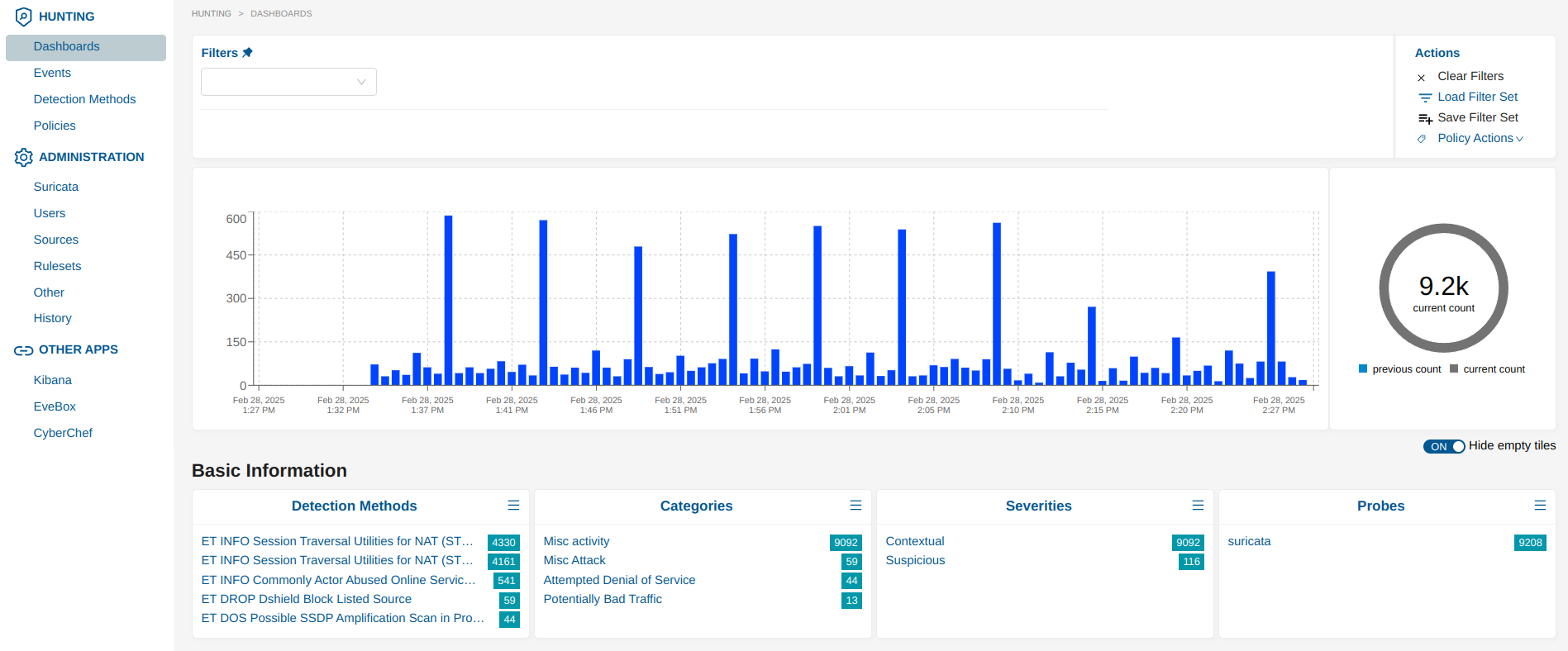
## 📋 简介
Mikrocata2SELKS 是一个精简的解决方案,用于将 Mikrotik 设备与强大的网络检测与响应(NDR)系统集成,以进行数据包分析。
它自动化了设置过程,并实现了高效的网络流量监控和威胁检测。
**重要更新**:Stamus Networks 已经移除了 SELKS 仓库 (https://github.com/StamusNetworks/SELKS.git)。因此,本项目现在专门支持 **Clear NDR**(SELKS 的演进版本)。不再提供 SELKS 安装。
```
graph LR
A[Mikrotik Router] -->|TZSP Traffic| B[Mikrocata]
B -->|Analysis| C[Clear NDR - Suricata on OpenSearch]
C --> D[Telegram Notifications]
C --> E[Firewall Rules]
```
**最低要求:**
- 4 个 CPU 核心
- 10 GB 可用 RAM
- 至少 10 GB 可用磁盘空间(实际磁盘使用量主要取决于规则数量和网络上的流量大小 - 建议使用 200GB+ 的 SSD 级别硬盘)。
## 📚 文档
如需包含详细说明、屏幕截图和故障排除提示的全面分步安装指南,请访问:
[完整安装指南](https://www.sec-ttl.com/mikrocata2selks-integrating-mikrotik-with-suricata-for-network-security/)
## 🚀 安装
安装过程现在完全是交互式的!
1. 在专用机器(服务器或虚拟机)上全新安装 Debian 12。
2. 以 root 用户登录。
3. 安装 Git:`apt install git`。
4. 克隆此仓库:`git clone https://github.com/angolo40/mikrocata2selks.git`。
5. 导航至仓库目录:`cd mikrocata2selks`。
6. 运行交互式安装程序:`./easyinstall.sh`。
7. 按照屏幕上的菜单操作:
- **安装 Clear NDR**:安装程序将设置支持一台 Mikrotik 设备的 Clear NDR。
- **配置**:脚本会提示您输入必要的信息,例如安装路径。
- **等待...**:脚本将处理其余的工作。
8. 完成后,使用您的 Mikrotik 和 Telegram 参数编辑配置文件(例如 `/usr/local/bin/mikrocataTZSP0.py`),然后重新加载服务(例如 `systemctl restart mikrocataTZSP0.service`)。
9. 如下所述配置您的 Mikrotik 设备。
## 📡 Mikrotik 设置
1. 启用 sniffer:
/tool/sniffer/set filter-stream=yes streaming-enabled=yes streaming-server=[YOURDEBIANIP]:37008
/tool/sniffer/start
2. 添加防火墙规则:
/ip/firewall/raw/add action=drop chain=prerouting comment="IPS-drop_in_bad_traffic" src-address-list=Suricata
/ip/firewall/raw/add action=drop chain=prerouting comment="IPS-drop_out_bad_traffic" dst-address-list=Suricata
/ipv6/firewall/raw/add action=drop chain=prerouting comment="IPS-drop_in_bad_traffic" src-address-list=Suricata
/ipv6/firewall/raw/add action=drop chain=prerouting comment="IPS-drop_out_bad_traffic" dst-address-list=Suricata
3. 启用 Mikrotik API:
您有两个选项:
- 对于 SSL 连接(推荐):
/ip/service/set api-ssl address=[DEBIANIP]
- 对于非 SSL 连接(默认设置):
/ip/service/set api address=[DEBIANIP]
然后在 mikrocata.py 中配置相应的设置:
USE_SSL = True # Set to False for non-SSL connection
PORT = 8728 # Default port for non-SSL. Will use 8729 if USE_SSL is True
ALLOW_SELF_SIGNED_CERTS = False # Set to True only if using self-signed certificates
4. 在 Mikrotik 中添加 Mikrocata 用户:
/user/add name=mikrocata2selks password=xxxxxxxxxxxxx group=full (change password)
## ⚙️ Mikrocata 配置
安装完成后,您需要使用特定的设置来配置 Mikrocata 脚本。编辑配置文件:
```
nano /usr/local/bin/mikrocataTZSP0.py
```
### 核心设置
1. **Mikrotik 连接:**
USERNAME = "mikrocata2selks" # Mikrotik username
PASSWORD = "password" # Mikrotik password
ROUTER_IP = "192.168.0.1" # Mikrotik IP address
2. **Telegram 通知(可选):**
enable_telegram = True
TELEGRAM_TOKEN = "your_bot_token"
TELEGRAM_CHATID = "your_chat_id"
3. **时区配置:**
# 设置您的时区偏移(以小时为单位,相对于 UTC)
TIMEZONE_OFFSET = 3 # Example: 3 for UTC+3 (Moscow), -5 for UTC-5 (EST), 0 for UTC
此设置可确保 Telegram 通知和 MikroTik 注释中的时间戳显示为您当地的时区,而不是 UTC。
**常见时区:**
- `0` - UTC
- `1` - CET(中欧时间)
- `3` - MSK(莫斯科标准时间)
- `-5` - EST(东部标准时间)
- `-8` - PST(太平洋标准时间)
- `8` - CST(中国标准时间)
编辑配置后,重启服务:
```
systemctl restart mikrocataTZSP0.service
```
## 🛠️ 处理多个 Mikrotik 设备
**官方支持**:Clear NDR 安装官方支持**一台 Mikrotik 设备**。安装程序将自动配置单设备设置。
**手动多设备配置**:虽然 SELKS 以前开箱即支持多个 Mikrotik 设备,但现在仍可以使用 Clear NDR 配置多台设备,不过这必须**手动**完成。手动多设备设置的文档将整合到未来的更新中。
作为参考,多设备设置将涉及:
- 在不同端口(`37009`、`37010` 等)上创建额外的 dummy 接口(`tzsp1`、`tzsp2` 等)
- 创建相应的 Mikrocata 服务实例(`mikrocataTZSP1.py`、`mikrocataTZSP2.py` 等)
- 配置每台 Mikrotik 设备将流量发送到其专用端口
如果您需要管理多台 Mikrotik 设备,请等待官方文档或联系维护者获取帮助。
```
flowchart TD
subgraph Mikrotik_Devices
M0[Mikrotik0 Port:37008]
M1[Mikrotik1 Port:37009]
M2[Mikrotik2 Port:37010]
end
subgraph Debian_Server ["Debian Server (Clean NDR)"]
subgraph Interfaces
I0[Interface:tzsp0 Port:37008]
I1[Interface:tzsp1 Port:37009]
I2[Interface:tzsp2 Port:37010]
end
subgraph Mikrocata_Services
S0[mikrocataTZSP0.py]
S1[mikrocataTZSP1.py]
S2[mikrocataTZSP2.py]
end
subgraph Analysis
suricata[Suricata IDS/IPS\nDocker Container]
telegram[Telegram\nNotifications]
end
end
M0 -->|TZSP Traffic| I0
M1 -->|TZSP Traffic| I1
M2 -->|TZSP Traffic| I2
I0 -->|Packet Analysis| S0
I1 -->|Packet Analysis| S1
I2 -->|Packet Analysis| S2
S0 -->|Alerts| suricata
S1 -->|Alerts| suricata
S2 -->|Alerts| suricata
suricata -->|Block Notifications| telegram
style Debian_Server fill:#f5f5f5,stroke:#333,stroke-width:2px
style Mikrotik_Devices fill:#e1f5fe,stroke:#333,stroke-width:2px
style Analysis fill:#e8f5e9,stroke:#333,stroke-width:2px
```
## 💡 功能特性
- 安装 Docker 和 Docker Compose。
- 安装 Python。
- 安装 **Clear NDR**:下一代开源 NDR 平台。
- **注意**:由于 Stamus Networks 移除了仓库,不再支持 SELKS。
- 下载并安装 Mikrocata。
- 安装用于数据包捕获的 TZSP 接口。
- 当 IP 被封锁时,启用通过 Telegram 的通知。
- 包含完整的卸载选项。
## 🔄 更新日志
- 查看 CHANGELOG.md
## 🔧 故障排除
- 检查数据包是否通过 dummy 接口从 Mikrotik 到达虚拟机:
tcpdump -i tzsp0
- 检查 mikrocata 服务和 tzsp0 接口是否已启动并运行:
systemctl status mikrocataTZSP0.service
systemctl status TZSPreplay37008@tzsp0.service
- 检查 Suricata Docker 容器是否已启动并运行:
docker logs -f suricata
如果 suricata 显示 'Fatal glibc error: CPU does not support x86-64-v2' 并且您使用的是 Proxmox VE,请将 CPU 处理器设置为 HOST
## 📝 注意事项
- 访问 Clear NDR Web 界面:
- URL:`https://[YOURDEBIANIP]`
- 用户名:clearndr
- 密码:clearndr
## 👤 作者
**Giuseppe Trifilio**
- [网站](https://github.com/angolo40/mikrocata2selks)
- [GitHub](https://github.com/angolo40)
灵感来自 [zzbe/mikrocata](https://github.com/zzbe/mikrocata)。
## 🤝 贡献
欢迎贡献、提问和功能请求!请查看 [问题页面](https://github.com/angolo40/mikrocata2selks)。
## 🌟 展示您的支持
如果这个项目对您有帮助,请给一个 ⭐️!
- **XMR**:`87LLkcvwm7JUZAVjusKsnwNRPfhegxe73X7X3mWXDPMnTBCb6JDFnspbN8qdKZA6StHXqnJxMp3VgRK7DcS2sgnW3wH7Xhw`
标签:Metaprompt, MikroTik, Suricata, 入侵检测系统, 安全数据湖, 版权保护, 特权提升, 现代安全运营, 网络检测与响应, 自动化部署, 请求拦截, 逆向工具