realm/SwiftLint
GitHub: realm/SwiftLint
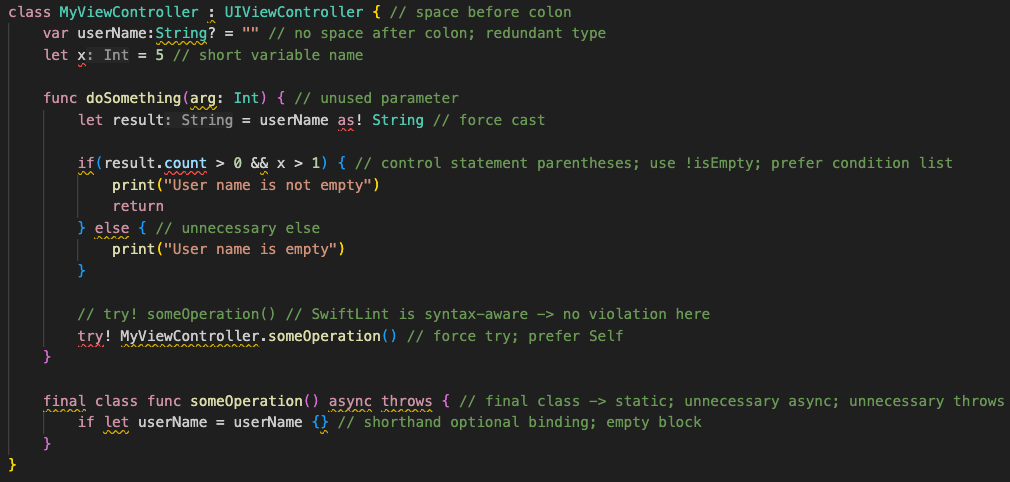
SwiftLint 是一个用于强制执行 Swift 代码风格和约定的静态分析工具,帮助团队保持代码一致性。
Stars: 19633 | Forks: 2306
# SwiftLint
一款用于强制执行 Swift 风格和约定的工具 loosely based on the now
archived [GitHub Swift Style Guide](https://github.com/github/swift-style-guide)。
SwiftLint 强制执行 Swift 社区普遍接受的风暴指南规则。这些规则在
流行的风格指南中有详细描述,例如
[Kodeco's Swift Style Guide](https://github.com/kodecocodes/swift-style-guide)。
SwiftLint 规则主要基于 [SwiftSyntax](https://github.com/swiftlang/swift-syntax)。
有些规则仍然挂钩到 [Clang](http://clang.llvm.org) 和
[SourceKit](http://www.jpsim.com/uncovering-sourcekit) 以访问类型信息。
[](https://swiftpackageindex.com/realm/SwiftLint)
[](https://swiftpackageindex.com/realm/SwiftLint)
[](https://buildkite.com/swiftlint/swiftlint)
本项目遵循
[Contributor Covenant Code of Conduct](https://realm.io/conduct)。
参与其中,即表示您同意维护本行为准则。
## 视频介绍
要大致了解 SwiftLint,我们建议您观看此
由 JP Simard 于 2017 年 1 月 9 日录制的演示文稿(提供文字记录):
[](https://youtu.be/9Z1nTMTejqU)
## 安装
### [Swift Package Manager](https://github.com/apple/swift-package-manager)
SwiftLint 可以用作[命令插件](#swift-package-command-plugin)
或[构建工具插件](#build-tool-plugins)。
将
```
.package(url: "https://github.com/SimplyDanny/SwiftLintPlugins", from: "")
```
添加到您的 `Package.swift` 文件中,以自动使用 SwiftLint 的最新版本,
或将依赖项固定到特定版本:
```
.package(url: "https://github.com/SimplyDanny/SwiftLintPlugins", exact: "")
```
其中,将 `` 替换为所需的最低版本或精确版本。
### [Xcode Package Dependency](https://developer.apple.com/documentation/xcode/adding-package-dependencies-to-your-app)
使用以下链接将 SwiftLint 添加为 Xcode
项目的包依赖项:
```
https://github.com/SimplyDanny/SwiftLintPlugins
```
### [Homebrew](http://brew.sh)
```
brew install swiftlint
```
### [CocoaPods](https://cocoapods.org)
将以下内容添加到您的 `Podfile`:
```
pod 'SwiftLint'
```
这将在下次执行 `pod install` 时将 SwiftLint 二进制文件及其依赖项下载到 `Pods/` 中,
并允许您通过
`${PODS_ROOT}/SwiftLint/swiftlint` 在脚本构建阶段调用它。
通过 CocoaPods 安装还支持固定到特定版本的
SwiftLint,而不仅仅是最新版本(这是
[Homebrew](#homebrew) 的情况)。
请注意,这会将 SwiftLint 二进制文件、其依赖项的二进制文件以及
Swift 二进制库分发添加到 `Pods/` 目录,因此将此目录签入
Git 等 SCM 是不推荐的。
### [Mint](https://github.com/yonaskolb/mint)
```
mint install realm/SwiftLint
```
### [Bazel](https://bazel.build)
将此放入您的 `MODULE.bazel`:
```
bazel_dep(name = "swiftlint", version = "0.52.4", repo_name = "SwiftLint")
```
或将此放入您的 `WORKSPACE`:
然后您可以使用以下命令在当前目录中运行 SwiftLint:
```
bazel run -c opt @SwiftLint//:swiftlint
```
### 预构建包
从
[最新 GitHub 版本](https://github.com/realm/SwiftLint/releases/latest) 下载 `SwiftLint.pkg` 并
运行它。
### 从源码构建
确保已安装构建工具 [Bazel](https://bazel.build) 和
最新的 [Swift toolchain](https://www.swift.org/download/),
并且所有工具都在您的 `PATH` 中可被发现。
要构建 SwiftLint,请克隆此仓库并运行 `make install`。
## 设置
### 构建工具插件
SwiftLint 可以用作
[Swift Package 项目](#swift-package-projects)
和 [Xcode 项目](#xcode-projects) 的构建工具插件。
构建工具插件通过在包/项目目录中定位最顶层的配置文件来确定 SwiftLint 工作目录。
如果在该目录中未找到配置文件,则使用包/项目目录作为工作目录。
当插件无法解析 SwiftLint 工作目录时会抛出错误。例如,当 Xcode 项目中目标的
Swift 文件不在项目目录内时会发生这种情况。
为最大程度地与插件兼容,请避免使用需要 `--config` 选项的项目结构。
### Swift Package 项目
构建工具插件在构建每个目标时运行。当项目有多个
目标时,必须将插件单独添加到所需的目标。
为此,请将插件添加到要检查的目标,如下所示:
```
.target(
...
plugins: [.plugin(name: "SwiftLintBuildToolPlugin", package: "SwiftLintPlugins")]
),
```
### Swift Package 命令插件
命令插件支持从命令行运行 SwiftLint,如下所示:
```
swift package plugin swiftlint
```
### Xcode 项目
构建工具插件作为每个目标的构建阶段运行。当项目有多个
目标时,必须将插件单独添加到所需的目标。
为此,请将 `SwiftLintBuildToolPlugin` 添加到要检查的目标的
`Build Phases` 中的 `Run Build Tool Plug-ins` 阶段。
对于无人值守使用(例如在 CI 上),可以使用以下任一方式
禁用包插件和宏验证:
* 使用 `xcodebuild` 选项:
-skipPackagePluginValidation
-skipMacroValidation
* 设置 Xcode 默认值:
defaults write com.apple.dt.Xcode IDESkipPackagePluginFingerprintValidatation -bool YES
defaults write com.apple.dt.Xcode IDESkipMacroFingerprintValidation -bool YES
#### 意外的 Xcode 项目结构
SwiftLint 配置文件位于
包/项目目录之外的项目结构不受构建工具插件的直接支持。
这是因为无法向构建工具插件传递参数(例如,传递配置文件路径)。
如果您的项目结构不能直接与构建工具插件配合使用,请考虑以下选项之一:
* 要使用位于包/项目目录之外的配置文件,可以向该目录添加一个配置文件,
指定指向其他配置文件的父配置路径,例如 `parent_config: path/to/.swiftlint.yml`。
* 您也可以考虑使用
[Run Script Build Phase](#xcode-run-script-build-phase) 来代替构建
工具插件。
### Xcode 运行脚本构建阶段
如果构建工具插件不适用于您的项目设置或需要
其他自定义设置,SwiftLint 可以作为运行脚本构建阶段添加。
当项目设置依赖于 `--config` SwiftLint 选项时,这很有用;
或者在单个 `swiftlint` 调用中检查所有目标。文件包含和排除可以在
[`.swiftlint.yml` 配置](#configuration) 中配置。
为此,请在主应用目标的 `Build Phases` 的 `Run Script` 阶段中
(在 `Compile Sources` 阶段之后)添加自定义脚本。使用
以下脚本实现:
```
if command -v swiftlint >/dev/null 2>&1
then
swiftlint
else
echo "warning: `swiftlint` command not found - See https://github.com/realm/SwiftLint#installation for installation instructions."
fi
```
如果您在 Swift 包中使用了 SwiftLintPlugin,
可以通过以下方式引用 `swiftlint` 可执行文件:
```
SWIFT_PACKAGE_DIR="${SWIFT_PACKAGE_DIR:-${BUILD_DIR%Build/*}SourcePackages}"
SWIFTLINT_CMD="$SWIFT_PACKAGE_DIR/artifacts/swiftlintplugins/SwiftLintBinary/SwiftLintBinary.artifactbundle/macos/swiftlint"
if test -f "$SWIFTLINT_CMD" 2>&1
then
"$SWIFTLINT_CMD"
else
echo "warning: `swiftlint` command not found - See https://github.com/realm/SwiftLint#xcode-run-script-build-phase for installation instructions."
fi
```
#### Xcode 15.0 的注意事项
Xcode 15 做了一个重大更改,将
`ENABLE_USER_SCRIPT_SANDBOXING` 构建设置的默认值从 `NO` 改为 `YES`。
因此,SwiftLint 遇到与缺少文件权限相关的错误,通常表现为
`error: Sandbox: swiftlint(19427) deny(1) file-read-data.`
要解决此问题,需要为配置 SwiftLint 的特定目标手动将
`ENABLE_USER_SCRIPT_SANDBOXING` 设置为 `NO`。
#### Apple Silicon 的注意事项
如果您通过 Homebrew 在 Apple Silicon 上安装了 SwiftLint,可能会遇到
以下警告:
```
warning: SwiftLint not installed, download from https://github.com/realm/SwiftLint
```
这是因为 Apple Silicon 上的 Homebrew 默认将二进制文件安装到
`/opt/homebrew/bin` 文件夹。要指示 Xcode 在哪里找到
SwiftLint,您可以在构建阶段的 `PATH` 环境变量中添加 `/opt/homebrew/bin`:
```
if [[ "$(uname -m)" == arm64 ]]
then
export PATH="/opt/homebrew/bin:$PATH"
fi
if command -v swiftlint >/dev/null 2>&1
then
swiftlint
else
echo "warning: `swiftlint` command not found - See https://github.com/realm/SwiftLint#installation for installation instructions."
fi
```
或者您可以在 `/usr/local/bin` 中创建指向实际二进制文件的符号链接:
```
ln -s /opt/homebrew/bin/swiftlint /usr/local/bin/swiftlint
```
#### 其他注意事项
如果您还想修复违规,您的脚本可以运行
`swiftlint --fix && swiftlint` 而不是仅运行 `swiftlint`。这意味着
所有可纠正的违规都会被修复,同时确保警告会显示在您的项目中以提醒剩余的违规。
如果您通过 CocoaPods 安装了 SwiftLint,脚本应该如下所示:
```
"${PODS_ROOT}/SwiftLint/swiftlint"
```
### Visual Studio Code
要将 SwiftLint 与 [Visual Studio Code](https://code.visualstudio.com) 集成,请从市场安装
[`vscode-swiftlint`](https://marketplace.visualstudio.com/items?itemName=vknabel.vscode-swiftlint)
扩展。
### Fastlane
您可以使用官方
[`swiftlint` fastlane action](https://docs.fastlane.tools/actions/swiftlint)
在 fastlane 流程中运行 SwiftLint。
```
swiftlint(
mode: :lint, # SwiftLint mode: :lint (default) or :autocorrect
executable: "Pods/SwiftLint/swiftlint", # The SwiftLint binary path (optional). Important if you've installed it via CocoaPods
path: "/path/to/lint", # Specify path to lint (optional)
output_file: "swiftlint.result.json", # The path of the output file (optional)
reporter: "json", # The custom reporter to use (optional)
config_file: ".swiftlint-ci.yml", # The path of the configuration file (optional)
files: [ # List of files to process (optional)
"AppDelegate.swift",
"path/to/project/Model.swift"
],
ignore_exit_status: true, # Allow fastlane to continue even if SwiftLint returns a non-zero exit status (Default: false)
quiet: true, # Don't print status logs like 'Linting ' & 'Done linting' (Default: false)
strict: true # Fail on warnings? (Default: false)
)
```
### Docker
SwiftLint 也可以使用 `Ubuntu` 作为 [Docker](https://www.docker.com/) 镜像使用。
因此在第一次需要使用以下命令拉取 docker 镜像:
```
docker pull ghcr.io/realm/swiftlint:latest
```
之后,您只需在 docker 中运行 `swiftlint`,如下所示:
```
docker run -it -v `pwd`:`pwd` -w `pwd` ghcr.io/realm/swiftlint:latest
```
这将在您当前所在的文件夹(`pwd`)中执行 `swiftlint`,输出如下:
```
$ docker run -it -v `pwd`:`pwd` -w `pwd` ghcr.io/realm/swiftlint:latest
Linting Swift files in current working directory
Linting 'RuleDocumentation.swift' (1/490)
...
Linting 'YamlSwiftLintTests.swift' (490/490)
Done linting! Found 0 violations, 0 serious in 490 files.
```
这里有更多关于
[Docker 镜像](https://docs.docker.com/) 使用的文档。
## 命令行用法
```
$ swiftlint help
OVERVIEW: A tool to enforce Swift style and conventions.
USAGE: swiftlint
OPTIONS:
--version Show the version.
-h, --help Show help information.
SUBCOMMANDS:
analyze Run analysis rules
docs Open SwiftLint documentation website in the default web browser
generate-docs Generates markdown documentation for selected group of rules
lint (default) Print lint warnings and errors
baseline Operations on existing baselines
reporters Display the list of reporters and their identifiers
rules Display the list of rules and their identifiers
version Display the current version of SwiftLint
See 'swiftlint help ' for detailed help.
```
在包含要检查的 Swift 文件的目录中运行 `swiftlint`。目录将被递归搜索。
要在使用 `lint` 或 `analyze` 时指定文件列表
(如 [ExtraBuildPhase](https://github.com/norio-nomura/ExtraBuildPhase) Xcode
插件指定的由 Xcode 修改的文件列表,或基于 `git ls-files -m` 的工作树中修改的文件),您可以通过
传递选项 `--use-script-input-files` 并设置以下实例变量来实现:
`SCRIPT_INPUT_FILE_COUNT`
以及 `SCRIPT_INPUT_FILE_0`、`SCRIPT_INPUT_FILE_1`、...、
`SCRIPT_INPUT_FILE_{SCRIPT_INPUT_FILE_COUNT - 1}`。
同样,可以通过传递
选项 `--use-script-input-file-lists` 并设置以下实例变量来从文件列表中读取文件:
`SCRIPT_INPUT_FILE_LIST_COUNT`
以及 `SCRIPT_INPUT_FILE_LIST_0`、`SCRIPT_INPUT_FILE_LIST_1`、...、
`SCRIPT_INPUT_FILE_LIST_{SCRIPT_INPUT_FILE_LIST_COUNT - 1}`。
这些是针对
[自定义 Xcode 脚本阶段](http://indiestack.com/2014/12/speeding-up-custom-script-phases/) 的输入文件设置的环境变量。
## 使用多个 Swift 版本
SwiftLint 挂钩到 SourceKit,因此即使 Swift 不断演进,它也能继续工作!
这 also keeps SwiftLint lean,因为它不需要附带完整的 Swift
编译器,只需与您已安装在机器上的官方编译器通信。
您应该始终使用与编译代码相同的 toolchain 来运行 SwiftLint。
如果您安装了多个 toolchain 或 Xcode,您可能需要覆盖 SwiftLint 的默认 Swift toolchain。
以下是 SwiftLint 确定使用哪个 Swift toolchain 的顺序:
* `$XCODE_DEFAULT_TOOLCHAIN_OVERRIDE`
* `$TOOLCHAIN_DIR` 或 `$TOOLCHAINS`
* `xcrun -find swift`
* `/Applications/Xcode.app/Contents/Developer/Toolchains/XcodeDefault.xctoolchain`
* `/Applications/Xcode-beta.app/Contents/Developer/Toolchains/XcodeDefault.xctoolchain`
* `~/Applications/Xcode.app/Contents/Developer/Toolchains/XcodeDefault.xctoolchain`
* `~/Applications/Xcode-beta.app/Contents/Developer/Toolchains/XcodeDefault.xctoolchain`
`sourcekitd.framework` 预期在上述路径的 `usr/lib/` 子目录中找到。
您也可以将 `TOOLCHAINS` 环境变量设置为标识 Swift toolchain 版本的反向 DNS
表示法:
```
TOOLCHAINS=com.apple.dt.toolchain.Swift_2_3 swiftlint --fix
```
在 Linux 上,SourceKit 预期位于
`/usr/lib/libsourcekitdInProc.so` 或通过 `LINUX_SOURCEKIT_LIB_PATH`
环境变量指定。
## Git `pre-commit` 钩子
SwiftLint 可以作为 [pre-commit](https://pre-commit.com/) 钩子运行。
[安装](https://pre-commit.com/#install) 后,将以下内容添加到
仓库根目录的 `.pre-commit-config.yaml`:
```
repos:
- repo: https://github.com/realm/SwiftLint
rev: 0.57.1
hooks:
- id: swiftlint
```
调整 `rev` 为您选择的 SwiftLint 版本。`pre-commit autoupdate`
可用于更新到当前版本。
SwiftLint 可以使用 `entry` 配置为应用修复并在错误时失败:
```
- repo: https://github.com/realm/SwiftLint
rev: 0.57.1
hooks:
- id: swiftlint
entry: swiftlint --fix --strict
```
## 规则
SwiftLint 包含 200 多条规则,Swift 社区(也就是您!)continues
随着时间的推移贡献更多。
欢迎提交 [Pull requests](https://github.com/realm/SwiftLint/blob/main/CONTRIBUTING.md)。
您可以在
[规则目录](https://realm.github.io/SwiftLint/rule-directory.html) 中找到更新的规则列表和更多信息。
您还可以查看
[Source/SwiftLintBuiltInRules/Rules](https://github.com/realm/SwiftLint/tree/main/Source/SwiftLintBuiltInRules/Rules)
目录以了解其实现。
### 选择性规则
`opt_in_rules` 默认禁用(即您必须在配置文件中明确启用它们)。
将规则标记为 opt-in 的指南:
* 可能产生很多误报的规则(例如 `empty_count`)
* 太慢的规则
* 不是普遍共识或仅在某些情况下有用的规则(例如 `force_unwrapping`)
### 在代码中禁用规则
规则可以使用以下格式的注释在源文件中禁用:
`// swiftlint:disable [ ...]`
规则将在文件末尾之前禁用,或者直到检查器看到匹配的启用注释:
`// swiftlint:enable [ ...]`
例如:
```
// swiftlint:disable colon
let noWarning :String = "" // No warning about colons immediately after variable names.
// swiftlint:enable colon
let hasWarning :String = "" // Warning generated about colons immediately after variable names.
```
包含 `all` 关键字将禁用所有规则,直到检查器看到匹配的启用注释:
`// swiftlint:disable all`
`// swiftlint:enable all`
例如:
```
// swiftlint:disable all
let noWarning :String = "" // No warning about colons immediately after variable names.
let i = "" // Also no warning about short identifier names.
// swiftlint:enable all
let hasWarning :String = "" // Warning generated about colons immediately after variable names.
let y = "" // Warning generated about short identifier names.
```
还可以通过附加 `:previous`、`:this` 或 `:next` 来修改 `disable` 或 `enable` 命令,
以仅分别应用于上一行、当前行或下一行。
例如:
```
// swiftlint:disable:next force_cast
let noWarning = NSNumber() as! Int
let hasWarning = NSNumber() as! Int
let noWarning2 = NSNumber() as! Int // swiftlint:disable:this force_cast
let noWarning3 = NSNumber() as! Int
// swiftlint:disable:previous force_cast
```
运行 `swiftlint rules` 打印所有可用规则及其标识符的列表。
### 配置
通过从运行 SwiftLint 的目录添加 `.swiftlint.yml` 文件来配置 SwiftLint。以下参数可以配置:
规则包含:
* `disabled_rules`:从默认启用的集合中禁用规则。
* `opt_in_rules`:启用不属于默认集合的规则。特殊的 `all` 标识符将启用所有
opt-in 检查器规则,但 `disabled_rules` 中列出的规则除外。
* `only_rules`:仅启用此列表中指定的规则。不能与 `disabled_rules` 或 `opt_in_rules` 一起指定。
* `analyzer_rules`:这是一个完全独立的规则列表,仅由 `analyze` 命令运行。
所有分析器规则都是选择性的,因此这是唯一可配置的规则列表,没有
`disabled_rules` 和 `only_rules` 的等价物。特殊的 `all` 标识符也可以在这里使用
来启用所有分析器规则,但 `disabled_rules` 中列出的规则除外。
```
# By default, SwiftLint uses a set of sensible default rules you can adjust. Find all the available rules
# by running `swiftlint rules` or visiting https://realm.github.io/SwiftLint/rule-directory.html.
# Rules turned on by default can be disabled.
disabled_rules:
- colon
- comma
- control_statement
# Rules turned off by default can be enabled.
opt_in_rules:
- empty_count
# Alternatively, specify all rules explicitly by uncommenting this option and removing the above two.
# only_rules:
# - empty_parameters
# - vertical_whitespace
# Rules only run by `swiftlint analyze`. These are all opt-in.
analyzer_rules:
- explicit_self
# Case-sensitive paths to include during linting. Directory paths supplied on the
# command line will be ignored. Wildcards are supported.
included:
- Sources
# Case-sensitive paths to ignore during linting. Takes precedence over `included`. Wildcards
# are supported.
excluded:
- Carthage
- Pods
- Sources/ExcludedFolder
- Sources/ExcludedFile.swift
- Sources/*/ExcludedFile.swift
# If true, SwiftLint will not fail if no lintable files are found.
allow_zero_lintable_files: false
# If true, SwiftLint will treat all warnings as errors.
strict: false
# If true, SwiftLint will treat all errors as warnings.
lenient: false
# The path to a baseline file, which will be used to filter out detected violations.
baseline: Baseline.json
# The path to save detected violations to as a new baseline.
write_baseline: Baseline.json
# If true, SwiftLint will check for updates after linting or analyzing.
check_for_updates: true
# Configurable rules can be customized. All rules support setting their severity level.
force_cast: warning # implicitly
force_try:
severity: warning # explicitly
# Rules that have both warning and error levels can set just the warning level implicitly.
line_length: 110
# To set both levels implicitly, use an array.
type_body_length:
- 300 # warning
- 400 # error
# To set both levels explicitly, use a dictionary.
file_length:
warning: 500
error: 1200
# Naming rules can set warnings/errors for `min_length` and `max_length`. Additionally, they can
# set excluded names and allowed symbols.
type_name:
min_length: 4 # warning
max_length: # warning and error
warning: 40
error: 50
excluded: i(Phone|Pad|Pod) # regex pattern
allowed_symbols: ["_"]
identifier_name:
min_length:
error: 4 # only error
excluded: # excluded via string array
- id
- URL
- GlobalAPIKey
# The default reporter (SwiftLint's output format) can be configured as `checkstyle`, `codeclimate`, `csv`,
# `emoji`, `github-actions-logging`, `gitlab`, `html`, `json`, `junit`, `markdown`, `relative-path`, `sarif`,
# `sonarqube`, `summary`, or `xcode` (default).
reporter: "xcode"
```
您还可以在配置文件中使用环境变量,方法是在字符串中使用 `${SOME_VARIABLE}`。
### 定义自定义规则
除了 SwiftLint 主项目附带的规则外,SwiftLint 还可以运行两种类型的自定义规则,您可以在自己的项目中定义:
#### 1. Swift 自定义规则
这些规则的编写方式与 SwiftLint 附带的基于 Swift 的规则相同,因此它们快速、准确,
可以利用 SwiftSyntax,可以进行单元测试,等等。
使用这些需要按照
[此视频](https://vimeo.com/820572803) 中所述使用 Bazel 构建 SwiftLint,或使用
[github.com/jpsim/swiftlint-bazel-example](https://github.com/jpsim/swiftlint-bazel-example) 中的相关代码。
#### 2. 正则表达式自定义规则
您可以使用以下语法在配置文件中定义自定义正则表达式规则:
```
custom_rules:
# Rule identifier.
pirates_beat_ninjas:
# Optional regex that defines paths to include during linting.
included:
- ".*\\.swift"
# Optional regex that defines paths to exclude during linting.
excluded:
- ".*Test\\.swift"
# Optional rule name.
name: "Pirates Beat Ninjas"
# Matching pattern.
regex: "([nN]inja)"
# Number of regex capture group to highlight the rule violation at. Optional, defaults to 0 (the whole match).
capture_group: 0
# SyntaxKinds to match. optional.
match_kinds:
- comment
- identifier
# Optional violation message.
message: "Pirates are better than ninjas."
# Optional violation severity.
severity: error
no_hiding_in_strings:
regex: "([nN]inja)"
# Syntax kinds to match. optional.
match_kinds: string
```
输出如下所示:

需要注意的是,正则表达式模式是在启用标志 `s` 和 `m` 的情况下使用的,即 `.`
[匹配换行符](https://developer.apple.com/documentation/foundation/nsregularexpression/options/1412529-dotmatcheslineseparators)
而 `^`/`$`
[分别匹配行的开始和结束](https://developer.apple.com/documentation/foundation/nsregularexpression/options/1408263-anchorsmatchlines)。
例如,如果您不希望 `.` 匹配换行符,可以在正则表达式前添加 `(?-s)`。
您可以通过提供一个或多个 `match_kinds` 来过滤匹配项,这将拒绝包含不在此列表中的语法类型的匹配项。以下是所有可能的语法类型:
* `argument`
* `attribute.builtin`
* `attribute.id`
* `buildconfig.id`
* `buildconfig.keyword`
* `comment`
* `comment.mark`
* `comment.url`
* `doccomment`
* `doccomment.field`
* `identifier`
* `keyword`
* `number`
* `objectliteral`
* `parameter`
* `placeholder`
* `string`
* `string_interpolation_anchor`
* `typeidentifier`
Swift 代码片段中使用的所有语法类型都可以通过询问
[SourceKitten]( xcodebuild.log`
3. 运行 `swiftlint analyze --compiler-log-path xcodebuild.log`
分析器规则往往比检查规则慢得多。
## 使用多个配置文件
SwiftLint 提供了多种包含多个配置文件的方法。
多个配置文件将合并为单一配置,然后就像应用单一配置文件一样应用。
使用多个配置文件有很多用例可以帮助您:
例如,您可以使用团队范围内共享的 SwiftLint 配置,同时允许通过子配置文件在每个项目中进行覆盖。
团队范围配置:
```
disabled_rules:
- force_cast
```
项目特定配置:
```
opt_in_rules:
- force_cast
```
### 子/父配置(本地)
您可以在配置文件中指定 `child_config` 和/或 `parent_config` 引用。
这些引用应该是相对于指定它们的配置文件所在文件夹的本地路径。
只要没有循环和歧义,这甚至可以递归工作。
**子配置被视为细化,因此具有更高的优先级**,而父配置被视为基础,在冲突情况下优先级较低。
以下是一个示例,假设您有以下文件结构:
```
ProjectRoot
|_ .swiftlint.yml
|_ .swiftlint_refinement.yml
|_ Base
|_ .swiftlint_base.yml
```
要同时包含细化和基础文件,您的 `.swiftlint.yml` 应该如下所示:
```
child_config: .swiftlint_refinement.yml
parent_config: Base/.swiftlint_base.yml
```
合并父配置和子配置时,会仔细处理 `included` 和 `excluded` 配置,
以考虑配置文件所在目录位置的差异。
路径合并遵循以下规则:
1. 每个配置中的 `included`/`excluded` 条目都相对于该配置文件的目录解析。
2. 子条目会覆盖冲突的父条目。
3. 合并的路径列表计算如下:
```
merged.included = (parent.included - child.excluded) + child.included
merged.excluded = (parent.excluded - child.included) + child.excluded
```
这意味着子配置可以重新包含其父配置排除的路径,也可以排除其父配置包含的路径。
### 子/父配置(远程)
就像您可以提供本地 `child_config`/`parent_config` 引用一样,
您可以放置指向配置文件的 URL,而不是引用本地路径。为了让 SwiftLint 检测到这些远程引用,
它们必须以 `http://` 或 `https://` 开头。
引用的远程配置文件甚至可以递归引用其他远程配置文件,但不允许包含本地引用。
使用远程引用,您的 `.swiftlint.yml` 可能如下所示:
```
parent_config: https://myteamserver.com/our-base-swiftlint-config.yml
```
每次运行 SwiftLint 且有网络连接时,SwiftLint 都会尝试获取每个引用的远程配置的新版本。
如果此请求超时,则使用缓存的版本(如果有)。如果没有可用的缓存版本,SwiftLint 会失败——但不用担心,
一旦 SwiftLint 成功运行过一次,就应该有缓存版本。
如有必要,可以通过配置文件使用
`remote_timeout`/`remote_timeout_if_cached` 说明符手动指定远程配置获取的超时时间。
这些值分别默认为 2 秒或 1 秒。
### 命令行
除了在通过命令行运行 SwiftLint 时仅提供一个配置文件外,您还可以传递一个层次结构,
其中第一个配置被视为父配置,最后一个配置被视为最高优先级的子配置。
一个简单的示例仅包含两个配置文件,如下所示:
`swiftlint --config .swiftlint.yml --config .swiftlint_child.yml`
### 嵌套配置
除了主配置(根文件夹中的 `.swiftlint.yml` 文件)外,您还可以将其他名为 `.swiftlint.yml` 的配置文件放入目录结构中。
对于给定文件,SwiftLint 从该文件的目录向根配置向上遍历,并使用找到的第一个嵌套 `.swiftlint.yml` 作为子配置。
该嵌套配置仅适用于其目录子树中的文件。其他子树中的文件继续使用主配置(或它们自己的最近嵌套配置)。
由于 SwiftLint 在向上遍历目录树时在第一个匹配处停止,
**每个文件最多合并一个嵌套配置**(除了主配置)。
`.swiftlint.yml` 文件仅在尚未用于构建主配置时才被视为嵌套配置(例如,
通过类似 `child_config: Folder/.swiftlint.yml` 的方式引用)。
此外,嵌套配置的 `parent_config`/`child_config` 规范会被忽略,因为这样做没有意义。
如果通过 `--config` 参数明确指定了一个(或多个)SwiftLint 文件,则该配置将被视为覆盖,
无论目录中其他位置是否存在其他 `.swiftlint.yml` 文件。
**因此,如果您想使用嵌套配置,则不能使用 `--config` 参数。**
## 许可证
[MIT 许可证。](https://github.com/realm/SwiftLint/blob/main/LICENSE)
## 关于
SwiftLint 完全由志愿者维护,他们利用空闲时间为其成功做出贡献。
因此,SwiftLint 绝不是商业产品。
请善待将 SwiftLint 作为爱好维护的人们,并接受他们的时间是有限的。
通过为项目做出贡献、报告问题和帮助社区中的其他人来支持他们。
特别感谢 [MacStadium](https://www.macstadium.com) 提供了
物理 Mac mini 机器来运行我们的性能测试。

我们还要感谢 Realm(现为 MongoDB)的初始贡献和项目设置。
WORKSPACE
``` load("@bazel_tools//tools/build_defs/repo:http.bzl", "http_archive") http_archive( name = "build_bazel_rules_apple", sha256 = "390841dd5f8a85fc25776684f4793d56e21b098dfd7243cd145b9831e6ef8be6", url = "https://github.com/bazelbuild/rules_apple/releases/download/2.4.1/rules_apple.2.4.1.tar.gz", ) load( "@build_bazel_rules_apple//apple:repositories.bzl", "apple_rules_dependencies", ) apple_rules_dependencies() load( "@build_bazel_rules_swift//swift:repositories.bzl", "swift_rules_dependencies", ) swift_rules_dependencies() load( "@build_bazel_rules_swift//swift:extras.bzl", "swift_rules_extra_dependencies", ) swift_rules_extra_dependencies() http_archive( name = "SwiftLint", sha256 = "c6ea58b9c72082cdc1ada4a2d48273ecc355896ed72204cedcc586b6ccb8aca6", url = "https://github.com/realm/SwiftLint/releases/download/0.52.4/bazel.tar.gz", ) load("@SwiftLint//bazel:repos.bzl", "swiftlint_repos") swiftlint_repos() load("@SwiftLint//bazel:deps.bzl", "swiftlint_deps") swiftlint_deps() ```标签:CI/CD工具, lint工具, LNA, SOC Prime, Swift, SwiftSyntax, Xcode插件, 云安全监控, 代码审查, 代码规范, 代码风格检查, 代码风格规范, 开发工具, 正则表达式, 自动化检查, 静态分析