bitfocus/companion-satellite
GitHub: bitfocus/companion-satellite
一个允许通过网络将 Stream Deck 控制器远程连接到 Bitfocus Companion 的小型应用程序。
Stars: 116 | Forks: 30
## l single-board computers. So, it should be kept as "Raspberry Pi" in the translation. In Chinese, it's often referred to as "树莓派", but the instruction says to keep proper nouns in English. However, in practice, for such well-known terms, they might be translated. But the example given: 'Kubernetes Setup' -> 'Kubernetes 设置', so "Kubernetes" is kept in English. Similarly, "Raspberry Pi" should be kept as "Raspberry Pi".
[](https://github.com/bitfocus/companion-satellite/blob/main/LICENSE)
[](https://github.com/bitfocus/companion-satellite/releases)
📋 [查看更新日志](CHANGELOG.md)
一个允许通过网络将 Elgato Stream Deck 和其他支持的控制器类型连接到 [Bitfocus Companion](https://github.com/bitfocus/companion) 的小型应用程序。
支持 Companion 3.4.0 及更新版本。
每个控制器将在 Companion 中显示为独立的“卫星”控制器,并且可以像本地控制器一样进行配置。
注意:此功能通过使用 TCP 端口 16622 的卫星控制器 API 进行连接。
[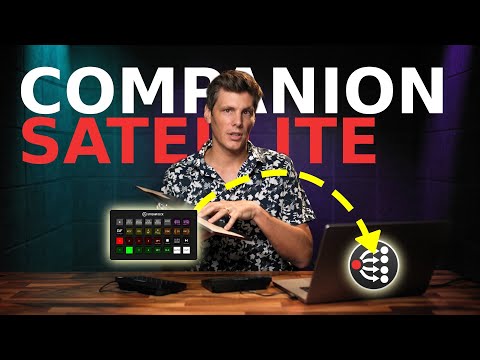](http://www.youtube.com/watch?v=eNnUxRl4yP4 '使用 Companion Satellite 进行远程 Stream Deck 控制')
## 快速开始
您可以在 [Bitfocus 网站](https://user.bitfocus.io/download) 找到安装程序。
### But let's see the user's instruction: "Keep all professional terms, proper nouns, tool/library/framework names, and technical jargon in their original English form." So, for "Raspberry Pi", which is a proper noun, it should remain "Raspberry Pi".
[Bitfocus 网站](https://user.bitfocus.io/download) 提供了预构建镜像。
将镜像写入 SD 卡后,编辑引导分区中的 `satellite-config` 文件,将其指向您的 Companion 实例。也可以通过运行在端口 9999 上的 Web 界面进行配置。
如果您的网络支持 mDNS,Companion 将发现您的卫星设备,并会提供为您自动配置。
### 桌面版
此应用程序可以使用 Electron 构建,提供一个最小化的 UI,并允许最小化到系统托盘。
您可以右键单击托盘图标来:
- 设置要连接的 Companion 实例的 IP 地址
- 强制手动扫描控制器。当检测到新控制器时通常会自动执行此操作,但有时可能会遗漏一些
要手动为您的计算机构建最新版本:
- `yarn install`
- `yarn dist`
- 在 `electron-output/` 目录下找到输出文件
### 手动无头模式 / Raspberry Pi
我们仅支持 x64 和 arm64 Linux 发行版。我们推荐使用基于 Debian 的系统,但在其他发行版上经过一些额外工作也应该可以使用。
如果使用 Raspberry Pi,我们要求使用 64 位的“Raspberry Pi OS Lite”镜像。
如果使用其他品牌的单板计算机,我们推荐运行 [Armbian](https://www.armbian.com/),特别是最小化 Debian 镜像,因为它们提供了一个最小化且一致的 Debian 环境,并且通常比制造商镜像更新。
它可以在 Pi 或其他 Linux 机器上作为 systemd 服务进行构建和运行。
我们不提供此模式的镜像,但编写过程旨在通过单一脚本完成。
如有需要,切换到 root 用户:
```
sudo -i
```
以 root 身份运行以下命令:
```
curl https://raw.githubusercontent.com/bitfocus/companion-satellite/main/pi-image/install.sh | bash
```
注意:此脚本将创建一个名为 `satellite` 的新用户,Companion Satellite 将以此用户身份运行并拥有配置文件的所有权。
之后,您可以使用 `sudo satellite-update` 来更改其已安装的版本。
可选地,您可以向此更新程序提供参数来指定要安装的新版本。参数应为 `beta` 或 `stable`。
## 配置
安装完成后,使用位于 `http://卫星设备IP:9999` 的 Web 界面配置您的 Companion Satellite。
有关配置选项的详细信息,请参阅 `https://companion.free/satellite/`
## 开发
需要 NodeJS 24
### 无头模式
1. 安装依赖项 `yarn install`
2. 运行它 `yarn dev`,替换为您的 Companion 实例 IP 地址
3. 在另一个终端运行 `yarn dev:webui` 来提供 Web 界面
4. 在 http://127.0.0.1:5173 访问 Web 界面
### 3. **Electron**: This is a framework name for building cross-platform desktop apps. So, it should be kept as "Electron".
1. 安装依赖项 `yarn install`
2. 在一个终端运行 `yarn dev:webui` 来提供 Web 界面
3. 运行它 `yarn dev:electron`
您可以使用 `yarn dist` 为 Electron 打包。
尚未测试为其他平台构建。
### 4. **REST API**: This is a technical term for Representational State Transfer Application Programming Interface. In Chinese, it's commonly translated as "REST API" or "RESTful API", but since the instruction says to keep technical jargon in English, I should output "REST API" as is.
默认的 REST 端口是 9999
- 对 `http://卫星设备IP:9999/api/host` 的 GET 请求将返回当前的目标 IP 地址(纯文本)
- 对 `http://卫星设备IP:9999/api/port` 的 GET 请求将返回当前的目标端口(纯文本)
- 对 `http://卫星设备IP:9999/api/config` 的 GET 请求将返回当前的目标端口和 IP 地址(JSON 格式)
- 对 `http://卫星设备IP:9999/api/host` 的 POST 请求,携带 JSON 主体 `{"host": "新主机IP"}` 或纯文本 `新主机IP`,将使卫星设备连接到该 IP 地址或主机名
- 对 `http://卫星设备IP:9999/api/port` 的 POST 请求,携带 `{"port": 16622}` 或纯文本 `16622`,将使卫星设备连接到该端口
- 对 `http://卫星设备IP:9999/api/config` 的 POST 请求,携带 `{"host": "新主机IP", "port": 16622}`,将使卫星设备连接到该 IP/主机名和端口
标签:Bitfocus, Companion集成, Electron, Stream Deck, TCP连接, 串流控制, 卫星连接, 嵌入式系统, 数据可视化, 智能家居, 桌面应用, 流媒体控制, 用户界面, 直播工具, 系统托盘, 网络API, 网络连接, 自动化攻击, 设备管理, 设备配置, 远程控制