KnugiHK/WhatsApp-Chat-Exporter
GitHub: KnugiHK/WhatsApp-Chat-Exporter
一款跨平台的 WhatsApp 聊天记录解析导出工具,支持从 Android 和 iOS 加密备份中提取数据并生成 HTML 或 JSON 格式的可读输出。
Stars: 1122 | Forks: 149
# Whatsapp-Chat-Exporter
[](https://pypi.org/project/whatsapp-chat-exporter/)
[](https://github.com/KnugiHK/WhatsApp-Chat-Exporter/blob/main/LICENSE)
[](https://pypi.org/project/Whatsapp-Chat-Exporter/)
[](https://matrix.to/#/#wtsexporter:matrix.org)
[](https://wts.knugi.dev)
一个可定制的 Android 和 iPhone Whatsapp 数据库解析器,可以将你的 Whatsapp 聊天记录生成 HTML 和 JSON 格式。灵感来源于 [Telegram Chat Export Tool](https://telegram.org/blog/export-and-more)。
# 用法
首先,通过以下命令安装导出器:
```
pip install whatsapp-chat-exporter
pip install whatsapp-chat-exporter[android_backup] :; # Optional, if you want it to support decrypting Android WhatsApp backup.
```
然后,在你想要的位置创建一个工作目录
```
mkdir working_wts
cd working_wts
```
## 处理 Android
### 未加密的 WhatsApp 数据库
通过任何方式提取 WhatsApp 数据库,一种可能的方式是使用 [WhatsApp-Key-DB-Extractor](https://github.com/KnugiHK/WhatsApp-Key-DB-Extractor)。请注意,该提取器仅适用于 Android 4.0 到 13。
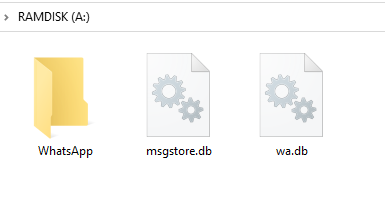
获取 WhatsApp 数据库后,将 WhatsApp 数据库和媒体文件夹复制到工作目录。数据库文件名为 msgstore.db。如果你还想要联系人的名字,请获取名为 wa.db 的联系人数据库。并直接从手机复制 WhatsApp (Media) 目录。
现在,你的工作目录中应该包含如下内容。
#### 提取
只需在 Shell 中执行以下命令。
```
wtsexporter -a
```
#### 从 vCard 丰富联系人信息
默认的 WhatsApp 联系人数据库通常包含从手机中提取的联系人名字,导出器会用它来映射你的聊天。然而,在一些报告过的案例中,该数据库可能从未被填充过。在这种情况下,你可以从手机或 Google Contacts 等云服务提供商将联系人导出为 vCard 文件。然后,安装必要的依赖并在 Shell 中运行以下命令:
```
pip install whatsapp-chat-exporter["vcards"]
wtsexporter -a --enrich-from-vcards contacts.vcf --default-country-code 852
```
### 加密的 Android WhatsApp 备份
为了支持解密,如果尚未安装 pycryptodome,请先安装
```
pip install pycryptodome # Or
pip install whatsapp-chat-exporter["android_backup"] # install along with this software
```
#### Crypt12 或 Crypt14
你需要从手机中获取解密密钥文件。如果你有 root 权限,可以在 `/data/data/com.whatsapp/files/key` 找到它。否则,如果你之前使用过 WhatsApp-Key-DB-Extractor,它会在 WhatsApp 备份目录中显示为 `WhatsApp/Databases/.nomedia`。
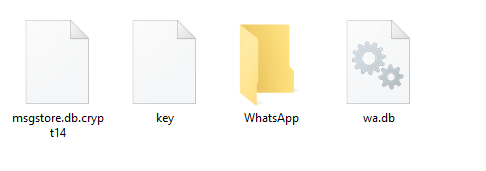
将解密密钥文件 和加密的 WhatsApp 备份 (msgstore.db.crypt14) 放入工作目录。如果你还想要联系人的名字,请获取名为 wa.db 的联系人数据库。并直接从手机复制 WhatsApp (Media) 目录。
现在,你的工作目录中应该包含如下内容。
#### 提取
只需在 Shell 中执行以下命令。
```
wtsexporter -a -k key -b msgstore.db.crypt14
```
#### Crypt15 (端到端加密备份)
要支持 Crypt15 备份,如果尚未安装 javaobj-py3,请先安装
```
pip install javaobj-py3 # Or
pip install whatsapp-chat-exporter["crypt15"] # install along with this software
```
在使用此方法之前,你必须先创建一个端到端加密备份。有关详细说明,请参阅 [WhatsApp's help center](https://faq.whatsapp.com/490592613091019)。
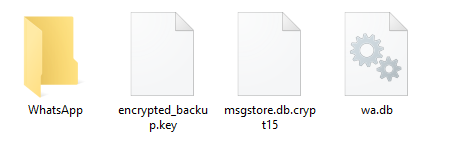
将备份文件复制到电脑后,将加密的 WhatsApp 备份文件 (msgstore.db.crypt15) 放入工作目录。如果你还希望包含联系人的名字,请获取名为 wa.db 的联系人数据库文件。此外,直接从手机复制 WhatsApp Media 文件夹。
如果你没有 32 字节的十六进制密钥 (64 个十六进制字符),请放置从 Android 提取的解密密钥文件 (encrypted_backup.key)。如果你有 32 字节的十六进制密钥,只需在 Shell 中输入该密钥即可。
现在,你的工作目录中应该包含如下内容(如果你没有 32 字节的十六进制密钥)。
##### 提取
如果你没有 32 字节的十六进制密钥但有密钥文件,只需在 Shell 中执行以下命令。
```
wtsexporter -a -k encrypted_backup.key -b msgstore.db.crypt15
```
如果你有 32 字节的十六进制密钥,只需将十六进制密钥放在 -k 选项后,并在 Shell 中像这样执行命令:
```
wtsexporter -a -k 133735053b5204b08e5c3823423399aa30ff061435ab89bc4e6713969cda1337 -b msgstore.db.crypt15
```
## 处理 iOS/iPadOS (iPhone 或 iPad)
首先使用 iTunes/Finder 进行 iPhone/iPad 备份。
* iPhone backup on Mac: https://support.apple.com/HT211229
* iPhone backup on Windows: https://support.apple.com/HT212156
* iPad backup: https://support.apple.com/guide/ipad/ipad9a74df05xx/ipados
### 加密的 iOS/iPadOS 备份
如果你要处理加密的 iOS/iPadOS 备份,你应该在运行 extract_iphone_media.py 之前从 [KnugiHK/iphone_backup_decrypt](https://github.com/KnugiHK/iphone_backup_decrypt) 安装 `iphone_backup_decrypt`。
```
pip install git+https://github.com/KnugiHK/iphone_backup_decrypt
```
### 提取
要从 iOS/iPadOS 备份中提取消息,请在 Shell 中运行以下命令,确保将用户名和设备 ID 替换为正确的值。请记住,Windows 上的备份路径至少有两种可能。
#### Windows
```
# 可能的路径一
wtsexporter -i -b "C:\Users\[Username]\AppData\Roaming\Apple Computer\MobileSync\Backup\[device id]"
# 可能的路径二
wtsexporter -i -b "C:\Users\[Username]\Apple\MobileSync\Backup\[device id]"
```
#### Mac
```
wtsexporter -i -b ~/Library/Application\ Support/MobileSync/Backup/[device id]
```
## 结果
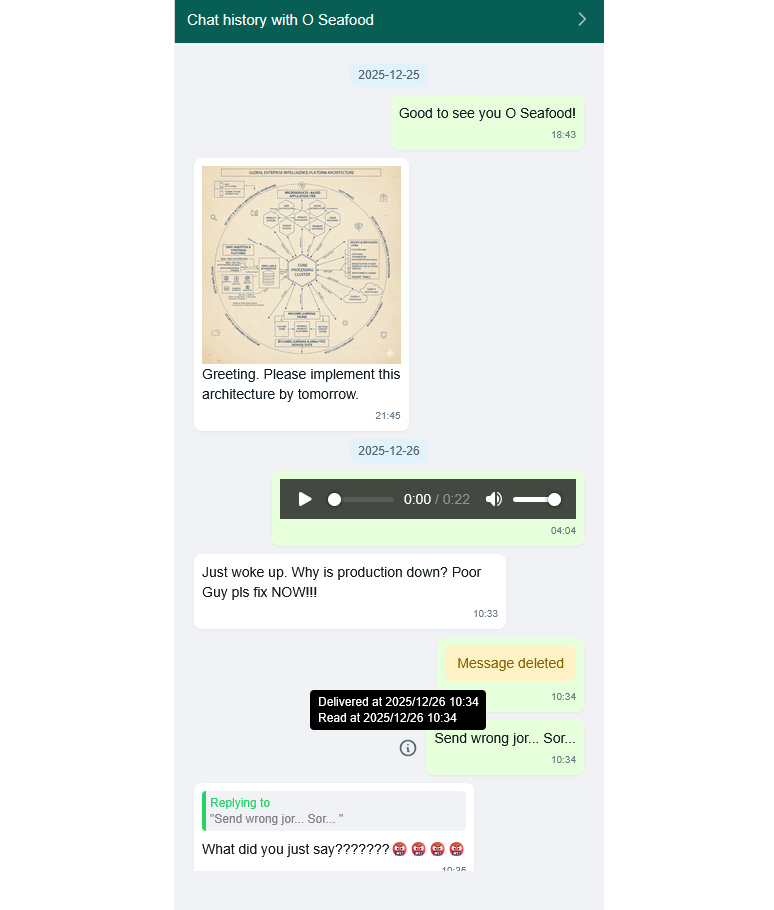
提取后,你将得到如下内容:
## 处理 Business 版本
如果你正在处理 WhatsApp Business,请在命令中添加 `--business` 标志
```
wtsexporter -a --business ...other flags
wtsexporter -i --business ...other flags
```
## 更多选项
使用 --help 选项执行 wtsexporter 将显示所有可用的选项。
```
> wtsexporter --help
usage: wtsexporter [-h] [--debug] [-a] [-i] [-e EXPORTED] [-w WA] [-m MEDIA] [-b BACKUP] [-d DB]
[-k [KEY]] [--call-db [CALL_DB_IOS]] [--wab WAB] [-o OUTPUT] [-j [JSON]]
[--txt [TEXT_FORMAT]] [--no-html] [--size [SIZE]] [--no-reply] [--avoid-encoding-json]
[--pretty-print-json [PRETTY_PRINT_JSON]] [--tg] [--per-chat] [--import] [-t TEMPLATE]
[--offline OFFLINE] [--no-avatar] [--old-theme] [--headline HEADLINE] [-c]
[--create-separated-media] [--time-offset {-12 to 14}] [--date DATE]
[--date-format FORMAT] [--include [phone number ...]] [--exclude [phone number ...]]
[--dont-filter-empty] [--enrich-from-vcards ENRICH_FROM_VCARDS]
[--default-country-code DEFAULT_COUNTRY_CODE] [--incremental-merge]
[--source-dir SOURCE_DIR] [--target-dir TARGET_DIR] [-s] [--check-update]
[--check-update-pre] [--assume-first-as-me] [--business]
[--decrypt-chunk-size DECRYPT_CHUNK_SIZE]
[--max-bruteforce-worker MAX_BRUTEFORCE_WORKER] [--no-banner] [--fix-dot-files]
A customizable Android and iOS/iPadOS WhatsApp database parser that will give you the history of your
WhatsApp conversations in HTML and JSON. Android Backup Crypt12, Crypt14 and Crypt15 supported.
options:
-h, --help show this help message and exit
--debug Enable debug mode
Device Type:
-a, --android Define the target as Android
-i, --ios Define the target as iPhone/iPad
-e, --exported EXPORTED
Define the target as exported chat file and specify the path to the file
Input Files:
-w, --wa WA Path to contact database (default: wa.db/ContactsV2.sqlite)
-m, --media MEDIA Path to WhatsApp media folder (default: WhatsApp)
-b, --backup BACKUP Path to Android (must be used together with -k)/iOS WhatsApp backup
-d, --db DB Path to database file (default:
msgstore.db/7c7fba66680ef796b916b067077cc246adacf01d)
-k, --key [KEY] Path to key file. If this option is set for crypt15 backup but nothing is
specified, you will be prompted to enter the key.
--call-db [CALL_DB_IOS]
Path to call database (default: 1b432994e958845fffe8e2f190f26d1511534088) iOS only
--wab, --wa-backup WAB
Path to contact database in crypt15 format
Output Options:
-o, --output OUTPUT Output to specific directory (default: result)
-j, --json [JSON] Save the result to a single JSON file (default if present: result.json)
--txt [TEXT_FORMAT] Export chats in text format similar to what WhatsApp officially provided (default
if present: result/)
--no-html Do not output html files
--size, --output-size, --split [SIZE]
Maximum (rough) size of a single output file in bytes, 0 for auto
--no-reply Do not process replies (iOS only) (default: handle replies)
JSON Options:
--avoid-encoding-json
Don't encode non-ascii characters in the output JSON files
--pretty-print-json [PRETTY_PRINT_JSON]
Pretty print the output JSON.
--tg, --telegram Output the JSON in a format compatible with Telegram export (implies json-per-
chat)
--per-chat Output the JSON file per chat
--import Import JSON file and convert to HTML output
HTML Options:
-t, --template TEMPLATE
Path to custom HTML template
--offline OFFLINE Relative path to offline static files
--no-avatar Do not render avatar in HTML output
--old-theme Use the old Telegram-alike theme
--headline HEADLINE The custom headline for the HTML output. Use '??' as a placeholder for the chat
name
Media Handling:
-c, --move-media Move the media directory to output directory if the flag is set, otherwise copy it
--create-separated-media
Create a copy of the media seperated per chat in /separated/ directory
Filtering Options:
--time-offset {-12 to 14}
Offset in hours (-12 to 14) for time displayed in the output
--date DATE The date filter in specific format (inclusive)
--date-format FORMAT The date format for the date filter
--include [phone number ...]
Include chats that match the supplied phone number
--exclude [phone number ...]
Exclude chats that match the supplied phone number
--dont-filter-empty By default, the exporter will not render chats with no valid message. Setting this
flag will cause the exporter to render those. This is useful if chat(s) are
missing from the output
Contact Enrichment:
--enrich-from-vcards ENRICH_FROM_VCARDS
Path to an exported vcf file from Google contacts export. Add names missing from
WhatsApp's default database
--default-country-code DEFAULT_COUNTRY_CODE
Use with --enrich-from-vcards. When numbers in the vcf file does not have a
country code, this will be used. 1 is for US, 66 for Thailand etc. Most likely use
the number of your own country
Incremental Merging:
--incremental-merge Performs an incremental merge of two exports. Requires setting both --source-dir
and --target-dir. The chats (JSON files only) and media from the source directory
will be merged into the target directory. No chat messages or media will be
deleted from the target directory; only new chat messages and media will be added
to it. This enables chat messages and media to be deleted from the device to free
up space, while ensuring they are preserved in the exported backups.
--source-dir SOURCE_DIR
Sets the source directory. Used for performing incremental merges.
--target-dir TARGET_DIR
Sets the target directory. Used for performing incremental merges.
Miscellaneous:
-s, --showkey Show the HEX key used to decrypt the database
--check-update Check for updates (require Internet access)
--check-update-pre Check for updates including pre-releases (require Internet access)
--assume-first-as-me Assume the first message in a chat as sent by me (must be used together with -e)
--business Use Whatsapp Business default files (iOS only)
--decrypt-chunk-size DECRYPT_CHUNK_SIZE
Specify the chunk size for decrypting iOS backup, which may affect the decryption
speed.
--max-bruteforce-worker MAX_BRUTEFORCE_WORKER
Specify the maximum number of worker for bruteforce decryption.
--no-banner Do not show the banner
--fix-dot-files Fix files with a dot at the end of their name (allowing the outputs be stored in
FAT filesystems)
WhatsApp Chat Exporter: 0.13.0 Licensed with MIT. See https://wts.knugi.dev/docs?dest=osl for all open
source licenses.
```
# 验证构建完整性
为确保 Release 中提供的二进制文件是直接从此源代码通过 GitHub Actions 构建的且未被篡改,使用了 GitHub Artifact Attestations。你可以使用 GitHub CLI 验证任何预构建二进制文件的真实性。
### 使用 Bash (Linux/WSL/macOS)
```
for file in wtsexporter*; do ; gh attestation verify "$file" -R KnugiHK/WhatsApp-Chat-Exporter; done
```
### 使用 PowerShell (Windows)
```
gci "wtsexporter*" | % { gh attestation verify $_.FullName -R KnugiHK/WhatsApp-Chat-Exporter }
```
# Python 支持政策
本项目正式支持所有非 EOL (End-of-Life) 版本的 Python。一旦某个 Python 版本达到 EOL,它将在下一个版本中被弃用。参见 [Python's EOL Schedule](https://devguide.python.org/versions/)。
# 法律事项与免责声明
这是一个 MIT 许可的项目。
本仓库中 whatsapp.html 的参考来源是 Telegram Desktop 的导出功能。
`bplist.py` 由 Vladimir "Farcaller" Pouzanov 在 MIT 许可下发布。
另请参阅任何以 `LICENSE` 为前缀的文件,以获取各种许可证的副本。
WhatsApp Chat Exporter 不隶属于、关联于、授权于、认可于或以任何方式正式连接于 WhatsApp LLC 或其任何子公司或关联公司。官方 WhatsApp LLC 网站位于 https://www.whatsapp.com/。
标签:Android, crypt14, crypt15, DSL, HTML, HTTP工具, iOS, JSON, Python, SQLCipher, WhatsApp, 备份恢复, 数字取证, 数据备份, 数据库提取, 数据解析, 无后门, 电子取证, 社交通讯, 聊天记录导出, 自动化脚本, 逆向工具, 配置审计, 隐私数据