microsoft/playwright-cli
GitHub: microsoft/playwright-cli
面向 AI 编程智能体的浏览器自动化 CLI 工具,通过简洁命令实现低 token 消耗的网页交互与测试自动化。
Stars: 11350 | Forks: 596
# playwright-cli
具备 SKILLS 功能的 Playwright CLI
### Playwright CLI vs Playwright MCP
本包提供了 Playwright 的 CLI 接口。如果您正在使用**编程智能体 (coding agents)**,这是最合适的选择。
- **CLI**:现代**编程智能体**越来越倾向于通过 SKILL 暴露的基于 CLI 的工作流,而非 MCP,因为 CLI 调用更加节省 token:它们避免将庞大的工具 schema 和冗长的辅助功能树加载到模型上下文中,允许智能体通过简洁、专用的命令进行操作。这使得 CLI + SKILL 更适合需要在有限的上下文窗口内平衡浏览器自动化与大型代码库、测试和推理的高吞吐量编程智能体。
- **MCP**:MCP 仍然适用于那些受益于持久状态、丰富的内省能力以及对页面结构进行迭代推理的专用智能体循环,例如探索性自动化、自我修复测试或长时间运行的自主工作流,在这些场景中,维护连续的浏览器上下文的重要性超过了 token 成本的考量。了解更多关于 [Playwright MCP](https://github.com/microsoft/playwright-mcp) 的信息。
### 关键特性
- **节省 Token**。不强制将页面数据传入 LLM。
### 系统要求
- Node.js 18 或更新版本
- Claude Code、GitHub Copilot 或任何其他编程智能体。
## 快速入门
## 安装说明
```
npm install -g @playwright/cli@latest
playwright-cli --help
```
### 安装 skills
Claude Code、GitHub Copilot 和其他工具将使用本地安装的 skills。
```
playwright-cli install --skills
```
### 无 Skills 操作
将您的智能体指向 CLI 并让它自行运作。它会自行从 `playwright-cli --help` 读取 skill 信息:
```
Test the "add todo" flow on https://demo.playwright.dev/todomvc using playwright-cli.
Check playwright-cli --help for available commands.
```
## 演示
```
> Use playwright skills to test https://demo.playwright.dev/todomvc/.
Take screenshots for all successful and failing scenarios.
```
您的智能体会运行命令,但这并不意味着您不能手动操作它:
```
playwright-cli open https://demo.playwright.dev/todomvc/ --headed
playwright-cli type "Buy groceries"
playwright-cli press Enter
playwright-cli type "Water flowers"
playwright-cli press Enter
playwright-cli check e21
playwright-cli check e35
playwright-cli screenshot
```
## 有头模式
Playwright CLI 默认为无头模式。如果您希望看到浏览器,请向 `open` 命令传递 `--headed` 参数:
```
playwright-cli open https://playwright.dev --headed
```
## 会话
Playwright CLI 默认将浏览器配置文件保存在内存中。您的 cookies 和存储状态在会话期间的 CLI 调用之间会保留,但在浏览器关闭时会丢失。使用 `--persistent` 将配置文件保存到磁盘,以便在浏览器重启后保持持久化。
您可以利用会话为不同的项目使用不同的浏览器实例。在调用时传递 `-s=` 以与特定浏览器进行通信。
```
playwright-cli open https://playwright.dev
playwright-cli -s=example open https://example.com --persistent
playwright-cli list
```
您可以使用 `PLAYWRIGHT_CLI_SESSION` 环境变量运行您的编程智能体:
```
PLAYWRIGHT_CLI_SESSION=todo-app claude .
```
或者指示它在调用前加上 `-s=`。
按如下方式管理您的会话:
```
playwright-cli list # list all sessions
playwright-cli close-all # close all browsers
playwright-cli kill-all # forcefully kill all browser processes
```
## 监控
使用 `playwright-cli show` 打开一个可视化仪表板,让您查看和控制所有正在运行的浏览器会话。当您的编程智能体在后台运行浏览器自动化,而您想观察其进度或介入帮助时,这非常有用。
```
playwright-cli show
```
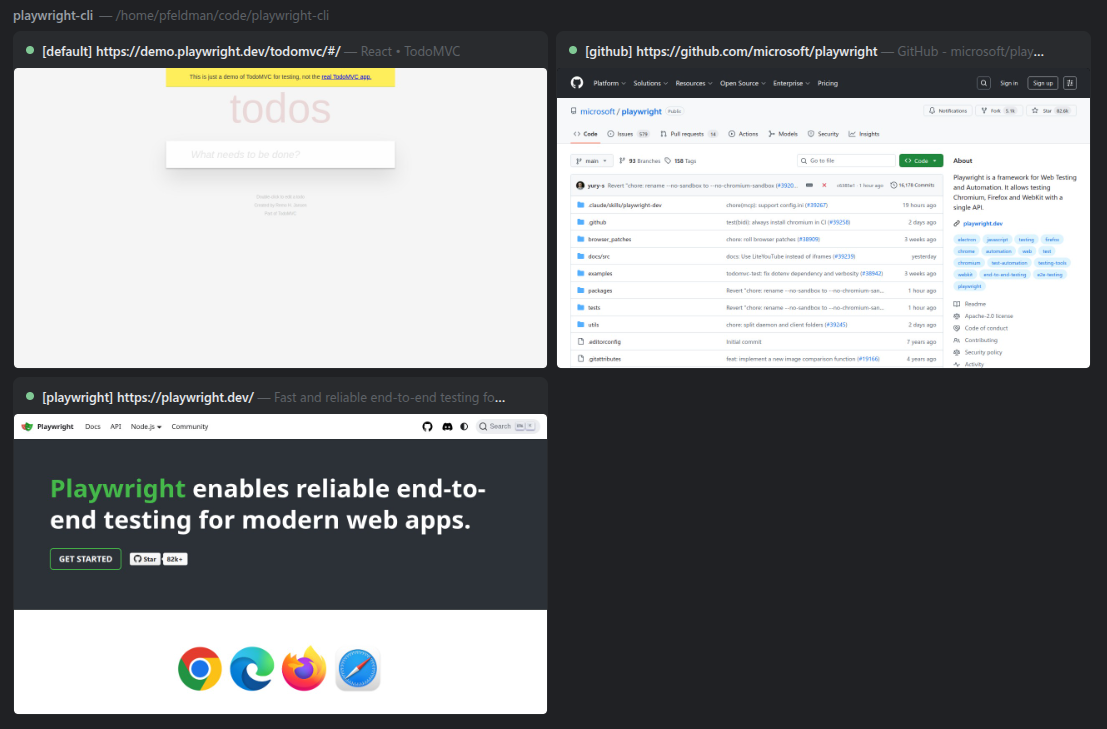 仪表板会打开一个包含两个视图的窗口:
- **会话网格** — 按工作区分组显示所有活动会话,每个会话都有实时屏幕广播预览、会话名称、当前 URL 和页面标题。点击任意会话可放大查看。
- **会话详情** — 显示所选会话的实时视图,包含标签栏、导航控件(后退、前进、刷新、地址栏)和完全远程控制功能。点击视口即可接管鼠标和键盘输入;按 Escape 键释放。
从网格中,您还可以关闭正在运行的会话或删除非活动会话的数据。
## 命令
### 核心
```
playwright-cli open [url] # open browser, optionally navigate to url
playwright-cli goto
仪表板会打开一个包含两个视图的窗口:
- **会话网格** — 按工作区分组显示所有活动会话,每个会话都有实时屏幕广播预览、会话名称、当前 URL 和页面标题。点击任意会话可放大查看。
- **会话详情** — 显示所选会话的实时视图,包含标签栏、导航控件(后退、前进、刷新、地址栏)和完全远程控制功能。点击视口即可接管鼠标和键盘输入;按 Escape 键释放。
从网格中,您还可以关闭正在运行的会话或删除非活动会话的数据。
## 命令
### 核心
```
playwright-cli open [url] # open browser, optionally navigate to url
playwright-cli goto # navigate to a url
playwright-cli close # close the page
playwright-cli type # type text into editable element
playwright-cli click [button] # perform click on a web page
playwright-cli dblclick [button] # perform double click on a web page
playwright-cli fill # fill text into editable element
playwright-cli drag # perform drag and drop between two elements
playwright-cli hover # hover over element on page
playwright-cli select # select an option in a dropdown
playwright-cli upload # upload one or multiple files
playwright-cli check # check a checkbox or radio button
playwright-cli uncheck # uncheck a checkbox or radio button
playwright-cli snapshot # capture page snapshot to obtain element ref
playwright-cli snapshot --filename=f # save snapshot to specific file
playwright-cli eval [ref] # evaluate javascript expression on page or element
playwright-cli dialog-accept [prompt] # accept a dialog
playwright-cli dialog-dismiss # dismiss a dialog
playwright-cli resize # resize the browser window
```
### 导航
```
playwright-cli go-back # go back to the previous page
playwright-cli go-forward # go forward to the next page
playwright-cli reload # reload the current page
```
### 键盘
```
playwright-cli press # press a key on the keyboard, `a`, `arrowleft`
playwright-cli keydown # press a key down on the keyboard
playwright-cli keyup # press a key up on the keyboard
```
### 鼠标
```
playwright-cli mousemove # move mouse to a given position
playwright-cli mousedown [button] # press mouse down
playwright-cli mouseup [button] # press mouse up
playwright-cli mousewheel # scroll mouse wheel
```
### 另存为
```
playwright-cli screenshot [ref] # screenshot of the current page or element
playwright-cli screenshot --filename=f # save screenshot with specific filename
playwright-cli pdf # save page as pdf
playwright-cli pdf --filename=page.pdf # save pdf with specific filename
```
### 标签页
```
playwright-cli tab-list # list all tabs
playwright-cli tab-new [url] # create a new tab
playwright-cli tab-close [index] # close a browser tab
playwright-cli tab-select # select a browser tab
```
### 存储
```
playwright-cli state-save [filename] # save storage state
playwright-cli state-load # load storage state
# Cookies
playwright-cli cookie-list [--domain] # list cookies
playwright-cli cookie-get # get a cookie
playwright-cli cookie-set # set a cookie
playwright-cli cookie-delete # delete a cookie
playwright-cli cookie-clear # clear all cookies
# LocalStorage
playwright-cli localstorage-list # list localStorage entries
playwright-cli localstorage-get # get localStorage value
playwright-cli localstorage-set # set localStorage value
playwright-cli localstorage-delete # delete localStorage entry
playwright-cli localstorage-clear # clear all localStorage
# SessionStorage
playwright-cli sessionstorage-list # list sessionStorage entries
playwright-cli sessionstorage-get # get sessionStorage value
playwright-cli sessionstorage-set # set sessionStorage value
playwright-cli sessionstorage-delete # delete sessionStorage entry
playwright-cli sessionstorage-clear # clear all sessionStorage
```
### 网络
```
playwright-cli route [opts] # mock network requests
playwright-cli route-list # list active routes
playwright-cli unroute [pattern] # remove route(s)
```
### 开发者工具
```
playwright-cli console [min-level] # list console messages
playwright-cli network # list all network requests since loading the page
playwright-cli run-code
仪表板会打开一个包含两个视图的窗口:
- **会话网格** — 按工作区分组显示所有活动会话,每个会话都有实时屏幕广播预览、会话名称、当前 URL 和页面标题。点击任意会话可放大查看。
- **会话详情** — 显示所选会话的实时视图,包含标签栏、导航控件(后退、前进、刷新、地址栏)和完全远程控制功能。点击视口即可接管鼠标和键盘输入;按 Escape 键释放。
从网格中,您还可以关闭正在运行的会话或删除非活动会话的数据。
## 命令
### 核心
```
playwright-cli open [url] # open browser, optionally navigate to url
playwright-cli goto # run playwright code snippet
playwright-cli tracing-start # start trace recording
playwright-cli tracing-stop # stop trace recording
playwright-cli video-start # start video recording
playwright-cli video-stop [filename] # stop video recording
```
### Open 参数
```
playwright-cli open --browser=chrome # use specific browser
playwright-cli open --extension # connect via browser extension
playwright-cli open --persistent # use persistent profile
playwright-cli open --profile= # use custom profile directory
playwright-cli open --config=file.json # use config file
playwright-cli close # close the browser
playwright-cli delete-data # delete user data for default session
```
### 快照
每次命令执行后,playwright-cli 都会提供当前浏览器状态的快照。
```
> playwright-cli goto https://example.com
### Page
- Page URL: https://example.com/
- Page Title: Example Domain
### Snapshot
[Snapshot](.playwright-cli/page-2026-02-14T19-22-42-679Z.yml)
```
您也可以使用 `playwright-cli snapshot` 命令按需获取快照。
如果未提供 `--filename`,则会创建一个带有时间戳的新快照文件。默认为自动文件命名,当产物是工作流结果的一部分时,请使用 `--filename=`。
### 会话
```
playwright-cli -s=name # run command in named session
playwright-cli -s=name close # stop a named browser
playwright-cli -s=name delete-data # delete user data for named browser
playwright-cli list # list all sessions
playwright-cli close-all # close all browsers
playwright-cli kill-all # forcefully kill all browser processes
```
### 本地安装
在某些情况下,您可能希望在本地安装 playwright-cli。如果运行全局可用的 `playwright-cli` 二进制文件失败,请使用 `npx playwright-cli` 来运行命令。例如:
```
npx playwright-cli open https://example.com
npx playwright-cli click e1
```
## 配置文件
Playwright CLI 可以使用 JSON 配置文件进行配置。您可以使用 `--config` 命令行选项指定配置文件:
```
playwright-cli --config path/to/config.json open example.com
```
Playwright CLI 默认会从 `.playwright/cli.config.json` 加载配置,这样您就不需要每次都指定它。
配置文件 schema
```
{
/**
* The browser to use.
*/
browser?: {
/**
* The type of browser to use.
*/
browserName?: 'chromium' | 'firefox' | 'webkit';
/**
* Keep the browser profile in memory, do not save it to disk.
*/
isolated?: boolean;
/**
* Path to a user data directory for browser profile persistence.
* Temporary directory is created by default.
*/
userDataDir?: string;
/**
* Launch options passed to
* @see https://playwright.dev/docs/api/class-browsertype#browser-type-launch-persistent-context
*
* This is useful for settings options like `channel`, `headless`, `executablePath`, etc.
*/
launchOptions?: playwright.LaunchOptions;
/**
* Context options for the browser context.
*
* This is useful for settings options like `viewport`.
*/
contextOptions?: playwright.BrowserContextOptions;
/**
* Chrome DevTools Protocol endpoint to connect to an existing browser instance in case of Chromium family browsers.
*/
cdpEndpoint?: string;
/**
* CDP headers to send with the connect request.
*/
cdpHeaders?: Record;
/**
* Timeout in milliseconds for connecting to CDP endpoint. Defaults to 30000 (30 seconds). Pass 0 to disable timeout.
*/
cdpTimeout?: number;
/**
* Remote endpoint to connect to an existing Playwright server.
*/
remoteEndpoint?: string;
/**
* Paths to TypeScript files to add as initialization scripts for Playwright page.
*/
initPage?: string[];
/**
* Paths to JavaScript files to add as initialization scripts.
* The scripts will be evaluated in every page before any of the page's scripts.
*/
initScript?: string[];
},
/**
* If specified, saves the Playwright video of the session into the output directory.
*/
saveVideo?: {
width: number;
height: number;
};
/**
* The directory to save output files.
*/
outputDir?: string;
/**
* Whether to save snapshots, console messages, network logs and other session logs to a file or to the standard output. Defaults to "stdout".
*/
outputMode?: 'file' | 'stdout';
console?: {
/**
* The level of console messages to return. Each level includes the messages of more severe levels. Defaults to "info".
*/
level?: 'error' | 'warning' | 'info' | 'debug';
},
network?: {
/**
* List of origins to allow the browser to request. Default is to allow all. Origins matching both `allowedOrigins` and `blockedOrigins` will be blocked.
*/
allowedOrigins?: string[];
/**
* List of origins to block the browser to request. Origins matching both `allowedOrigins` and `blockedOrigins` will be blocked.
*/
blockedOrigins?: string[];
};
/**
* Specify the attribute to use for test ids, defaults to "data-testid".
*/
testIdAttribute?: string;
timeouts?: {
/*
* Configures default action timeout: https://playwright.dev/docs/api/class-page#page-set-default-timeout. Defaults to 5000ms.
*/
action?: number;
/*
* Configures default navigation timeout: https://playwright.dev/docs/api/class-page#page-set-default-navigation-timeout. Defaults to 60000ms.
*/
navigation?: number;
};
/**
* Whether to allow file uploads from anywhere on the file system.
* By default (false), file uploads are restricted to paths within the MCP roots only.
*/
allowUnrestrictedFileAccess?: boolean;
/**
* Specify the language to use for code generation.
*/
codegen?: 'typescript' | 'none';
}
```
通过环境变量配置
| 环境变量 |
|-------------|
| `PLAYWRIGHT_MCP_ALLOWED_HOSTS` 此服务器允许提供服务的主机的逗号分隔列表。默认为服务器绑定的主机。传递 '*' 以禁用主机检查。 |
| `PLAYWRIGHT_MCP_ALLOWED_ORIGINS` 允许浏览器请求的受信任来源 (origins) 的分号分隔列表。默认为允许所有。重要提示:*不*作为安全边界,且*不*影响重定向。 |
| `PLAYWRIGHT_MCP_ALLOW_UNRESTRICTED_FILE_ACCESS` 允许访问工作区根目录之外的文件。也允许不受限制地访问 file:// URL。默认情况下,对文件系统的访问仅限于工作区根目录(如果未配置根目录,则为 cwd),并且禁止导航到 file:// URL。 |
| `PLAYWRIGHT_MCP_BLOCKED_ORIGINS` 阻止浏览器请求的来源 (origins) 的分号分隔列表。阻止名单在允许名单之前进行评估。如果在不使用允许名单的情况下使用,不匹配阻止名单的请求仍会被允许。重要提示:*不*作为安全边界,且*不*影响重定向。 |
| `PLAYWRIGHT_MCP_BLOCK_SERVICE_WORKERS` 阻止 service workers |
| `PLAYWRIGHT_MCP_BROWSER` 要使用的浏览器或 chrome 通道,可能的值:chrome, firefox, webkit, msedge。 |
| `PLAYWRIGHT_MCP_CAPS` 要启用的附加功能的逗号分隔列表,可能的值:vision, pdf。 |
| `PLAYWRIGHT_MCP_CDP_ENDPOINT` 要连接的 CDP endpoint。 |
| `PLAYWRIGHT_MCP_CDP_HEADER` 随连接请求发送的 CDP headers,可以指定多个。 |
| `PLAYWRIGHT_MCP_CODEGEN` 指定用于代码生成的语言,可能的值:"typescript", "none"。默认为 "typescript"。 |
| `PLAYWRIGHT_MCP_CONFIG` 配置文件的路径。 |
| `PLAYWRIGHT_MCP_CONSOLE_LEVEL` 要返回的控制台消息级别:"error", "warning", "info", "debug"。每个级别包含更严重级别的消息。 |
| `PLAYWRIGHT_MCP_DEVICE` 要模拟的设备,例如:"iPhone 15" |
| `PLAYWRIGHT_MCP_EXECUTABLE_PATH` 浏览器可执行文件的路径。 |
| `PLAYWRIGHT_MCP_EXTENSION` 连接到正在运行的浏览器实例(仅限 Edge/Chrome)。需要安装 "Playwright MCP Bridge" 浏览器扩展。 |
| `PLAYWRIGHT_MCP_GRANT_PERMISSIONS` 授予浏览器上下文的权限列表,例如 "geolocation", "clipboard-read", "clipboard-write"。 |
| `PLAYWRIGHT_MCP_HEADLESS` 以无头模式运行浏览器,默认为有头模式 |
| `PLAYWRIGHT_MCP_HOST` 要绑定的服务器主机。默认为 localhost。使用 0.0.0.0 绑定到所有接口。 |
| `PLAYWRIGHT_MCP_IGNORE_HTTPS_ERRORS` 忽略 https 错误 |
| `PLAYWRIGHT_MCP_INIT_PAGE` 要在 Playwright page 对象上求值的 TypeScript 文件路径 |
| `PLAYWRIGHT_MCP_INIT_SCRIPT` 要作为初始化脚本添加的 JavaScript 文件路径。该脚本将在每个页面的任何脚本之前执行。可以多次指定。 |
| `PLAYWRIGHT_MCP_ISOLATED` 将浏览器配置文件保留在内存中,不将其保存到磁盘。 |
| `PLAYWRIGHT_MCP_IMAGE_RESPONSES` 是否向客户端发送图像响应。可以是 "allow" 或 "omit",默认为 "allow"。 |
| `PLAYWRIGHT_MCP_NO_SANDBOX` 对所有通常被沙箱化的进程类型禁用沙箱。 |
| `PLAYWRIGHT_MCP_OUTPUT_DIR` 输出文件的目录路径。 |
| `PLAYWRIGHT_MCP_OUTPUT_MODE` 将快照、控制台消息、网络日志保存到文件还是标准输出。可以是 "file" 或 "stdout"。默认为 "stdout"。 |
| `PLAYWRIGHT_MCP_PORT` 用于 SSE 传输的监听端口。 |
| `PLAYWRIGHT_MCP_PROXY_BYPASS` 绕过代理的逗号分隔域名,例如 ".com,chromium.org,.domain.com" |
| `PLAYWRIGHT_MCP_PROXY_SERVER` 指定代理服务器,例如 "http://myproxy:3128" 或 "socks5://myproxy:8080" |
| `PLAYWRIGHT_MCP_SAVE_SESSION` 是否将 Playwright MCP 会话保存到输出目录。 |
| `PLAYWRIGHT_MCP_SAVE_TRACE` 是否将会话的 Playwright Trace 保存到输出目录。 |
| `PLAYWRIGHT_MCP_SAVE_VIDEO` 是否将会话的视频保存到输出目录。例如 "--save-video=800x600" |
| `PLAYWRIGHT_MCP_SECRETS` 包含 dotenv 格式机密的文件路径 |
| `PLAYWRIGHT_MCP_SHARED_BROWSER_CONTEXT` 在所有连接的 HTTP 客户端之间重用相同的浏览器上下文。 |
| `PLAYWRIGHT_MCP_SNAPSHOT_MODE` 为响应拍摄快照时,指定要使用的模式。可以是 "incremental"、"full" 或 "none"。默认为 incremental。 |
| `PLAYWRIGHT_MCP_STORAGE_STATE` 用于隔离会话的存储状态文件路径。 |
| `PLAYWRIGHT_MCP_TEST_ID_ATTRIBUTE` 指定用于 test id 的属性,默认为 "data-testid" |
| `PLAYWRIGHT_MCP_TIMEOUT_ACTION` 指定操作超时时间(毫秒),默认为 5000ms |
| `PLAYWRIGHT_MCP_TIMEOUT_NAVIGATION` 指定导航超时时间(毫秒),默认为 60000ms |
| `PLAYWRIGHT_MCP_USER_AGENT` 指定 user agent 字符串 |
| `PLAYWRIGHT_MCP_USER_DATA_DIR` 用户数据目录的路径。如果未指定,将创建一个临时目录。 |
| `PLAYWRIGHT_MCP_VIEWPORT_SIZE` 指定浏览器视口大小(像素),例如 "1280x720" |
## 特定任务
安装的 skill 包含常见任务的详细参考指南:
* **请求模拟 (Request mocking)** — 拦截并模拟网络请求
* **运行 Playwright 代码** — 执行任意 Playwright 脚本
* **浏览器会话管理** — 管理多个浏览器会话
* **存储状态 (cookies, localStorage)** — 持久化并恢复浏览器状态
* **测试生成** — 从交互生成 Playwright 测试
* **追踪 (Tracing)** — 记录并检查执行追踪
* **视频录制** — 捕获浏览器会话视频 标签:AI代理, CLI, GNU通用公共许可证, MCP替代, MITM代理, Node.js, Playwright, RPA, Skill, Web测试, WiFi技术, 代码录制, 元素定位, 大模型工具, 威胁情报, 开发者工具, 截图, 文档结构分析, 测试生成, 测试辅助, 浏览器自动化, 特征检测, 端到端测试, 编码代理, 自动化攻击, 自动化攻击