audiconnect/audi_connect_ha
GitHub: audiconnect/audi_connect_ha
该项目为 Home Assistant 提供 Audi Connect 云服务集成,使奥迪车主能够在智能家居平台中监控车辆状态并远程控制车辆功能。
Stars: 351 | Forks: 124
# Home Assistant 的 Audi Connect 集成
[][commits]
[](LICENSE.md)
[][black]
[](hacs)
## 通知
由于 API 发生变更,**目前并非所有功能均可用**。请提交一个 issue 来报告您所缺失的功能。
## 寻找维护者
- 正在寻找翻译文档的维护者。
- 始终期待来自社区的更多帮助。如果您能解决某个问题,请提交 PR,或直接联系维护者并提供可用的代码。
## 描述
`audiconnect` 组件提供了与 Audi Connect 云服务的集成。它增加了车辆位置检测、续航里程、行驶里程和油量等传感器,并支持锁车/解锁以及开启预热器等车辆操作。
**注意:** 某些功能需要获得 Audi 的特殊权限,例如通过 GPS 更新位置。
## 安装
有两种方法可以将此集成安装到 [Home Assistant](https://www.home-assistant.io) 中。
最简单且推荐的方法是使用 [HACS](https://hacs.xyz) 安装此集成,这使得日后的更新更容易追踪和安装。
或者,您可以通过将此存储库中的文件复制到 Home Assistant 配置目录下的 `custom_components` 目录中来手动安装:
1. 打开您的 Home Assistant 安装的配置目录。
2. 如果您没有 `custom_components` 目录,请创建一个。
3. 在 `custom_components` 目录中,创建一个名为 `audiconnect` 的新目录。
4. 将此存储库中 `custom_components/audiconnect/` 目录下的所有文件复制到您新创建的 `audiconnect` 目录中。
5. 重启 Home Assistant。
6. 将该集成添加到 Home Assistant 中(参见 **配置**)。
## 配置
配置通过 Home Assistant 的 UI 完成。
要添加此集成,请转到 **设置 ➤ 设备与服务 ➤ 集成**,点击 **➦ 添加集成**,然后搜索 "Audi Connect"。
### 配置变量
| 名称 | 类型 | 默认值 | 描述 |
| --------------- | -------- | ------- | ------------------------------------------------------------------------------------------------------------------------------------------------------------------------------------------------------------------------------------ |
| `Username` | `string` | – | 与您的 Audi Connect 账户关联的用户名。 |
| `Password` | `string` | – | 您的 Audi Connect 账户的密码。 |
| `S-PIN` | `string` | – | 用于执行某些服务操作的 Audi Connect 账户的 S-PIN。
(**可选**) | | `Region` | `string` | `DE` | 您的 Audi Connect 账户注册的地区:
• `DE` – 欧洲
• `US` – 美国
• `CA` – 加拿大
• `CN` – 中国 | | `Scan Interval` | `int` | `15` | 从 Audi Connect 获取状态数据的频率(以分钟为单位)。
允许的最小值为 15 分钟。
\* _稍后可通过 CONFIGURE 菜单更新。_ | | `API Level` | `int` | `0` | 确定用于服务操作调用的 API 结构:
• `0` – _通常为_ 燃油车(旧格式)
• `1` – _通常为_ e-tron(电动车辆,较新格式)
\* _稍后可通过 CONFIGURE 菜单更新。_ | ## 选项 在 **设置 ➤ 设备与服务 ➤ 集成 ➤ Audi Connect ➤ 配置** 下查找配置选项: | 名称 | 类型 | 默认值 | 描述 | | ----------------------------------- | ------ | ------- | ------------------------------------------------------------------------------------------------------------------------------------------------------------------------------------------------------------------------------------------------------------------------------------------------------------------- | | `Cloud Update at Startup` | `bool` | `True` | 切换集成启动时的初始云端更新。适用于开发或 Home Assistant 频繁重启的情况。 | | `Refresh Vehicle Data After Action` | `bool` | `False` | 在每次服务操作(例如空调、锁车)后发送车辆刷新命令。由于车辆在收到命令后会自行连接云端进行同步,因此通常不需要此操作。每次车辆刷新都会计入 API 频率限制。为了提高响应速度,请改为增加 Cloud Refresh Delay。 | | `Cloud Refresh Delay` | `int` | `5` | 执行服务操作后、刷新云端数据前等待的秒数。较长的延迟给车辆更多的时间向云端报告其更新后的状态。 | | `Scan Interval` | `int` | `15` | 定义轮询频率(以分钟为单位,最小为 15)。 | | `Excluded VINs` | `str` | – | 要从设置和更新中排除的、以逗号分隔的 VIN 列表。 | _注意:点击 `Submit` 后集成会自动重新加载,但建议重启 Home Assistant。_ ## 服务操作 ### Audi Connect: 刷新车辆数据 `audiconnect.refresh_vehicle_data` 常规更新会从 Audi Connect 云服务检索数据,不会直接与车辆进行交互。*此* 服务操作会触发车辆本身的更新请求。成功获取数据后,Home Assistant 会自动更新。该服务操作需要车辆识别码 (VIN) 作为参数。 #### 参数 - **`vehicle`**: 要执行操作的 Audi 车辆。 ### Audi Connect: 刷新云端数据 `audiconnect.refresh_cloud_data` *此* 服务操作会触发来自云端的更新请求。 - 功能:从在线数据源更新所有车辆的数据,类似于集成启动时或计划的刷新间隔期间执行的操作。 - 行为:不会强制在车辆端进行数据刷新。因此,如果车辆最近没有推送更新,检索到的数据可能会过时。 - 注意:此服务操作复制了主动轮询的功能而无需排定计划,从而对数据刷新时机提供了更精细的控制。 - **重要提示:** 此服务操作没有内置的使用限制。过度使用可能导致您的账户被暂时停用。 #### 参数 - `无` ### Audi Connect: 执行车辆操作 `audiconnect.execute_vehicle_action` 此服务操作允许您对您的 Audi 车辆执行操作,需通过车辆识别码 (VIN) 和所需的操作来进行指定。 #### 服务参数 - **`vehicle`**: 要执行操作的 Audi 车辆。 - **`action`**: 要对车辆执行的特定操作。可用操作包括: - **`lock`**: 锁止车辆。 - **`unlock`**: 解锁车辆。 - **`start_climatisation`**: 启动车辆的空调系统。(旧版)-- 已弃用 - **`stop_climatisation`**: 停止车辆的空调系统。 - **`start_charger`**: 开始为车辆充电。 - **`start_timed_charger`**: 使用定时器启动车辆的充电器。 - **`stop_charger`**: 停止为车辆充电。 - **`start_preheater`**: 启动车辆的预热器系统。(旧版)-- 已弃用 - **`stop_preheater`**: 停止车辆的预热器系统。 - **`start_window_heating`**: 开始加热车辆的车窗。 - **`stop_window_heating`**: 停止加热车辆的车窗。 #### 使用示例 要对 VIN 为 `WAUZZZ4G7EN123456` 的车辆执行锁车操作,请使用以下服务调用: ``` service: audiconnect.execute_vehicle_action data: device_id: 034986de941a1f824b3f06c0a1d9333f action: "lock" ``` #### 注意事项 - 某些服务操作需要在配置中设置 S-PIN。 - 操作成功后,集成会等待配置的 **Cloud Refresh Delay** 时间,然后执行云端数据刷新。如果启用了 **Refresh Vehicle Data After Action**,则在延迟之前也会发送一次车辆刷新请求。 ### Audi Connect: 启动温控系统 `audiconnect.start_climate_control` 此服务操作允许您启动温控系统,并提供温度、玻璃加热和自动座椅舒适度等选项。 #### 参数 - **`vehicle`**: 要执行操作的 Audi 车辆。 - **`temp_f`** (_可选_): 期望温度(华氏度)。默认值为 `70`。 - **`temp_c`** (_可选_): 期望温度(摄氏度)。默认值为 `21`。 - **`glass_heating`** (_可选_): 启用 (`True`) 或禁用 (`False`) 玻璃加热。默认值为 `False`。 - **`seat_fl`** (_可选_): 启用 (`True`) 或禁用 (`False`) 左前座椅加热器。默认值为 `False`。 - **`seat_fr`** (_可选_): 启用 (`True`) 或禁用 (`False`) 右前座椅加热器。默认值为 `False`。 - **`seat_rl`** (_可选_): 启用 (`True`) 或禁用 (`False`) 左后座椅加热器。默认值为 `False`。 - **`seat_rr`** (_可选_): 启用 (`True`) 或禁用 (`False`) 右后座椅加热器。默认值为 `False`。 #### 使用示例 要为 VIN 为 `WAUZZZ4G7EN123456` 的车辆启动温控系统,设定温度为 72°F,启用玻璃加热,并激活两个前座加热器,请使用以下服务调用: ``` service: audiconnect.start_climate_control data: device_id: 034986de941a1f824b3f06c0a1d9333f temp_f: 72 glass_heating: True seat_fl: True seat_fr: True ``` #### 注意事项 - `temp_f` 和 `temp_c` 参数互斥。如果同时提供这两个参数,则以 `temp_f` 为准。 - 如果未提供 `temp_f` 和 `temp_c` 参数,系统将默认使用 70°F 或 21°C。 - 操作成功后,集成会等待配置的 **Cloud Refresh Delay** 时间,然后执行云端数据刷新。如果启用了 **Refresh Vehicle Data After Action**,则在延迟之前也会发送一次车辆刷新请求。 ### Audi Connect: 启动辅助加热 `audiconnect.start_auxiliary_heating` 此服务操作允许您启动车辆的辅助加热功能,并可选择持续时间。 #### 参数 - **`vehicle`**: 要执行操作的 Audi 车辆。 - **`duration`** (_可选_): 辅助加热器在关闭前运行的分钟数。如果不提供,默认值为 `20` 分钟。 #### 使用示例 要为 VIN 为 `WAUZZZ4G7EN123456` 的车辆启动辅助加热器并持续 40 分钟,请使用以下服务调用操作: ``` service: audiconnect.start_auxiliary_heating data: device_id: 034986de941a1f824b3f06c0a1d9333f duration: 40 ``` #### 注意事项 - 需要在配置中设置 S-PIN。 - 操作成功后,集成会等待配置的 **Cloud Refresh Delay** 时间,然后执行云端数据刷新。如果启用了 **Refresh Vehicle Data After Action**,则在延迟之前也会发送一次车辆刷新请求。 ## 仪表板卡片示例 下面是一个仪表板 (Lovelace) 卡片示例,展示了此 Home Assistant 插件提供的一些传感器。 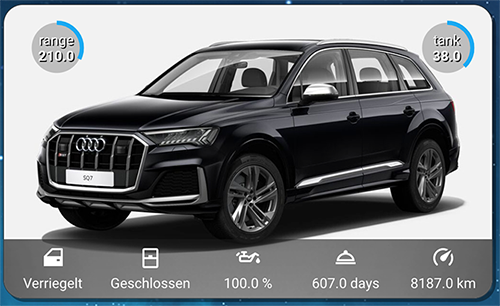 此卡片需要以下前端修改: - https://github.com/thomasloven/lovelace-card-mod - https://github.com/custom-cards/circle-sensor-card 这些修改可以(像此集成一样)使用 HACS 进行安装。 该卡片在 `ui-lovelace.yaml`(或您配置仪表板的位置)中使用以下代码。 ``` - type: picture-elements image: /local/pictures/audi_sq7.jpeg style: | ha-card { border-radius: 10px; border: solid 1px rgba(100,100,100,0.3); box-shadow: 3px 3px rgba(0,0,0,0.4); overflow: hidden; } elements: - type: image image: /local/pictures/cardbackK.png style: left: 50% top: 90% width: 100% height: 60px - type: icon icon: mdi:car-door entity: sensor.doors_trunk_sq7 tap_action: more_info style: {color: white, left: 10%, top: 86%} - type: state-label entity: sensor.doors_trunk_sq7 style: {color: white, left: 10%, top: 95%} - type: state-icon entity: sensor.windows_sq7 tap_action: more_info style: {color: white, left: 30%, top: 86%} - type: state-label entity: sensor.windows_sq7 style: {color: white, left: 30%, top: 95%} - type: icon icon: mdi:oil entity: sensor.audi_sq7_oil_level tap_action: more_info style: {color: white, left: 50%, top: 86%} - type: state-label entity: sensor.audi_sq7_oil_level style: {color: white, left: 50%, top: 95%} - type: icon icon: mdi:room-service-outline entity: sensor.audi_sq7_service_inspection_time tap_action: more_info style: {color: white, left: 70%, top: 86%} - type: state-label entity: sensor.audi_sq7_service_inspection_time style: {color: white, left: 70%, top: 95%} - type: icon icon: mdi:speedometer entity: sensor.audi_sq7_mileage tap_action: more_info style: {color: white, left: 90%, top: 86%} - type: state-label entity: sensor.audi_sq7_mileage style: {color: white, left: 90%, top: 95%} - type: custom:circle-sensor-card entity: sensor.audi_sq7_tank_level max: 100 min: 0 stroke_width: 15 gradient: true fill: '#aaaaaabb' name: tank units: ' ' font_style: font-size: 1.0em font-color: white text-shadow: '1px 1px black' style: top: 5% left: 80% width: 4em height: 4em transform: none - type: custom:circle-sensor-card entity: sensor.audi_sq7_range max: 630 min: 0 stroke_width: 15 gradient: true fill: '#aaaaaabb' name: range units: ' ' font_style: font-size: 1.0em font-color: white text-shadow: '1px 1px black' style: top: 5% left: 5% width: 4em height: 4em transform: none ```
(**可选**) | | `Region` | `string` | `DE` | 您的 Audi Connect 账户注册的地区:
• `DE` – 欧洲
• `US` – 美国
• `CA` – 加拿大
• `CN` – 中国 | | `Scan Interval` | `int` | `15` | 从 Audi Connect 获取状态数据的频率(以分钟为单位)。
允许的最小值为 15 分钟。
\* _稍后可通过 CONFIGURE 菜单更新。_ | | `API Level` | `int` | `0` | 确定用于服务操作调用的 API 结构:
• `0` – _通常为_ 燃油车(旧格式)
• `1` – _通常为_ e-tron(电动车辆,较新格式)
\* _稍后可通过 CONFIGURE 菜单更新。_ | ## 选项 在 **设置 ➤ 设备与服务 ➤ 集成 ➤ Audi Connect ➤ 配置** 下查找配置选项: | 名称 | 类型 | 默认值 | 描述 | | ----------------------------------- | ------ | ------- | ------------------------------------------------------------------------------------------------------------------------------------------------------------------------------------------------------------------------------------------------------------------------------------------------------------------- | | `Cloud Update at Startup` | `bool` | `True` | 切换集成启动时的初始云端更新。适用于开发或 Home Assistant 频繁重启的情况。 | | `Refresh Vehicle Data After Action` | `bool` | `False` | 在每次服务操作(例如空调、锁车)后发送车辆刷新命令。由于车辆在收到命令后会自行连接云端进行同步,因此通常不需要此操作。每次车辆刷新都会计入 API 频率限制。为了提高响应速度,请改为增加 Cloud Refresh Delay。 | | `Cloud Refresh Delay` | `int` | `5` | 执行服务操作后、刷新云端数据前等待的秒数。较长的延迟给车辆更多的时间向云端报告其更新后的状态。 | | `Scan Interval` | `int` | `15` | 定义轮询频率(以分钟为单位,最小为 15)。 | | `Excluded VINs` | `str` | – | 要从设置和更新中排除的、以逗号分隔的 VIN 列表。 | _注意:点击 `Submit` 后集成会自动重新加载,但建议重启 Home Assistant。_ ## 服务操作 ### Audi Connect: 刷新车辆数据 `audiconnect.refresh_vehicle_data` 常规更新会从 Audi Connect 云服务检索数据,不会直接与车辆进行交互。*此* 服务操作会触发车辆本身的更新请求。成功获取数据后,Home Assistant 会自动更新。该服务操作需要车辆识别码 (VIN) 作为参数。 #### 参数 - **`vehicle`**: 要执行操作的 Audi 车辆。 ### Audi Connect: 刷新云端数据 `audiconnect.refresh_cloud_data` *此* 服务操作会触发来自云端的更新请求。 - 功能:从在线数据源更新所有车辆的数据,类似于集成启动时或计划的刷新间隔期间执行的操作。 - 行为:不会强制在车辆端进行数据刷新。因此,如果车辆最近没有推送更新,检索到的数据可能会过时。 - 注意:此服务操作复制了主动轮询的功能而无需排定计划,从而对数据刷新时机提供了更精细的控制。 - **重要提示:** 此服务操作没有内置的使用限制。过度使用可能导致您的账户被暂时停用。 #### 参数 - `无` ### Audi Connect: 执行车辆操作 `audiconnect.execute_vehicle_action` 此服务操作允许您对您的 Audi 车辆执行操作,需通过车辆识别码 (VIN) 和所需的操作来进行指定。 #### 服务参数 - **`vehicle`**: 要执行操作的 Audi 车辆。 - **`action`**: 要对车辆执行的特定操作。可用操作包括: - **`lock`**: 锁止车辆。 - **`unlock`**: 解锁车辆。 - **`start_climatisation`**: 启动车辆的空调系统。(旧版)-- 已弃用 - **`stop_climatisation`**: 停止车辆的空调系统。 - **`start_charger`**: 开始为车辆充电。 - **`start_timed_charger`**: 使用定时器启动车辆的充电器。 - **`stop_charger`**: 停止为车辆充电。 - **`start_preheater`**: 启动车辆的预热器系统。(旧版)-- 已弃用 - **`stop_preheater`**: 停止车辆的预热器系统。 - **`start_window_heating`**: 开始加热车辆的车窗。 - **`stop_window_heating`**: 停止加热车辆的车窗。 #### 使用示例 要对 VIN 为 `WAUZZZ4G7EN123456` 的车辆执行锁车操作,请使用以下服务调用: ``` service: audiconnect.execute_vehicle_action data: device_id: 034986de941a1f824b3f06c0a1d9333f action: "lock" ``` #### 注意事项 - 某些服务操作需要在配置中设置 S-PIN。 - 操作成功后,集成会等待配置的 **Cloud Refresh Delay** 时间,然后执行云端数据刷新。如果启用了 **Refresh Vehicle Data After Action**,则在延迟之前也会发送一次车辆刷新请求。 ### Audi Connect: 启动温控系统 `audiconnect.start_climate_control` 此服务操作允许您启动温控系统,并提供温度、玻璃加热和自动座椅舒适度等选项。 #### 参数 - **`vehicle`**: 要执行操作的 Audi 车辆。 - **`temp_f`** (_可选_): 期望温度(华氏度)。默认值为 `70`。 - **`temp_c`** (_可选_): 期望温度(摄氏度)。默认值为 `21`。 - **`glass_heating`** (_可选_): 启用 (`True`) 或禁用 (`False`) 玻璃加热。默认值为 `False`。 - **`seat_fl`** (_可选_): 启用 (`True`) 或禁用 (`False`) 左前座椅加热器。默认值为 `False`。 - **`seat_fr`** (_可选_): 启用 (`True`) 或禁用 (`False`) 右前座椅加热器。默认值为 `False`。 - **`seat_rl`** (_可选_): 启用 (`True`) 或禁用 (`False`) 左后座椅加热器。默认值为 `False`。 - **`seat_rr`** (_可选_): 启用 (`True`) 或禁用 (`False`) 右后座椅加热器。默认值为 `False`。 #### 使用示例 要为 VIN 为 `WAUZZZ4G7EN123456` 的车辆启动温控系统,设定温度为 72°F,启用玻璃加热,并激活两个前座加热器,请使用以下服务调用: ``` service: audiconnect.start_climate_control data: device_id: 034986de941a1f824b3f06c0a1d9333f temp_f: 72 glass_heating: True seat_fl: True seat_fr: True ``` #### 注意事项 - `temp_f` 和 `temp_c` 参数互斥。如果同时提供这两个参数,则以 `temp_f` 为准。 - 如果未提供 `temp_f` 和 `temp_c` 参数,系统将默认使用 70°F 或 21°C。 - 操作成功后,集成会等待配置的 **Cloud Refresh Delay** 时间,然后执行云端数据刷新。如果启用了 **Refresh Vehicle Data After Action**,则在延迟之前也会发送一次车辆刷新请求。 ### Audi Connect: 启动辅助加热 `audiconnect.start_auxiliary_heating` 此服务操作允许您启动车辆的辅助加热功能,并可选择持续时间。 #### 参数 - **`vehicle`**: 要执行操作的 Audi 车辆。 - **`duration`** (_可选_): 辅助加热器在关闭前运行的分钟数。如果不提供,默认值为 `20` 分钟。 #### 使用示例 要为 VIN 为 `WAUZZZ4G7EN123456` 的车辆启动辅助加热器并持续 40 分钟,请使用以下服务调用操作: ``` service: audiconnect.start_auxiliary_heating data: device_id: 034986de941a1f824b3f06c0a1d9333f duration: 40 ``` #### 注意事项 - 需要在配置中设置 S-PIN。 - 操作成功后,集成会等待配置的 **Cloud Refresh Delay** 时间,然后执行云端数据刷新。如果启用了 **Refresh Vehicle Data After Action**,则在延迟之前也会发送一次车辆刷新请求。 ## 仪表板卡片示例 下面是一个仪表板 (Lovelace) 卡片示例,展示了此 Home Assistant 插件提供的一些传感器。  此卡片需要以下前端修改: - https://github.com/thomasloven/lovelace-card-mod - https://github.com/custom-cards/circle-sensor-card 这些修改可以(像此集成一样)使用 HACS 进行安装。 该卡片在 `ui-lovelace.yaml`(或您配置仪表板的位置)中使用以下代码。 ``` - type: picture-elements image: /local/pictures/audi_sq7.jpeg style: | ha-card { border-radius: 10px; border: solid 1px rgba(100,100,100,0.3); box-shadow: 3px 3px rgba(0,0,0,0.4); overflow: hidden; } elements: - type: image image: /local/pictures/cardbackK.png style: left: 50% top: 90% width: 100% height: 60px - type: icon icon: mdi:car-door entity: sensor.doors_trunk_sq7 tap_action: more_info style: {color: white, left: 10%, top: 86%} - type: state-label entity: sensor.doors_trunk_sq7 style: {color: white, left: 10%, top: 95%} - type: state-icon entity: sensor.windows_sq7 tap_action: more_info style: {color: white, left: 30%, top: 86%} - type: state-label entity: sensor.windows_sq7 style: {color: white, left: 30%, top: 95%} - type: icon icon: mdi:oil entity: sensor.audi_sq7_oil_level tap_action: more_info style: {color: white, left: 50%, top: 86%} - type: state-label entity: sensor.audi_sq7_oil_level style: {color: white, left: 50%, top: 95%} - type: icon icon: mdi:room-service-outline entity: sensor.audi_sq7_service_inspection_time tap_action: more_info style: {color: white, left: 70%, top: 86%} - type: state-label entity: sensor.audi_sq7_service_inspection_time style: {color: white, left: 70%, top: 95%} - type: icon icon: mdi:speedometer entity: sensor.audi_sq7_mileage tap_action: more_info style: {color: white, left: 90%, top: 86%} - type: state-label entity: sensor.audi_sq7_mileage style: {color: white, left: 90%, top: 95%} - type: custom:circle-sensor-card entity: sensor.audi_sq7_tank_level max: 100 min: 0 stroke_width: 15 gradient: true fill: '#aaaaaabb' name: tank units: ' ' font_style: font-size: 1.0em font-color: white text-shadow: '1px 1px black' style: top: 5% left: 80% width: 4em height: 4em transform: none - type: custom:circle-sensor-card entity: sensor.audi_sq7_range max: 630 min: 0 stroke_width: 15 gradient: true fill: '#aaaaaabb' name: range units: ' ' font_style: font-size: 1.0em font-color: white text-shadow: '1px 1px black' style: top: 5% left: 5% width: 4em height: 4em transform: none ```
标签:API集成, Home Assistant, 可观测性, 智能家居, 物联网, 车联网, 逆向工具