Danielle-Respes/Threat-Hunting-Scenario-TOR
GitHub: Danielle-Respes/Threat-Hunting-Scenario-TOR
Stars: 0 | Forks: 0
# Threat Hunt Report: Unauthorized TOR Usage
## **on a School District Network**
 For the full step-by-step breakdown of how this threat scenario was built and simulated in the lab environment:
- [Scenario Creation](https://github.com/Danielle-Respes/Threat-Hunting-Scenario-TOR/blob/main/Create%20threat-hunting-scenario-tor-event-creation.md)
## Context
I work in IT for a K-12 school district. When a student device gets caught using TOR, we remove it from the network — that part I already do. What I wanted to build was the detection and documentation side: the queries, the evidence trail, the timeline. This lab gave me exactly that.
This scenario uses Microsoft Defender for Endpoint (MDE) as the endpoint detection source and Microsoft Sentinel as the SIEM where logs are ingested, hunted, and escalated into incidents. Both tools are part of my district's environment.
## Architecture
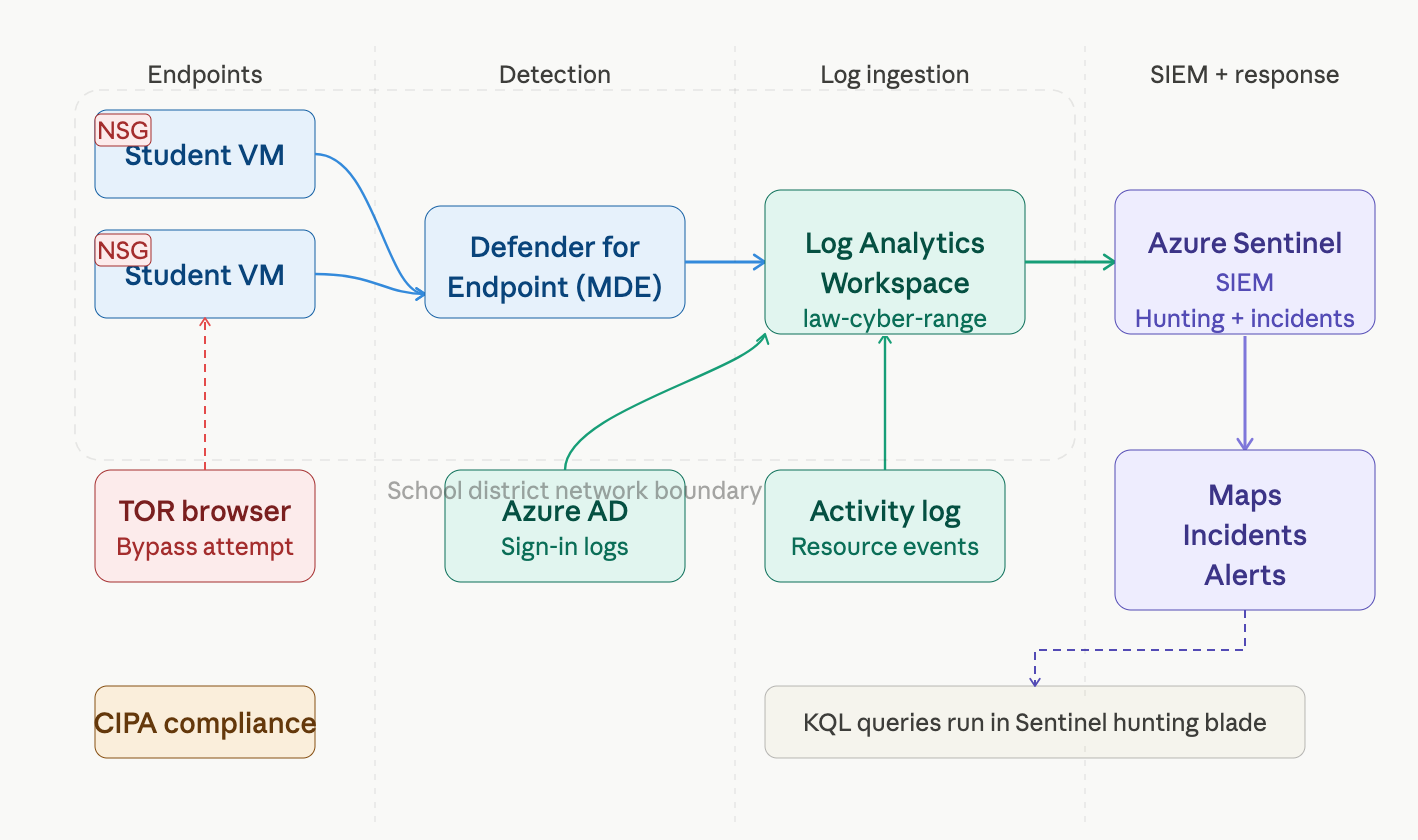
This diagram shows how data flows from student devices through MDE and into Sentinel, where the hunt, alerting, and incident management all happen.
For the full step-by-step breakdown of how this threat scenario was built and simulated in the lab environment:
- [Scenario Creation](https://github.com/Danielle-Respes/Threat-Hunting-Scenario-TOR/blob/main/Create%20threat-hunting-scenario-tor-event-creation.md)
## Context
I work in IT for a K-12 school district. When a student device gets caught using TOR, we remove it from the network — that part I already do. What I wanted to build was the detection and documentation side: the queries, the evidence trail, the timeline. This lab gave me exactly that.
This scenario uses Microsoft Defender for Endpoint (MDE) as the endpoint detection source and Microsoft Sentinel as the SIEM where logs are ingested, hunted, and escalated into incidents. Both tools are part of my district's environment.
## Architecture
This diagram shows how data flows from student devices through MDE and into Sentinel, where the hunt, alerting, and incident management all happen.
 ## Platforms and Tools Used
* Windows 11 Virtual Machine (simulating a school-issued student device)
* Microsoft Defender for Endpoint (MDE) — endpoint telemetry and raw event collection
* Microsoft Sentinel — SIEM used to ingest MDE logs, run hunting queries, and manage the incident
* Kusto Query Language (KQL) — used across both MDE and Sentinel to query file, process, and network events
* TOR Browser — the subject of the hunt
* Microsoft Azure — where the lab environment lives
## The Scenario
A student on device `district-student-laptop` is attempting to bypass the school's content filter using TOR. Network logs show encrypted outbound traffic hitting known TOR entry nodes from the student subnet during class hours.
MDE is collecting endpoint activity logs from the device. That data flows into Microsoft Sentinel, where it becomes searchable across the `DeviceFileEvents`, `DeviceProcessEvents`, and `DeviceNetworkEvents` tables. The hunt, the timeline, and the incident are all managed from the Sentinel workspace.
**The goal:** Identify the device, confirm TOR usage across file, process, and network activity logs, build a complete evidence timeline, and respond per district policy.
**Why this matters in a K-12 environment:**
- CIPA Compliance — The Children's Internet Protection Act requires schools to enforce content filtering. TOR bypasses it entirely.
- Student Safety — Unfiltered network access exposes students to content that schools are legally required to block.
### High-Level TOR Detection Plan
- Check `DeviceFileEvents` — Did TOR-related files appear on the device?
- Check `DeviceProcessEvents` — Was TOR installed and launched?
- Check `DeviceNetworkEvents` — Did the device connect to known TOR ports or relay nodes?
All queries were run in the Microsoft Sentinel hunting blade against the `law-cyber-range` Log Analytics workspace.
## Steps Taken
### Step 1 — Searched the DeviceFileEvents Table
**Query used:**
DeviceFileEvents
| where DeviceName == "district-student-laptop"
| where InitiatingProcessAccountName == "student01"
| where FileName contains "tor"
| where Timestamp >= datetime(2024-11-08T22:14:48Z)
| order by Timestamp desc
| project Timestamp, DeviceName, ActionType, FileName, FolderPath, SHA256, Account = InitiatingProcessAccountName
**Result:** TOR installer downloaded, files extracted to Desktop, and a personal notes file created — all within the same session. This was deliberate.
*[Screenshot — DeviceFileEvents results]*
### Step 2 — Confirmed Installation via DeviceProcessEvents
Searched `ProcessCommandLine` for the TOR portable installer name. At `2024-11-08T22:16:47Z`, the device executed the installer with a `/S` flag — silent mode. No install wizard, no prompts. The student knew exactly what they were doing.
**Query used:**
DeviceProcessEvents
| where DeviceName == "district-student-laptop"
| where ProcessCommandLine contains "tor-browser-windows-x86_64-portable"
| project Timestamp, DeviceName, AccountName, ActionType, FileName, FolderPath, SHA256, ProcessCommandLine
**Result:** Silent installation confirmed via `/S` flag in the command line.
*[Screenshot — DeviceProcessEvents installation results]*
### Step 3 — Confirmed TOR Browser Execution
Searched for `tor.exe` and `firefox.exe` process launches. At `2024-11-08T22:17:21Z`, `tor.exe` launched from the student's Desktop TOR folder with multiple child processes following — standard TOR startup behavior.
**Query used:**
DeviceProcessEvents
| where DeviceName == "district-student-laptop"
| where FileName has_any ("tor.exe", "firefox.exe", "tor-browser.exe")
| project Timestamp, DeviceName, AccountName, ActionType, FileName, FolderPath, SHA256, ProcessCommandLine
| order by Timestamp desc
**Result:** `tor.exe` and `firefox.exe` both launched from the TOR Browser folder path, not the system Firefox install. Browser confirmed active.
*[Screenshot — TOR process execution results]*
### Step 4 — Confirmed TOR Network Connections via DeviceNetworkEvents
Searched for outbound connections from `tor.exe` and `firefox.exe` on known TOR ports. At `2024-11-08T22:18:01Z`, the device established a successful connection to `176.198.159.33` on port `9001` — a known TOR relay port. Additional connections followed within seconds.
**Query used:**
DeviceNetworkEvents
| where DeviceName == "district-student-laptop"
| where InitiatingProcessAccountName != "system"
| where InitiatingProcessFileName in ("tor.exe", "firefox.exe")
| where RemotePort in ("9001", "9030", "9040", "9050", "9051", "9150", "80", "443")
| project Timestamp, DeviceName, InitiatingProcessAccountName, ActionType, RemoteIP, RemotePort, RemoteUrl, InitiatingProcessFileName, InitiatingProcessFolderPath
| order by Timestamp desc
**Result:** Three confirmed TOR network connections, including a loopback on port `9150` confirming active traffic routing through the TOR network.
*[Screenshot — DeviceNetworkEvents TOR connection results]*
### Step 5 — Escalated to Sentinel Incident
With the evidence confirmed across all three tables, the findings were escalated into a Microsoft Sentinel incident using a scheduled analytics rule. The rule queries `DeviceNetworkEvents` for outbound TOR port activity and fires an alert when a match is found, which Sentinel then promotes to a tracked incident with severity, owner assignment, and audit trail.
**Sentinel analytics rule query:**
DeviceNetworkEvents
| where InitiatingProcessFileName in ("tor.exe", "firefox.exe")
| where RemotePort in ("9001", "9030", "9040", "9050", "9051", "9150")
| where ActionType == "ConnectionSuccess"
| project Timestamp, DeviceName, InitiatingProcessAccountName, RemoteIP, RemotePort, InitiatingProcessFileName
**Rule configuration:**
- Severity: Medium
- Run frequency: Every 5 minutes
- Lookup window: Last 5 minutes
- Entity mapping: Host (DeviceName), Account (InitiatingProcessAccountName), IP (RemoteIP)
The incident was created in Sentinel, assigned for investigation, and closed as a true positive once the full timeline was documented.
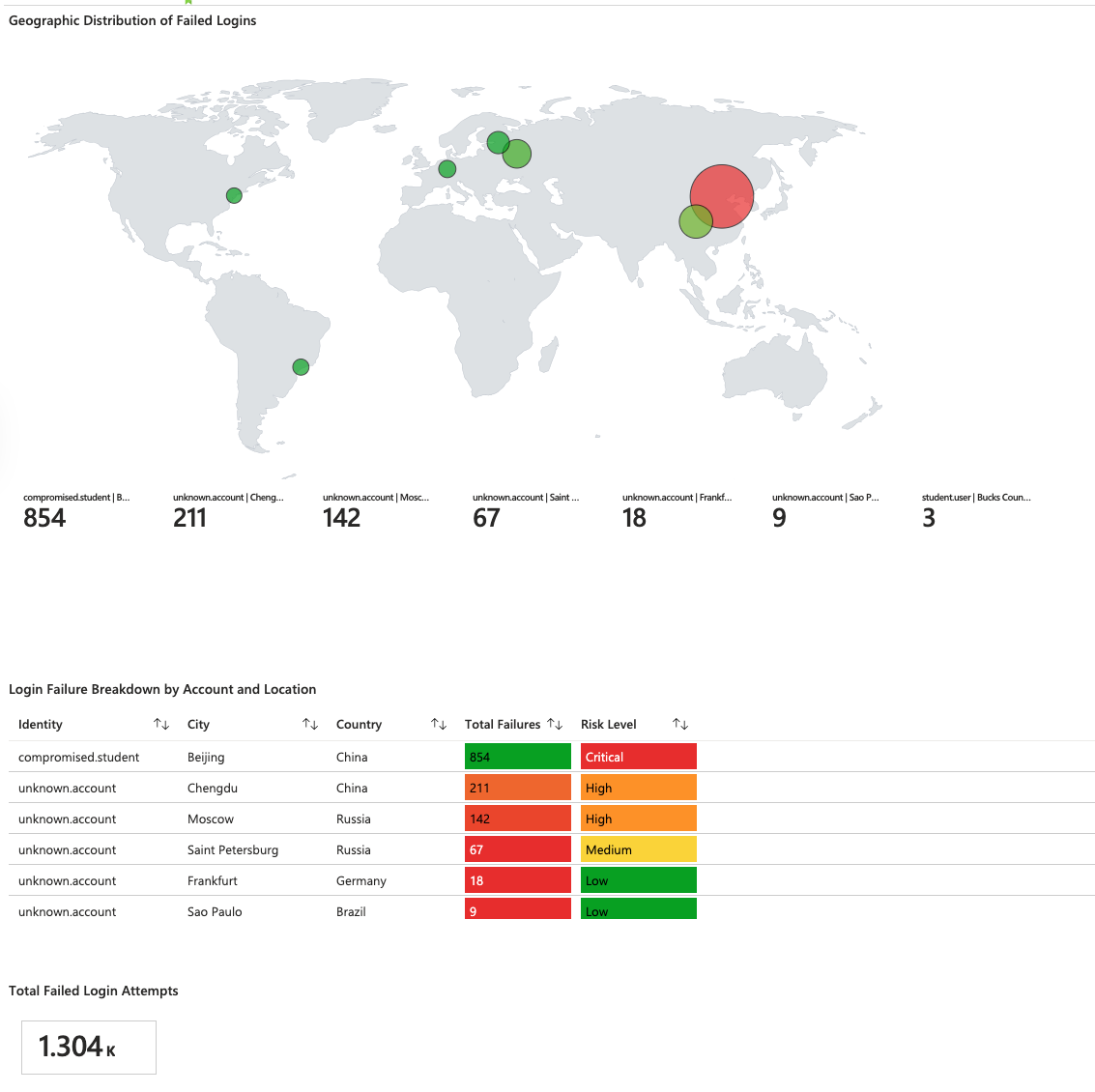
### Step 6 — Sentinel Workbook: Geographic Distribution of Failed Logins
To visualize the scope of the threat beyond a single device, a Microsoft Sentinel workbook was built to map directory login failures by location. The workbook shows bubble size and color scaled to failure volume — surfacing which accounts and geographies represent the highest risk at a glance.
The workbook includes a geographic map, a risk-level breakdown table with color-coded severity, and a footer explaining the mock activity log data and how it would be replaced with live `SigninLogs` or `SecurityEvent` queries in production.
## Platforms and Tools Used
* Windows 11 Virtual Machine (simulating a school-issued student device)
* Microsoft Defender for Endpoint (MDE) — endpoint telemetry and raw event collection
* Microsoft Sentinel — SIEM used to ingest MDE logs, run hunting queries, and manage the incident
* Kusto Query Language (KQL) — used across both MDE and Sentinel to query file, process, and network events
* TOR Browser — the subject of the hunt
* Microsoft Azure — where the lab environment lives
## The Scenario
A student on device `district-student-laptop` is attempting to bypass the school's content filter using TOR. Network logs show encrypted outbound traffic hitting known TOR entry nodes from the student subnet during class hours.
MDE is collecting endpoint activity logs from the device. That data flows into Microsoft Sentinel, where it becomes searchable across the `DeviceFileEvents`, `DeviceProcessEvents`, and `DeviceNetworkEvents` tables. The hunt, the timeline, and the incident are all managed from the Sentinel workspace.
**The goal:** Identify the device, confirm TOR usage across file, process, and network activity logs, build a complete evidence timeline, and respond per district policy.
**Why this matters in a K-12 environment:**
- CIPA Compliance — The Children's Internet Protection Act requires schools to enforce content filtering. TOR bypasses it entirely.
- Student Safety — Unfiltered network access exposes students to content that schools are legally required to block.
### High-Level TOR Detection Plan
- Check `DeviceFileEvents` — Did TOR-related files appear on the device?
- Check `DeviceProcessEvents` — Was TOR installed and launched?
- Check `DeviceNetworkEvents` — Did the device connect to known TOR ports or relay nodes?
All queries were run in the Microsoft Sentinel hunting blade against the `law-cyber-range` Log Analytics workspace.
## Steps Taken
### Step 1 — Searched the DeviceFileEvents Table
**Query used:**
DeviceFileEvents
| where DeviceName == "district-student-laptop"
| where InitiatingProcessAccountName == "student01"
| where FileName contains "tor"
| where Timestamp >= datetime(2024-11-08T22:14:48Z)
| order by Timestamp desc
| project Timestamp, DeviceName, ActionType, FileName, FolderPath, SHA256, Account = InitiatingProcessAccountName
**Result:** TOR installer downloaded, files extracted to Desktop, and a personal notes file created — all within the same session. This was deliberate.
*[Screenshot — DeviceFileEvents results]*
### Step 2 — Confirmed Installation via DeviceProcessEvents
Searched `ProcessCommandLine` for the TOR portable installer name. At `2024-11-08T22:16:47Z`, the device executed the installer with a `/S` flag — silent mode. No install wizard, no prompts. The student knew exactly what they were doing.
**Query used:**
DeviceProcessEvents
| where DeviceName == "district-student-laptop"
| where ProcessCommandLine contains "tor-browser-windows-x86_64-portable"
| project Timestamp, DeviceName, AccountName, ActionType, FileName, FolderPath, SHA256, ProcessCommandLine
**Result:** Silent installation confirmed via `/S` flag in the command line.
*[Screenshot — DeviceProcessEvents installation results]*
### Step 3 — Confirmed TOR Browser Execution
Searched for `tor.exe` and `firefox.exe` process launches. At `2024-11-08T22:17:21Z`, `tor.exe` launched from the student's Desktop TOR folder with multiple child processes following — standard TOR startup behavior.
**Query used:**
DeviceProcessEvents
| where DeviceName == "district-student-laptop"
| where FileName has_any ("tor.exe", "firefox.exe", "tor-browser.exe")
| project Timestamp, DeviceName, AccountName, ActionType, FileName, FolderPath, SHA256, ProcessCommandLine
| order by Timestamp desc
**Result:** `tor.exe` and `firefox.exe` both launched from the TOR Browser folder path, not the system Firefox install. Browser confirmed active.
*[Screenshot — TOR process execution results]*
### Step 4 — Confirmed TOR Network Connections via DeviceNetworkEvents
Searched for outbound connections from `tor.exe` and `firefox.exe` on known TOR ports. At `2024-11-08T22:18:01Z`, the device established a successful connection to `176.198.159.33` on port `9001` — a known TOR relay port. Additional connections followed within seconds.
**Query used:**
DeviceNetworkEvents
| where DeviceName == "district-student-laptop"
| where InitiatingProcessAccountName != "system"
| where InitiatingProcessFileName in ("tor.exe", "firefox.exe")
| where RemotePort in ("9001", "9030", "9040", "9050", "9051", "9150", "80", "443")
| project Timestamp, DeviceName, InitiatingProcessAccountName, ActionType, RemoteIP, RemotePort, RemoteUrl, InitiatingProcessFileName, InitiatingProcessFolderPath
| order by Timestamp desc
**Result:** Three confirmed TOR network connections, including a loopback on port `9150` confirming active traffic routing through the TOR network.
*[Screenshot — DeviceNetworkEvents TOR connection results]*
### Step 5 — Escalated to Sentinel Incident
With the evidence confirmed across all three tables, the findings were escalated into a Microsoft Sentinel incident using a scheduled analytics rule. The rule queries `DeviceNetworkEvents` for outbound TOR port activity and fires an alert when a match is found, which Sentinel then promotes to a tracked incident with severity, owner assignment, and audit trail.
**Sentinel analytics rule query:**
DeviceNetworkEvents
| where InitiatingProcessFileName in ("tor.exe", "firefox.exe")
| where RemotePort in ("9001", "9030", "9040", "9050", "9051", "9150")
| where ActionType == "ConnectionSuccess"
| project Timestamp, DeviceName, InitiatingProcessAccountName, RemoteIP, RemotePort, InitiatingProcessFileName
**Rule configuration:**
- Severity: Medium
- Run frequency: Every 5 minutes
- Lookup window: Last 5 minutes
- Entity mapping: Host (DeviceName), Account (InitiatingProcessAccountName), IP (RemoteIP)
The incident was created in Sentinel, assigned for investigation, and closed as a true positive once the full timeline was documented.
### Step 6 — Sentinel Workbook: Geographic Distribution of Failed Logins
To visualize the scope of the threat beyond a single device, a Microsoft Sentinel workbook was built to map directory login failures by location. The workbook shows bubble size and color scaled to failure volume — surfacing which accounts and geographies represent the highest risk at a glance.
The workbook includes a geographic map, a risk-level breakdown table with color-coded severity, and a footer explaining the mock activity log data and how it would be replaced with live `SigninLogs` or `SecurityEvent` queries in production.
 ## Chronological Event Timeline
### 1. File Download — TOR Installer
- **Timestamp:** `2024-11-08T22:14:48.6065231Z`
- **Event:** Student `student01` downloaded a file named `tor-browser-windows-x86_64-portable-14.0.1.exe` to the Downloads folder.
- **Action:** File download detected.
- **File Path:** `C:\Users\student01\Downloads\tor-browser-windows-x86_64-portable-14.0.1.exe`
### 2. Process Execution — TOR Browser Installation
- **Timestamp:** `2024-11-08T22:16:47.4484567Z`
- **Event:** Student `student01` executed the file `tor-browser-windows-x86_64-portable-14.0.1.exe` in silent mode, initiating a background installation of the TOR Browser with no visible prompts.
- **Action:** Process creation detected.
- **Command:** `tor-browser-windows-x86_64-portable-14.0.1.exe /S`
- **File Path:** `C:\Users\student01\Downloads\tor-browser-windows-x86_64-portable-14.0.1.exe`
### 3. Process Execution — TOR Browser Launch
- **Timestamp:** `2024-11-08T22:17:21.6357935Z`
- **Event:** Student `student01` opened the TOR browser. Subsequent processes associated with TOR browser, including `firefox.exe` and `tor.exe`, were created indicating the browser launched successfully.
- **Action:** Process creation of TOR browser-related executables detected.
- **File Path:** `C:\Users\student01\Desktop\Tor Browser\Browser\TorBrowser\Tor\tor.exe`
### 4. Network Connection — TOR Network
- **Timestamp:** `2024-11-08T22:18:01.1246358Z`
- **Event:** A network connection to IP `176.198.159.33` on port `9001` was established by `tor.exe`, confirming active TOR browser network activity.
- **Action:** Connection success.
- **Process:** `tor.exe`
- **File Path:** `C:\Users\student01\Desktop\Tor Browser\Browser\TorBrowser\Tor\tor.exe`
### 5. Additional Network Connections — TOR Browser Activity
- **Timestamps:**
- `2024-11-08T22:18:08Z` — Connected to `194.164.169.85` on port `443`.
- `2024-11-08T22:18:16Z` — Local connection to `127.0.0.1` on port `9150`.
- **Event:** Additional TOR network connections were established, confirming ongoing browsing activity through the TOR network.
- **Action:** Multiple successful connections detected.
### 6. File Creation — Bypass Notes
- **Timestamp:** `2024-11-08T22:27:19.7259964Z`
- **Event:** Student `student01` created a file named `bypass-sites.txt` on the Desktop, indicating a personal list of sites intended to be accessed via TOR.
- **Action:** File creation detected.
- **File Path:** `C:\Users\student01\Desktop\bypass-sites.txt`
## Summary
Student `student01` on `district-student-laptop` downloaded, silently installed, launched, and actively used the TOR Browser during a school session. The full evidence chain is documented across MDE activity logs and surfaced through Microsoft Sentinel:
1. File download confirmed — `DeviceFileEvents`
2. Silent installation confirmed — `DeviceProcessEvents`
3. Browser launch confirmed — `DeviceProcessEvents`
4. Active TOR network connections confirmed — `DeviceNetworkEvents`
5. Bypass notes file created — demonstrating intent
6. Sentinel incident created, investigated, and closed as true positive
7. Sentinel workbook built to visualize geographic login failure patterns
This constitutes a clear violation of the district's Acceptable Use Policy (AUP) and circumvents CIPA-mandated content filtering.
## Response Taken
1. Device isolated from the school network
2. Incident documented in Sentinel with full query evidence and timestamps
3. Building administrator notified per AUP enforcement procedures
4. Student's parent/guardian notified per district policy
5. IT ticket opened for device reimaging and AUP review
## What I Learned
- How to use KQL to connect file, process, and network events into a complete incident story
- How MDE and Sentinel work together — MDE collects the endpoint activity logs, Sentinel provides the hunting workspace, the alerting layer, and incident management on top of it
- How to build a Sentinel analytics rule that turns a hunting query into a repeatable detection
- How to build a Sentinel workbook that turns raw query results into a visual that communicates risk to both technical and non-technical audiences
- How to build a structured detection hypothesis and support it with log evidence
- How enterprise SOC methodology translates directly into a K-12 security environment
## Chronological Event Timeline
### 1. File Download — TOR Installer
- **Timestamp:** `2024-11-08T22:14:48.6065231Z`
- **Event:** Student `student01` downloaded a file named `tor-browser-windows-x86_64-portable-14.0.1.exe` to the Downloads folder.
- **Action:** File download detected.
- **File Path:** `C:\Users\student01\Downloads\tor-browser-windows-x86_64-portable-14.0.1.exe`
### 2. Process Execution — TOR Browser Installation
- **Timestamp:** `2024-11-08T22:16:47.4484567Z`
- **Event:** Student `student01` executed the file `tor-browser-windows-x86_64-portable-14.0.1.exe` in silent mode, initiating a background installation of the TOR Browser with no visible prompts.
- **Action:** Process creation detected.
- **Command:** `tor-browser-windows-x86_64-portable-14.0.1.exe /S`
- **File Path:** `C:\Users\student01\Downloads\tor-browser-windows-x86_64-portable-14.0.1.exe`
### 3. Process Execution — TOR Browser Launch
- **Timestamp:** `2024-11-08T22:17:21.6357935Z`
- **Event:** Student `student01` opened the TOR browser. Subsequent processes associated with TOR browser, including `firefox.exe` and `tor.exe`, were created indicating the browser launched successfully.
- **Action:** Process creation of TOR browser-related executables detected.
- **File Path:** `C:\Users\student01\Desktop\Tor Browser\Browser\TorBrowser\Tor\tor.exe`
### 4. Network Connection — TOR Network
- **Timestamp:** `2024-11-08T22:18:01.1246358Z`
- **Event:** A network connection to IP `176.198.159.33` on port `9001` was established by `tor.exe`, confirming active TOR browser network activity.
- **Action:** Connection success.
- **Process:** `tor.exe`
- **File Path:** `C:\Users\student01\Desktop\Tor Browser\Browser\TorBrowser\Tor\tor.exe`
### 5. Additional Network Connections — TOR Browser Activity
- **Timestamps:**
- `2024-11-08T22:18:08Z` — Connected to `194.164.169.85` on port `443`.
- `2024-11-08T22:18:16Z` — Local connection to `127.0.0.1` on port `9150`.
- **Event:** Additional TOR network connections were established, confirming ongoing browsing activity through the TOR network.
- **Action:** Multiple successful connections detected.
### 6. File Creation — Bypass Notes
- **Timestamp:** `2024-11-08T22:27:19.7259964Z`
- **Event:** Student `student01` created a file named `bypass-sites.txt` on the Desktop, indicating a personal list of sites intended to be accessed via TOR.
- **Action:** File creation detected.
- **File Path:** `C:\Users\student01\Desktop\bypass-sites.txt`
## Summary
Student `student01` on `district-student-laptop` downloaded, silently installed, launched, and actively used the TOR Browser during a school session. The full evidence chain is documented across MDE activity logs and surfaced through Microsoft Sentinel:
1. File download confirmed — `DeviceFileEvents`
2. Silent installation confirmed — `DeviceProcessEvents`
3. Browser launch confirmed — `DeviceProcessEvents`
4. Active TOR network connections confirmed — `DeviceNetworkEvents`
5. Bypass notes file created — demonstrating intent
6. Sentinel incident created, investigated, and closed as true positive
7. Sentinel workbook built to visualize geographic login failure patterns
This constitutes a clear violation of the district's Acceptable Use Policy (AUP) and circumvents CIPA-mandated content filtering.
## Response Taken
1. Device isolated from the school network
2. Incident documented in Sentinel with full query evidence and timestamps
3. Building administrator notified per AUP enforcement procedures
4. Student's parent/guardian notified per district policy
5. IT ticket opened for device reimaging and AUP review
## What I Learned
- How to use KQL to connect file, process, and network events into a complete incident story
- How MDE and Sentinel work together — MDE collects the endpoint activity logs, Sentinel provides the hunting workspace, the alerting layer, and incident management on top of it
- How to build a Sentinel analytics rule that turns a hunting query into a repeatable detection
- How to build a Sentinel workbook that turns raw query results into a visual that communicates risk to both technical and non-technical audiences
- How to build a structured detection hypothesis and support it with log evidence
- How enterprise SOC methodology translates directly into a K-12 security environment
For the full step-by-step breakdown of how this threat scenario was built and simulated in the lab environment:
- [Scenario Creation](https://github.com/Danielle-Respes/Threat-Hunting-Scenario-TOR/blob/main/Create%20threat-hunting-scenario-tor-event-creation.md)
## Context
I work in IT for a K-12 school district. When a student device gets caught using TOR, we remove it from the network — that part I already do. What I wanted to build was the detection and documentation side: the queries, the evidence trail, the timeline. This lab gave me exactly that.
This scenario uses Microsoft Defender for Endpoint (MDE) as the endpoint detection source and Microsoft Sentinel as the SIEM where logs are ingested, hunted, and escalated into incidents. Both tools are part of my district's environment.
## Architecture
This diagram shows how data flows from student devices through MDE and into Sentinel, where the hunt, alerting, and incident management all happen.
## Platforms and Tools Used
* Windows 11 Virtual Machine (simulating a school-issued student device)
* Microsoft Defender for Endpoint (MDE) — endpoint telemetry and raw event collection
* Microsoft Sentinel — SIEM used to ingest MDE logs, run hunting queries, and manage the incident
* Kusto Query Language (KQL) — used across both MDE and Sentinel to query file, process, and network events
* TOR Browser — the subject of the hunt
* Microsoft Azure — where the lab environment lives
## The Scenario
A student on device `district-student-laptop` is attempting to bypass the school's content filter using TOR. Network logs show encrypted outbound traffic hitting known TOR entry nodes from the student subnet during class hours.
MDE is collecting endpoint activity logs from the device. That data flows into Microsoft Sentinel, where it becomes searchable across the `DeviceFileEvents`, `DeviceProcessEvents`, and `DeviceNetworkEvents` tables. The hunt, the timeline, and the incident are all managed from the Sentinel workspace.
**The goal:** Identify the device, confirm TOR usage across file, process, and network activity logs, build a complete evidence timeline, and respond per district policy.
**Why this matters in a K-12 environment:**
- CIPA Compliance — The Children's Internet Protection Act requires schools to enforce content filtering. TOR bypasses it entirely.
- Student Safety — Unfiltered network access exposes students to content that schools are legally required to block.
### High-Level TOR Detection Plan
- Check `DeviceFileEvents` — Did TOR-related files appear on the device?
- Check `DeviceProcessEvents` — Was TOR installed and launched?
- Check `DeviceNetworkEvents` — Did the device connect to known TOR ports or relay nodes?
All queries were run in the Microsoft Sentinel hunting blade against the `law-cyber-range` Log Analytics workspace.
## Steps Taken
### Step 1 — Searched the DeviceFileEvents Table
**Query used:**
DeviceFileEvents
| where DeviceName == "district-student-laptop"
| where InitiatingProcessAccountName == "student01"
| where FileName contains "tor"
| where Timestamp >= datetime(2024-11-08T22:14:48Z)
| order by Timestamp desc
| project Timestamp, DeviceName, ActionType, FileName, FolderPath, SHA256, Account = InitiatingProcessAccountName
**Result:** TOR installer downloaded, files extracted to Desktop, and a personal notes file created — all within the same session. This was deliberate.
*[Screenshot — DeviceFileEvents results]*
### Step 2 — Confirmed Installation via DeviceProcessEvents
Searched `ProcessCommandLine` for the TOR portable installer name. At `2024-11-08T22:16:47Z`, the device executed the installer with a `/S` flag — silent mode. No install wizard, no prompts. The student knew exactly what they were doing.
**Query used:**
DeviceProcessEvents
| where DeviceName == "district-student-laptop"
| where ProcessCommandLine contains "tor-browser-windows-x86_64-portable"
| project Timestamp, DeviceName, AccountName, ActionType, FileName, FolderPath, SHA256, ProcessCommandLine
**Result:** Silent installation confirmed via `/S` flag in the command line.
*[Screenshot — DeviceProcessEvents installation results]*
### Step 3 — Confirmed TOR Browser Execution
Searched for `tor.exe` and `firefox.exe` process launches. At `2024-11-08T22:17:21Z`, `tor.exe` launched from the student's Desktop TOR folder with multiple child processes following — standard TOR startup behavior.
**Query used:**
DeviceProcessEvents
| where DeviceName == "district-student-laptop"
| where FileName has_any ("tor.exe", "firefox.exe", "tor-browser.exe")
| project Timestamp, DeviceName, AccountName, ActionType, FileName, FolderPath, SHA256, ProcessCommandLine
| order by Timestamp desc
**Result:** `tor.exe` and `firefox.exe` both launched from the TOR Browser folder path, not the system Firefox install. Browser confirmed active.
*[Screenshot — TOR process execution results]*
### Step 4 — Confirmed TOR Network Connections via DeviceNetworkEvents
Searched for outbound connections from `tor.exe` and `firefox.exe` on known TOR ports. At `2024-11-08T22:18:01Z`, the device established a successful connection to `176.198.159.33` on port `9001` — a known TOR relay port. Additional connections followed within seconds.
**Query used:**
DeviceNetworkEvents
| where DeviceName == "district-student-laptop"
| where InitiatingProcessAccountName != "system"
| where InitiatingProcessFileName in ("tor.exe", "firefox.exe")
| where RemotePort in ("9001", "9030", "9040", "9050", "9051", "9150", "80", "443")
| project Timestamp, DeviceName, InitiatingProcessAccountName, ActionType, RemoteIP, RemotePort, RemoteUrl, InitiatingProcessFileName, InitiatingProcessFolderPath
| order by Timestamp desc
**Result:** Three confirmed TOR network connections, including a loopback on port `9150` confirming active traffic routing through the TOR network.
*[Screenshot — DeviceNetworkEvents TOR connection results]*
### Step 5 — Escalated to Sentinel Incident
With the evidence confirmed across all three tables, the findings were escalated into a Microsoft Sentinel incident using a scheduled analytics rule. The rule queries `DeviceNetworkEvents` for outbound TOR port activity and fires an alert when a match is found, which Sentinel then promotes to a tracked incident with severity, owner assignment, and audit trail.
**Sentinel analytics rule query:**
DeviceNetworkEvents
| where InitiatingProcessFileName in ("tor.exe", "firefox.exe")
| where RemotePort in ("9001", "9030", "9040", "9050", "9051", "9150")
| where ActionType == "ConnectionSuccess"
| project Timestamp, DeviceName, InitiatingProcessAccountName, RemoteIP, RemotePort, InitiatingProcessFileName
**Rule configuration:**
- Severity: Medium
- Run frequency: Every 5 minutes
- Lookup window: Last 5 minutes
- Entity mapping: Host (DeviceName), Account (InitiatingProcessAccountName), IP (RemoteIP)
The incident was created in Sentinel, assigned for investigation, and closed as a true positive once the full timeline was documented.
### Step 6 — Sentinel Workbook: Geographic Distribution of Failed Logins
To visualize the scope of the threat beyond a single device, a Microsoft Sentinel workbook was built to map directory login failures by location. The workbook shows bubble size and color scaled to failure volume — surfacing which accounts and geographies represent the highest risk at a glance.
The workbook includes a geographic map, a risk-level breakdown table with color-coded severity, and a footer explaining the mock activity log data and how it would be replaced with live `SigninLogs` or `SecurityEvent` queries in production.
## Chronological Event Timeline
### 1. File Download — TOR Installer
- **Timestamp:** `2024-11-08T22:14:48.6065231Z`
- **Event:** Student `student01` downloaded a file named `tor-browser-windows-x86_64-portable-14.0.1.exe` to the Downloads folder.
- **Action:** File download detected.
- **File Path:** `C:\Users\student01\Downloads\tor-browser-windows-x86_64-portable-14.0.1.exe`
### 2. Process Execution — TOR Browser Installation
- **Timestamp:** `2024-11-08T22:16:47.4484567Z`
- **Event:** Student `student01` executed the file `tor-browser-windows-x86_64-portable-14.0.1.exe` in silent mode, initiating a background installation of the TOR Browser with no visible prompts.
- **Action:** Process creation detected.
- **Command:** `tor-browser-windows-x86_64-portable-14.0.1.exe /S`
- **File Path:** `C:\Users\student01\Downloads\tor-browser-windows-x86_64-portable-14.0.1.exe`
### 3. Process Execution — TOR Browser Launch
- **Timestamp:** `2024-11-08T22:17:21.6357935Z`
- **Event:** Student `student01` opened the TOR browser. Subsequent processes associated with TOR browser, including `firefox.exe` and `tor.exe`, were created indicating the browser launched successfully.
- **Action:** Process creation of TOR browser-related executables detected.
- **File Path:** `C:\Users\student01\Desktop\Tor Browser\Browser\TorBrowser\Tor\tor.exe`
### 4. Network Connection — TOR Network
- **Timestamp:** `2024-11-08T22:18:01.1246358Z`
- **Event:** A network connection to IP `176.198.159.33` on port `9001` was established by `tor.exe`, confirming active TOR browser network activity.
- **Action:** Connection success.
- **Process:** `tor.exe`
- **File Path:** `C:\Users\student01\Desktop\Tor Browser\Browser\TorBrowser\Tor\tor.exe`
### 5. Additional Network Connections — TOR Browser Activity
- **Timestamps:**
- `2024-11-08T22:18:08Z` — Connected to `194.164.169.85` on port `443`.
- `2024-11-08T22:18:16Z` — Local connection to `127.0.0.1` on port `9150`.
- **Event:** Additional TOR network connections were established, confirming ongoing browsing activity through the TOR network.
- **Action:** Multiple successful connections detected.
### 6. File Creation — Bypass Notes
- **Timestamp:** `2024-11-08T22:27:19.7259964Z`
- **Event:** Student `student01` created a file named `bypass-sites.txt` on the Desktop, indicating a personal list of sites intended to be accessed via TOR.
- **Action:** File creation detected.
- **File Path:** `C:\Users\student01\Desktop\bypass-sites.txt`
## Summary
Student `student01` on `district-student-laptop` downloaded, silently installed, launched, and actively used the TOR Browser during a school session. The full evidence chain is documented across MDE activity logs and surfaced through Microsoft Sentinel:
1. File download confirmed — `DeviceFileEvents`
2. Silent installation confirmed — `DeviceProcessEvents`
3. Browser launch confirmed — `DeviceProcessEvents`
4. Active TOR network connections confirmed — `DeviceNetworkEvents`
5. Bypass notes file created — demonstrating intent
6. Sentinel incident created, investigated, and closed as true positive
7. Sentinel workbook built to visualize geographic login failure patterns
This constitutes a clear violation of the district's Acceptable Use Policy (AUP) and circumvents CIPA-mandated content filtering.
## Response Taken
1. Device isolated from the school network
2. Incident documented in Sentinel with full query evidence and timestamps
3. Building administrator notified per AUP enforcement procedures
4. Student's parent/guardian notified per district policy
5. IT ticket opened for device reimaging and AUP review
## What I Learned
- How to use KQL to connect file, process, and network events into a complete incident story
- How MDE and Sentinel work together — MDE collects the endpoint activity logs, Sentinel provides the hunting workspace, the alerting layer, and incident management on top of it
- How to build a Sentinel analytics rule that turns a hunting query into a repeatable detection
- How to build a Sentinel workbook that turns raw query results into a visual that communicates risk to both technical and non-technical audiences
- How to build a structured detection hypothesis and support it with log evidence
- How enterprise SOC methodology translates directly into a K-12 security environment