philipkocanda/wican-cli
GitHub: philipkocanda/wican-cli
一款用于在终端远程管理 WiCAN Pro OBD-II WiFi 设备配置、日志和车辆配置文件的 Python 命令行工具。
Stars: 0 | Forks: 0
# wican-cli
用于管理 [WiCAN Pro](https://github.com/meatpiHQ/wican-fw) OBD-II WiFi 设备的命令行工具。
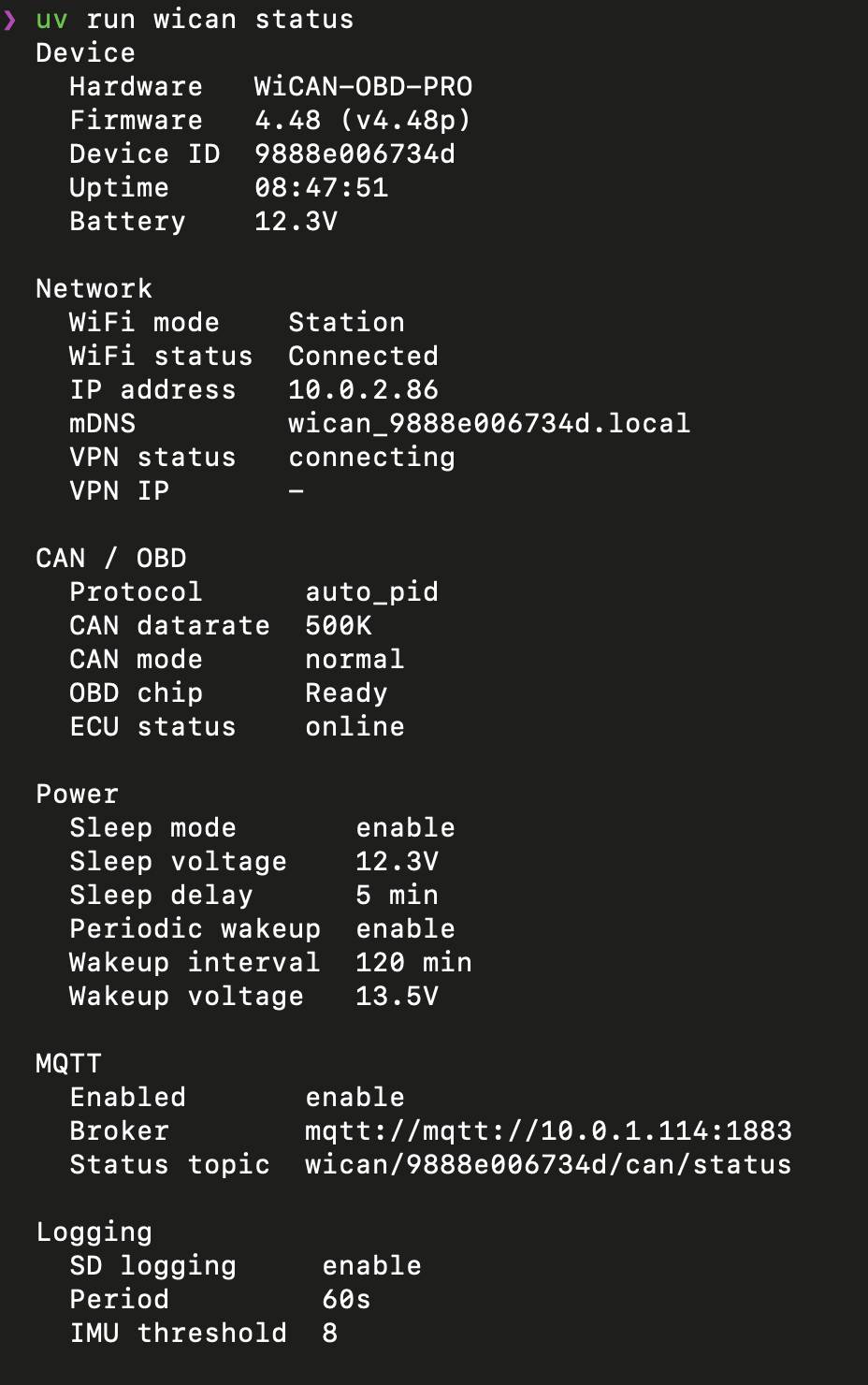
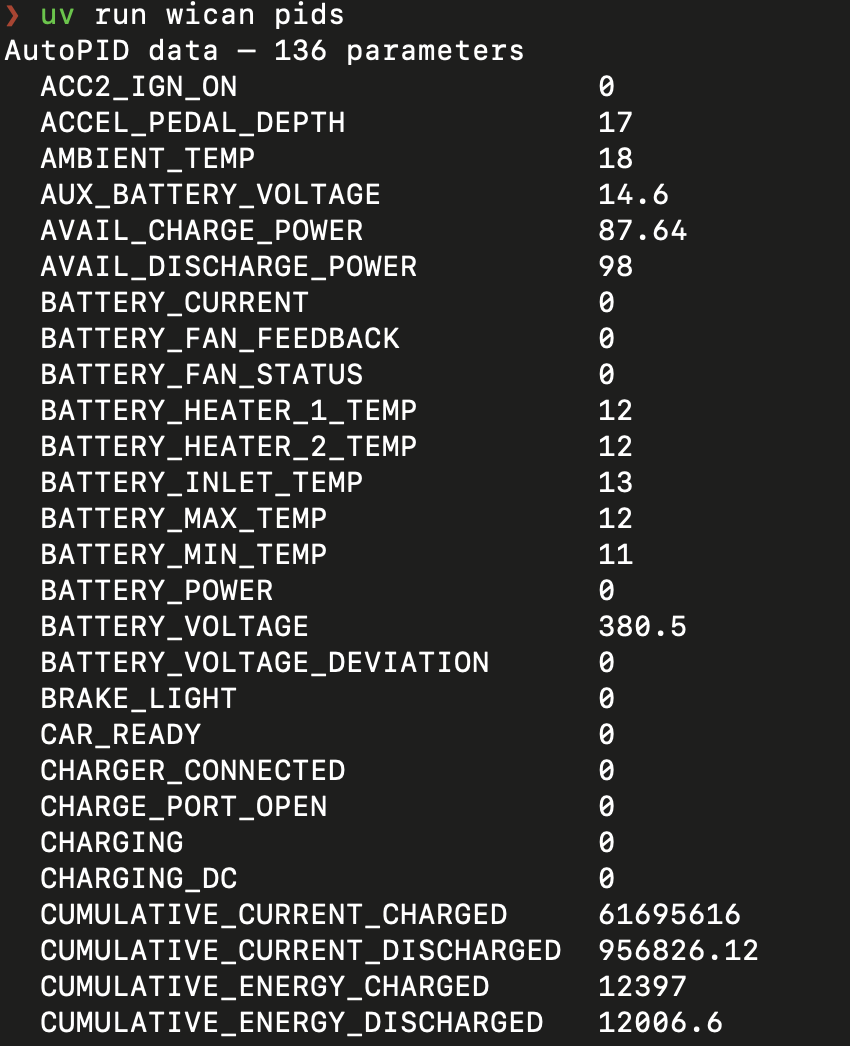
从终端查看和保存设备配置、切换睡眠模式、切换协议模式、查询 SD 卡日志、检查 AutoPID 值、管理车辆配置文件以及重启设备。
 ## 安装
使用 [uv](https://docs.astral.sh/uv/) 安装(推荐):
```
uv tool install wican-cli
```
或者使用 pip 安装:
```
pip install wican-cli
```
## 快速开始
```
# 连接到 WiCAN 的默认 AP 地址 (192.168.80.1)
wican status
# 或者指定设备地址
wican --use 192.168.1.100 status
# 设置配置文件以避免每次都输入地址
mkdir -p ~/.config/wican-cli
cat > ~/.config/wican-cli/config.yaml << 'EOF'
wican_addresses:
home: "192.168.1.100"
vpn: "10.8.0.50"
default_wican: home
EOF
# 现在只需使用命名的别名(或者省略 --use 来自动发现)
wican status
wican --use vpn status
```
## 命令
| 命令 | 描述 |
|---------|-------------|
| `wican config` | 查看设备配置(可选择保存到文件) |
| `wican sleep` | 查看或修改睡眠/电源设置 |
| `wican status` | 设备状态摘要 |
| `wican protocol` | 查看或切换 CAN 协议模式 |
| `wican logs` | 列出、下载或查询 SD 卡 OBD 日志数据库 |
| `wican autopid` | 显示最新的 AutoPID 缓存值 |
| `wican profile` | 查看或上传车辆配置文件(AutoPID 配置) |
| `wican reboot` | 重启设备 |
### 示例
```
# 保存已剥离凭据的配置快照
wican config --save --redact
# 启用休眠模式,阈值为 12.5V
wican sleep --enable --voltage 12.5
# 切换到 ELM327 模式以配合 Torque/Car Scanner 使用
wican protocol --set elm327
# 从 SD 卡下载所有日志数据库
wican logs --download
# 从最新日志中查询特定参数
wican logs --query SOC_BMS --limit 20
# 显示按名称过滤的 AutoPID 值
wican autopid -f tyre
# 查看当前车辆配置文件
wican profile
# 上传新的车辆配置文件并重启以应用
wican profile --upload ioniq-2017.json --reboot
```
## 配置
wican-cli 按以下顺序查找配置:
1. `WICAN_URL` 环境变量(覆盖所有其他配置)
2. `./config.yaml`(项目本地)
3. `~/.config/wican-cli/config.yaml`(用户全局)
如果未找到,则默认为 `192.168.80.1`(WiCAN 的内置 AP)。
### 配置文件格式
```
wican_addresses:
home: "192.168.1.100" # Device on local LAN
vpn: "10.8.0.50" # Device via VPN tunnel
ap: "192.168.80.1" # Direct AP connection (WiCAN default)
default_wican: home # Which address to use by default
```
使用 `--use
## 安装
使用 [uv](https://docs.astral.sh/uv/) 安装(推荐):
```
uv tool install wican-cli
```
或者使用 pip 安装:
```
pip install wican-cli
```
## 快速开始
```
# 连接到 WiCAN 的默认 AP 地址 (192.168.80.1)
wican status
# 或者指定设备地址
wican --use 192.168.1.100 status
# 设置配置文件以避免每次都输入地址
mkdir -p ~/.config/wican-cli
cat > ~/.config/wican-cli/config.yaml << 'EOF'
wican_addresses:
home: "192.168.1.100"
vpn: "10.8.0.50"
default_wican: home
EOF
# 现在只需使用命名的别名(或者省略 --use 来自动发现)
wican status
wican --use vpn status
```
## 命令
| 命令 | 描述 |
|---------|-------------|
| `wican config` | 查看设备配置(可选择保存到文件) |
| `wican sleep` | 查看或修改睡眠/电源设置 |
| `wican status` | 设备状态摘要 |
| `wican protocol` | 查看或切换 CAN 协议模式 |
| `wican logs` | 列出、下载或查询 SD 卡 OBD 日志数据库 |
| `wican autopid` | 显示最新的 AutoPID 缓存值 |
| `wican profile` | 查看或上传车辆配置文件(AutoPID 配置) |
| `wican reboot` | 重启设备 |
### 示例
```
# 保存已剥离凭据的配置快照
wican config --save --redact
# 启用休眠模式,阈值为 12.5V
wican sleep --enable --voltage 12.5
# 切换到 ELM327 模式以配合 Torque/Car Scanner 使用
wican protocol --set elm327
# 从 SD 卡下载所有日志数据库
wican logs --download
# 从最新日志中查询特定参数
wican logs --query SOC_BMS --limit 20
# 显示按名称过滤的 AutoPID 值
wican autopid -f tyre
# 查看当前车辆配置文件
wican profile
# 上传新的车辆配置文件并重启以应用
wican profile --upload ioniq-2017.json --reboot
```
## 配置
wican-cli 按以下顺序查找配置:
1. `WICAN_URL` 环境变量(覆盖所有其他配置)
2. `./config.yaml`(项目本地)
3. `~/.config/wican-cli/config.yaml`(用户全局)
如果未找到,则默认为 `192.168.80.1`(WiCAN 的内置 AP)。
### 配置文件格式
```
wican_addresses:
home: "192.168.1.100" # Device on local LAN
vpn: "10.8.0.50" # Device via VPN tunnel
ap: "192.168.80.1" # Direct AP connection (WiCAN default)
default_wican: home # Which address to use by default
```
使用 `--use ` 选择不同的地址,或直接传入 IP/URL:`--use 192.168.1.100`。
当省略 `--use` 时,CLI 会首先探测默认地址,然后自动回退到其他已配置的地址。
## 全局标志
| 标志 | 描述 |
|------|-------------|
| `--use ADDR` | 设备地址:命名别名或 IP/URL(省略时自动发现) |
| `--timeout SEC` | 请求超时时间(秒)(默认:10) |
| `--json` | JSON 输出(适用于大多数命令) |
| `--version` | 显示版本并退出 |
## Shell 自动补全
wican-cli 使用 [argcomplete](https://github.com/kislyuk/argcomplete) 在 bash、zsh 和 fish 中实现 Tab 键补全。
### 全局激活(所有启用 argcomplete 的工具)
```
# bash(添加到 ~/.bashrc)
activate-global-python-argcomplete
# zsh(添加到 ~/.zshrc)
autoload -U bashcompinit && bashcompinit
activate-global-python-argcomplete
# fish
register-python-argcomplete --shell fish wican | source
```
### 针对特定命令激活
```
# bash(添加到 ~/.bashrc)
eval "$(register-python-argcomplete wican)"
# zsh(添加到 ~/.zshrc)
autoload -U bashcompinit && bashcompinit
eval "$(register-python-argcomplete wican)"
# fish(添加到 ~/.config/fish/completions/wican.fish)
register-python-argcomplete --shell fish wican | source
```
## 本地开发
前置条件:Python 3.10+ 和 [uv](https://docs.astral.sh/uv/)。
```
# Clone repository
git clone https://github.com/philipkocanda/wican-cli.git
cd wican-cli
# 安装依赖(包括 dev extras)
uv sync --extra dev
# 本地运行 CLI
uv run wican --help
# 运行测试
uv run pytest
# 运行带有覆盖率统计的测试
uv run pytest --cov
# Lint 和格式化
uv run ruff check .
uv run ruff format .
```
## 什么是 WiCAN?
[WiCAN Pro](https://github.com/meatpiHQ/wican-fw) 是一款基于 ESP32 的 WiFi/BLE OBD-II 适配器,支持多种协议(AutoPID、SLCAN、ELM327、SavvyCAN、RealDash)。它可以通过 MQTT 将车辆数据发布到 Home Assistant,记录到 SD 卡,并提供 WebSocket 终端接口。
此 CLI 工具用于管理设备本身——它不会向车辆发送 CAN/OBD 请求。如需执行此操作,请使用 [python-can](https://github.com/hardbyte/python-can)、[SavvyCAN](https://github.com/collin80/SavvyCAN) 或 [Torque](https://torque-bhp.com/) 等工具。
## 许可证
公共领域——详见 [LICENSE](LICENSE)(Unlicense)。
## 安装
使用 [uv](https://docs.astral.sh/uv/) 安装(推荐):
```
uv tool install wican-cli
```
或者使用 pip 安装:
```
pip install wican-cli
```
## 快速开始
```
# 连接到 WiCAN 的默认 AP 地址 (192.168.80.1)
wican status
# 或者指定设备地址
wican --use 192.168.1.100 status
# 设置配置文件以避免每次都输入地址
mkdir -p ~/.config/wican-cli
cat > ~/.config/wican-cli/config.yaml << 'EOF'
wican_addresses:
home: "192.168.1.100"
vpn: "10.8.0.50"
default_wican: home
EOF
# 现在只需使用命名的别名(或者省略 --use 来自动发现)
wican status
wican --use vpn status
```
## 命令
| 命令 | 描述 |
|---------|-------------|
| `wican config` | 查看设备配置(可选择保存到文件) |
| `wican sleep` | 查看或修改睡眠/电源设置 |
| `wican status` | 设备状态摘要 |
| `wican protocol` | 查看或切换 CAN 协议模式 |
| `wican logs` | 列出、下载或查询 SD 卡 OBD 日志数据库 |
| `wican autopid` | 显示最新的 AutoPID 缓存值 |
| `wican profile` | 查看或上传车辆配置文件(AutoPID 配置) |
| `wican reboot` | 重启设备 |
### 示例
```
# 保存已剥离凭据的配置快照
wican config --save --redact
# 启用休眠模式,阈值为 12.5V
wican sleep --enable --voltage 12.5
# 切换到 ELM327 模式以配合 Torque/Car Scanner 使用
wican protocol --set elm327
# 从 SD 卡下载所有日志数据库
wican logs --download
# 从最新日志中查询特定参数
wican logs --query SOC_BMS --limit 20
# 显示按名称过滤的 AutoPID 值
wican autopid -f tyre
# 查看当前车辆配置文件
wican profile
# 上传新的车辆配置文件并重启以应用
wican profile --upload ioniq-2017.json --reboot
```
## 配置
wican-cli 按以下顺序查找配置:
1. `WICAN_URL` 环境变量(覆盖所有其他配置)
2. `./config.yaml`(项目本地)
3. `~/.config/wican-cli/config.yaml`(用户全局)
如果未找到,则默认为 `192.168.80.1`(WiCAN 的内置 AP)。
### 配置文件格式
```
wican_addresses:
home: "192.168.1.100" # Device on local LAN
vpn: "10.8.0.50" # Device via VPN tunnel
ap: "192.168.80.1" # Direct AP connection (WiCAN default)
default_wican: home # Which address to use by default
```
使用 `--use 标签:OBD-II, Python, 安全规则引擎, 文档结构分析, 无后门, 汽车诊断, 物联网, 设备管理, 逆向工具