gammahazard/vision-labs-v2
GitHub: gammahazard/vision-labs-v2
一个自托管的 AI 安防监控平台,通过 YOLOv8、InsightFace 和 Qwen 3 大模型在本地 GPU 上实现多摄像头的实时人员检测、人脸识别、车辆追踪与智能对话助手,全程零云依赖。
Stars: 1 | Forks: 0
# Vision Labs — AI 驱动的安防监控系统
[](https://github.com/gammahazard/vision-labs-v2/actions/workflows/tests.yml)
[](https://github.com/gammahazard/vision-labs-v2/actions/workflows/publish-images.yml)









一个自托管的多摄像头 AI 安防平台,通过人员检测、人脸识别、车辆追踪以及由 LLM 驱动的聊天助手处理实时的 RTSP 视频流——所有这一切都通过 Docker Compose 在本地运行,零云依赖。
在运行于 Windows 上 WSL2 中的 Ubuntu 24.04 系统的双 GPU 工作站(RTX 5070 Ti + RTX 3090)上构建并测试。单 GPU 也可以正常工作——默认设置针对 8–12 GB 显存的显卡进行了调优;同时为更小或更大的配置提供了相应的层级选项。
## 截图
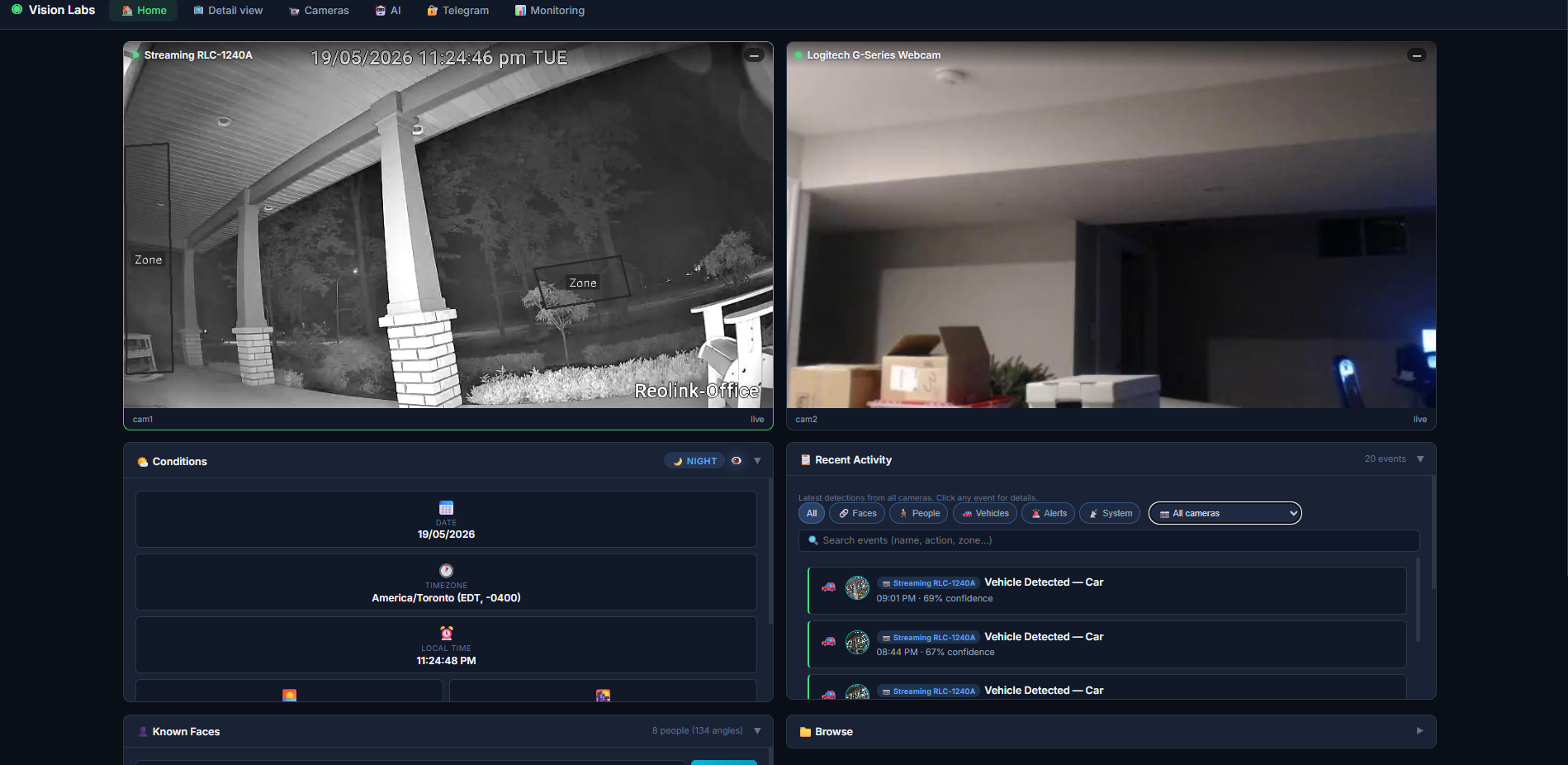
**多摄像头主控面板** — 实时视频流、跨摄像头的近期活动、已录入的人脸、状态面板。
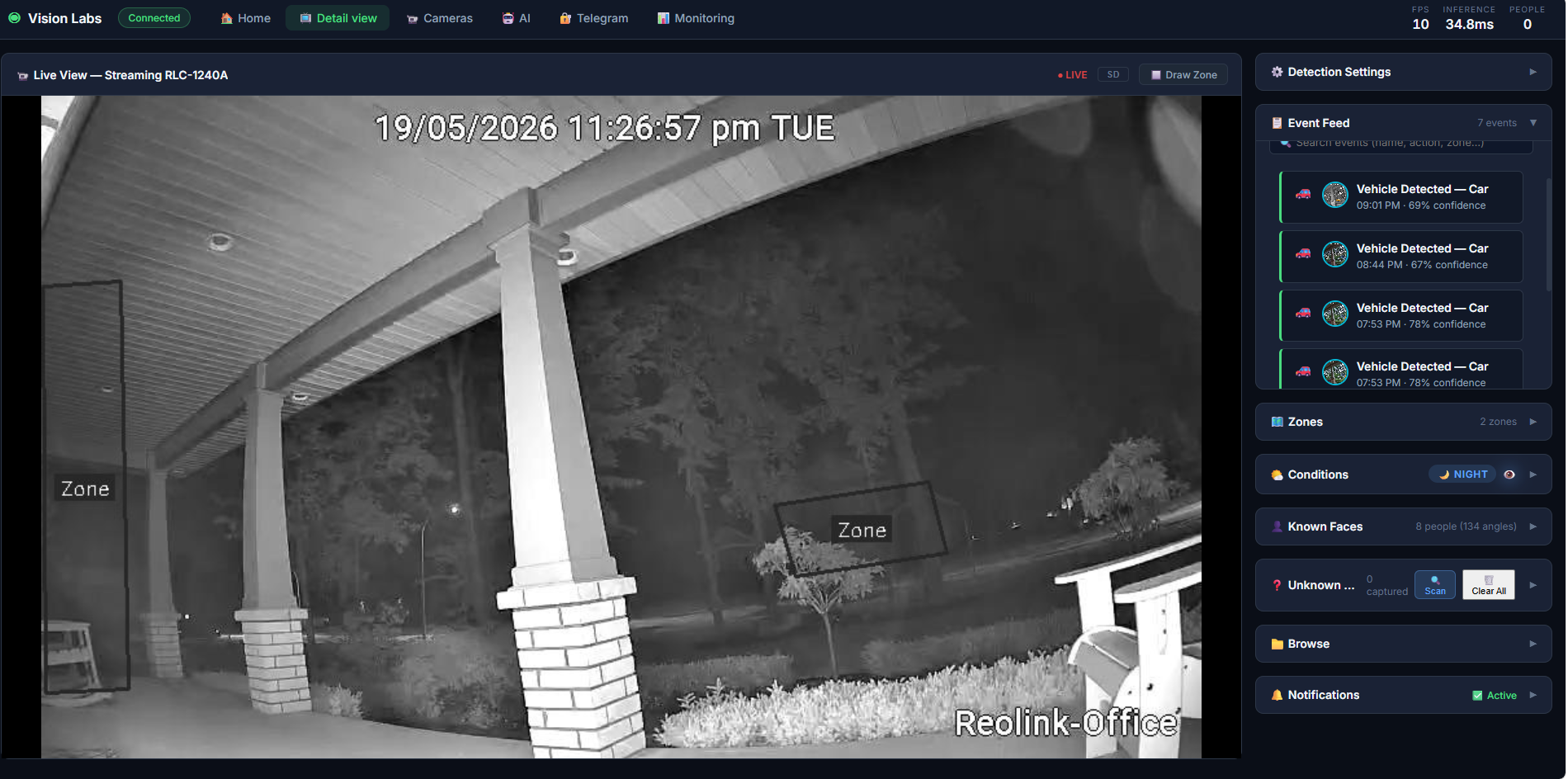
**单摄像头详情视图** — 完整的控制项、可绘制的区域、操作标签、固定的人脸身份。
| 摄像头管理 | 人脸录入 | DVR 回放 |
|:-:|:-:|:-:|
| 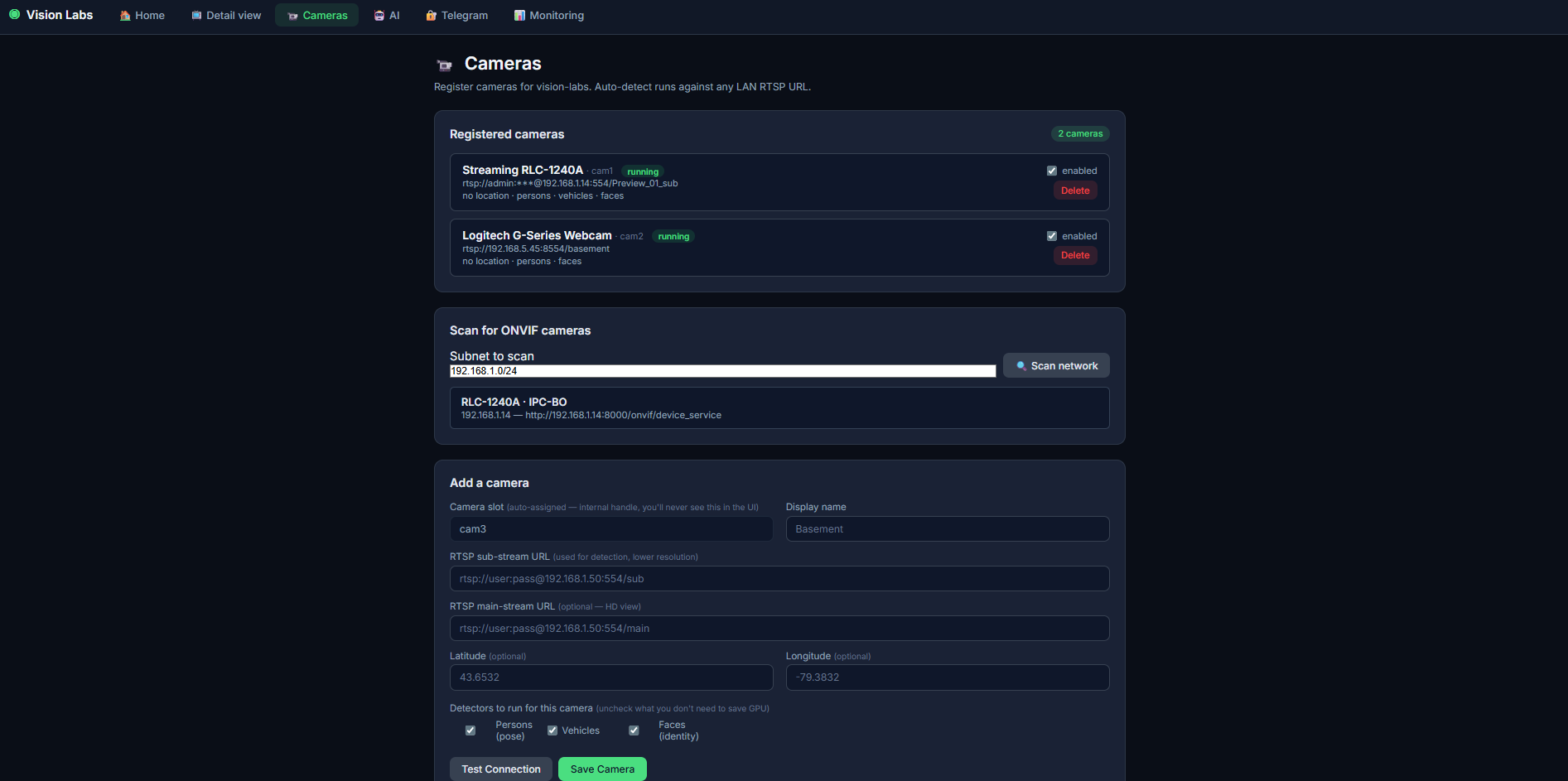 | 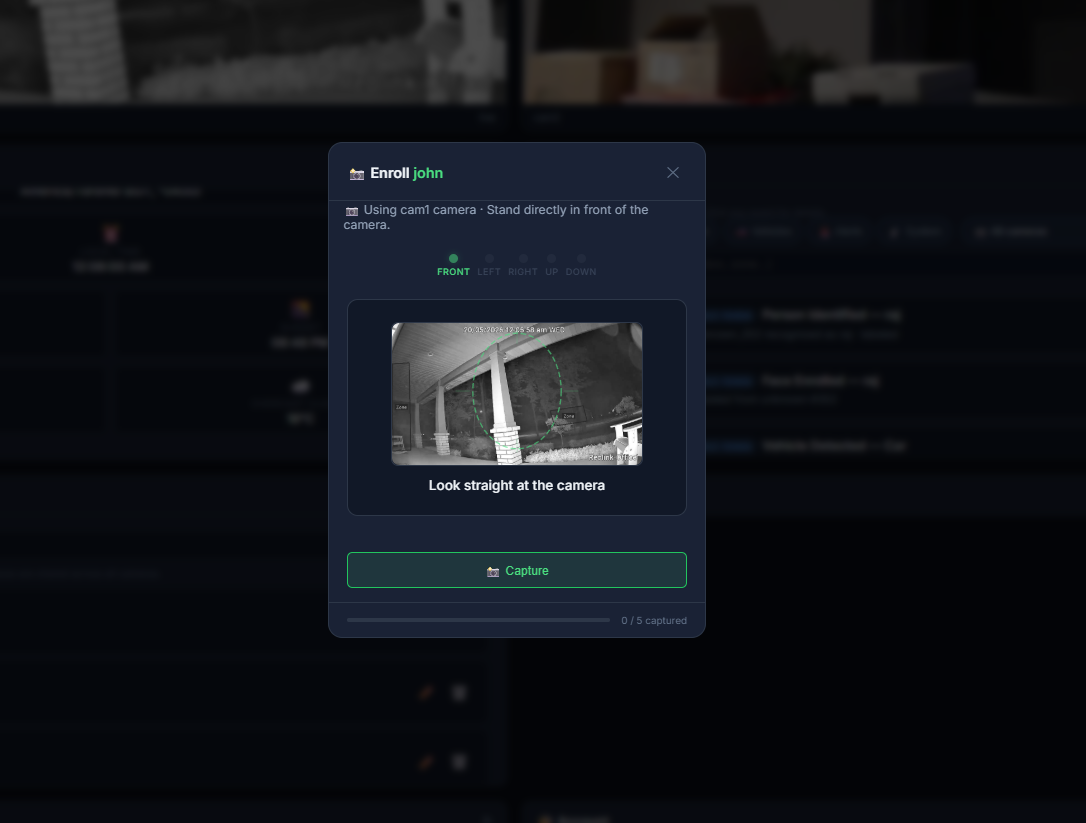 | 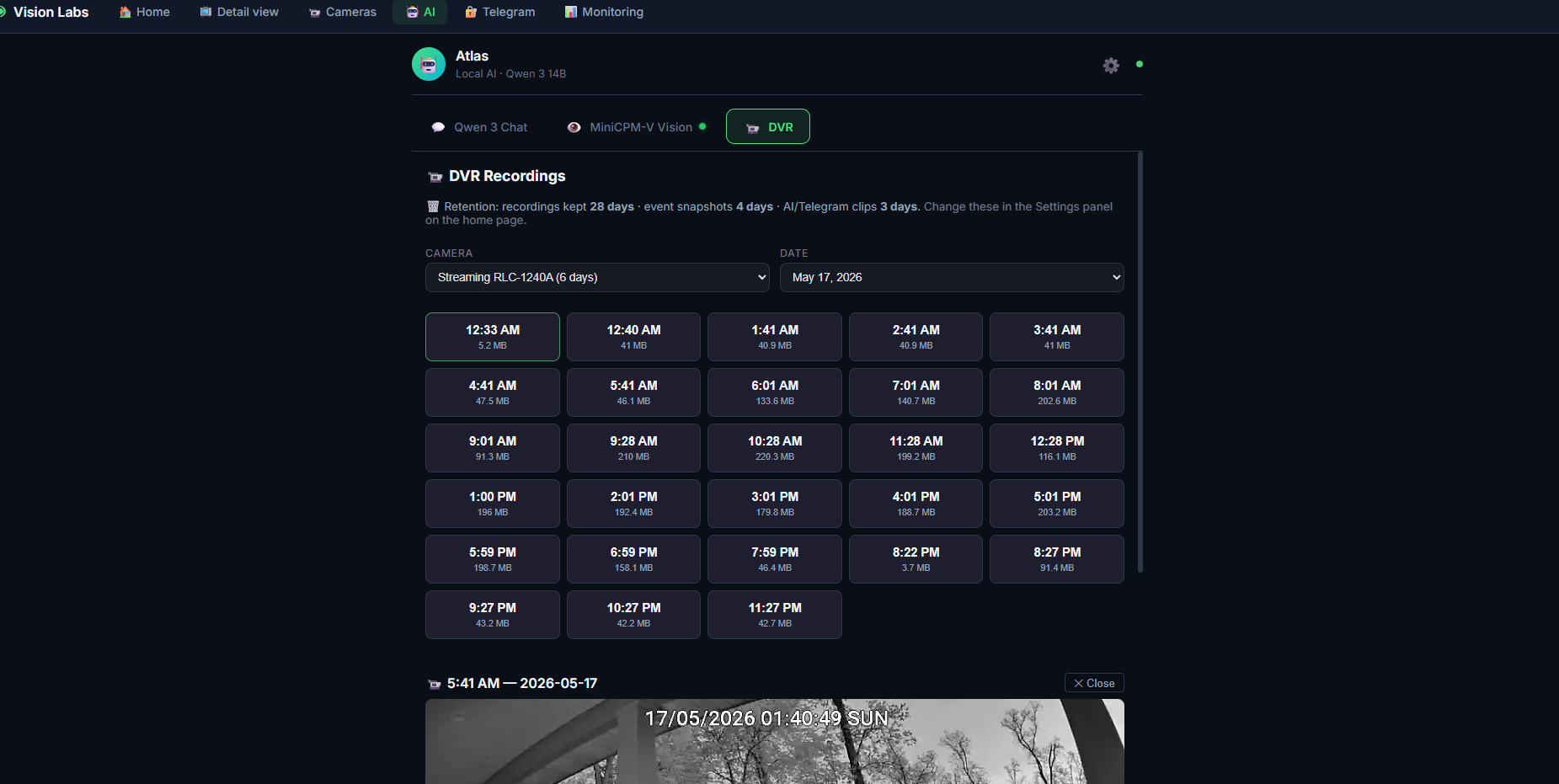 |
| 添加/编辑/暂停摄像头、ONVIF 扫描、针对每个检测器的开关 | 5 角度多姿态录入向导 | 日期 + 摄像头筛选,点击任意片段即可播放 |
| AI 助手 | Telegram 警报 | Bot 命令 |
|:-:|:-:|:-:|
| 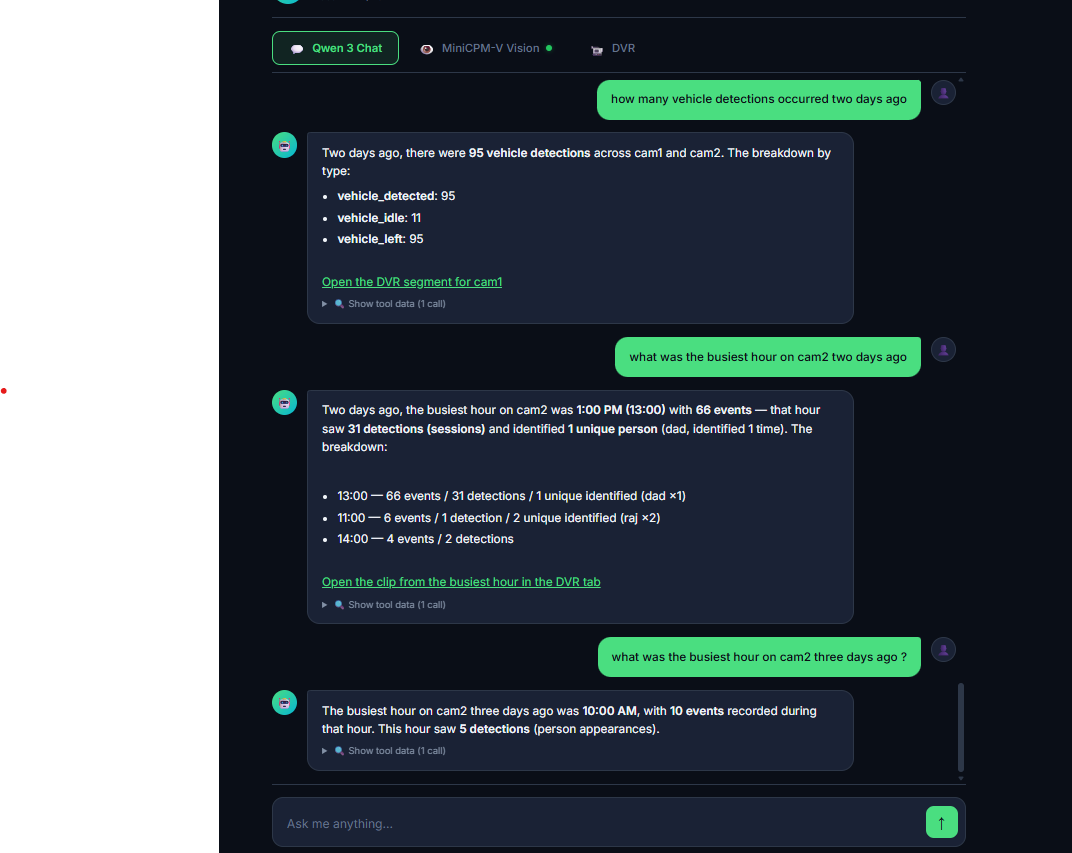 | 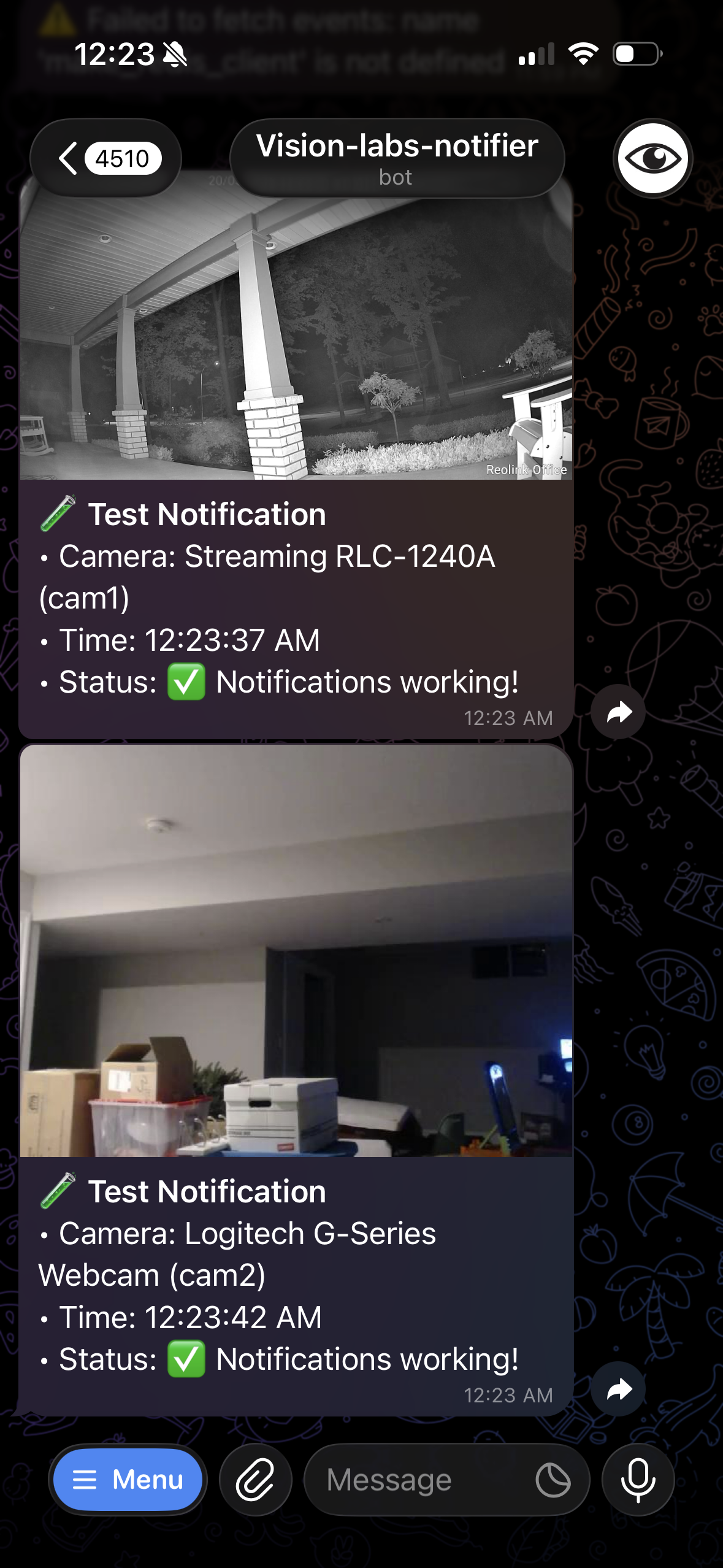 | 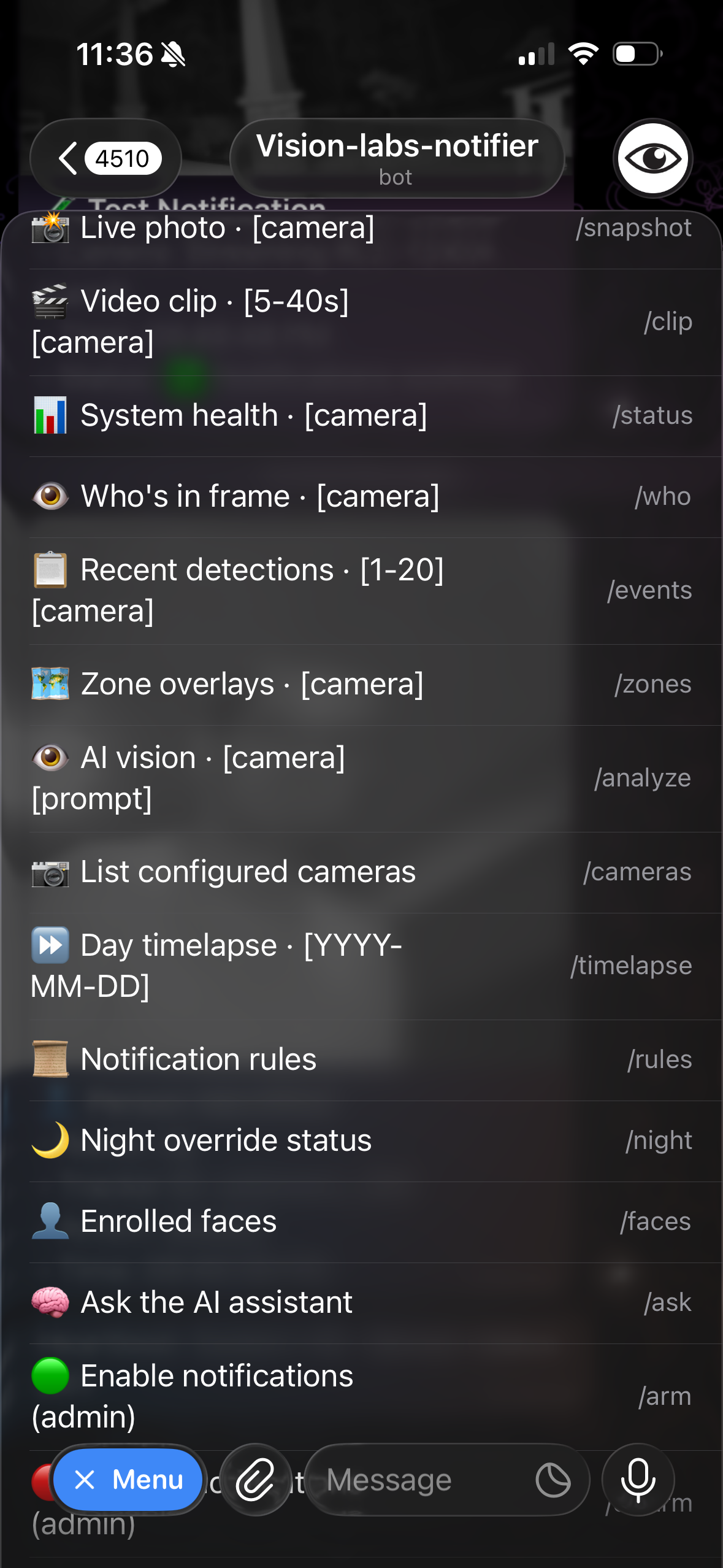 |
| Qwen 3 14B + 19 个工具,带有 DVR 深度链接 | 实时推送并附带每个摄像头的快照 | `/snapshot`, `/clip`, `/ask`, `/who`, `/events`, ... |
| Grafana + Prometheus | 容器监控 |
|:-:|:-:|
| 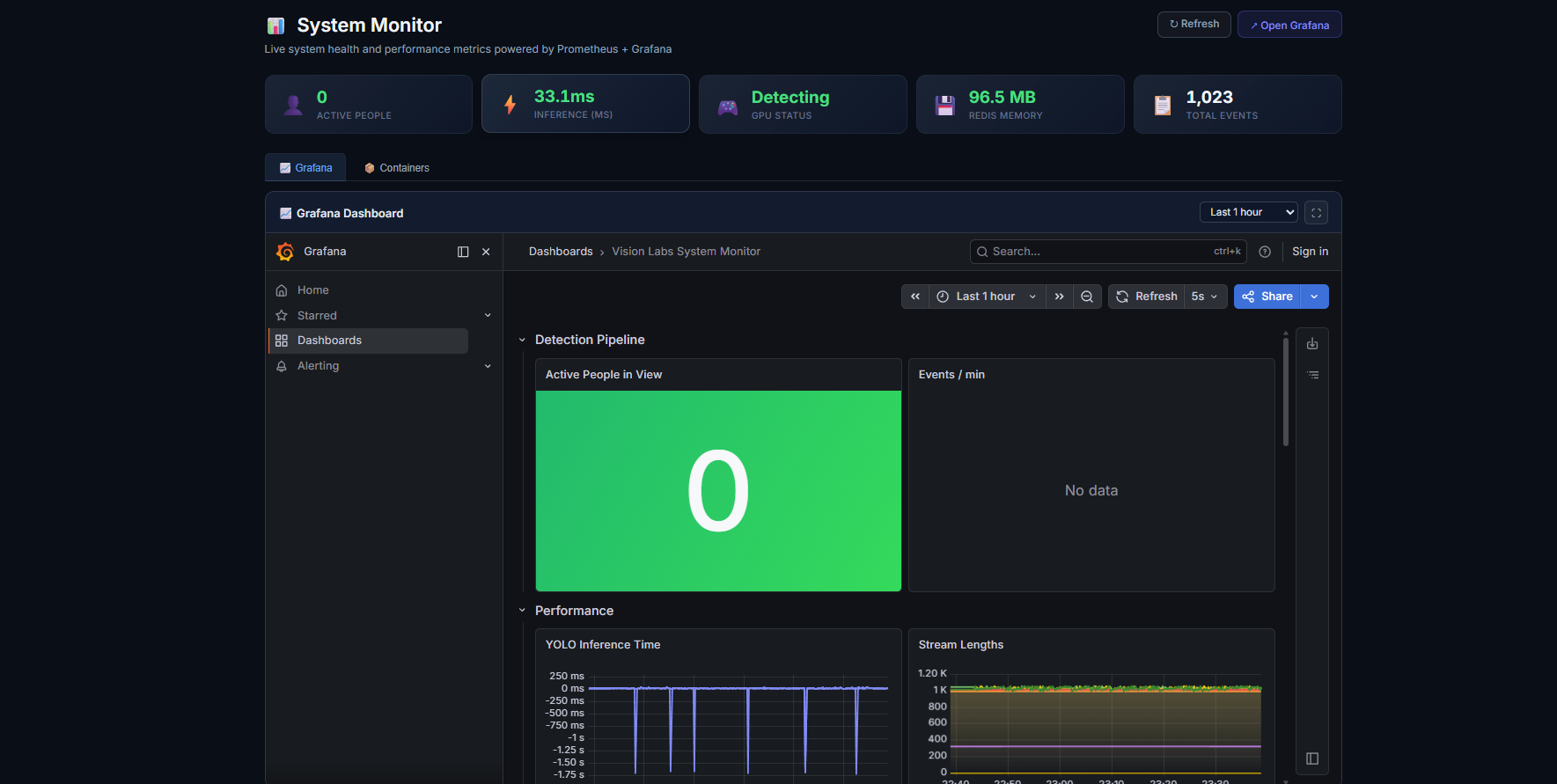 | 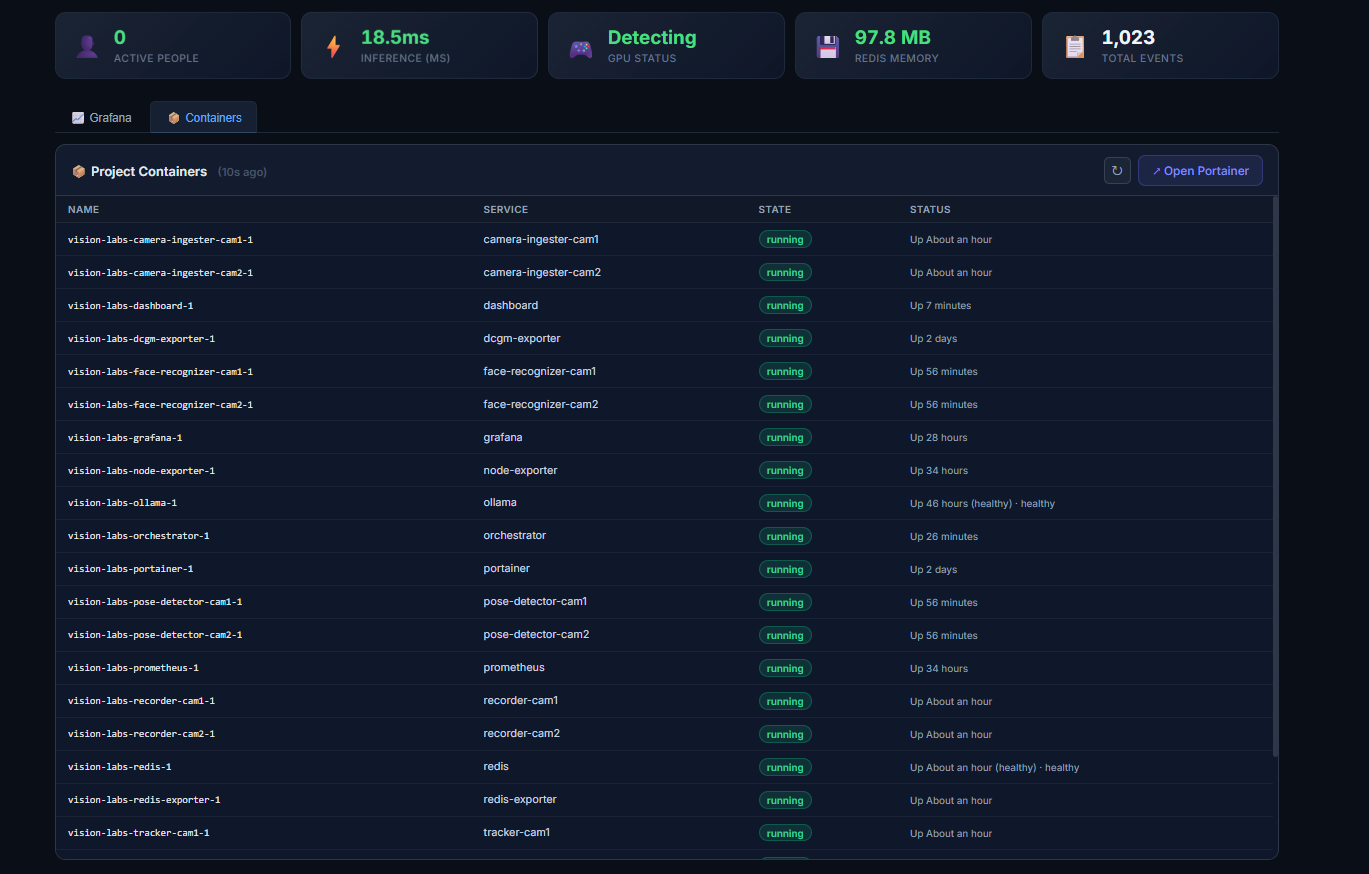 |
| 实时 GPU、Redis、推理时间指标,从 System Monitor 标签页打开 | 每个服务的状态 + 运行时间一目了然,带有指向 Portainer 的深度链接 |
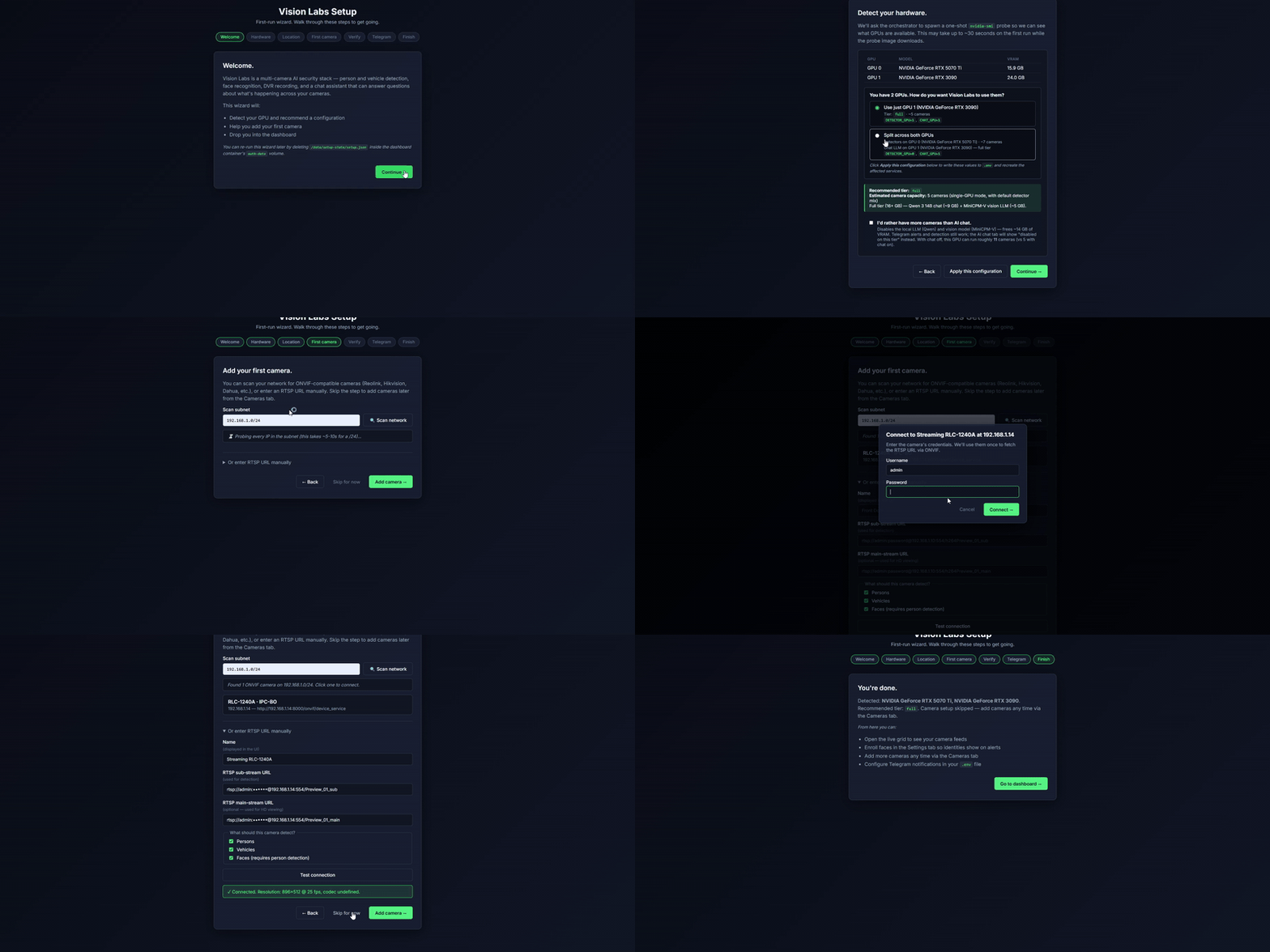
### 安装演示
` Redis 流中供下游消费者使用。Arduino sketch 请参见 `firmware/radar/`,架构请参见 `CONTEXT.md §20`。
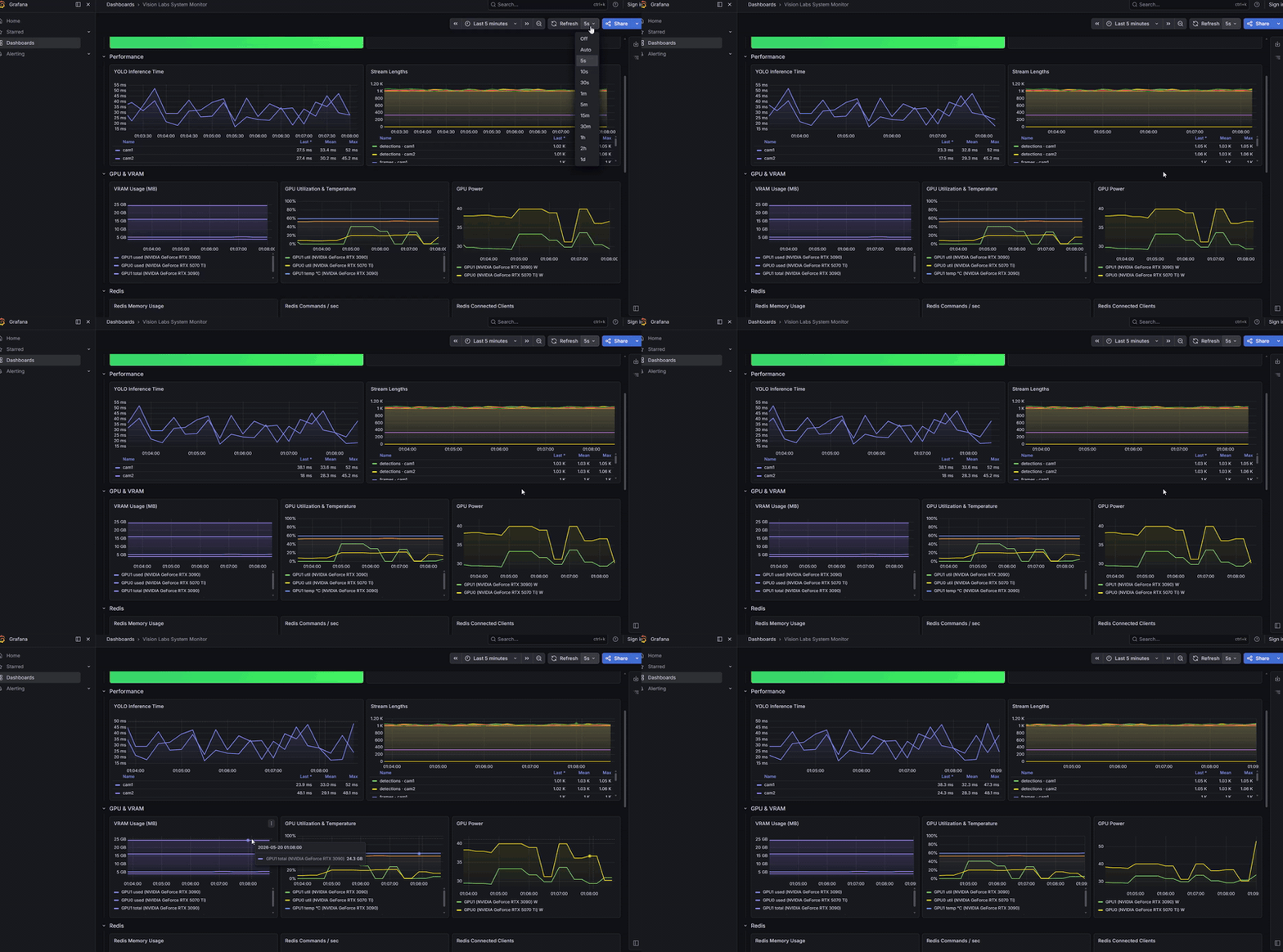
- **Prometheus + Grafana 监控** — 可从 dashboard 的 System Monitor 标签页链接(出于安全考虑,Grafana 绑定到了 `127.0.0.1`;可在宿主机上或通过 SSH tunnel 访问)
- **可选的开放词汇“Locate”工具** — 在 AI 标签页中放入一张图像,输入要查找的内容(“vehicle”、“license plate”),即可返回带有绘制边框的结果。由 `nvidia/LocateAnything-3B` 提供支持。通过 `docker-compose.locate.yml` **自行决定是否开启**;该模型为**非商业用途**(NVIDIA 许可证),并在运行时下载—详情请见[下文](#optional-locate-tool)
## 架构一览
```
flowchart LR
Cam["📷 RTSP cameras
cam1 – cam20"] --> Ing["camera-ingester
(one per slot)"] Ing -->|frames stream| R[(Redis Streams
bus)] R --> Pose["pose-detector
YOLOv8s-pose"] R --> Veh["vehicle-detector
YOLOv8s"] R --> Face["face-recognizer
InsightFace buffalo_l"] R --> Rec["recorder
1h MPEG-TS"] Pose & Veh & Face -->|detections| R R --> Track[tracker] Track -->|events| R Track -.vehicle_sample.-> VA["vehicle-attributes
per-track HD crops + classifier"] VA --> R R --> Dash["dashboard
FastAPI + WebSocket"] Dash <-->|chat + 19 tools| Oll["Ollama
Qwen 3 14B + MiniCPM-V"] Dash --> Web["🌐 Browser"] Dash --> Bot["📲 Telegram bot"] Dash -.cameras:events pub/sub.-> Orch["orchestrator
(holds Docker socket)"] Orch -.docker compose --profile camN up/down.-> Ing ``` Dashboard 永远不会接触 Docker socket — 只有 orchestrator 会。在 UI 中添加摄像头仅仅是对 `cameras:registry` 的一次 upsert + 一个 pub/sub 触发;orchestrator 会进行调谐,并通过 `docker compose --profile camN up -d` 启动该插槽的服务。将 Docker 权限限制在单一服务中是此设计中最重要的一项安全抉择。 有关完整的数据流和各服务的职责,请参阅 **[DETAILED_README.md §3](DETAILED_README.md#3-service-map)** 和 **[CONTEXT.md](CONTEXT.md)**。 ## 快速安装 ### Linux (Ubuntu 22.04 / 24.04, Debian 12) ``` git clone https://github.com/gammahazard/vision-labs-v2 vision-labs && cd vision-labs bash scripts/install-linux.sh # pulls pre-built images from GHCR (~3-5 min) # 或者,如果你已经 fork 并修改了代码: bash scripts/install-linux.sh --build # builds locally (~10-15 min) ``` 该脚本会安装 Docker + nvidia-container-toolkit,拉取(或构建)所有镜像,启动技术栈,并在 dashboard 启动完毕时通知您。该脚本是幂等的 — 重复运行也是安全的。使用 `IMAGE_TAG=v0.1.1 bash scripts/install-linux.sh` 可锁定特定的发布版本。 ### Windows 11(配备 NVIDIA GPU) ``` # 在提升权限的 PowerShell 中(右键点击 -> 以管理员身份运行): powershell.exe -ExecutionPolicy Bypass -File .\scripts\install-windows.ps1 ``` 该脚本会安装 WSL2,写入带有镜像网络的 `.wslconfig`,然后提示重启。重启后,打开新的 Ubuntu 终端,并从您克隆的仓库中运行 `bash scripts/install-linux.sh` 以完成安装。 ### macOS 不支持 — 推理 pipeline 完全依赖于 CUDA。请在 Linux 机器或 Windows + NVIDIA 上运行 Vision Labs,然后通过局域网从您的 Mac 访问 dashboard。 ### 安装完成后 打开 `http://localhost:8080`,使用 `admin/admin` 登录(首次登录将强制修改密码),然后根据设置向导操作:GPU 探测 → 推荐的硬件层级 → 添加您的第一个摄像头(ONVIF 扫描或手动输入 RTSP URL) → 完成。 ## 系统要求 - **NVIDIA GPU**,驱动程序需支持 CUDA 12.8 (R555+)。最低需要 6 GB VRAM(小层级);进行 AI 聊天推荐 12+ GB。不支持 Apple Silicon / Intel iGPU / AMD GPU。 - **Docker Engine**(非 Docker Desktop)。在 Windows 上,它运行在 WSL2 Ubuntu 内部 — 安装程序会为您完成这部分设置。 - **支持 RTSP 的 IP 摄像头**(已使用 Reolink RLC-1240A 测试)。ONVIF 自动发现兼容 Reolink、Hikvision、Dahua、Amcrest、Axis、Unifi G 系列。DIY RTSP 设置(如 Raspberry Pi + mediamtx、go2rtc、OBS)可通过手动输入 URL 使用。 - **QNAP NAS** 为可选 — 仅当您想将 DVR 录像转移到网络存储时才需要。 ## 安装后的访问地址 | 服务 | URL | 备注 | |---|---|---| | Dashboard | http://localhost:8080 | 主 UI,可通过局域网访问。首次运行使用 `admin/admin`。 | | Portainer | https://localhost:9443 | Docker 管理 UI — **仅限宿主机**(绑定到 `127.0.0.1`)。从另一台机器访问请使用:`ssh -L 9443:localhost:9443`。 |
| Grafana | http://localhost:3000 | 系统指标 — **仅限宿主机**(绑定到 `127.0.0.1`);可从 dashboard 的 System Monitor 标签页链接进入。Tunnel 命令:`ssh -L 3000:localhost:3000 `。 |
| Prometheus | http://localhost:9090 | 原始指标 — 仅限宿主机访问(绑定到 `127.0.0.1`)。 |
## 了解更多
- **[DETAILED_README.md](:8080` 访问。系统没有内置的 TLS 终结器;如果您想将其暴露在互联网上,请将其置于您信任的反向代理(Caddy, nginx-proxy-manager, Cloudflare Tunnel)之后,并设置 `DASHBOARD_BEHIND_TLS=true`,以便将 session cookies 切换为 `Secure`。
- **单用户认证。** 一个管理员账户,使用 bcrypt 哈希密码、HMAC 签名的 session cookies,并且对登录进行了暴力破解频率限制。没有团队/角色模型。对于自托管的家用足够了;但并非为多租户设计。
- **无支持,无保修。** 采用 MIT 许可证(参见 [LICENSE](LICENSE)) — 随意 fork、学习或重新利用。提交的 Issue 会被阅读,但不一定会被修复。
### 哪些部分是可选的
该系统经过了刻意的超额设计,以让双 GPU 宿主机有足够的工作负载。其中几个组件可以干净地移除:
- **AI 聊天(Qwen 3 14B + 19 个工具)** — 在 `.env` 中设置 `CHAT_MODEL=`(留空)。释放约 10 GB 的 VRAM。Dashboard 会显示“该层级上 AI 聊天已禁用”,系统的其余部分照常运行,没有任何改变。
- **MiniCPM-V 视觉场景描述** — 设置 `VISION_MODEL=`。节省约 5 GB VRAM。Telegram 警报依然会触发;只是它们不再包含自动生成的“穿着黑色连帽衫的人向左走”之类的描述句子。
- **Telegram 警报** — 将 `TELEGRAM_BOT_TOKEN` 留空。通知路径会根据 `is_configured()` 进行判断并静默无操作。
- **QNAP NAS** — 通过 `QNAP_ENABLED=true` + overlay compose 文件选择启用。默认安装会将录像保留在本地。
### 已知限制
- 不支持 macOS(仅限 CUDA 推理)。
- orchestrator 服务可以访问 Docker socket — 它是唯一拥有此权限的服务。Dashboard 不具备。
- 设置向导中的 GPU 探测已尽力而为;对于非常新的显卡(Blackwell),在依赖自动层级选择之前,请验证其是否支持 CUDA 12.8+。
## 许可证
[MIT](LICENSE) — 完整文本请参见 LICENSE 文件。
cam1 – cam20"] --> Ing["camera-ingester
(one per slot)"] Ing -->|frames stream| R[(Redis Streams
bus)] R --> Pose["pose-detector
YOLOv8s-pose"] R --> Veh["vehicle-detector
YOLOv8s"] R --> Face["face-recognizer
InsightFace buffalo_l"] R --> Rec["recorder
1h MPEG-TS"] Pose & Veh & Face -->|detections| R R --> Track[tracker] Track -->|events| R Track -.vehicle_sample.-> VA["vehicle-attributes
per-track HD crops + classifier"] VA --> R R --> Dash["dashboard
FastAPI + WebSocket"] Dash <-->|chat + 19 tools| Oll["Ollama
Qwen 3 14B + MiniCPM-V"] Dash --> Web["🌐 Browser"] Dash --> Bot["📲 Telegram bot"] Dash -.cameras:events pub/sub.-> Orch["orchestrator
(holds Docker socket)"] Orch -.docker compose --profile camN up/down.-> Ing ``` Dashboard 永远不会接触 Docker socket — 只有 orchestrator 会。在 UI 中添加摄像头仅仅是对 `cameras:registry` 的一次 upsert + 一个 pub/sub 触发;orchestrator 会进行调谐,并通过 `docker compose --profile camN up -d` 启动该插槽的服务。将 Docker 权限限制在单一服务中是此设计中最重要的一项安全抉择。 有关完整的数据流和各服务的职责,请参阅 **[DETAILED_README.md §3](DETAILED_README.md#3-service-map)** 和 **[CONTEXT.md](CONTEXT.md)**。 ## 快速安装 ### Linux (Ubuntu 22.04 / 24.04, Debian 12) ``` git clone https://github.com/gammahazard/vision-labs-v2 vision-labs && cd vision-labs bash scripts/install-linux.sh # pulls pre-built images from GHCR (~3-5 min) # 或者,如果你已经 fork 并修改了代码: bash scripts/install-linux.sh --build # builds locally (~10-15 min) ``` 该脚本会安装 Docker + nvidia-container-toolkit,拉取(或构建)所有镜像,启动技术栈,并在 dashboard 启动完毕时通知您。该脚本是幂等的 — 重复运行也是安全的。使用 `IMAGE_TAG=v0.1.1 bash scripts/install-linux.sh` 可锁定特定的发布版本。 ### Windows 11(配备 NVIDIA GPU) ``` # 在提升权限的 PowerShell 中(右键点击 -> 以管理员身份运行): powershell.exe -ExecutionPolicy Bypass -File .\scripts\install-windows.ps1 ``` 该脚本会安装 WSL2,写入带有镜像网络的 `.wslconfig`,然后提示重启。重启后,打开新的 Ubuntu 终端,并从您克隆的仓库中运行 `bash scripts/install-linux.sh` 以完成安装。 ### macOS 不支持 — 推理 pipeline 完全依赖于 CUDA。请在 Linux 机器或 Windows + NVIDIA 上运行 Vision Labs,然后通过局域网从您的 Mac 访问 dashboard。 ### 安装完成后 打开 `http://localhost:8080`,使用 `admin/admin` 登录(首次登录将强制修改密码),然后根据设置向导操作:GPU 探测 → 推荐的硬件层级 → 添加您的第一个摄像头(ONVIF 扫描或手动输入 RTSP URL) → 完成。 ## 系统要求 - **NVIDIA GPU**,驱动程序需支持 CUDA 12.8 (R555+)。最低需要 6 GB VRAM(小层级);进行 AI 聊天推荐 12+ GB。不支持 Apple Silicon / Intel iGPU / AMD GPU。 - **Docker Engine**(非 Docker Desktop)。在 Windows 上,它运行在 WSL2 Ubuntu 内部 — 安装程序会为您完成这部分设置。 - **支持 RTSP 的 IP 摄像头**(已使用 Reolink RLC-1240A 测试)。ONVIF 自动发现兼容 Reolink、Hikvision、Dahua、Amcrest、Axis、Unifi G 系列。DIY RTSP 设置(如 Raspberry Pi + mediamtx、go2rtc、OBS)可通过手动输入 URL 使用。 - **QNAP NAS** 为可选 — 仅当您想将 DVR 录像转移到网络存储时才需要。 ## 安装后的访问地址 | 服务 | URL | 备注 | |---|---|---| | Dashboard | http://localhost:8080 | 主 UI,可通过局域网访问。首次运行使用 `admin/admin`。 | | Portainer | https://localhost:9443 | Docker 管理 UI — **仅限宿主机**(绑定到 `127.0.0.1`)。从另一台机器访问请使用:`ssh -L 9443:localhost:9443
标签:AI风险缓解, DLL 劫持, Docker Compose, Vectored Exception Handling, 人工智能, 人脸识别, 大语言模型, 安防监控, 搜索引擎查询, 版权保护, 用户模式Hook绕过, 目标检测, 自定义请求头, 计算机视觉, 逆向工具