PhantomBanditX/PowerShell-Suspicious-Web-Request
GitHub: PhantomBanditX/PowerShell-Suspicious-Web-Request
基于 Microsoft Defender XDR Advanced Hunting 和 Sentinel,提供 PowerShell 可疑 Web 请求的检测查询、警报规则配置及完整事件响应流程的安全实践指南。
Stars: 0 | Forks: 0
# 🚨 **PowerShell 可疑 Web 请求**
 ## 🛡️ **创建警报规则 (PowerShell 可疑 Web 请求)**
### 🔍 **说明**
有时,恶意攻击者会获取系统访问权限,并尝试直接从互联网下载 payload 或工具。这通常是通过 PowerShell 等合法工具来完成的,以混入正常活动中。通过使用 `Invoke-WebRequest` 等命令,攻击者可以:
- 📥 从外部服务器下载文件或脚本
- 🚀 立即执行它们,绕过传统防御
- 📡 与命令控制 (C2) 服务器建立通信
检测此类行为对于识别和挫败正在进行的攻击至关重要!🕵️♀️
### **采用的组件、工具和技术**
1. 🖥️ **Microsoft Defender XDR Advanced Hunting 与 Microsoft Defender for Endpoint (MDE) 遥测数据**。
2. 📊 **Microsoft Sentinel (SIEM)**。
3. 🛑 在 **Sentinel** 中创建的警报规则,用于在 PowerShell 下载远程文件时触发。
### 🔧 **创建警报规则的步骤**
#### 1️⃣ **在 Microsoft Defender 中查询日志**
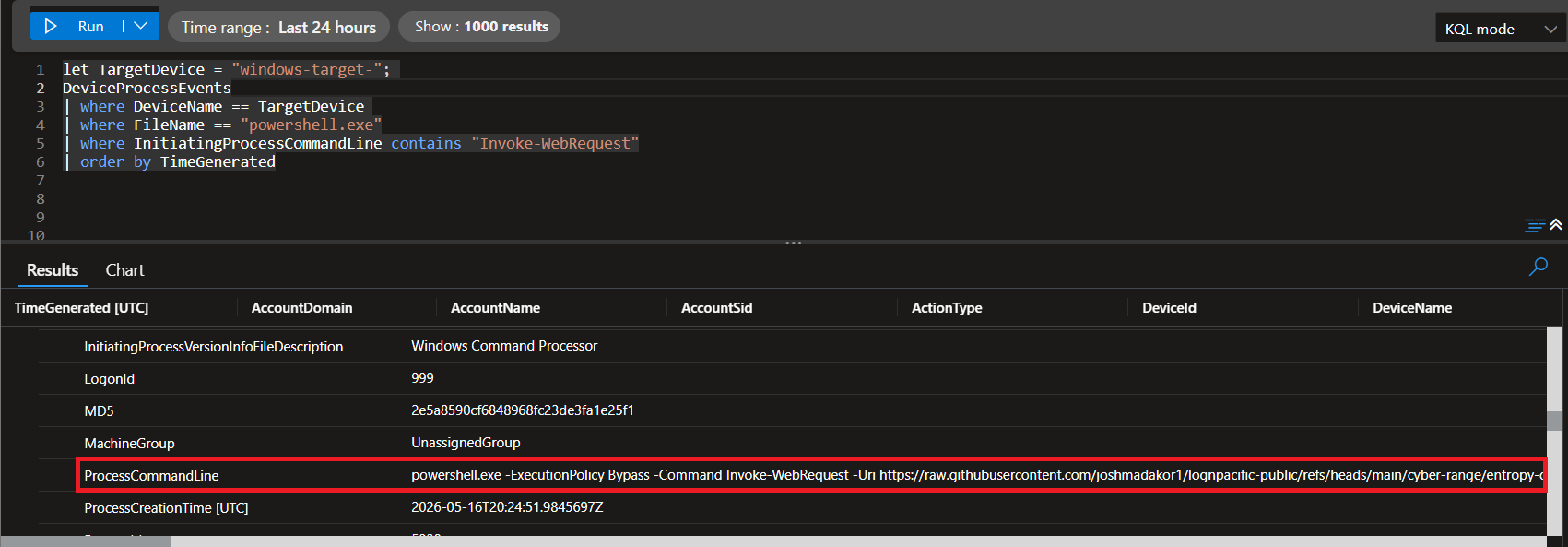
1. 定位可疑活动,例如:`powershell.exe` 执行 `Invoke-WebRequest`。
2. 优化目标设备的查询:
let TargetDevice = "windows-target-";
DeviceProcessEvents
| where DeviceName == TargetDevice
| where FileName == "powershell.exe"
| where InitiatingProcessCommandLine contains "Invoke-WebRequest"
| order by TimeGenerated
## 🛡️ **创建警报规则 (PowerShell 可疑 Web 请求)**
### 🔍 **说明**
有时,恶意攻击者会获取系统访问权限,并尝试直接从互联网下载 payload 或工具。这通常是通过 PowerShell 等合法工具来完成的,以混入正常活动中。通过使用 `Invoke-WebRequest` 等命令,攻击者可以:
- 📥 从外部服务器下载文件或脚本
- 🚀 立即执行它们,绕过传统防御
- 📡 与命令控制 (C2) 服务器建立通信
检测此类行为对于识别和挫败正在进行的攻击至关重要!🕵️♀️
### **采用的组件、工具和技术**
1. 🖥️ **Microsoft Defender XDR Advanced Hunting 与 Microsoft Defender for Endpoint (MDE) 遥测数据**。
2. 📊 **Microsoft Sentinel (SIEM)**。
3. 🛑 在 **Sentinel** 中创建的警报规则,用于在 PowerShell 下载远程文件时触发。
### 🔧 **创建警报规则的步骤**
#### 1️⃣ **在 Microsoft Defender 中查询日志**
1. 定位可疑活动,例如:`powershell.exe` 执行 `Invoke-WebRequest`。
2. 优化目标设备的查询:
let TargetDevice = "windows-target-";
DeviceProcessEvents
| where DeviceName == TargetDevice
| where FileName == "powershell.exe"
| where InitiatingProcessCommandLine contains "Invoke-WebRequest"
| order by TimeGenerated
3. 验证 payload 检测。 ``` let TargetHostname = "windows-target-"; let ScriptNames = dynamic(["eicar.ps1", "portscan.ps1", "pwncrypt.ps1"]); DeviceProcessEvents | where DeviceName == TargetHostname | where FileName == "powershell.exe" | where ProcessCommandLine contains "-File" and ProcessCommandLine has_any (ScriptNames) | order by TimeGenerated | project TimeGenerated, AccountName, DeviceName, FileName, ProcessCommandLine | summarize Count = count() by AccountName, DeviceName, FileName, ProcessCommandLine ```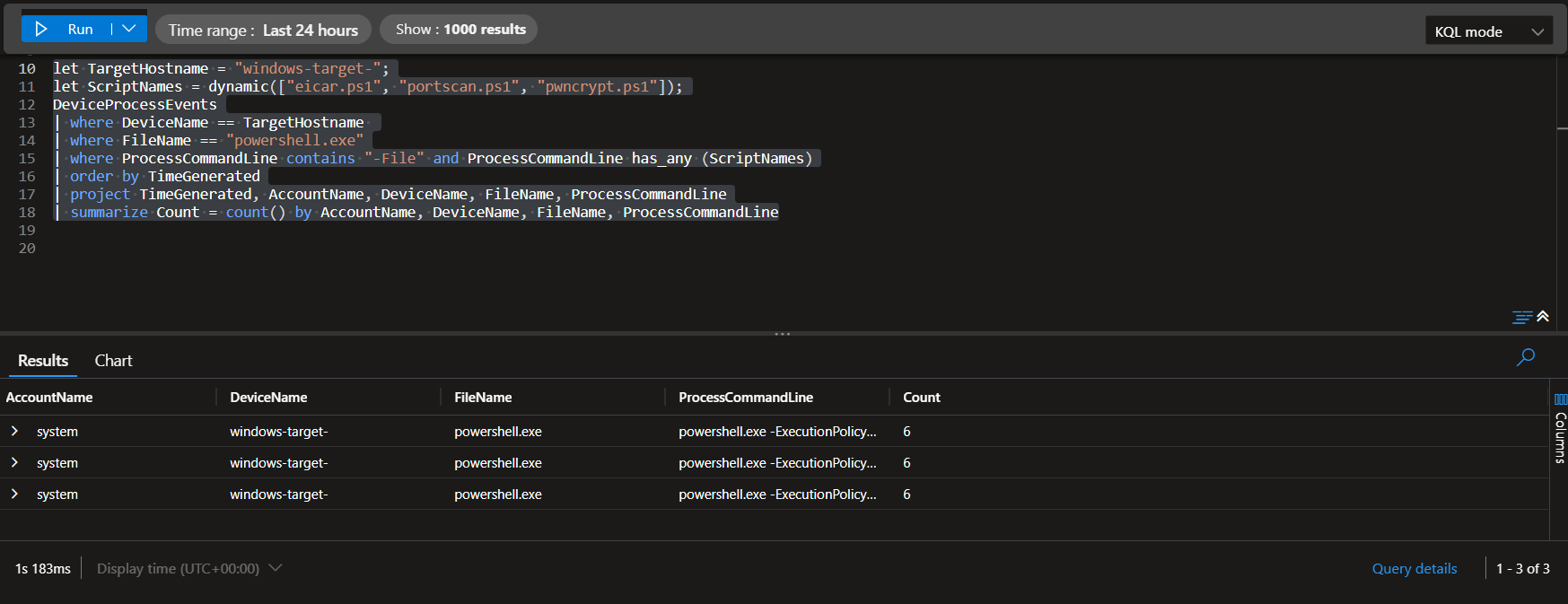 #### 2️⃣ **在 Microsoft Sentinel 中创建警报规则**
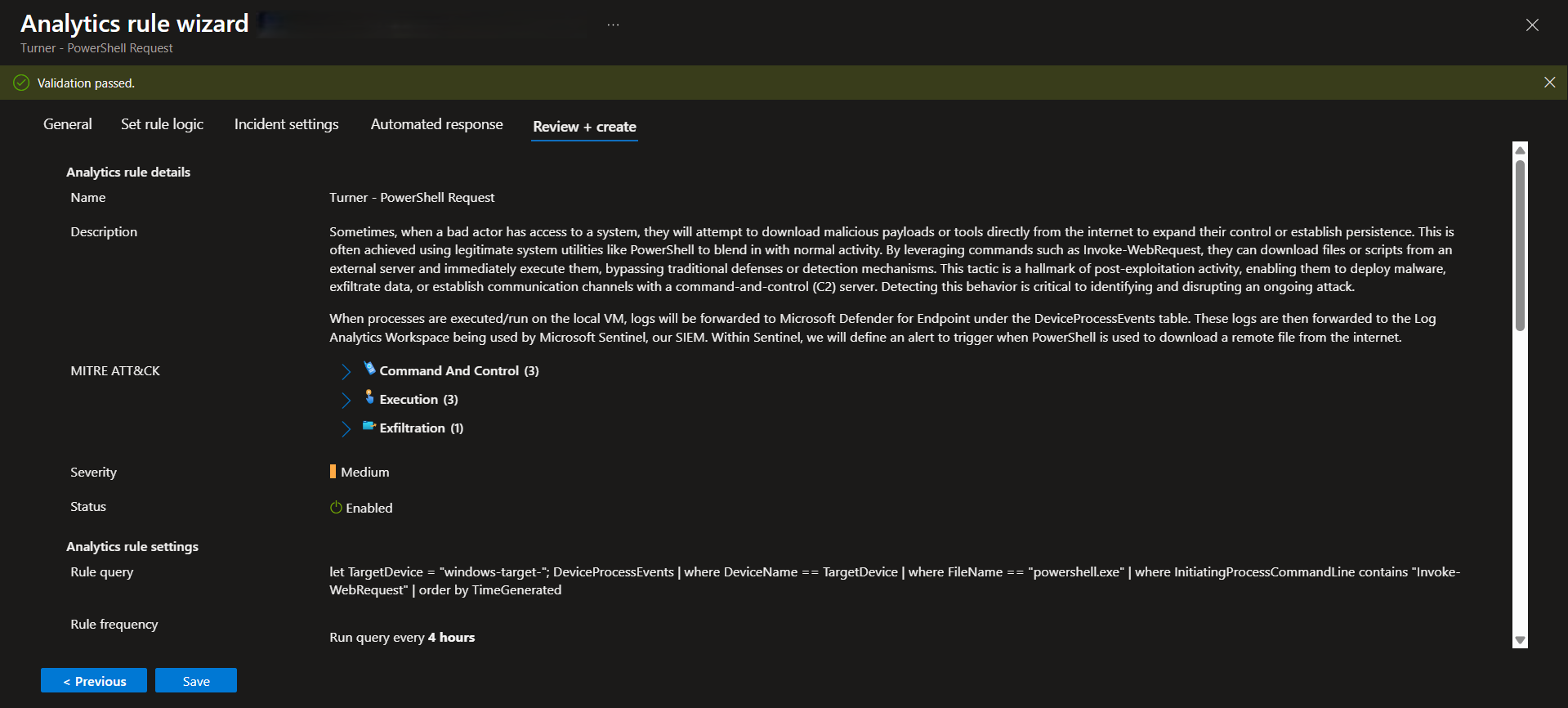
1. 打开 **Sentinel** 并导航至:
`Analytics → Scheduled Query Rule → Create Alert Rule`
2. 填写以下详细信息:
- **规则名称**:PowerShell 可疑 Web 请求 🚩
- **描述**:检测 PowerShell 下载远程文件 📥。
- **KQL 查询**:
let TargetDevice = "windows-target-";
DeviceProcessEvents
| where DeviceName == TargetDevice
| where FileName == "powershell.exe"
| where InitiatingProcessCommandLine contains "Invoke-WebRequest"
| order by TimeGenerated
- **运行频率**:每 4 小时 🕒
- **查找周期**:过去 24 小时 📅
- **事件行为**:自动创建事件,并将每 24 小时内的警报分组为单个事件。
3. 配置 **实体映射 (Entity Mappings)**:
- **账户 (Account)**:`AccountName`
- **主机 (Host)**:`DeviceName`
- **进程 (Process)**:`ProcessCommandLine`
4. 启用 **Mitre ATT&CK 框架类别**
5. 保存并激活规则。✅
#### 2️⃣ **在 Microsoft Sentinel 中创建警报规则**
1. 打开 **Sentinel** 并导航至:
`Analytics → Scheduled Query Rule → Create Alert Rule`
2. 填写以下详细信息:
- **规则名称**:PowerShell 可疑 Web 请求 🚩
- **描述**:检测 PowerShell 下载远程文件 📥。
- **KQL 查询**:
let TargetDevice = "windows-target-";
DeviceProcessEvents
| where DeviceName == TargetDevice
| where FileName == "powershell.exe"
| where InitiatingProcessCommandLine contains "Invoke-WebRequest"
| order by TimeGenerated
- **运行频率**:每 4 小时 🕒
- **查找周期**:过去 24 小时 📅
- **事件行为**:自动创建事件,并将每 24 小时内的警报分组为单个事件。
3. 配置 **实体映射 (Entity Mappings)**:
- **账户 (Account)**:`AccountName`
- **主机 (Host)**:`DeviceName`
- **进程 (Process)**:`ProcessCommandLine`
4. 启用 **Mitre ATT&CK 框架类别**
5. 保存并激活规则。✅
 ## 🛠️ **处理事件**
遵循 **NIST 800-161: 事件响应生命周期**:
### 1️⃣ **准备** 📂
- 定义角色、职责和程序 🗂️。
- 确保工具、系统和培训到位 🛠️。
### 2️⃣ **检测与分析** 🕵️♀️
1. **验证事件**:
- 将其分配给自己并将状态设置为 **Active** ✅。
## 🛠️ **处理事件**
遵循 **NIST 800-161: 事件响应生命周期**:
### 1️⃣ **准备** 📂
- 定义角色、职责和程序 🗂️。
- 确保工具、系统和培训到位 🛠️。
### 2️⃣ **检测与分析** 🕵️♀️
1. **验证事件**:
- 将其分配给自己并将状态设置为 **Active** ✅。
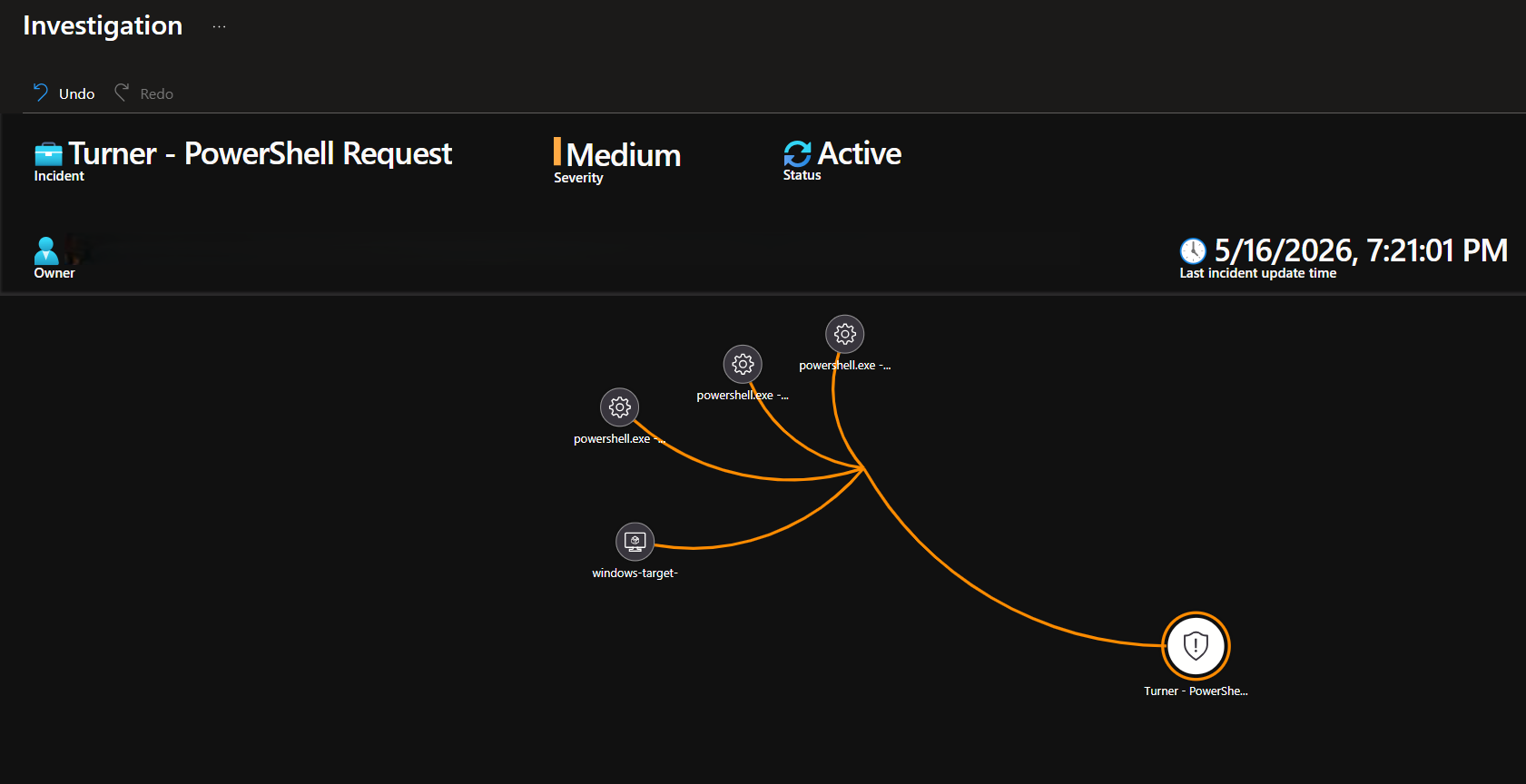 2. **调查**:
- 审查日志和实体映射 🗒️。
- 识别下载的脚本:
- `portscan.ps1`
- `pwncrypt.ps1`
- `eicar.ps1`
3. 收集证据:
- 脚本已下载并执行 🧪。
- 用户承认在此期间下载了免费软件。
### 3️⃣ **遏制、根除和恢复** 🛡️
1. 隔离受影响的系统:
- 使用 **Defender for Endpoint** 隔离机器 🔒。
- 运行反恶意软件扫描。
2. 分析下载的脚本:
3. 消除威胁并恢复系统:
- 确认脚本已执行。
- 清理受影响的文件并验证机器完整性 🧹。
### 4️⃣ **事件后活动** 📝
1. 记录发现和经验教训 🖊️。
- 执行的脚本:`pwncrypt.ps1` , `portscan.ps1` , `eicar.ps1` 。
- 涉及的账户:`system-user`。
2. 更新策略:
- 限制 PowerShell 的使用 🚫。
- 加强网络安全培训计划 📚。
3. 完成报告并结案:
- 将事件标记为 **真阳性 (True Positive)** ✅。
## 🎯 **事件摘要**
| **指标** | **值** |
|---------------------------------|-----------------------------------|
| **受影响的设备** | `windows-target-` |
| **可疑命令** | 3 |
| **下载的脚本** | `portscan.ps1`, `pwncrypt.ps1`, `eicar.ps1` |
| **事件状态** | 已解决 |
2. **调查**:
- 审查日志和实体映射 🗒️。
- 识别下载的脚本:
- `portscan.ps1`
- `pwncrypt.ps1`
- `eicar.ps1`
3. 收集证据:
- 脚本已下载并执行 🧪。
- 用户承认在此期间下载了免费软件。
### 3️⃣ **遏制、根除和恢复** 🛡️
1. 隔离受影响的系统:
- 使用 **Defender for Endpoint** 隔离机器 🔒。
- 运行反恶意软件扫描。
2. 分析下载的脚本:
3. 消除威胁并恢复系统:
- 确认脚本已执行。
- 清理受影响的文件并验证机器完整性 🧹。
### 4️⃣ **事件后活动** 📝
1. 记录发现和经验教训 🖊️。
- 执行的脚本:`pwncrypt.ps1` , `portscan.ps1` , `eicar.ps1` 。
- 涉及的账户:`system-user`。
2. 更新策略:
- 限制 PowerShell 的使用 🚫。
- 加强网络安全培训计划 📚。
3. 完成报告并结案:
- 将事件标记为 **真阳性 (True Positive)** ✅。
## 🎯 **事件摘要**
| **指标** | **值** |
|---------------------------------|-----------------------------------|
| **受影响的设备** | `windows-target-` |
| **可疑命令** | 3 |
| **下载的脚本** | `portscan.ps1`, `pwncrypt.ps1`, `eicar.ps1` |
| **事件状态** | 已解决 |
## 🛡️ **创建警报规则 (PowerShell 可疑 Web 请求)**
### 🔍 **说明**
有时,恶意攻击者会获取系统访问权限,并尝试直接从互联网下载 payload 或工具。这通常是通过 PowerShell 等合法工具来完成的,以混入正常活动中。通过使用 `Invoke-WebRequest` 等命令,攻击者可以:
- 📥 从外部服务器下载文件或脚本
- 🚀 立即执行它们,绕过传统防御
- 📡 与命令控制 (C2) 服务器建立通信
检测此类行为对于识别和挫败正在进行的攻击至关重要!🕵️♀️
### **采用的组件、工具和技术**
1. 🖥️ **Microsoft Defender XDR Advanced Hunting 与 Microsoft Defender for Endpoint (MDE) 遥测数据**。
2. 📊 **Microsoft Sentinel (SIEM)**。
3. 🛑 在 **Sentinel** 中创建的警报规则,用于在 PowerShell 下载远程文件时触发。
### 🔧 **创建警报规则的步骤**
#### 1️⃣ **在 Microsoft Defender 中查询日志**
1. 定位可疑活动,例如:`powershell.exe` 执行 `Invoke-WebRequest`。
2. 优化目标设备的查询:
let TargetDevice = "windows-target-";
DeviceProcessEvents
| where DeviceName == TargetDevice
| where FileName == "powershell.exe"
| where InitiatingProcessCommandLine contains "Invoke-WebRequest"
| order by TimeGenerated
3. 验证 payload 检测。 ``` let TargetHostname = "windows-target-"; let ScriptNames = dynamic(["eicar.ps1", "portscan.ps1", "pwncrypt.ps1"]); DeviceProcessEvents | where DeviceName == TargetHostname | where FileName == "powershell.exe" | where ProcessCommandLine contains "-File" and ProcessCommandLine has_any (ScriptNames) | order by TimeGenerated | project TimeGenerated, AccountName, DeviceName, FileName, ProcessCommandLine | summarize Count = count() by AccountName, DeviceName, FileName, ProcessCommandLine ```
#### 2️⃣ **在 Microsoft Sentinel 中创建警报规则**
1. 打开 **Sentinel** 并导航至:
`Analytics → Scheduled Query Rule → Create Alert Rule`
2. 填写以下详细信息:
- **规则名称**:PowerShell 可疑 Web 请求 🚩
- **描述**:检测 PowerShell 下载远程文件 📥。
- **KQL 查询**:
let TargetDevice = "windows-target-";
DeviceProcessEvents
| where DeviceName == TargetDevice
| where FileName == "powershell.exe"
| where InitiatingProcessCommandLine contains "Invoke-WebRequest"
| order by TimeGenerated
- **运行频率**:每 4 小时 🕒
- **查找周期**:过去 24 小时 📅
- **事件行为**:自动创建事件,并将每 24 小时内的警报分组为单个事件。
3. 配置 **实体映射 (Entity Mappings)**:
- **账户 (Account)**:`AccountName`
- **主机 (Host)**:`DeviceName`
- **进程 (Process)**:`ProcessCommandLine`
4. 启用 **Mitre ATT&CK 框架类别**
5. 保存并激活规则。✅
## 🛠️ **处理事件**
遵循 **NIST 800-161: 事件响应生命周期**:
### 1️⃣ **准备** 📂
- 定义角色、职责和程序 🗂️。
- 确保工具、系统和培训到位 🛠️。
### 2️⃣ **检测与分析** 🕵️♀️
1. **验证事件**:
- 将其分配给自己并将状态设置为 **Active** ✅。
2. **调查**:
- 审查日志和实体映射 🗒️。
- 识别下载的脚本:
- `portscan.ps1`
- `pwncrypt.ps1`
- `eicar.ps1`
3. 收集证据:
- 脚本已下载并执行 🧪。
- 用户承认在此期间下载了免费软件。
### 3️⃣ **遏制、根除和恢复** 🛡️
1. 隔离受影响的系统:
- 使用 **Defender for Endpoint** 隔离机器 🔒。
- 运行反恶意软件扫描。
2. 分析下载的脚本:
3. 消除威胁并恢复系统:
- 确认脚本已执行。
- 清理受影响的文件并验证机器完整性 🧹。
### 4️⃣ **事件后活动** 📝
1. 记录发现和经验教训 🖊️。
- 执行的脚本:`pwncrypt.ps1` , `portscan.ps1` , `eicar.ps1` 。
- 涉及的账户:`system-user`。
2. 更新策略:
- 限制 PowerShell 的使用 🚫。
- 加强网络安全培训计划 📚。
3. 完成报告并结案:
- 将事件标记为 **真阳性 (True Positive)** ✅。
## 🎯 **事件摘要**
| **指标** | **值** |
|---------------------------------|-----------------------------------|
| **受影响的设备** | `windows-target-` |
| **可疑命令** | 3 |
| **下载的脚本** | `portscan.ps1`, `pwncrypt.ps1`, `eicar.ps1` |
| **事件状态** | 已解决 |标签:AMSI绕过, KQL查询, Microsoft Defender, OpenCanary, PowerShell监控, 威胁检测, 安全运营, 扫描框架, 网络信息收集