B60-0/hashcat-studio
GitHub: B60-0/hashcat-studio
一款为 hashcat 提供桌面图形界面的工具,通过表单向导和实时命令预览简化密码恢复任务的配置与运行,让用户无需记忆复杂的命令行参数即可完成操作。
Stars: 2 | Forks: 0

Hashcat Studio
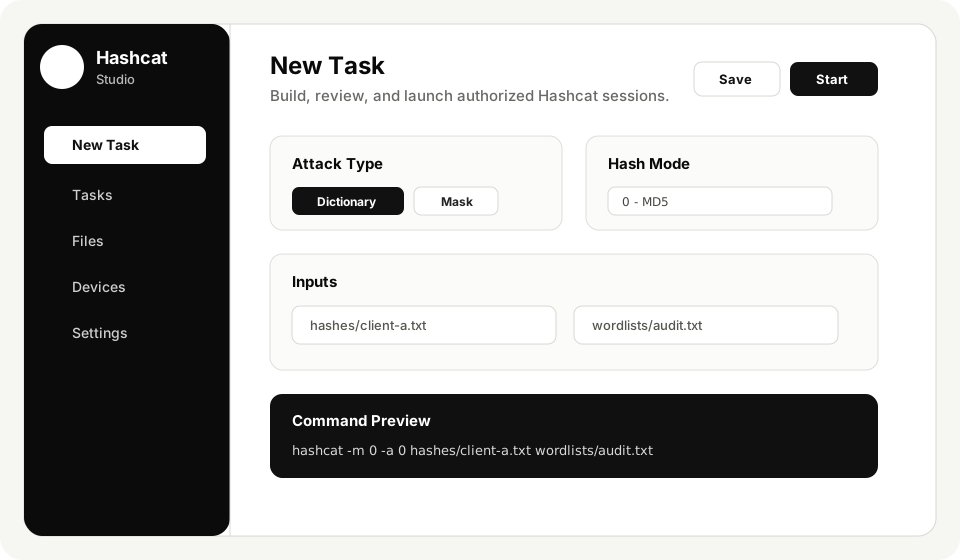
hashcat 的桌面 GUI。通过表单构建攻击任务,在运行前查看确切的命令,并实时查看输出 —— 无需使用 shell。



下载
·
文档
·
贡献
·
安全
## 为什么开发此工具
Hashcat 很棒,但它的参数(flag)实在太多了。如果你不是每天都在使用它,恐怕得花上一半的时间去翻阅 `--help`,才能想起来到底是用 `-a 3`,`--increment-min` 是干什么的,或者 `-r` 应该放在哪里。Hashcat Studio 将这些常用的配置项整合到了一个表单中,并会向你展示即将运行的命令,这样你就可以清楚地看到实际将要执行的内容,并在需要时进行调整。
它只是一个轻量级的封装,而不是替代品。你本地的 `hashcat` 二进制文件会完成所有真正的工作;这个应用只负责构建参数、运行程序并流式传输输出结果。
## 功能特性
- **向导式任务构建器。** 选择哈希文件、算法、攻击模式、字典、规则、掩码以及一些常用的标志。输入时会实时预览显示确切的 `hashcat ...` 命令。
- **Raw 模式** 供你直接粘贴命令。它会解析参数(处理引号和 `hashcat` 前缀)并运行它们 —— 中间无需经过 shell。
- **实时输出与控制。** 流式传输 stdout/stderr 和 JSON 状态行。无需切换回终端即可进行暂停、恢复、设置检查点、跳过和退出。
- **设备与基准测试。** 读取 `hashcat -I` 的信息,允许你选择 CPU/GPU 和特定的设备 ID,并针对每个设备运行基准测试。
- **文件浏览器。** 扫描你配置的哈希 / 字典 / 规则 / 掩码文件夹,这样你就不必费心去记路径了。
- **Hashes.com 托管。** 可选项。列出公共任务(如果添加了 API key,则列出你账户的任务),只需单击即可将未破解的列表下载到你的哈希文件夹中,以便随时开始破解。
- **首次运行设置。** 一键下载最新官方 Hashcat 版本,或者指定现有的安装路径。设置完成后,如果你以后想要更换,可以在“设置”中编辑二进制文件的路径。
## 安装
从 [GitHub Releases](https://github.com/B60-0/hashcat-studio/releases/latest) 获取最新的构建版本。
| 平台 | 文件 |
| --- | --- |
| Windows | `Hashcat-Studio-Windows-*.zip` |
| macOS | `Hashcat-Studio-macOS-*.dmg` |
| Linux | `Hashcat-Studio-Linux-*.tar.gz` |
首次启动时,你会看到一个包含两个选项的设置界面:
- **下载 Hashcat** —— 拉取适合你操作系统的最新官方版本(macOS 上通过 Homebrew,其他平台则下载官方的 `.7z` 文件)并自动配置好。
- **指定现有文件夹** —— 如果你已经在某处安装了 hashcat,可以使用此选项。
二进制文件的路径之后可以在“设置”中编辑,因此你可以切换到特定的二进制文件或 PATH 上的 `hashcat`,而无需重新进行初始设置。
## 首个任务
1. 打开应用并完成设置。
2. 在 **设置** 中配置你的资产文件夹(或者接受用户配置目录下的默认设置)。
3. 将哈希文件放入你的哈希文件夹中。
4. 前往 **New Task**,选择算法和字典,查看一下命令预览,然后点击 **Create & Start**。
5. 在 **任务** 页面观察其运行状态。
如果你想跳过表单,可以将 New Task 界面切换到 **Raw Arguments**,并直接粘贴完整的 `hashcat ...` 命令行。
## 从源码构建
你需要准备:
- Go 1.22+
- Node.js 20+
- [Wails](https://wails.io) v2.12.0 — `go install github.com/wailsapp/wails/v2/cmd/wails@v2.12.0`
- 在你将要运行程序的机器上安装 Hashcat(任何近期版本)
```
npm --prefix frontend install
npm --prefix frontend run build
go test ./internal/...
wails build
```
生成的输出文件位于 `build/bin/`。如果需要热重载的开发循环,请在运行 `npm --prefix frontend install` 后执行 `wails dev`。
## 项目结构
```
app.go / setup.go Wails-exposed methods (Go ↔ JS)
internal/hashcat Argument building, raw-arg parser, binary helpers
internal/tasks Subprocess manager and event streaming
internal/assets Folder scanner
internal/settings Settings file (~/.config/HashcatStudio)
internal/hashescom Hashes.com escrow client
frontend/src React UI (pages, components, theme)
docs/wiki Markdown docs that mirror the GitHub wiki
```
## macOS 签名与公证
未签名的 macOS 构建版本会强制用户通过 Gatekeeper 覆盖验证。如果你希望 DMG 文件能正常打开,请加入 Apple Developer Program,并在标记 `v*` 之前在 GitHub Actions 发布工作流中设置以下 secrets:
| Secret | 值 |
| --- | --- |
| `MACOS_CERTIFICATE_P12` | 你的 Developer ID Application `.p12` 文件的 Base64 编码 |
| `MACOS_CERTIFICATE_PASSWORD` | 该 `.p12` 文件的密码 |
| `MACOS_CODESIGN_IDENTITY` | 例如 `Developer ID Application: Name (TEAMID)` |
| `APPLE_ID` | 用于公证的 Apple ID |
| `APPLE_TEAM_ID` | Apple Developer Team ID |
| `APPLE_APP_SPECIFIC_PASSWORD` | 该 Apple ID 的 App 专用密码 |
使用 `base64 -i DeveloperIDApplication.p12 | pbcopy` 创建 base64 证书。当这六个 secrets 全部就绪后,CI 将会自动完成签名(hardened runtime)、公证、装订(staple)并上传 DMG 文件。
## 文档
Wiki 页面位于 `docs/wiki/` 中,以便与源代码一起进行版本控制:
- [安装说明](docs/wiki/Installation.md)
- [首次运行](docs/wiki/First-Run.md)
- [创建任务](docs/wiki/Creating-Tasks.md)
- [文件与文件夹](docs/wiki/Files-And-Folders.md)
- [故障排除](docs/wiki/Troubleshooting.md)
- [负责任的使用](docs/wiki/Responsible-Use.md)
## 负责任的使用
Hashcat Studio 只是构建在 hashcat 之上的 UI。请仅在获得授权测试的哈希、系统和审计中运行它 —— 比如你正在参与的 CTF、你自己的账户,或是你拥有书面授权的评估项目。在大多数地方,破解你不拥有或未经授权测试的系统的哈希是违法的。
## 许可证
MIT —— 详情请参阅 [LICENSE](LICENSE)。本工具与 Hashcat 项目无关。
标签:Bitdefender, DOS头擦除, Hashcat, MITM代理, 图形界面, 密码破解, 日志审计, 桌面应用, 自动化攻击