Dalilatu/Log-Analysis-and-Threat-hunting-using-Windows-Event-logs-and-splunk
GitHub: Dalilatu/Log-Analysis-and-Threat-hunting-using-Windows-Event-logs-and-splunk
该项目演示如何将 Windows 事件日志导入 Splunk 进行日志分析与威胁狩猎。
Stars: 0 | Forks: 0
# 使用 Windows 事件日志和 Splunk 进行日志分析与威胁狩猎
## 在 Splunk 中插入日志
本仓库说明了如何在 Splunk 中插入 Windows 事件日志。
## 使用的工具 - Windows 11
## 使用的工具 - Windows 11
使用的环境
- Virtual Box ## 项目流程 ### 项目安装工具 | 工具名称 | 使用原因 | 下载链接 | |-----------|---------------------------|---------------| | VirtualBox | 用于创建和管理实验室环境中的虚拟机 | [下载](https://www.virtualbox.org/) | | Windows 11 Enterprise | 将作为我们的客户端机器 | [下载](https://www.microsoft.com/en-us/evalcenter/download-windows-11-enterprise) | | Splunk | 用于事件响应和事件管理的 SIEM 工具 | [下载](https://www.splunk.com/en_us/download/splunk-enterprise.html) | | Windows Event Log | 从目标 Windows 系统记录的 .csv 日志文件 | [下载](https://github.com/M122/Splunk_Exercise/archive/refs/tags/v1.0.0.zip) | ### 在 Splunk 中插入日志
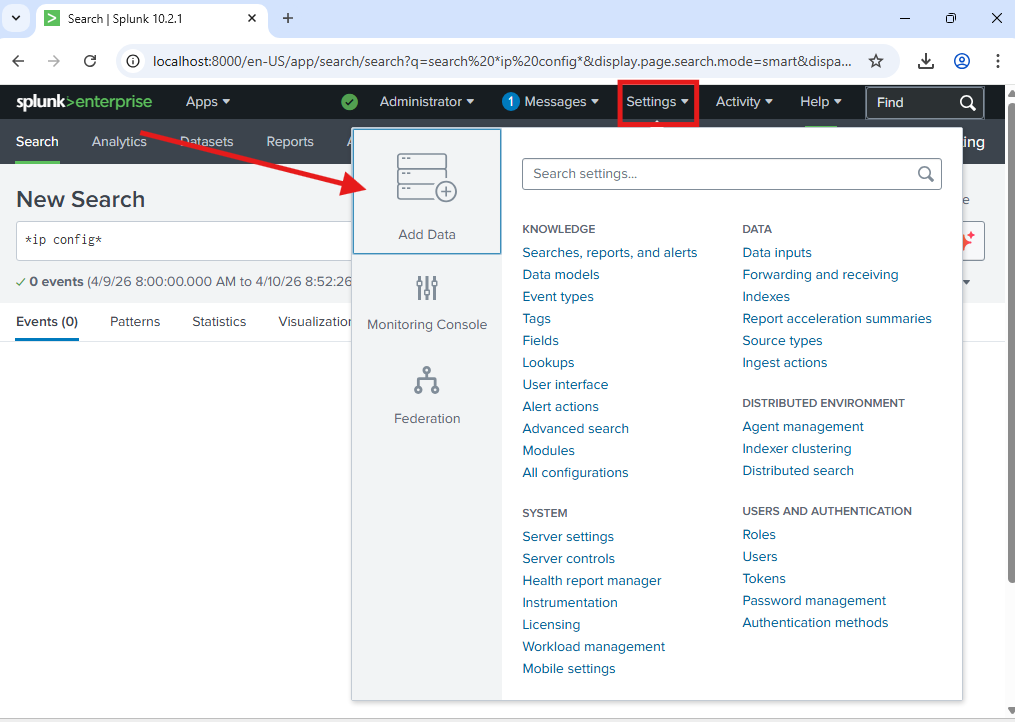
Step 1: Go to settings and choose "Add Data"
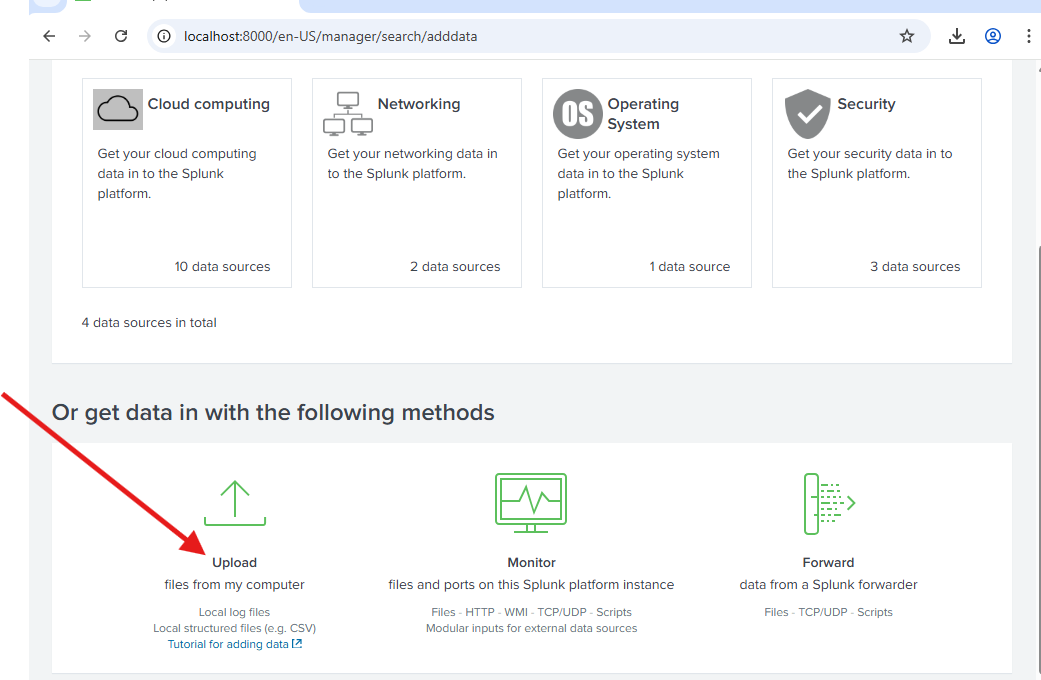
Step 2: Choose Upload
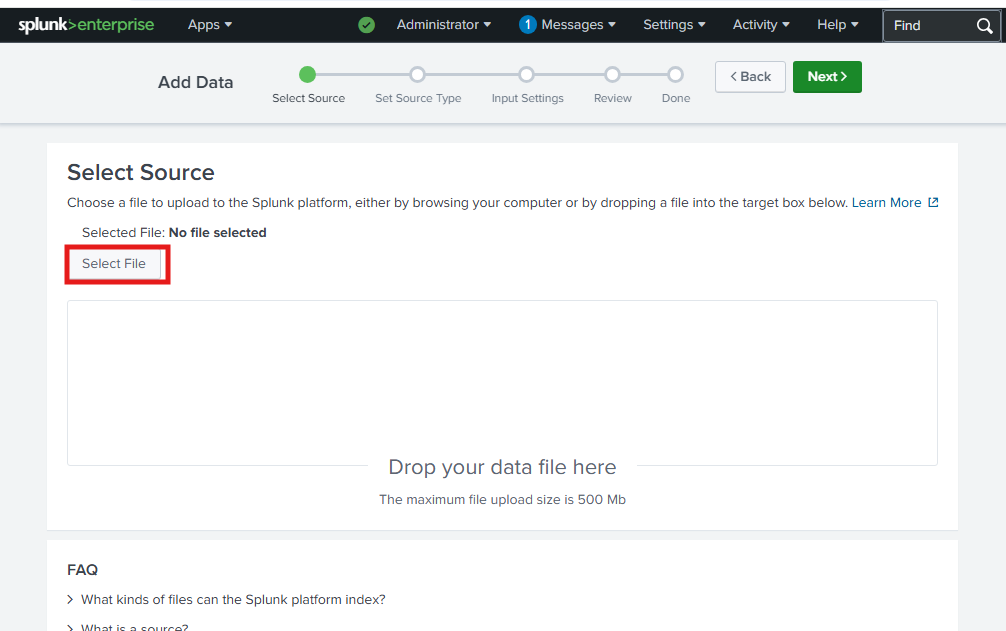
Step 3: Choose Select
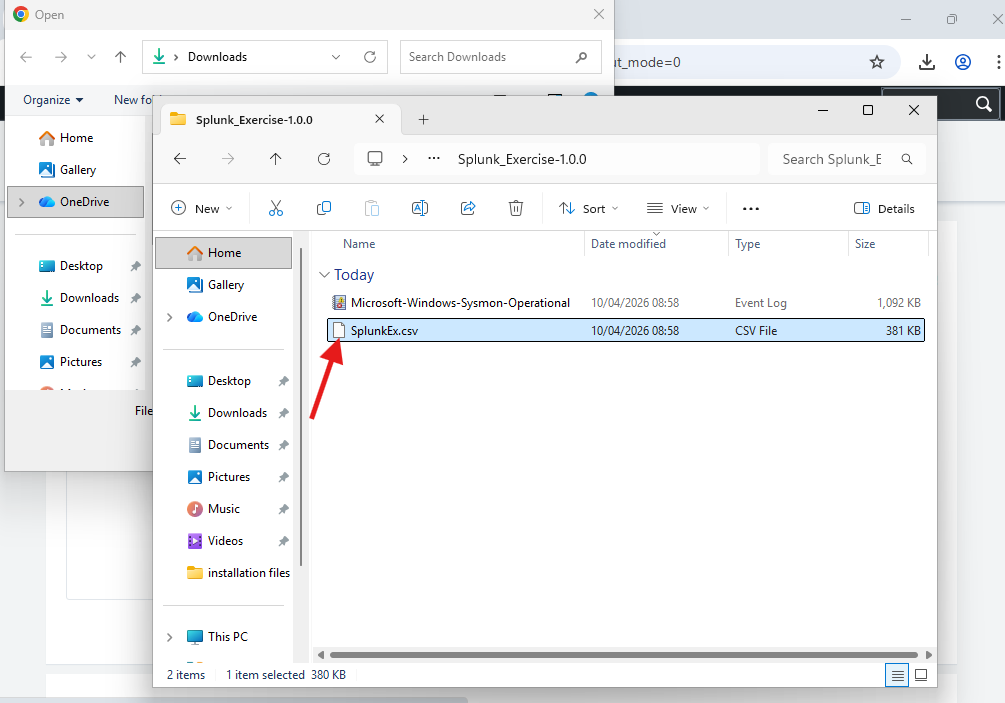
Step 4: Choose .csv file
Step 5:
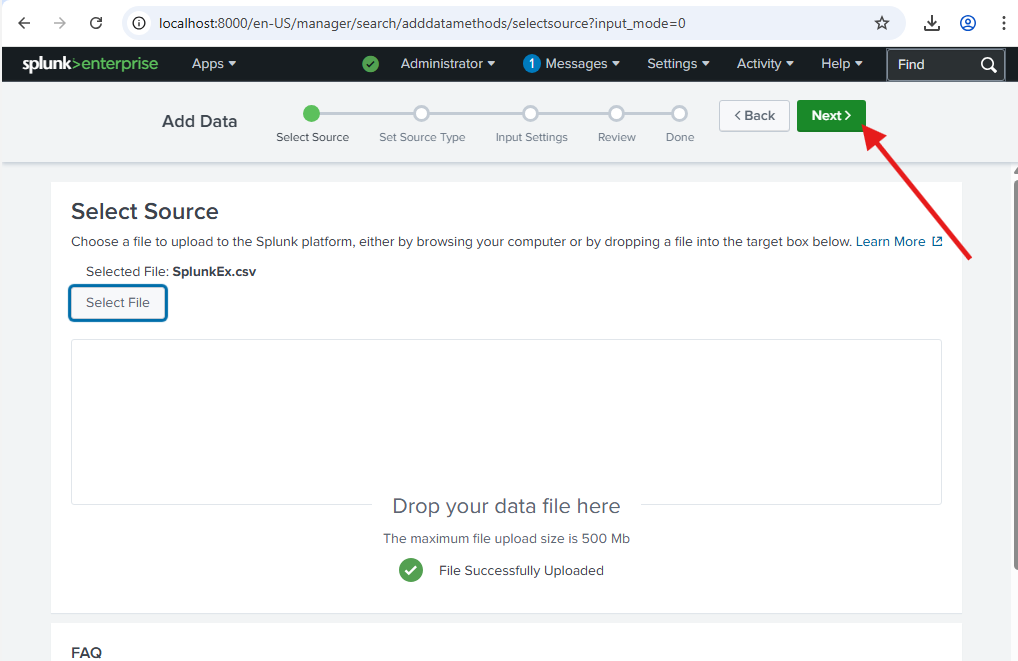
Step 6:
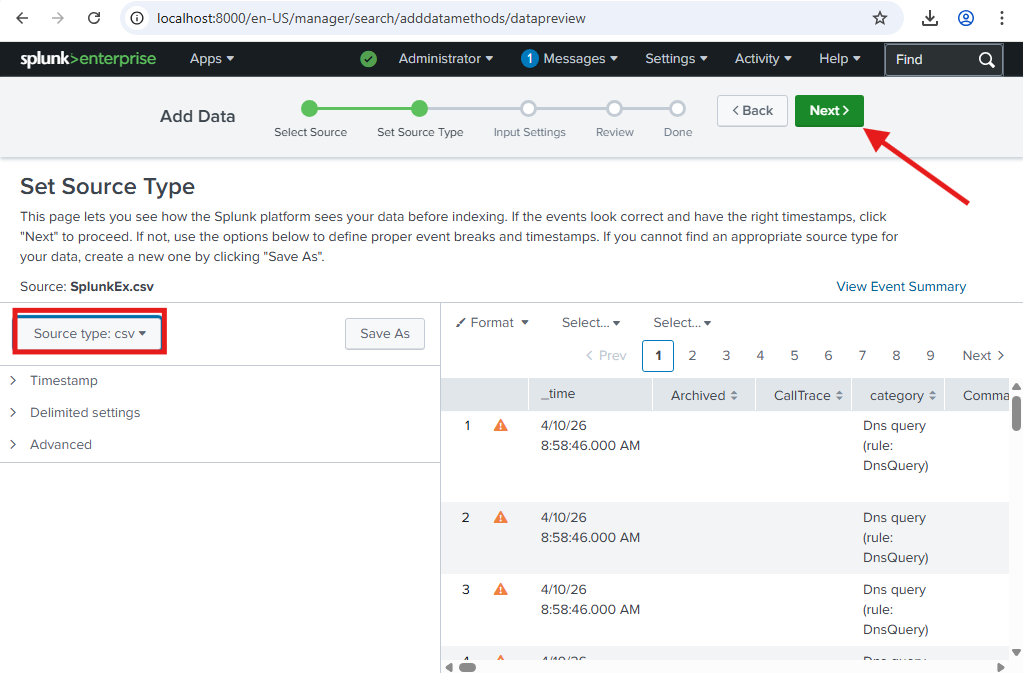
Step 7: Create new index
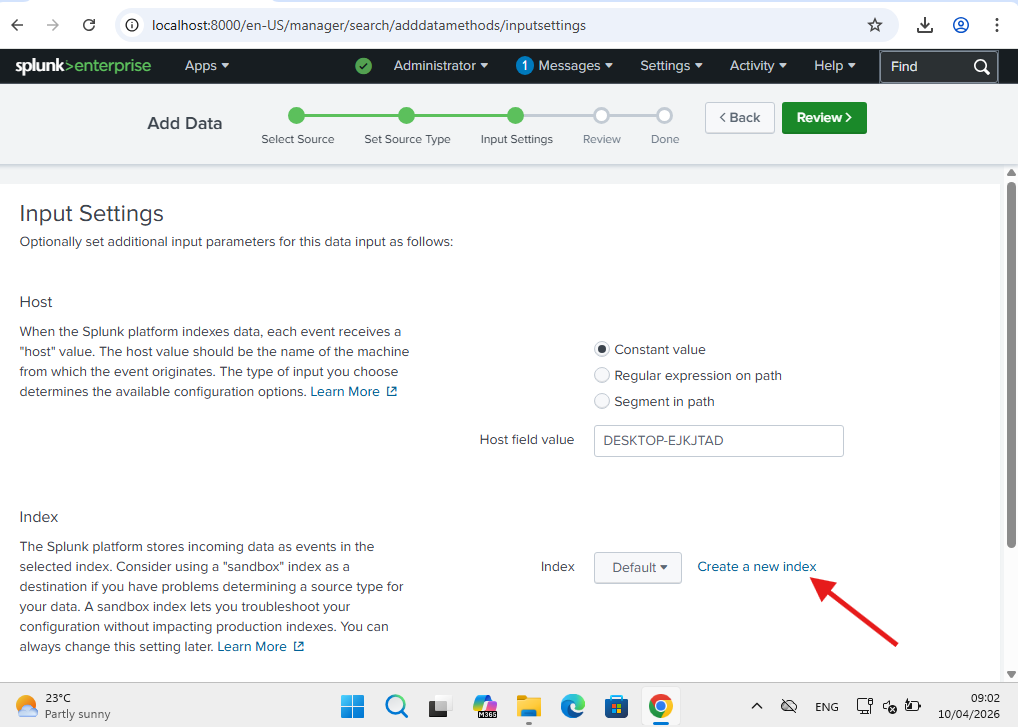
Step 8: Give a name to your index
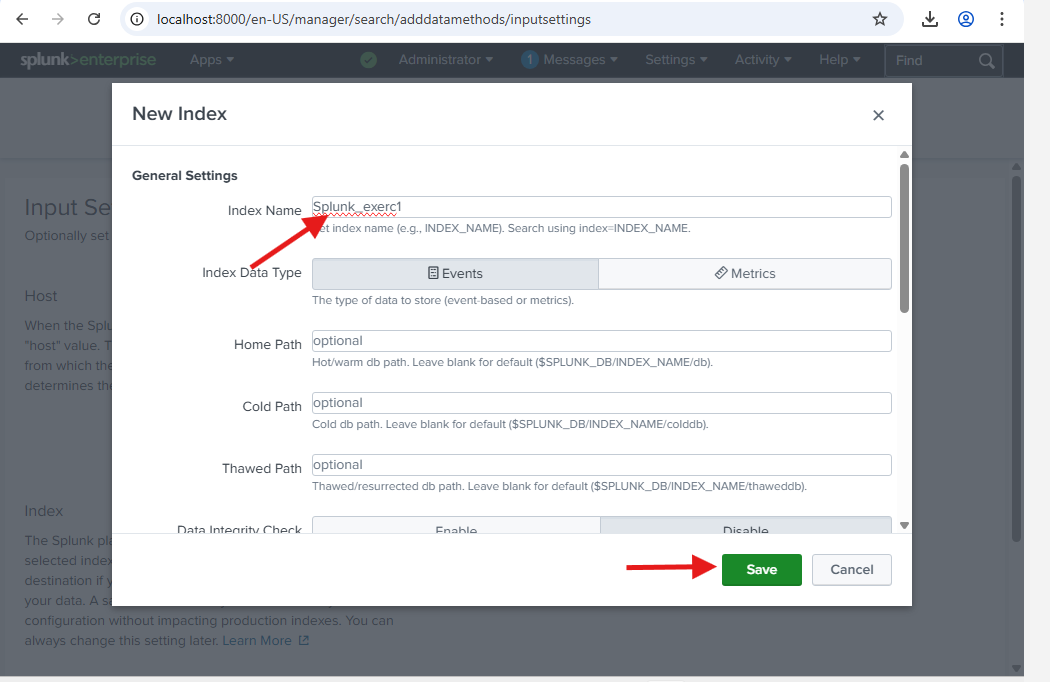
NB: The name given above wasn't accepted during the final step, so it's better to avoid using "_".
Once this is done, Click on Review > Submit > Start Searching.
Step 9: Start Searching
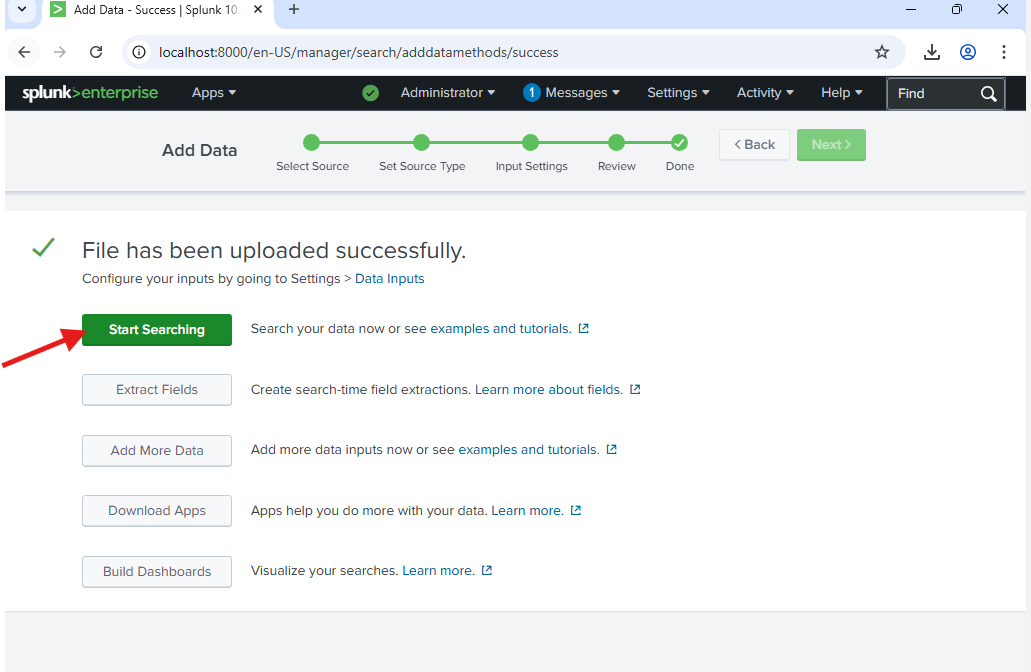
Step 10: logs Successfully inserted on Splunk
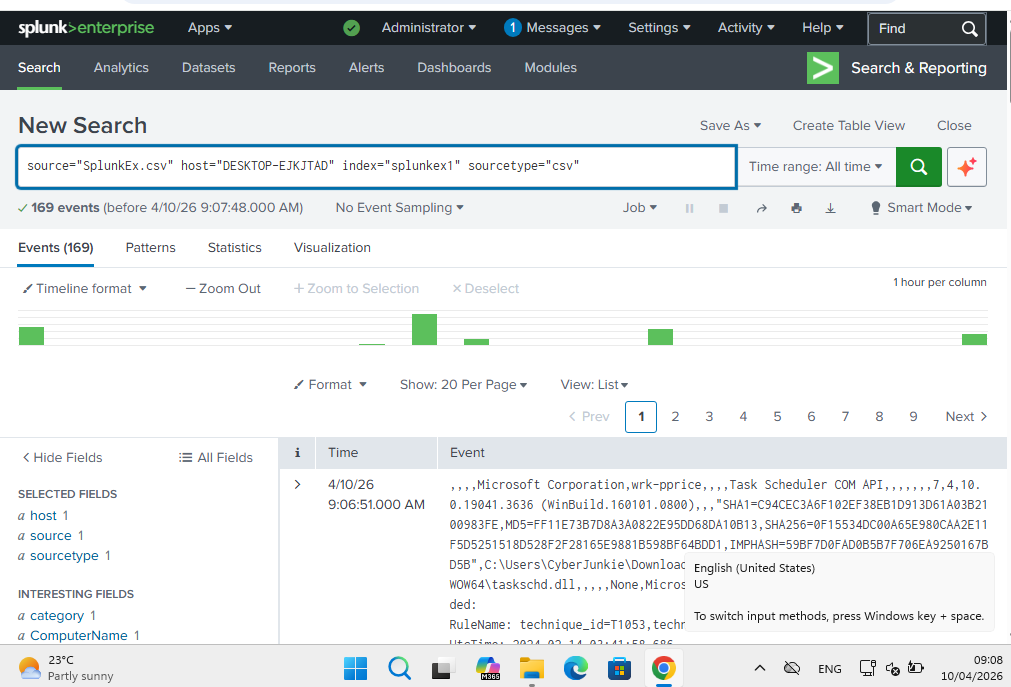
### 威胁狩猎
标签:CSV日志, VirtualBox, Windows 11, Windows事件日志, 事件管理, 企业安全, 安全运营, 开源安全, 扫描框架, 数字取证, 日志上传, 日志导入, 日志收集, 生成式AI安全, 端点日志, 网络资产管理, 自动化脚本, 虚拟机