







English | 中文
随时随地,通过任何聊天应用控制你的本地 AI agent。
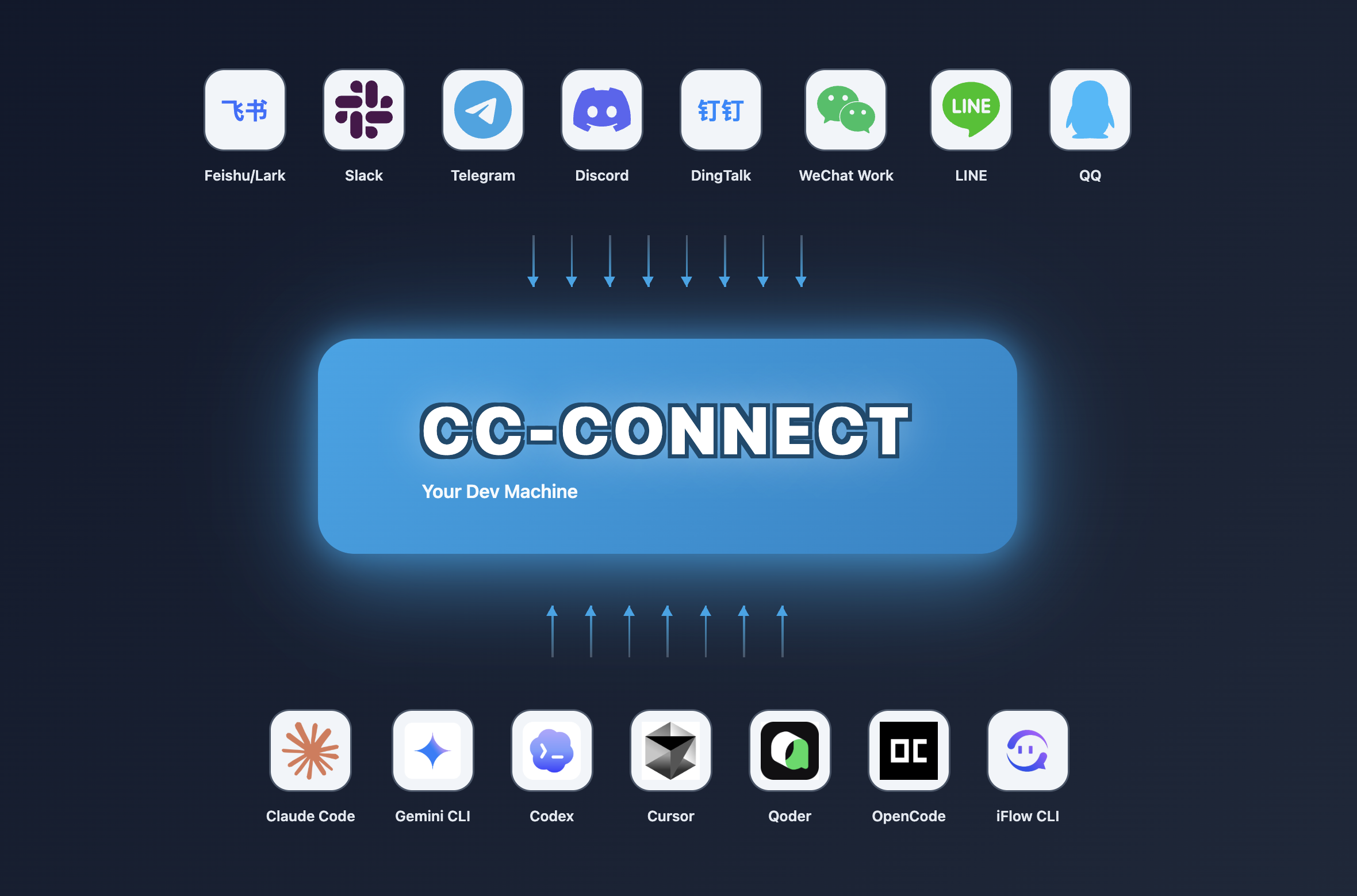
cc-connect 将运行在你机器上的 AI agent 与你已经在使用的消息平台连接起来。
代码审查、研究、自动化、数据分析 —— 任何 AI agent 能做的事情,
现在都可以通过你的手机、平板或任何带有聊天应用的设备来访问。
## 🆕 v1.3.0 新特性
- **🌐 Web 管理界面 (推荐)** — 内嵌于二进制文件中的全功能管理仪表盘 —— **无需额外依赖**。创建和编辑项目、管理提供商、监控会话、编辑 cron 任务,并**直接从浏览器与你的 agent 聊天**。支持 5 种语言。我们推荐通过 Web 管理界面来管理 cc-connect,而不是手动编辑 `config.toml`。运行 `cc-connect web` 进行配置并打开仪表盘,然后运行 `cc-connect` 启动服务。
- **生命周期事件钩子** — 新增 `[[hooks]]` 配置,可在消息、会话、cron、权限和错误事件时触发 shell 命令或 HTTP webhook。默认异步,失败时放行。
- **技能管理** — 新增 `/skills` 页面,包含本地技能浏览器和推荐预设。
- **全局提供商管理** — 在 Web 管理界面中添加/编辑/删除提供商;支持从 cc-switch 配置导入。
- **个人微信** — 通过 ilink 长轮询从**微信(个人)**与你的本地 agent 聊天;二维码 `weixin setup`,CDN 媒体,无需公网 IP。*[设置 → `docs/weixin.md`](docs/weixin.md)*
- **微博私信** — 通过 WebSocket 经由**微博私信**与你的 agent 聊天;无需公网 IP,支持文本流式传输。
- **飞书增强** — 自动解析 `@name` 提及,多级回复链识别,完成表情符号回应。
- **新 Agent** — 新增 Kimi CLI 和 Pi agent 支持。
## 🧩 平台功能概览
cc-connect 中每个**内置平台**功能的高层级概览。
**图例**
| 符号 | 含义 |
|--------|---------|
| ✅ | 在**稳定版** cc-connect 中可通过典型配置使用 |
| ⚠️ | 部分支持,需要额外配置(例如语音 / ASR),或受限于厂商应用或 API |
| ❌ | 不支持或实际不适用 |
† **QQ (NapCat / OneBot)** — 非官方的自建桥接;行为取决于你的 NapCat / 网络设置。
| 功能 | 飞书 | 钉钉 | Telegram | Slack | Discord | LINE | 企业微信 | 微博 | **微信**
*(个人)* | QQ† | QQ Bot |
|------------|:------:|:--------:|:--------:|:-----:|:-------:|:----:|:-----:|:-----:|:-------------------------:|:---:|:------:|
| 文本与斜杠命令 | ✅ | ✅ | ✅ | ✅ | ✅ | ✅ | ✅ | ✅ | ✅ | ✅ | ✅ |
| Markdown / 卡片 | ✅ | ✅ | ✅ | ✅ | ✅ | ⚠️ | ⚠️ | ❌ | ✅ | ✅ | ✅ |
| 流式 / 分块回复 | ✅ | ✅ | ✅ | ✅ | ✅ | ✅ | ✅ | ✅ | ✅ | ✅ | ✅ |
| 图片与文件 | ✅ | ✅ | ✅ | ✅ | ✅ | ⚠️ | ✅ | ❌ | ✅ | ✅ | ✅ |
| 语音 / STT / TTS | ⚠️ | ⚠️ | ✅ | ⚠️ | ⚠️ | ❌ | ⚠️ | ❌ | ✅ | ⚠️ | ⚠️ |
| 私聊 (DM) | ✅ | ✅ | ✅ | ✅ | ✅ | ✅ | ✅ | ✅ | ✅ | ✅ | ✅ |
| 群组 / 频道 | ✅ | ✅ | ✅ | ✅ | ✅ | ⚠️ | ✅ | ❌ | ✅ | ✅ | ✅ |
## ✨ 为什么选择 cc-connect?
### 🤖 通用 Agent 支持
**10+ AI Agent** — Claude Code、Codex、Cursor Agent、Kimi CLI、Qoder CLI、Gemini CLI、OpenCode、iFlow CLI、Pi、Devin —— 以及任何支持 [Agent Client Protocol (ACP)](https://agentclientprotocol.com/get-started/agents) 的 agent。选择适合你工作流程的那个,或者同时使用它们。
### 📱 平台灵活性
**11 个聊天平台** — 飞书、钉钉、Slack、Telegram、Discord、企业微信、微博、LINE、QQ、QQ Bot(官方),以及用于**个人微信**的**微信(个人 ilink)**。大多数平台**无需公网 IP**。
### 🔄 多 Agent 编排
**多 Bot 中继** — 在群聊中绑定多个 bot 并让它们相互交流。向 Claude 提问,从 Gemini 获得见解 —— 所有这些都在同一个对话中完成。
### 🎮 完整的聊天控制
**通过聊天完全控制** — 通过斜杠命令切换模型 (`/model`)、调整推理 (`/reasoning`)、更改权限模式 (`/mode`)、管理会话。
**聊天内目录切换** — 使用 `/dir
`(以及作为兼容性别名的 `/cd `)更改下一个会话的启动位置,并可通过 `/dir ` / `/dir -` 快速跳转历史记录。
### 🧠 持久化记忆
**Agent 记忆** — 无需接触终端即可读写 agent 指令文件 (`/memory`)。
### ⏰ 智能调度
**定时任务** — 用自然语言设置 cron 任务。*"每天早上 6 点,总结 GitHub 趋势"* 轻松实现。
### 🎤 多模态支持
**语音与图像** — 发送语音消息或截图;cc-connect 处理 STT/TTS 和多模态转发。
### 📦 多项目架构
**多项目** — 一个进程,多个项目,每个项目都有自己的 agent + 平台组合。
### 🌍 多语言界面
**5 种语言** — 原生支持英语、中文(简体与繁体)、日语和西班牙语。内置 i18n 确保每个人都能感到宾至如归。
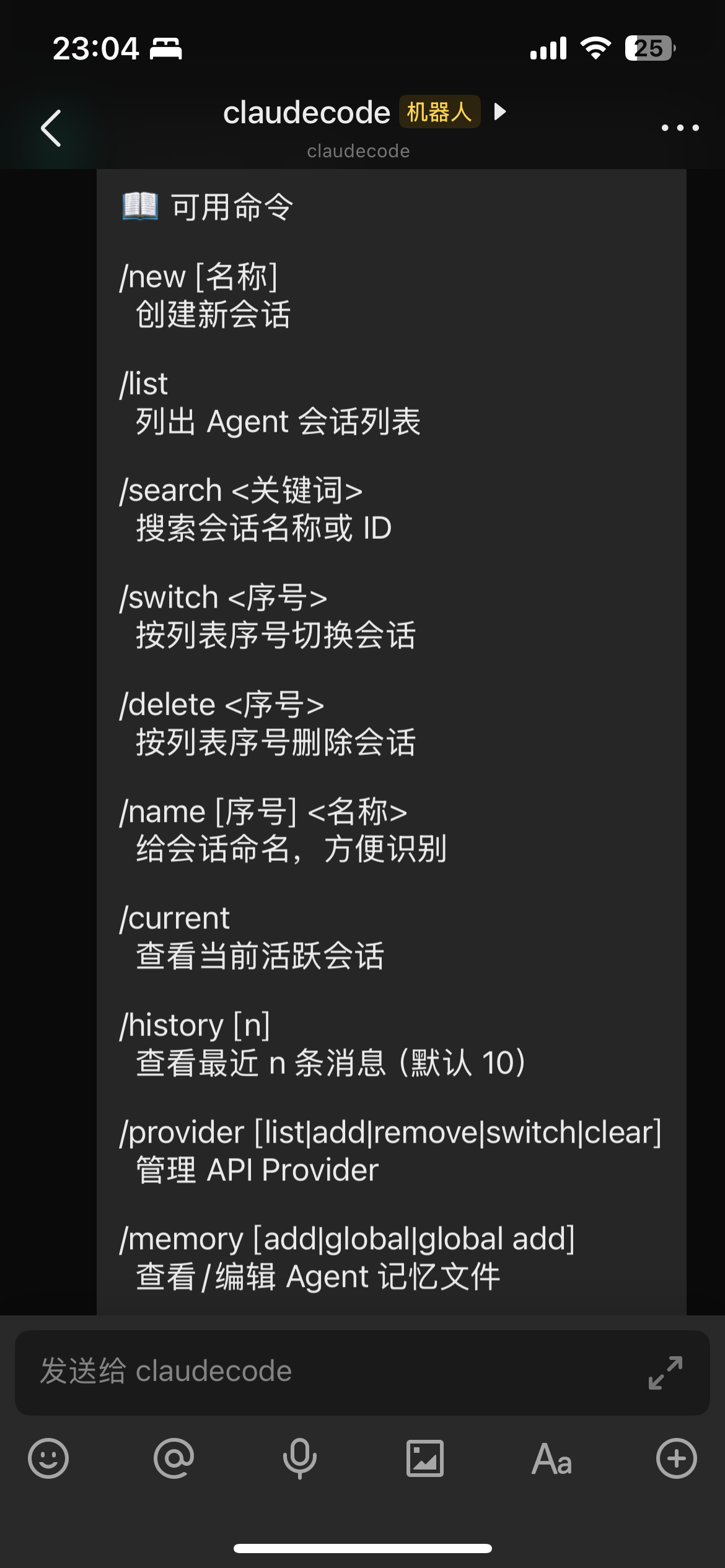
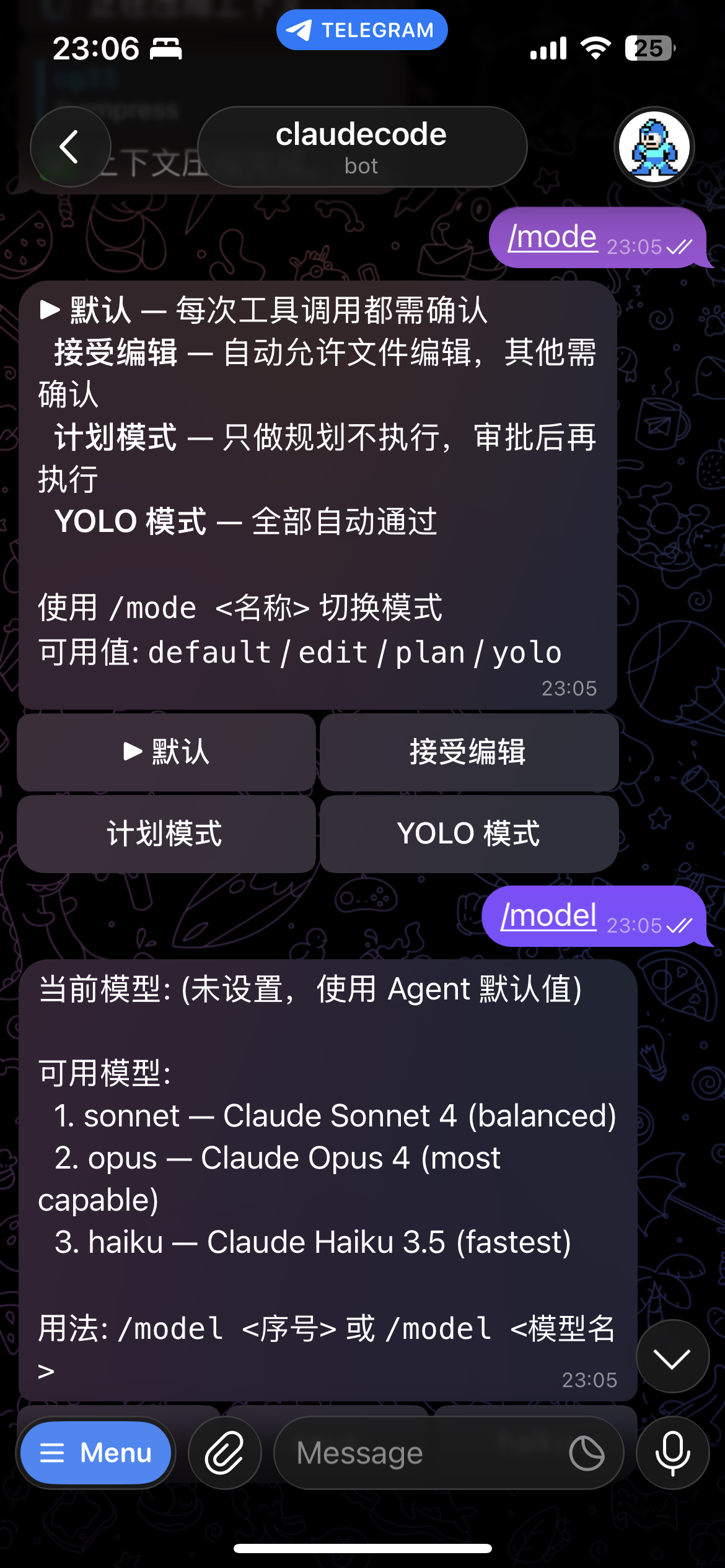
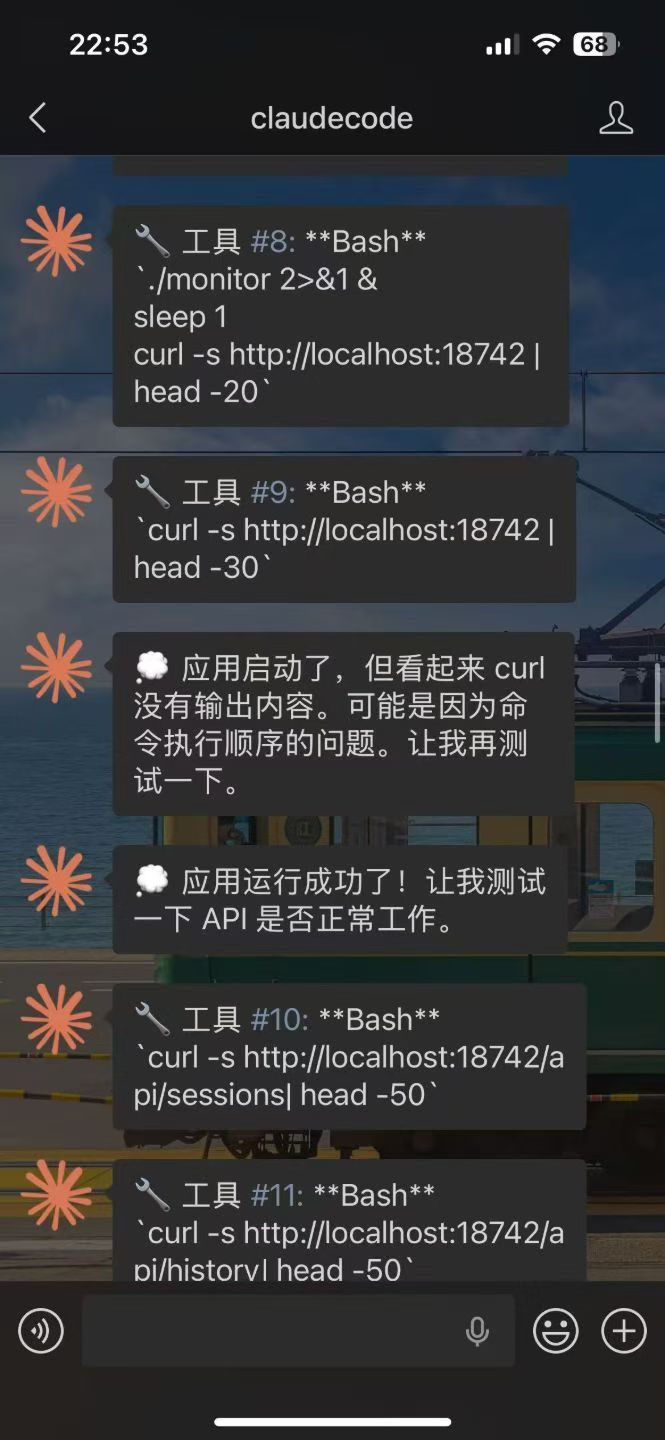
Left:Lark | Telegram | Right:Wechat
## 🚀 快速开始
### 🤖 通过 AI Agent 安装与配置 (推荐)
```
Follow https://raw.githubusercontent.com/chenhg5/cc-connect/refs/heads/main/INSTALL.md to install and configure cc-connect.
```
### 📦 手动安装
**通过 npm:**
```
npm install -g cc-connect
```
**通过 Homebrew (macOS / Linux):**
```
brew install cc-connect
```
**从 [GitHub Releases](https://github.com/chenhg5/cc-connect/releases) 下载二进制文件:**
```
# Linux amd64 - Stable
curl -L -o cc-connect https://github.com/chenhg5/cc-connect/releases/latest/download/cc-connect-linux-amd64
chmod +x cc-connect
sudo mv cc-connect /usr/local/bin/
```
**从源码构建 (需要 Go 1.22+):**
```
git clone https://github.com/chenhg5/cc-connect.git
cd cc-connect
make build
```
### ⚙️ 配置
如果你更喜欢手动配置:
```
mkdir -p ~/.cc-connect
cp config.example.toml ~/.cc-connect/config.toml
vim ~/.cc-connect/config.toml
```
在项目中设置 `admin_from = "alice,bob"` 以允许这些用户 ID 运行特权命令,例如 `/dir` 和 `/shell`。
当用户运行 `/dir reset` 时,cc-connect 会恢复配置的 `work_dir` 并清除存储在 `data_dir/projects/.state.json` 中的持久化覆盖设置。
### ▶️ 运行
```
./cc-connect
```
### 🔄 升级
```
# npm
npm install -g cc-connect
# Homebrew
brew upgrade cc-connect
# Binary self-update
cc-connect update # Stable
cc-connect update --pre # Include pre-releases
```
## 📊 支持矩阵
| 组件 | 类型 | 状态 |
|-----------|------|--------|
| Agent | Claude Code | ✅ 已支持 |
| Agent | Codex (OpenAI) | ✅ 已支持 |
| Agent | Cursor Agent | ✅ 已支持 |
| Agent | Gemini CLI (Google) | ✅ 已支持 |
| Agent | Qoder CLI | ✅ 已支持 |
| Agent | OpenCode (Crush) | ✅ 已支持 |
| Agent | iFlow CLI | ✅ 已支持 |
| Agent | Kimi CLI (Moonshot) | ✅ 已支持 |
| Agent | Pi (Cursor Background Agent) | ✅ 已支持 |
| Agent | ACP (Agent Client Protocol) | ✅ 任何 [兼容 ACP 的 agent](https://agentclientprotocol.com/get-started/agents) |
| Agent | Devin (Cognition) | ✅ 已支持 (通过 ACP) |
| Agent | Goose (Block) | 🔜 计划中 |
| Agent | Aider | 🔜 计划中 |
| 平台 | 飞书 (Lark) | ✅ WebSocket — 无需公网 IP |
| 平台 | 钉钉 | ✅ Stream — 无需公网 IP |
| 平台 | Telegram | ✅ Long Polling — 无需公网 IP |
| 平台 | Slack | ✅ Socket Mode — 无需公网 IP |
| 平台 | Discord | ✅ Gateway — 无需公网 IP |
| 平台 | 微博 | ✅ WebSocket — 无需公网 IP |
| 平台 | LINE | ✅ Webhook — 需要公网 URL |
| 平台 | 企业微信 | ✅ WebSocket / Webhook |
| 平台 | 微信 (个人, ilink) | ✅ — HTTP 长轮询 — 无需公网 IP |
| 平台 | QQ (NapCat/OneBot) | ✅ WebSocket |
| 平台 | QQ Bot (官方) | ✅ WebSocket — 无需公网 IP |
## 📖 平台设置指南
| 平台 | 指南 | 连接方式 | 需要公网 IP? |
|----------|-------|------------|------------|
| 飞书 (Lark) | [docs/feishu.md](docs/feishu.md) | WebSocket | 否 |
| 钉钉 | [docs/dingtalk.md](docs/dingtalk.md) | Stream | 否 |
| Telegram | [docs/telegram.md](docs/telegram.md) | Long Polling | 否 |
| Slack | [docs/slack.md](docs/slack.md) | Socket Mode | 否 |
| Discord | [docs/discord.md](docs/discord.md) | Gateway | 否 |
| 微博 | [docs/weibo.md](docs/weibo.md) | WebSocket | 否 |
| 企业微信 | [docs/wecom.md](docs/wecom.md) | WebSocket / Webhook | 否 (WS) / 是 (Webhook) |
| 微信 (个人) | [docs/weixin.md](docs/weixin.md) | HTTP 长轮询 | 否 |
| QQ / QQ Bot | [docs/qq.md](docs/qq.md) | WebSocket | 否 |
## 🎯 核心功能
### 💬 会话管理
```
/new [name] Start a new session
/list List all sessions
/switch Switch session
/current Show current session
/dir [path|reset] Show, switch, or reset work directory
```
项目配置也可以在长时间不活动后自动轮换到新会话:
```
[[projects]]
reset_on_idle_mins = 60
```
### 🛡️ 操作系统用户隔离 (`run_as_user`)
在 Linux/macOS 上,项目可以在不同的 Unix 用户下生成其 agent,从而实现与运行 cc-connect 的超级用户之间的操作系统级文件系统隔离。目前由 Claude Code 支持。
```
[[projects]]
name = "claude-sandboxed"
run_as_user = "partseeker-coder"
run_as_env = ["PGSSLROOTCERT"]
```
目标用户需要从超级用户获得无密码 sudo 权限,且自身不能有 sudo 权限,对 `work_dir` 有读写权限,并拥有自己的 `~/.claude/settings.json`,其中包含 agent 使用的任何凭据。如果你通过 `claude.ai` OAuth 进行身份验证,请将目标用户的 `~/.claude/.credentials.json` 符号链接到超级用户的副本,以便 token 刷新保持同步 —— 有关详细信息,请参阅[环境传播清单](./docs/usage.md#environment-propagation-what-moves-into-the-target-users-home)。有关完整设置,请参阅 [`docs/usage.md`](./docs/usage.md#running-agents-as-a-different-unix-user-run_as_user)。
在启动 cc-connect 之前,请使用以下命令审核设置:
```
cc-connect doctor user-isolation
```
这会运行三个 go/no-go 预检关卡和一个隔离探测,报告目标用户能读取和不能读取的内容。如果任何关卡失败,或者探测检测到跨用户泄露,cc-connect 将拒绝启动。
### 🔐 权限模式
```
/mode Show available modes
/mode yolo # Auto-approve all tools
/mode default # Ask for each tool
```
### 🔄 提供商管理
```
/provider list List providers
/provider switch Switch API provider at runtime
```
### 🤖 模型选择
```
/model List available models (format: alias - model)
/model switch Switch to model by alias
```
### 📂 工作目录
```
/dir Show current work directory and history
/dir Switch to a path (relative or absolute)
/dir Switch from history
/dir - Switch to previous directory
/cd Compatibility alias for /dir
```
### ⏰ 定时任务
```
/cron add 0 6 * * * Summarize GitHub trending
```
### 📎 Agent 附件回传
当 agent 生成一个本地截图、图表、PDF、打包文件或其他文件时,它可以将该附件发送回当前聊天。
首个发布版本支持:
- 飞书
- Telegram
如果你的 agent 没有原生注入系统提示词,请在升级后于聊天中运行一次:
```
/bind setup
```
或者:
```
/cron setup
```
这会刷新项目记忆文件中的 cc-connect 指令,以便 agent 知道如何回传附件。
你可以在 `config.toml` 中全局控制此功能:
此开关独立于 agent 的 `/mode`。它仅控制 `cc-connect send --image/--file`。
示例:
```
cc-connect send --image /absolute/path/to/chart.png
cc-connect send --file /absolute/path/to/report.pdf
cc-connect send --file /absolute/path/to/report.pdf --image /absolute/path/to/chart.png
```
注意事项:
- 绝对路径是最安全的选择。
- `--image` 和 `--file` 都可以重复使用。
- `attachment_send = "off"` 仅禁用附件回传;普通文本回复仍然有效。
- 此命令用于生成的附件,不用于普通文本回复。
📖 **完整文档:** [docs/usage.md](docs/usage.md)
## 📚 文档
- [使用指南](docs/usage.md) — 完整功能文档
- [INSTALL.md](INSTALL.md) — 友好的 AI agent 安装指南
- [config.example.toml](config.example.toml) — 配置模板
- [CONTRIBUTING.md](CONTRIBUTING.md) — 如何报告问题和提交 Pull Request
## 👥 社区
- [Discord](https://discord.gg/kHpwgaM4kq)
- [Telegram](https://t.me/+odGNDhCjbjdmMmZl)
## ☕ 支持本项目
如果 cc-connect 对你有帮助,可以考虑请我们喝杯咖啡!你的支持将帮助我们:
- 🛠️ 维护和改进项目
- 📚 编写更好的文档和教程
- 🐛 更快地修复 Bug 和添加新功能
- ☕ 让开发者保持充沛的精力
### 如何捐赠
**Buy Me a Coffee**: [https://buymeacoffee.com/cg80333](https://buymeacoffee.com/cg33)
**微信支付 / 支付宝**:
| 微信支付 | 支付宝 |
|:----------:|:------:|
|  |
|  |
### 感谢捐赠者! 🎉
我们感谢所有支持本项目的人。如果你希望在此处被列出,请在捐赠留言中留下你的 GitHub 用户名!
|
### 感谢捐赠者! 🎉
我们感谢所有支持本项目的人。如果你希望在此处被列出,请在捐赠留言中留下你的 GitHub 用户名!