hugobatista/secret-tool-run
GitHub: hugobatista/secret-tool-run
该工具在 Linux 下从系统 keyring 加载加密密钥来执行命令,从而彻底消除明文 .env 文件在磁盘上的安全风险。
Stars: 1 | Forks: 0
[](https://go.hugobatista.com/gh/secret-tool-run/releases)
# secret-tool-run 🔐
**执行命令时使用从您的 keyring 中加密获取的密钥 — 永远不会存储在磁盘上。**
secret-tool-run 是一个 bash 实用工具,它将密钥以**加密**形式(默认启用 AES-256-CBC)存储在您系统的 keyring 中,然后在运行时加载它们以执行您的命令 — 从而消除磁盘上的 `.env` 文件。非常适合希望将凭证保存在文件系统之外,同时保持流畅开发工作流程的开发者。
## 快速示例
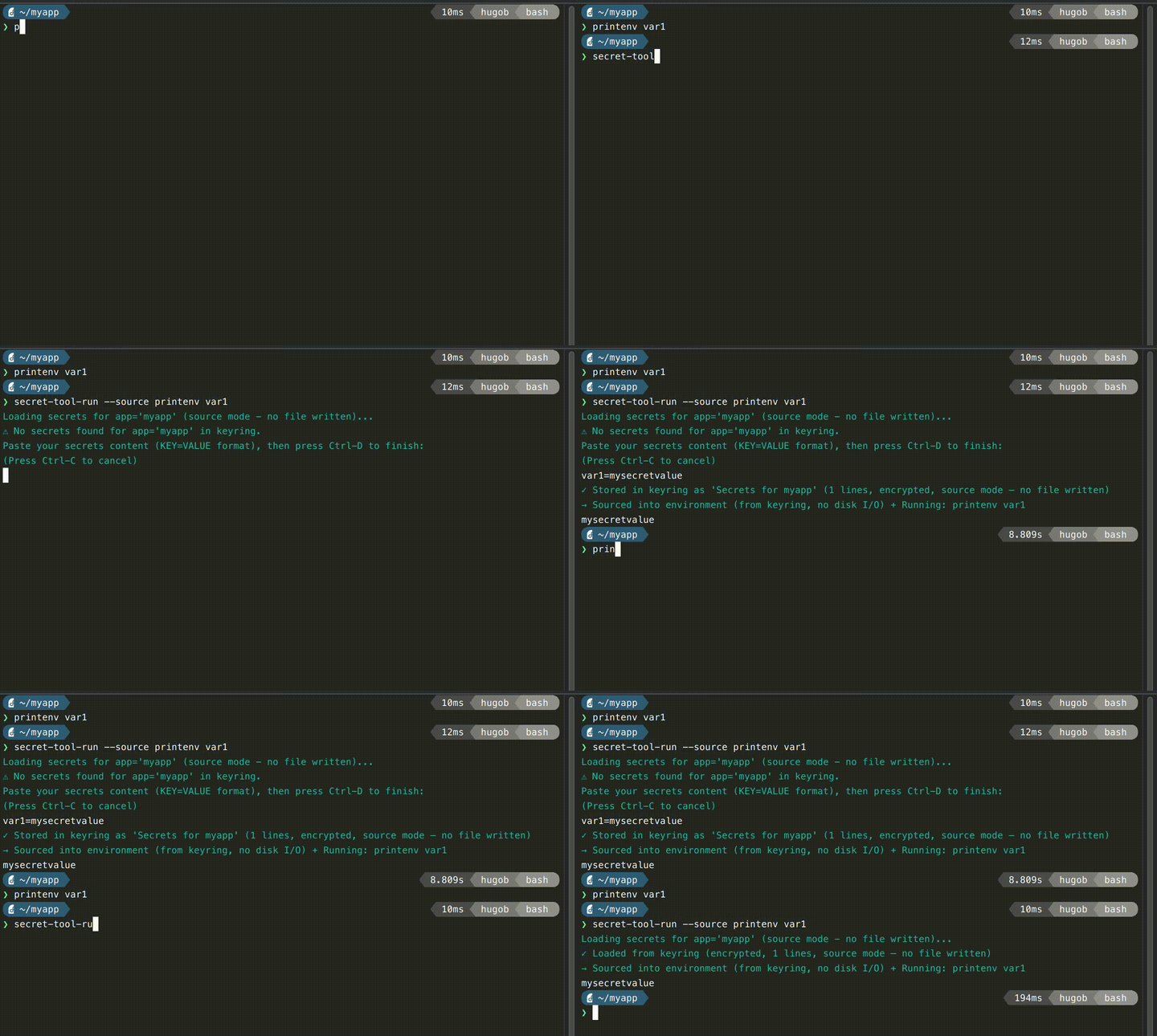
不要这样做(将密钥存储在磁盘上):
```
# ❌ 危险:secrets 暴露在 filesystem 上
cat .env # DATABASE_PASSWORD=super_secret
python app.py
```
请这样做(从 keyring 获取密钥):
```
# ✅ 安全:secrets 从 keyring 加载,绝不持久化到 disk
secret-tool-run python app.py
```
**底层原理:**secret-tool-run 通过 secret-tool 从系统 keyring(由操作系统加密和管理)中检索您的密钥,并将它们传递给您的命令 — 磁盘上没有永久的 `.env` 文件。它具有三种模式:**文件模式**(默认)会写入一个具有安全权限的临时 `.env` 文件,并在之后删除它;**文件描述符模式**(`@SECRETS@`)通过内存中的 FD 传递密钥,实现零磁盘写入;**source 模式**(`--source`)将密钥导出为真实的环境变量,而无需写入任何文件。
## 为什么需要它
**一次性消除三大威胁。安全与可用性兼得 — 无需妥协。**
**1. 文件收割型恶意软件。**供应链攻击和后渗透工具会扫描磁盘以查找 `.env` 文件并将其窃取。使用 `--source` 或 `@SECRETS@`,该文件永远不会存在于磁盘上 — 无物可偷。
**2. 将 `.env` 意外提交到 git。**一次错误的 `git add .` 就会让凭证永远留在您的仓库历史记录中。磁盘上没有 `.env` 文件意味着没有任何东西可以被暂存、提交或推送。
**3. `export $(cat .env | xargs)` 进程泄露。**这种常见模式会生成 `cat`、`xargs` 和 `/bin/echo` 子进程,其命令行参数就是实际的机密值 — 对任何运行 `ps aux` 的用户都可见。`--source` 仅使用 bash 内置命令:没有子进程,没有命令行参数,没有进程表泄露。
```
secret-tool-run --source ansible-playbook site.yml # no file = no malware, no git risk
secret-tool-run --source ./deploy.sh # no subprocess = no ps leaks
secret-tool-run --source npm run dev # all three, every time
```
## 前置条件
- **Linux** 系统且带有 keyring 服务(GNOME Keyring、KWallet 等)
- **bash** (4.0+)
- 来自 `libsecret-tools` 包的 **secret-tool**
## 安装说明
### 一行命令(推荐)
将 secret-tool-run 安装到 `~/.local/bin`:
```
curl -fsSL https://go.hugobatista.com/ghraw/secret-tool-run/main/install.sh | sh
```
### 或者克隆并在本地安装
下载仓库并运行安装程序:
```
git clone https:/go.hugobatista.com/gh/secret-tool-run.git
cd secret-tool-run
./install.sh
```
安装程序将会:
1. 检查依赖项
2. 让您选择系统范围(`/usr/local/bin`)或用户本地(`~/.local/bin`)安装
3. 设置 `secret-tool-run` 命令
4. 验证安装
## 用法
```
secret-tool-run [OPTIONS] COMMAND [ARGS...]
```
### 选项
| 选项 | 描述 |
|--------|-------------|
| `--file FILE`, `-f FILE` | 密钥文件路径(默认:`.env`) |
| `--app APP`, `-a APP` | Keyring 应用标识符(默认:当前文件夹名称) |
| `--source`, `-s` | 将 `.env` 变量 source 并导出到环境中 |
| `--password[=PASSWORD]` | 使用密码加密密钥(通过 openssl 进行 AES-256-CBC)。如果省略,则从 `SECRET_TOOL_PASSWORD` 环境变量解析或进行提示。存储在单独的 keyring 密钥(`app_name-encrypted`)下。 |
| `--plaintext` | 禁用加密,以明文形式存储/检索密钥(默认:启用加密)。 |
| `--help`, `-h` | 显示帮助信息 |
### 环境变量
| 变量 | 描述 |
|----------|-------------|
| `SECRET_TOOL_PASSWORD` | 设置后自动用于加密/解密的密码,除非被 `--password=PASSWORD` 覆盖。 |
## 操作模式
secret-tool-run 具有三种将密钥传递给您的命令的模式:
| 模式 | 如何启用 | 密钥如何到达 | 是否写入磁盘? |
|------|--------------|-------------------|-----------------|
| **文件**(默认) | 无标志 | 临时 `.env` 文件,`SECRETS_FILE` 指向它 | 临时文件,自动删除 |
| **文件描述符** | 参数中包含 `@SECRETS@` 标记 | 内存中的 FD 作为 `/dev/fd/9`,`SECRETS_FILE=/dev/fd/9` | 从不 |
| **Source** | `--source` / `-s` 标志 | 通过 `set -a` 导出为真实的环境变量 | 从不 |
选择与您的工具读取密钥方式相匹配的模式。以下示例展示了每种模式的实际应用。
## 示例
### 示例 1:使用 uv 进行 Python 开发
```
secret-tool-run uv run pywrangler dev
```
**发生了什么:**
1. 为当前文件夹从 keyring 加载 `.env`
2. 创建临时 `.env` 文件
3. 在密钥可用的情况下运行 `uv run pywrangler dev`
4. 命令完成后删除 `.env`
### 示例 2:使用 hatch 的 Python 项目
```
secret-tool-run hatch run dev
```
非常适合运行需要环境变量但不希望它们保留在磁盘上的开发服务器。
### 示例 3:带环境变量的 Ansible playbook
```
secret-tool-run --source ansible-playbook site.yml
```
**在使用 secret-tool-run 之前:**
```
source .env && ansible-playbook site.yml
```
**使用 `--source` 会发生什么:**
1. 从 keyring 加载密钥(如果存在,则使用本地 `.env` 文件)
2. 将每一个 `KEY=VALUE` 对 source 到环境中(通过 `set -a`)
3. 在所有环境变量可用的情况下运行 `ansible-playbook site.yml`
4. 从 keyring 加载时不需要临时文件 — 密钥保留在内存中
适用于任何期望将密钥作为环境变量的工具 — Ansible、Terraform、自定义脚本等。
### 示例 4:使用 act 进行 GitHub Actions 本地测试
```
secret-tool-run --file .secrets act --secret-file .secrets
```
**发生了什么:**
1. 使用自定义文件名 `.secrets` 而不是 `.env`
2. 加载或提示输入该文件名下的密钥
3. 使用密钥文件运行 `act`
4. 执行后清理 `.secrets`
这对于在本地测试 GitHub Actions 工作流同时保持生产密钥安全特别有用。
### 示例 5:具有自定义应用名称的多个环境
```
# 开发环境
secret-tool-run --app myproject-dev npm start
# 生产环境
secret-tool-run --app myproject-prod npm start
```
每个 `--app` 名称都是一个单独的 keyring 条目,允许您为同一个项目管理不同的密钥集(开发、测试、生产)。
### 示例 6:Docker 命令
```
secret-tool-run docker-compose up
```
非常适合为配置而引用 `.env` 的 docker-compose 文件。
### 示例 7:仅查看密钥文件路径
```
secret-tool-run env | grep SECRETS_FILE
```
`SECRETS_FILE` 环境变量包含由 secret-tool-run 创建的密钥文件的绝对路径。
### 示例 8:文件描述符模式(无磁盘 I/O)
```
secret-tool-run act --secret-file @SECRETS@
```
**发生了什么:**
1. 检测参数中的 `@SECRETS@` 标记
2. 从 keyring 将密钥加载到内存中
3. 在 `/dev/fd/9` 处创建文件描述符(无磁盘写入)
4. 将 `@SECRETS@` 替换为 `/dev/fd/9`
5. 运行 `act`,它从文件描述符读取密钥
6. FD 自动关闭 - 无需清理
**非常适合:**
- 使用 `act` 进行 GitHub Actions 本地测试
- 带有 `--env-file` 的 Docker
- 任何可以从文件描述符读取的工具
**不适用于:**
- Shell sourcing(`source $SECRETS_FILE`)
- 使用 stat 检查验证文件是否存在的工具
- 需要多次读取该文件的工具
### 示例 9:使用文件描述符模式的 Docker
```
secret-tool-run docker run --env-file @SECRETS@ myimage
```
密钥从 keyring 加载并传递给 Docker,而永远不会接触磁盘。`@SECRETS@` 标记会自动启用零磁盘 I/O 模式。
## 高级功能
### 防止自动清理(仅限文件模式)
在**文件模式**(默认)下,secret-tool-run 会在您的命令完成后删除临时的 `.env` 文件。创建一个 `.keep` 文件可以防止这种情况:
```
touch .env.keep
secret-tool-run your-command
# .env 在执行后将保留
```
这适用于:
- 调试密钥内容
- 运行多个命令而无需重新加载
- IDE 集成,其中编辑器期望一个持久存在的文件
### 自定义密钥文件位置
```
# 使用不同的文件名
secret-tool-run --file .env.production npm run build
# 使用不同目录中的路径
secret-tool-run --file /tmp/my-secrets ./deploy.sh
```
### SECRETS_FILE 环境变量
在**文件模式**和 **FD 模式**下,您的命令会接收到指向密钥源的 `SECRETS_FILE`:
```
# File mode:指向 temp .env
secret-tool-run bash -c 'echo "Secrets are at: $SECRETS_FILE"'
# FD mode:指向 /dev/fd/9
secret-tool-run bash -c 'echo "Secrets are at: $SECRETS_FILE"' --secret-file @SECRETS@
```
在 **source 模式**(`--source`)下,不会设置 `SECRETS_FILE` — 密钥已经在环境中了。
### 文件描述符模式(无磁盘 I/O)
为了获得最大的安全性,请在您的命令中使用 `@SECRETS@` 标记,通过文件描述符传递密钥,而无需写入磁盘:
```
secret-tool-run act --secret-file @SECRETS@
```
**工作原理:**
- secret-tool-run 检测您的命令参数中的 `@SECRETS@` 标记
- 仅将密钥从 keyring 加载到内存中
- 在 `/dev/fd/9` 处创建文件描述符(无磁盘写入)
- 将所有参数中的 `@SECRETS@` 标记替换为 `/dev/fd/9`
- 您的命令从 FD 读取,就像它是一个文件一样
- 不创建临时文件,无需清理
- 命令完成时 FD 自动关闭
**安全优势:**
- 零磁盘 I/O - 密钥永远不会接触文件系统
- 在 `ls` 中没有可见的目录条目
- 自动清理(退出时管道关闭)
- 没有权限竞争条件
- 没有意外的 `.keep` 文件导致密钥被长期保留
- 简单、明确的语法 - 只需在您需要的地方使用 `@SECRETS@`
**兼容性:**
✅ **适用于这些工具:**
```
secret-tool-run act --secret-file @SECRETS@
secret-tool-run docker run --env-file @SECRETS@ image
```
替换后的标记就像文件路径一样工作:
```
secret-tool-run mycommand --config @SECRETS@ --output results.txt
# 所有 @SECRETS@ token 都会被替换为 /dev/fd/9
```
### Source 模式(环境变量导出)
对于期望将密钥作为实际环境变量的工具(如 Ansible、shell 脚本或调用 `os.getenv` 的工具),请使用 `--source` 标志:
```
secret-tool-run --source ansible-playbook site.yml
```
**工作原理:**
- 在运行您的命令之前,secret-tool-run 会使用 `set -a` (allexport) source 密钥
- 这会将每一个 `KEY=VALUE` 对导出为真实的环境变量
- 您的命令看到它们的方式,与您手动运行 `source .env` 完全一样
- **不写入临时文件** — 密钥直接从 keyring 加载到内存中
- 也可以与 `@SECRETS@` 一起使用 — 直接从 keyring source 到环境中,而不接触磁盘
- 当本地 `.env` 文件已经存在(不是从 keyring 加载)时,它会直接从磁盘进行 source
**哪些工具受益于 `--source`?**
| 工具 | 不使用 --source | 使用 --source |
|------|-----------------|---------------|
| Ansible | `source .env && ansible-playbook ...` | `secret-tool-run --source ansible-playbook ...` |
| Terraform | `source .env && terraform plan` | `secret-tool-run --source terraform plan` |
| Shell 脚本 | `source .env && ./deploy.sh` | `secret-tool-run --source ./deploy.sh` |
| 任何 `os.getenv`/`$VAR` 消费者 | 需要环境中的变量 | 变量会自动导出 |
**关键区别:**如果不使用 `--source`,密钥将被写入临时文件,并设置 `SECRETS_FILE` 环境变量。
使用 `--source` 时,密钥会直接加载到内存中 — 没有临时文件,没有 `SECRETS_FILE`,只有真实的环境变量。
**与 `@SECRETS@` 结合使用:**
```
secret-tool-run --source ansible-playbook --vault-password-file @SECRETS@ site.yml
```
这既将密钥 source 到环境中,又通过文件描述符传递其中一个 — 在零磁盘写入的情况下实现最大的灵活性。
### 加密模式(默认,受密码保护的密钥)
默认**启用加密**。所有密钥在存储到 keyring 之前,都会通过 openssl 使用 AES-256-CBC 进行加密:
```
# 默认:首次使用时提示输入 password(需确认)
secret-tool-run npm start
# 来自 environment variable 的 password
SECRET_TOOL_PASSWORD=hunter2 secret-tool-run npm start
# 显式 password(在 ps 中可见 — 谨慎使用)
secret-tool-run --password=hunter2 npm start
# 选择不进行 encryption
secret-tool-run --plaintext npm start
```
**工作原理:**
1. 加密的条目存储单独的 keyring 密钥下:`app_name-encrypted`(与明文密钥 `app_name` 不同)。
2. 在查找时,该工具会首先尝试加密密钥。如果找到,它会解析密码并解密。
3. 在首次运行(没有现有条目)时,除非设置了 `SECRET_TOOL_PASSWORD` 或 `--password=VALUE`,否则系统会提示您输入密码(需要确认)。
4. 现有的明文条目仍然可读,但会发出警告:`ℹ Found plaintext entry — not encrypted`。新条目将被加密。
5. 使用 `--plaintext` 可以完全禁用加密(例如,对于无法提供密码的 CI/CD 脚本)。
**密码解析优先级**(加密和解密):
| 优先级 | 来源 |
|----------|--------|
| 1 | `--password=VALUE`(显式) |
| 2 | `SECRET_TOOL_PASSWORD` 环境变量 |
| 3 | 交互式提示(存储时需要确认) |
**密码确认:**当以交互方式提示创建新的加密条目时,会要求输入两次密码以防止输入错误。解密路径(加载现有条目)提示一次,无需确认。
**自动检测:**如果存在加密条目且未传递密码标志,该工具会自动通过环境变量或提示进行解析。
**安全性:**加密的密钥可以抵御 D-Bus `GetSecret` 攻击 — 枚举 keyring 的攻击者只能获取密文,而不是明文。解密密钥永远不会存储在 keyring 中。
**依赖项:**需要 `openssl`(大多数 Linux 发行版默认安装)。
**将明文条目迁移到加密:**存储在明文密钥(`app_name`)下的现有条目仍然可读(带有警告)。要将它们升级为加密状态:
```
# ⚠️ 请先备份您的 secrets!这将永久移除 keyring 条目。
secret-tool lookup app "myapp" > /tmp/myapp-backup.env
secret-tool clear app "myapp" # remove old plaintext entry
secret-tool-run npm start # re-store as encrypted (will prompt for password)
rm /tmp/myapp-backup.env # clean up backup
```
**CI/CD 注意事项:**如果您在没有密码的自动化环境中运行 `secret-tool-run`,则必须添加 `--plaintext` 或设置 `SECRET_TOOL_PASSWORD`:
```
# 之前(使用 plaintext 默认值运行):
secret-tool-run deploy.sh
# 之后(默认为 encryption — 选择一项):
secret-tool-run --plaintext deploy.sh
# 或者
SECRET_TOOL_PASSWORD=$(cat /etc/secret.txt) secret-tool-run deploy.sh
```
### 首次运行设置
首次使用时(当密钥不在 keyring 中时):
1. secret-tool-run 提示:“Paste your secrets content...”(粘贴您的密钥内容...)
2. 粘贴您的 `.env` 内容(KEY=VALUE 格式)
3. 按 `Ctrl-D` 完成(或按 `Ctrl-C` 取消)
4. 密钥被加密并存储在系统 keyring 中
5. 以后的运行会自动加载
## 安全说明
- **Keyring 加密**:密钥存储在您系统的加密 keyring 服务中
- **文件权限**(文件模式):创建的临时文件具有 `600` 权限(仅所有者可读写)
- **短期暴露**(文件模式):磁盘上的文件仅在命令执行期间存在
- **零磁盘 I/O**:使用 `@SECRETS@`(FD 模式)或 `--source`(source 模式) — 密钥永远不会接触磁盘
- **无 git 提交**:不会留下 `.env` 文件导致意外提交
- **会话隔离**:每个终端会话可以使用带有 `--app` 标志的不同密钥
- **加密的 payload**(AES-256-CBC):默认情况下,密钥内容在 keyring 存储之前会使用 AES-256-CBC 进行加密,以防止 D-Bus `GetSecret` 枚举攻击。有关详细信息,请参见下面的章节。使用 `--plaintext` 可以禁用此功能。
### 为什么加密模式很重要:Keyring 枚举攻击
支持 GNOME Keyring、KWallet 和类似服务的 Linux Secret Service API (D-Bus) 可以被**在您的用户帐户下运行的任何进程**访问 — 无需身份验证。这意味着您机器上的任何代码(恶意软件、受到破坏的 `pip install`、恶意的 Node.js 包,甚至好奇的同事)都可以枚举您 keyring 中的每一项:
```
import secretstorage
bus = secretstorage.dbus_init()
col = secretstorage.get_default_collection(bus)
for item in col.get_all_items():
print(f' Label: {item.get_label()}')
print(f' Attributes: {item.get_attributes()}')
print(f' Secret: {item.get_secret().decode(errors="replace")}')
print()
```
这**不是** keyring 中的漏洞 — 它是设计使然。keyring 服务提供会话级别的隔离(当会话锁定时,密钥会静态加密),但是一旦您在登录时解锁了您的 keyring,任何共享您 D-Bus 会话的进程都可以以明文形式检索每一个密钥。
**这就是 secret-tool-run 默认加密的原因。**当使用加密模式(默认启用 AES-256-CBC)时:
- 进行枚举的攻击者只能看到**密文** — 没有解密密码就毫无意义
- 解密密码**永远不会存储在 keyring 中**(通过交互式提示、环境变量或 `--password` 标志解析)
- 即使攻击者转储了每一个 keyring 条目,您的密钥仍然是保密的
**当使用 `--plaintext` 时**,keyring 中的密钥就像磁盘上的 `.env` 文件一样暴露 — 任何具有 D-Bus 访问权限的进程都可以读取它们。请将 `--plaintext` 保留用于临时或隔离的环境(例如,限制 D-Bus 访问的 CI 容器)。
**⚠️ 重要**:虽然 secret-tool-run 提高了安全性,但在文件模式下,临时文件仍会短暂写入磁盘。为了获得最大的安全性:
- 如果工具接受文件路径,请**使用 `@SECRETS@`**(FD 模式 — 零磁盘 I/O)
- 如果工具需要环境变量,请**使用 `--source`**(source 模式 — 零磁盘 I/O)
- 使用加密的主目录
- 确保您的 keyring 在不使用时被正确锁定
- 在共享系统上运行 secret-tool-run 时要小心
## 故障排除
### "Command fails with @SECRETS@"(命令因 @SECRETS@ 而失败)
该命令可能需要常规文件而不是文件描述符。请尝试不使用 `@SECRETS@` 标记:
```
# 如果此操作失败:
secret-tool-run mycommand --file @SECRETS@
# 请尝试以下方法:
secret-tool-run mycommand
```
### 每次运行都出现 "No secrets found"(未找到密钥)
检查密钥是否实际已存储:
```
secret-tool search app "$(basename $PWD)"
```
如果没有出现任何内容,则说明 keyring 存储失败。尝试手动存储:
```
secret-tool store --label "Test" app "my-test"
# 粘贴您的 secret,按下 Ctrl-D
secret-tool lookup app "my-test"
```
### 运行后未删除密钥文件
检查是否存在 `.keep` 文件:
```
ls -la .env.keep
```
将其删除以恢复自动清理:
```
rm .env.keep
```
### 想要删除已存储的密钥
```
# 列出当前文件夹的 secrets
secret-tool search app "$(basename $PWD)"
# 删除特定条目
secret-tool clear app "$(basename $PWD)"
# 或者针对特定的 app name
secret-tool clear app "myproject-prod"
```
### 命令失败但密钥文件保留
如果您的命令在 secret-tool-run 的清理 trap 运行之前崩溃,请手动删除:
```
rm .env # or your custom secrets file name
```
## 卸载
运行卸载脚本:
```
./uninstall.sh
```
这将会:
1. 移除 `secret-tool-run` 二进制文件
2. (可选)帮助您清除 keyring 条目
要手动从 keyring 中清除所有 secret-tool-run 密钥:
```
# 列出所有条目
secret-tool search app ""
# 移除特定项
secret-tool clear app "your-app-name"
```
标签:Bash, StruQ, 凭证保护, 子域名枚举, 应用安全, 环境变量, 系统安全, 防御措施