khuynh22/mcp-wireshark
GitHub: khuynh22/mcp-wireshark
该项目是一个 MCP 服务器,使 AI 工具和 IDE 能够通过自然语言直接调用 Wireshark/tshark 进行网络流量捕获与协议分析。
Stars: 48 | Forks: 7
# mcp-wireshark

[](https://badge.fury.io/py/mcp-wireshark)
[](https://github.com/khuynh22/mcp-wireshark/actions/workflows/ci.yml)
[](https://opensource.org/licenses/MIT)
[](https://www.python.org/downloads/)
## 使用 Claude Code 快速开始
```
pip install mcp-wireshark
claude mcp add --transport stdio --scope user mcp-wireshark -- mcp-wireshark
```
就这样。打开 Claude Code 并尝试:
`--scope user` 使该服务器在所有 Claude Code 项目中均可用。去掉此标志则仅将其安装在当前项目中。有关更多信息,请参阅 [`claude mcp` 文档](https://code.claude.com/docs/en/mcp)。
### 验证安装
```
claude mcp list
```
您应该能看到列出了 `mcp-wireshark`。在 Claude Code 内部,询问:
如果 `tshark` 在您的 `PATH` 中,它会返回版本号。如果没有,请参阅[故障排除](#troubleshooting)。
## 工具
该服务器公开了 13 个工具,清晰地分为**读取工具**(安全,无副作用)和**写入工具**(捕获流量或写入文件)。这两组工具都标注了标准的 MCP `readOnlyHint`,以便任何兼容的客户端都能显现出这种区别。
### 读取工具
可以放心随时调用 —— 它们只检查状态。
| 工具 | 功能 |
| -------------------- | --------------------------------------------------------------------------------------------- |
| `check_installation` | 验证是否安装了 tshark 并显示版本 |
| `list_interfaces` | 列出可用于捕获的网络接口 |
| `read_pcap` | 从 `.pcap` / `.pcapng` 文件读取数据包(预览 + 总数) |
| `display_filter` | 将 Wireshark 显示过滤器应用于 pcap |
| `summarize_pcap` | 高级摘要:I/O 统计信息、协议层级、主要通信端点 |
| `stats_by_proto` | 协议层级统计信息 |
| `follow_tcp` | 重组 TCP 流并返回其 payload |
| `follow_udp` | 重组 UDP 流并返回其 payload |
| `expert_info` | tshark 专家分析:按严重程度分组的警告、错误和注释 |
| `decode_protocol` | 将协议字段提取为 TSV 表格。为 HTTP、DNS、TLS、GOOSE、MMS、SV、SIP、ICMP 提供默认配置;支持任何其他协议的任意字段 |
| `protocol_stats` | 汇总 `-z` 报告(协议层级、会话、端点、HTTP/DNS/SMB 统计信息) |
### 写入工具
这些工具会创建文件或捕获实时流量。兼容的客户端在调用前可能会进行提示。
| 工具 | 功能 |
| -------------- | ------------------------------------------------------------------ |
| `live_capture` | 从接口捕获实时流量(上限为 5 分钟 / 1 万个数据包) |
| `export_json` | 将数据包从 pcap 导出到您指定路径的 JSON 文件中 |
## 实际演示
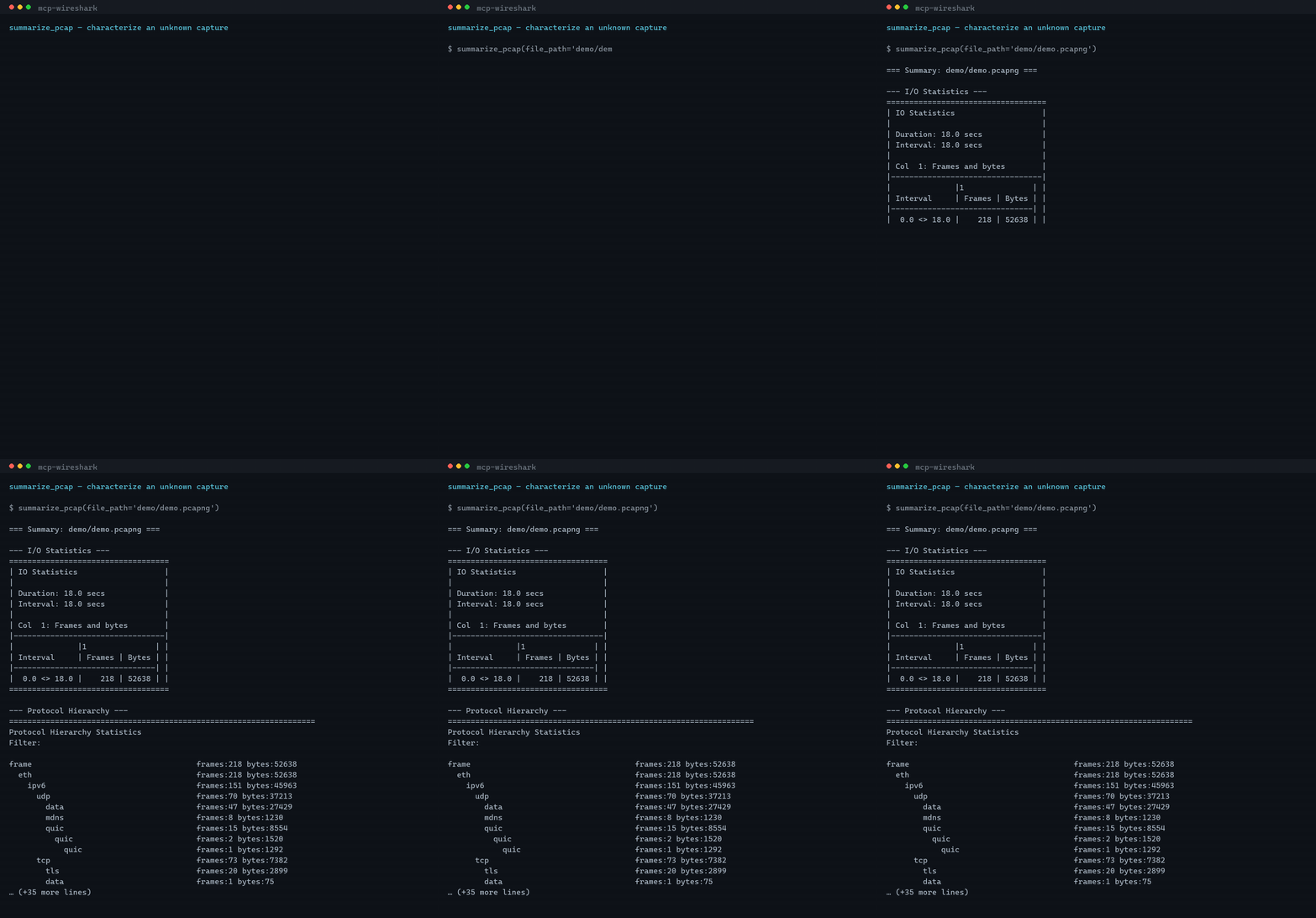
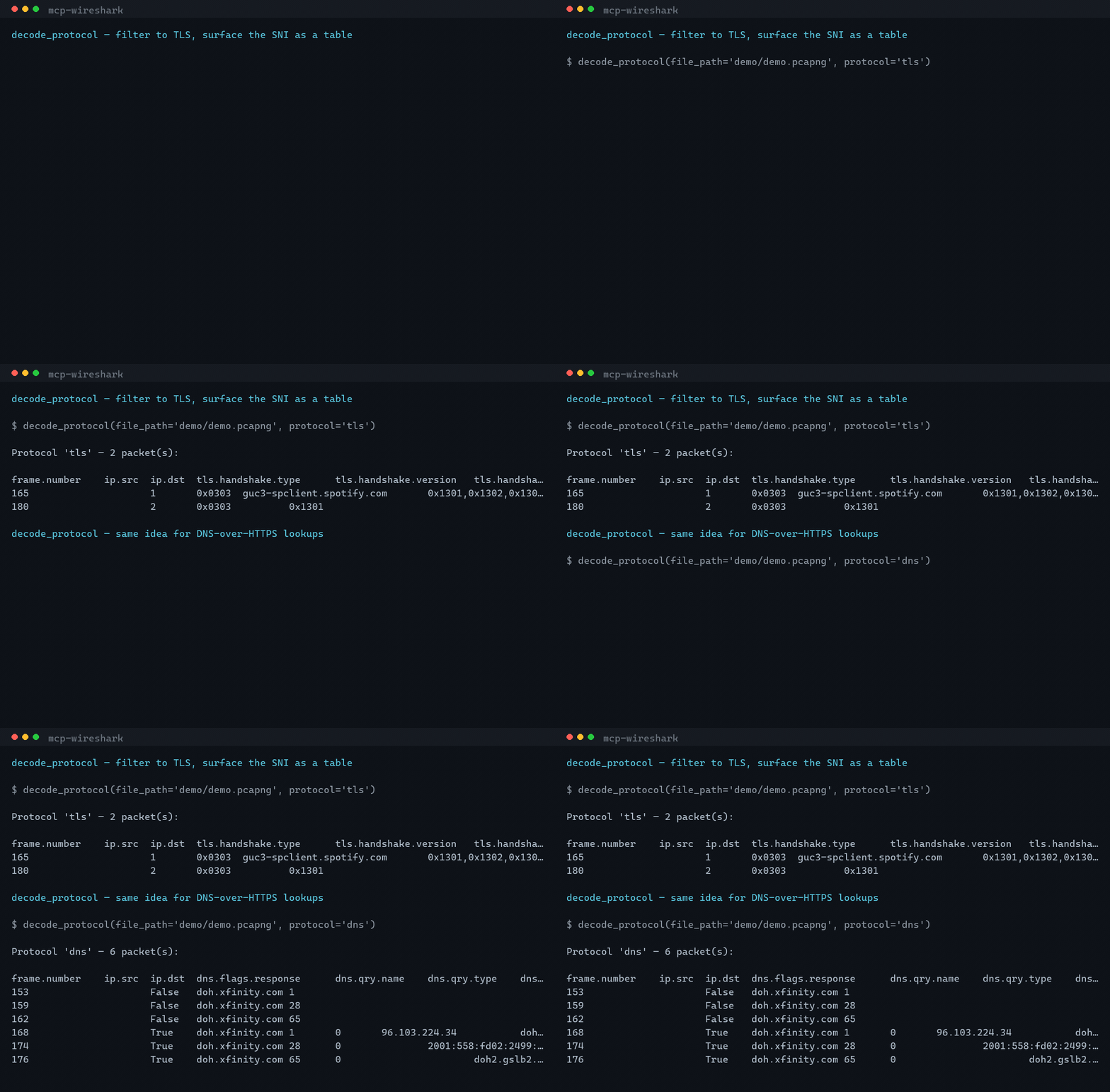
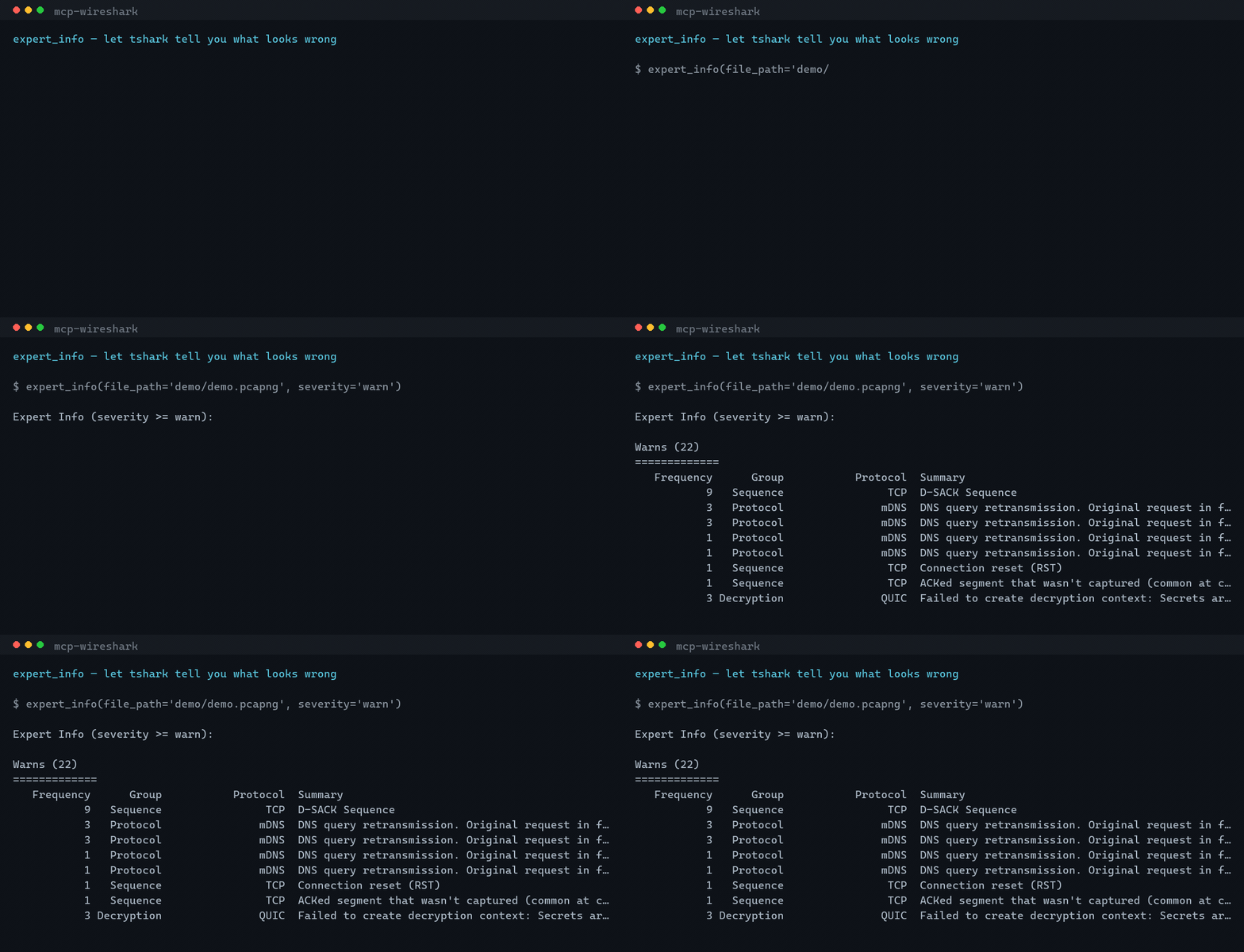
这些片段使用 [`demo/demo.pcapng`](demo/demo.pcapng)(一个简短的家庭网络捕获记录)运行了真实工具。使用 `python demo/render_gif.py ` 重新生成它们。
**`summarize_pcap` — 一眼表征未知的捕获记录**
**`decode_protocol` — 过滤到特定协议并获取紧凑的表格(此处为:TLS SNI 和 DNS-over-HTTPS 查询)**
**`expert_info` — 让 tshark 为您显示警告和异常**
## 示例提示词
直接将这些内容粘贴到 Claude Code 中:
```
List my network interfaces.
Summarize ./traffic.pcap.
From ./traffic.pcap, show me only HTTP requests.
Follow TCP stream 0 in ./traffic.pcap and tell me what protocol is in it.
Capture 30 seconds of traffic on Wi-Fi filtered to tcp.port == 443.
Export every DNS packet from ./traffic.pcap to ./dns.json.
Decode the GOOSE messages in ./substation.pcapng — only stNum >= 1.
Run expert analysis on ./traffic.pcap and group findings by severity.
Show me the IP conversations in ./traffic.pcap.
```
### 常用的显示过滤器
| 过滤器 | 匹配内容 |
| ------------------------------------------ | ------------------------------- |
| `tcp.port == 80` | HTTP |
| `tcp.port == 443` | HTTPS |
| `dns` | 所有 DNS |
| `http.request` | 仅 HTTP 请求 |
| `ip.addr == 10.0.0.1` | 到达/来自特定主机的流量 |
| `tcp.flags.syn == 1 && tcp.flags.ack == 0` | 仅 TCP SYN 数据包 |
供分析 IEC 61850 流量的变电站工程师参考:
| 过滤器 | 匹配内容 |
| ----------------- | -------------------------------- |
| `goose` | 所有 GOOSE 消息 |
| `goose.stNum > 0` | 带有状态变化的 GOOSE 消息 |
| `mms` | 所有 MMS 流量 |
| `sv` | Sampled Values |
## 其他客户端
任何支持 MCP 的工具都可以使用。该安装包会在 `PATH` 中安装一个 `mcp-wireshark` 二进制文件。
## 前置条件
- Python **3.10+**
- 已安装 [Wireshark](https://www.wireshark.org/download.html);`tshark` 可在 `PATH` 中找到
使用 `pip` 或 `uv` 安装:
```
pip install mcp-wireshark
# 或
uvx mcp-wireshark
```
## 故障排除
## 开发
```
git clone https://github.com/khuynh22/mcp-wireshark.git
cd mcp-wireshark
python -m venv venv && source venv/bin/activate # Windows: venv\Scripts\activate
pip install -e ".[dev]"
pytest # tests
black src tests # format
ruff check src tests # lint
mypy src # type check
```
代码库的组织方式使得新工具可以直接放入以下两个范围明确的文件之一:
- **`src/mcp_wireshark/read_tools.py`** —— 任何仅用于检查状态的操作
- **`src/mcp_wireshark/write_tools.py`** —— 任何涉及捕获流量或写入文件的操作
`server.py` 仅包含路由逻辑。请参阅 [CLAUDE.md](CLAUDE.md) 和 [CONTRIBUTING.md](CONTRIBUTING.md)。
## 安全性
每个文件路径都经过验证(拒绝 `..`,扩展名加入白名单)。每个显示过滤器都会检查是否包含 shell 元字符。tshark 始终通过 `asyncio.create_subprocess_exec` 调用,绝不使用 `shell=True`。严格上限:每次调用 1 万个数据包,每次实时捕获 5 分钟。请参阅 [SECURITY.md](SECURITY.md)。
## 许可证
MIT — 详见 [LICENSE](LICENSE)。
Claude Desktop
编辑 `~/Library/Application Support/Claude/claude_desktop_config.json` (macOS) 或 `%APPDATA%\Claude\claude_desktop_config.json` (Windows): ``` { "mcpServers": { "wireshark": { "command": "mcp-wireshark" } } } ```VS Code (Copilot / GitHub Copilot Chat)
在您的工作区中创建 `.vscode/mcp.json`: ``` { "servers": { "wireshark": { "command": "mcp-wireshark" } } } ```Cursor / Windsurf / 其他
使用相同的 stdio 调用方式:`command: mcp-wireshark`。无需 transport 标志。Windows 上找不到 tshark
将 Wireshark 添加到您的**系统** `PATH`: 1. 按 `Win+R` → 运行 `sysdm.cpl` → **高级** → **环境变量** 2. 编辑 `Path` → 添加 `C:\Program Files\Wireshark` 3. 重启终端和 Claude Code,然后重新运行 `check_installation` (避免通过 `claude mcp add --env` 传递 `PATH` —— 其值将按字面意思处理,不会展开 `%PATH%`。)Linux 上捕获被拒绝访问
将您自己添加到 `wireshark` 用户组,然后注销并重新登录: ``` sudo usermod -aG wireshark $USER ```live_capture 提示 "No packets captured"
- 通过 `list_interfaces` 确认接口名称(Wireshark 使用的名称与 `ifconfig`/`ip` 不同) - 在 macOS 上,您可能需要安装 ChmodBPF(随 Wireshark `.dmg` 附带) - 检查是否有显示过滤器过滤掉了所有内容标签:MCP, Python, SOC Prime, Wireshark, 人工智能集成, 句柄查看, 开发工具, 无后门, 网络流量分析, 计算机取证, 逆向工具