HalFrgrd/flyline
GitHub: HalFrgrd/flyline
一个用 Rust 编写的 Bash 插件,旨在替代 readline 以提供具有语法高亮、智能补全和丰富提示符的现代命令行编辑体验。
Stars: 897 | Forks: 18
# Flyline
# 配置
Flyline 会设置它自己的 Tab 补全
因此你可以在 shell 中输入 `flyline ` 来交互式地浏览和配置设置。将这些命令复制到你的 `.bashrc` 中以便它们能永久保存。
探索此 README 和 [示例](examples/) 以了解你可以配置的内容。
# 丰富的提示符
Flyline 支持 `PS1`、`RPS1` / `RPROMPT` 和 `PS1_FILL` 中的动态内容。
## PS1
`PS1` 环境变量像往常一样设置左侧提示符。有关更多信息,请参阅 [Bash prompt 文档](https://www.gnu.org/software/bash/manual/html_node/Controlling-the-Prompt.html)、[Arch Linux wiki](https://wiki.archlinux.org/title/Bash/Prompt_customization) 或 [Starship](https://starship.rs/)。
[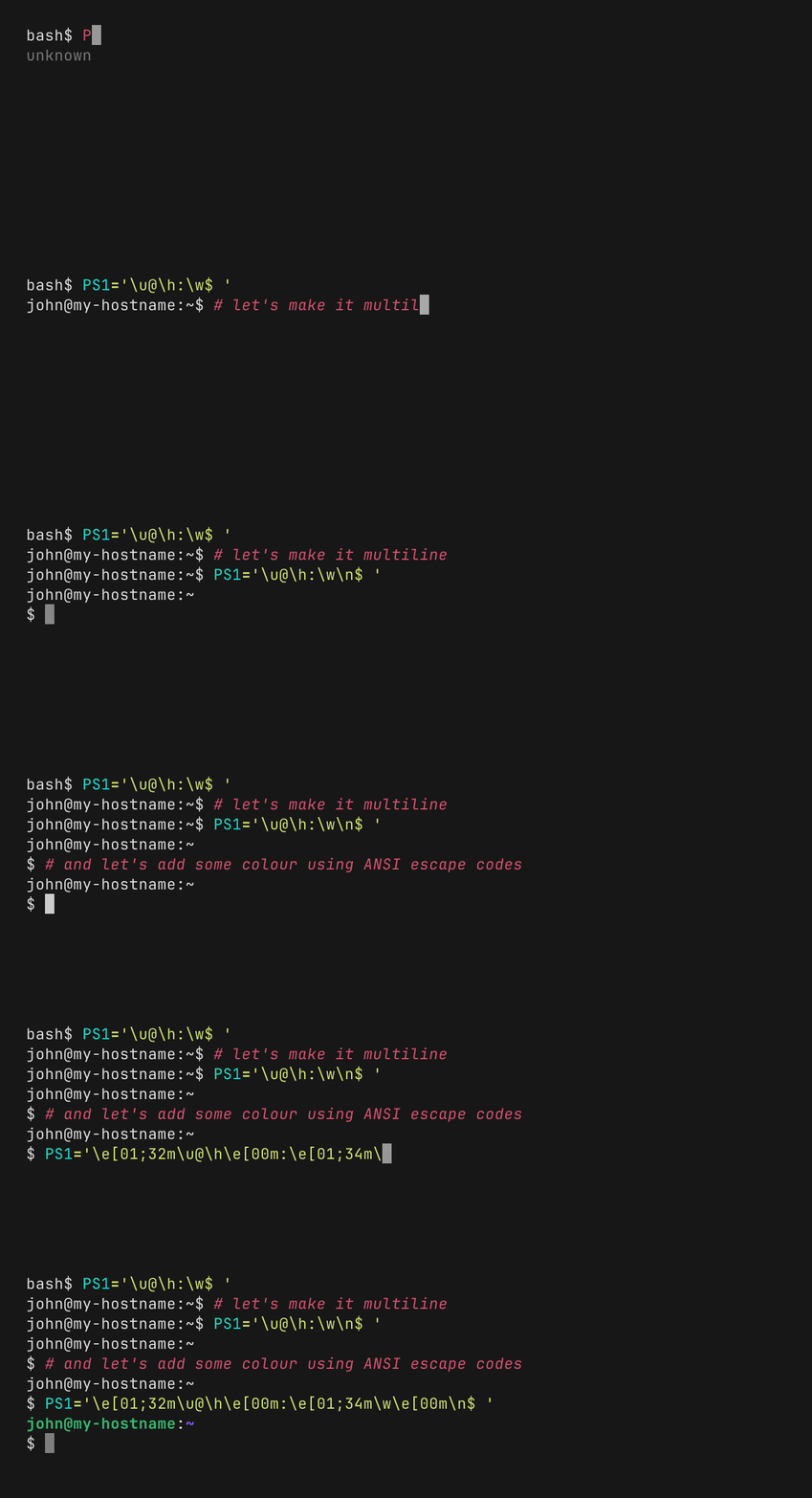](https://github.com/HalFrgrd/evp)
```
PS1='\u@\h:\w$ '
PS1='\u@\h:\w\n$ '
PS1='\e[01;32m\u@\h\e[00m:\e[01;34m\w\e[00m\n$ '
```
## RPS1 / RPROMPT
`RPS1` / `RPROMPT` 变量设置右侧提示符,类似于 Zsh。
[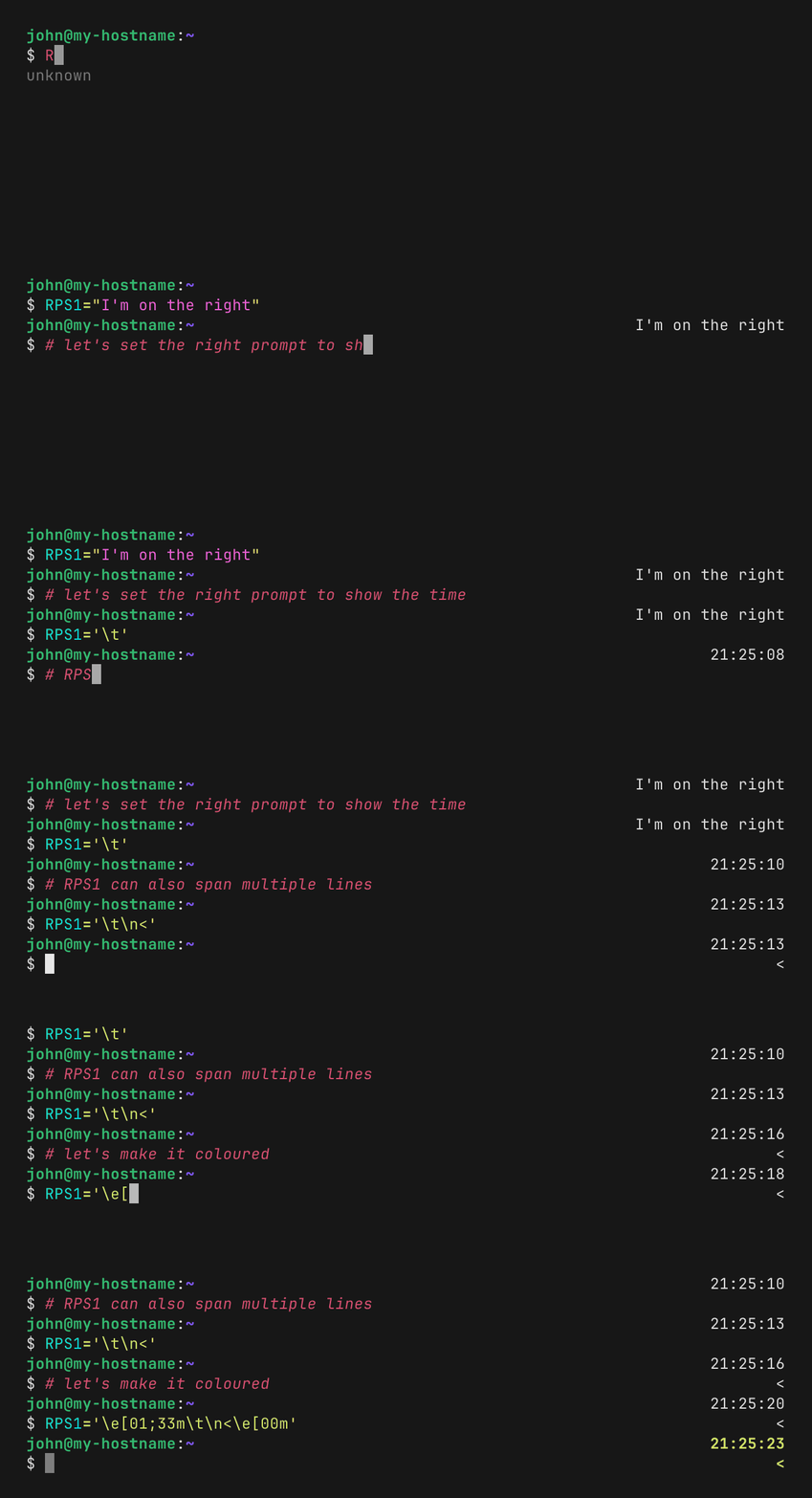](https://github.com/HalFrgrd/evp)
```
RPS1='\t'
RPS1='\t\n<'
RPS1='\e[01;33m\t\n<\e[00m'
```
## PS1_FILL
`PS1_FILL` 填充 `PS1` 和 `RPS1` 行之间的空白。
[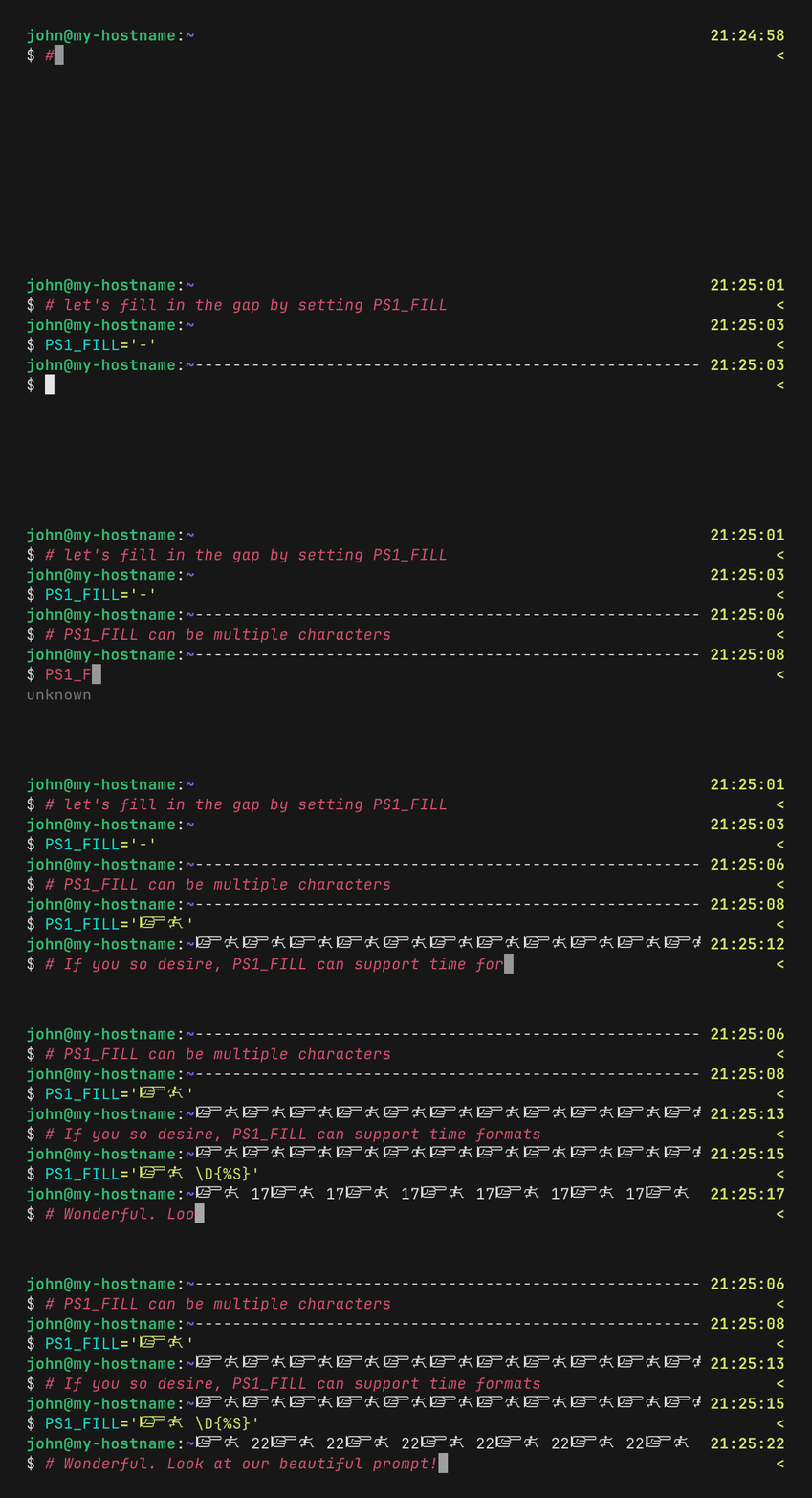](https://github.com/HalFrgrd/evp)
```
PS1_FILL='-'
PS1_FILL='🯁🯂🯃🮲🮳' # finger pointing to running man
PS1_FILL='🯁🯂🯃🮲🮳 \D{%.3f}'
```
## 最终(瞬态)提示符
`PS1_FINAL`、`RPS1_FINAL` 和 `PS1_FILL_FINAL` 允许你配置瞬态提示符。当提交命令时,Flyline 会使用这些环境变量而不是它们的标准对应项来进行最终的重绘。这通过用最小化的版本替换复杂的多行提示符,来保持你的终端回滚历史干净整洁。
[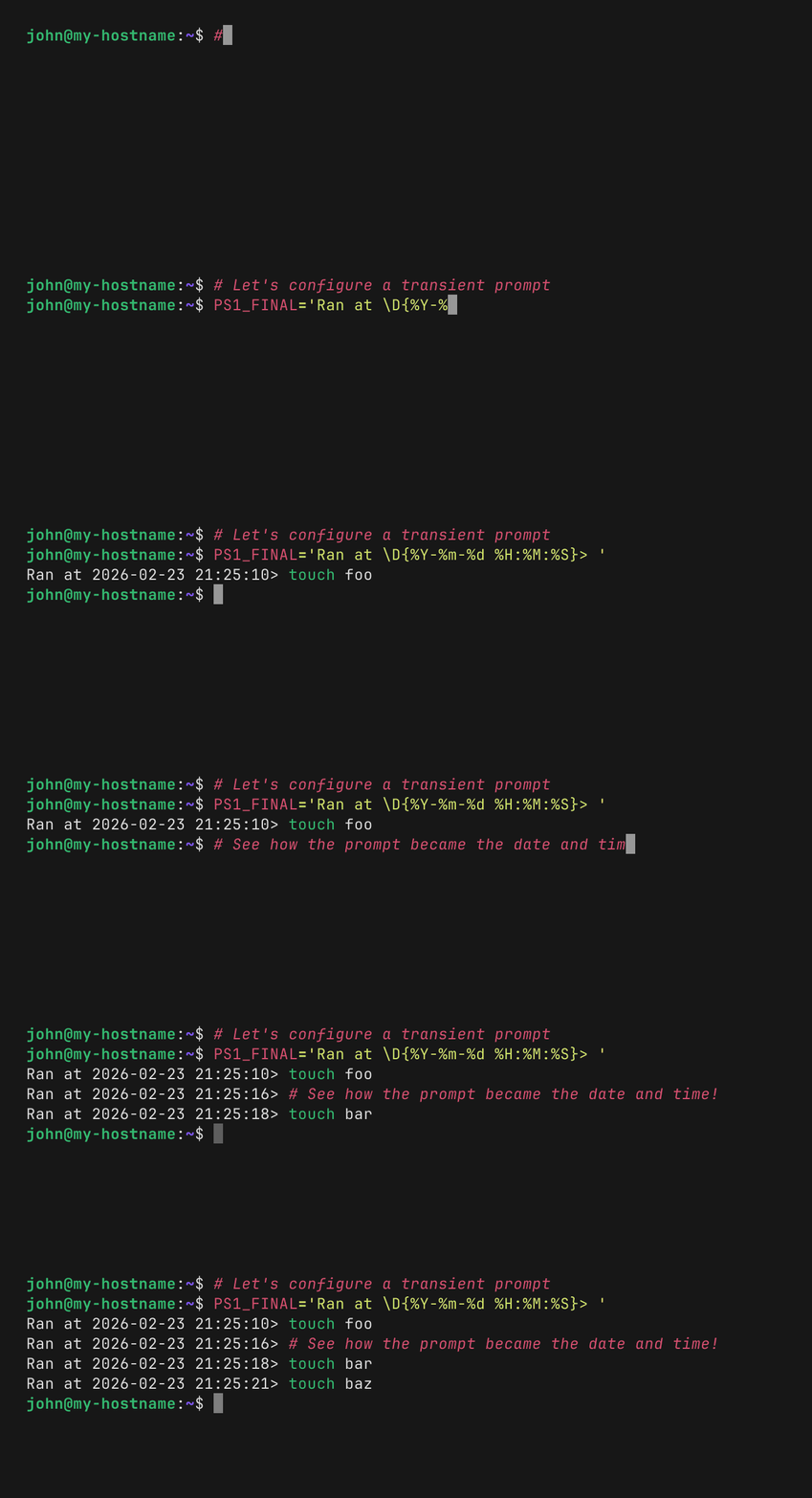](https://github.com/HalFrgrd/evp)
```
PS1_FINAL='Ran at \D{%Y-%m-%d %H:%M:%S}> '
RPS1_FINAL=''
PS1_FILL_FINAL=''
```
## 提示符中的动态时间
Flyline 能识别标准的 Bash 时间转义序列,并在每次绘制提示符时重新计算它们,因此显示的时间总是最新的:
| 序列 | 输出 |
|----------------|---------------------------------|
| `\t` | 24 小时制时间 — `HH:MM:SS` |
| `\T` | 12 小时制时间 — `HH:MM:SS` |
| `\@` | 带 am/pm 的 12 小时制时间 |
| `\A` | 24 小时制时间 — `HH:MM` |
| `\D{format}` | 自定义格式(见下文) |
这些可以放置在任何受支持的提示符变量中:
```
# 显示 24 小时制时间的 Right prompt
RPS1='\e[01;32m\t\e[0m'
# 显示 12 小制 am/pm 时间的 Right prompt
RPS1='\e[01;34m\@\e[0m'
```
### 使用 `\D{format}` 的自定义时间格式
将 `\D{format}` 与任何 [Chrono 格式字符串](https://docs.rs/chrono/latest/chrono/format/strftime/index.html)结合使用,以完全按照你的意愿显示时间。这类似于 [Bash prompt 文档](https://www.gnu.org/software/bash/manual/html_node/Controlling-the-Prompt.html)中的 `\D{format}`,但格式字符串由 Chrono 而非 strftime 解释。
```
# 显示日期和时间
RPS1='\e[01;32m\D{%Y-%m-%d %H:%M:%S}\e[0m'
# 仅显示小时和分钟
RPS1='\D{%H:%M}'
```
## 自定义提示符 widget
使用 `flyline create-prompt-widget` 创建自定义提示符 widget。
Flyline 会用 widget 的输出替换提示符中与 widget 名称匹配的字符串。
可用的 widget 类型包括 `animation`、`mouse-mode`、`copy-buffer`、`custom` 和 `last-command-duration`。
### 动画
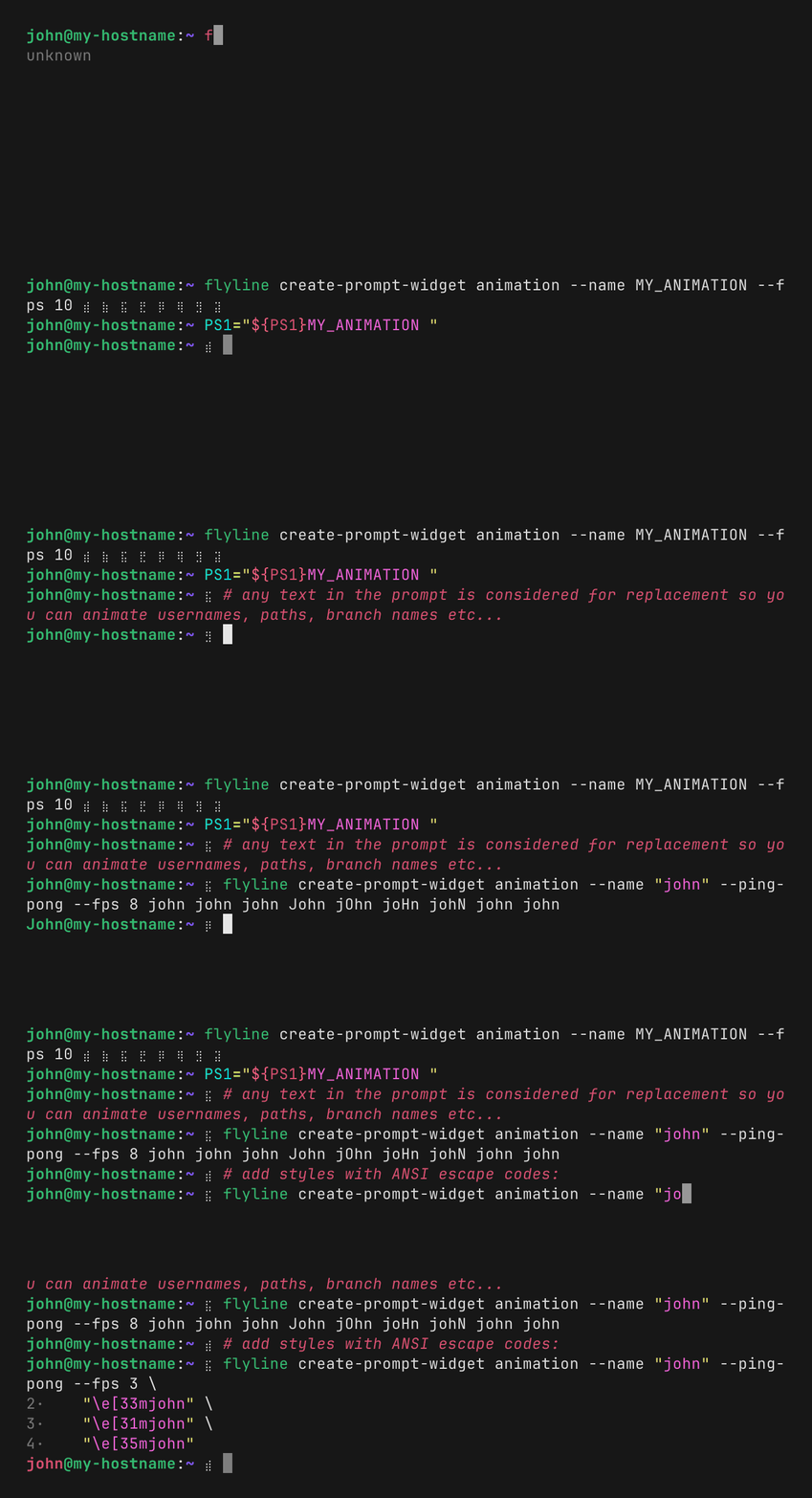
使用 `flyline create-prompt-widget animation --name [你的动画名称] [FRAMES]...` 创建你自己的动画。
Flyline 会用动画替换提示符中与动画名称匹配的字符串:
[](https://github.com/HalFrgrd/evp)
更多示例可以在 [examples/animations.sh](examples/animations.sh) 中找到。
下面的代码块由 `flyline create-prompt-widget animation --help` 自动生成:
```
Create a custom prompt animation that cycles through frames.
Instances of NAME in prompt strings (PS1, RPS1, PS1_FILL, and their _FINAL counterparts) are replaced
with the current animation frame on every render. Frames may include
ANSI colour sequences written as `\e` (e.g. `\e[33m`).
Examples:
flyline create-prompt-widget animation --name "MY_ANIMATION" --fps 10 ⣾ ⣷ ⣯ ⣟ ⡿ ⢿ ⣻ ⣽
flyline create-prompt-widget animation --name "john" --ping-pong --fps 5 '\e[33m\u' '\e[31m\u' '\e[35m\u' '\e[36m\u'
See https://github.com/HalFrgrd/flyline/blob/master/examples/animations.sh for more details and example usage.
Usage: flyline create-prompt-widget animation [OPTIONS] --name [FRAMES]...
Arguments:
[FRAMES]...
One or more animation frames (positional). Use `\e` for the ESC character
Options:
--name
Name to embed in prompt strings as the animation placeholder
--fps
Playback speed in frames per second (default: 10)
[default: 10]
--ping-pong
Reverse direction at each end instead of wrapping (ping-pong / bounce mode)
-h, --help
Print help (see a summary with '-h')
```
### Mouse-mode widget
下面的代码块由 `flyline create-prompt-widget mouse-mode --help` 自动生成:
```
Show different text depending on whether mouse capture is enabled.
Instances of NAME in prompt strings (PS1, RPS1, PS1_FILL, and their _FINAL counterparts) are replaced
with ENABLED_TEXT when mouse capture is on, and DISABLED_TEXT when off.
Examples:
flyline create-prompt-widget mouse-mode '🖱️' '🔴'
# Now use FLYLINE_MOUSE_MODE in your prompt:
PS1='\u@\h:\w [FLYLINE_MOUSE_MODE] $ '
flyline create-prompt-widget mouse-mode --name MOUSE_MODE "on " "off"
Usage: flyline create-prompt-widget mouse-mode [OPTIONS]
Arguments:
Text to display when mouse capture is enabled
Text to display when mouse capture is disabled
Options:
--name
Name to embed in prompt strings as the widget placeholder. Defaults to `FLYLINE_MOUSE_MODE`
[default: FLYLINE_MOUSE_MODE]
-h, --help
Print help (see a summary with '-h')
```
### Copy-buffer widget
在提示符中渲染可点击的文本,通过 OSC 52 将当前命令缓冲区复制到剪贴板。
```
flyline create-prompt-widget copy-buffer '[copy]'
# 现在在你的 prompt 中使用 FLYLINE_COPY_BUFFER:
RPS1=' FLYLINE_COPY_BUFFER'
```
### Custom command widget
下面的代码块由 `flyline create-prompt-widget custom --help` 自动生成:
```
Run a shell command and display its output in the prompt.
The output is passed through Bash's decode_prompt_string so Bash prompt
escape sequences (e.g. \u, \w, ANSI colour codes) are fully supported.
Examples:
# Non-blocking (default): runs in the background; shows the previous output
# while the command is running (empty on the first render).
flyline create-prompt-widget custom --name CUSTOM_WIDGET1 --command 'run_slow_git_metrics.sh'
# PS1 usage:
PS1='\u@\h:\w [CUSTOM_WIDGET1] $ '
# Non-blocking with previous output placeholder while the new output is being computed.
flyline create-prompt-widget custom --name CUSTOM_WIDGET1 --command 'run_slow_git_metrics.sh' --placeholder prev
# Blocking: waits for the command to finish before showing the prompt.
flyline create-prompt-widget custom --name CUSTOM_WIDGET2 --command 'run_something.sh' --block
# Blocking with a 500 ms timeout; falls back to placeholder if slower.
flyline create-prompt-widget custom --name CUSTOM_WIDGET3 --command 'run_slow.sh --flag' --block 500 --placeholder prev
Usage: flyline create-prompt-widget custom [OPTIONS] --name --command
Options:
--name
Name to embed in prompt strings as the widget placeholder
--command
Command string to run; include any flags in the same string, e.g. --command './widget.sh --someflag'
--block []
Block until the command finishes, optionally with a timeout in milliseconds. With no value, polls indefinitely (i32::MAX ms ≈ 24.8 days). If the timeout expires the command continues running in the background and subsequent renders will pick up its output
--placeholder
What to show while the command is running. Either a number (spaces) or 'prev' (use the previous output of the command)
-h, --help
Print help (see a summary with '-h')
```
### Last-command-duration widget
显示 flyline 应用上次关闭是多久以前。持续时间以紧凑的、人类可读的格式显示,例如 `9.2s`、`1m23s`、`1h02m03s`、`1d20h43m`。
```
flyline create-prompt-widget last-command-duration
# 现在在你的 prompt 中使用 FLYLINE_LAST_COMMAND_DURATION:
RPS1=' FLYLINE_LAST_COMMAND_DURATION'
```
# Agent 模式
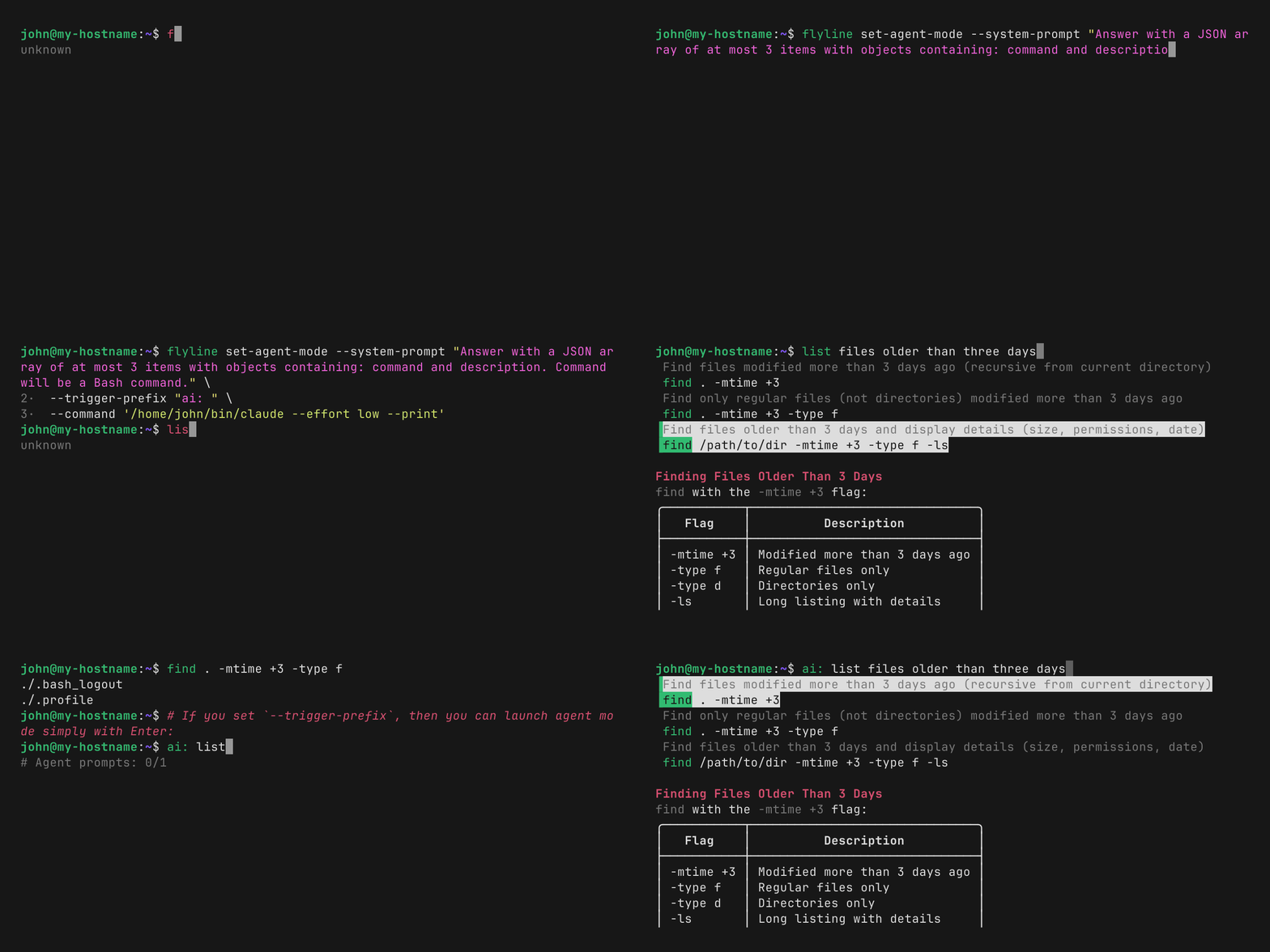
Flyline 可以与你的 AI agent 交互以提供建议命令。
这允许你用纯英语编写命令,而你的 agent 会将其转换为 Bash 命令:
[](https://github.com/HalFrgrd/evp)
在使用 flyline 设置好你的 agent 后,你可以使用 Alt+Enter 将缓冲区传递给你的 agent,或者当你的命令以触发前缀(例如 `ai: list files older than three days`)开头时,只需按 Enter 即可。
[查看示例以了解如何进行设置](examples/agent_mode.sh)。如果尚未配置 agent 模式,按 Alt+Enter 会提示 flyline 帮助进行配置。
Flyline 将对建议的命令进行语法高亮,并渲染 markdown 输出。
# 鼠标支持
点击移动光标,选择建议,以及悬停查看提示信息。
Flyline 必须捕获整个终端的鼠标事件,但这并不总是理想的。
例如,你可能想用鼠标选择当前提示符上方的文本。
Flyline 提供三种鼠标模式:
- `disabled`:从不捕获鼠标事件
- `simple`:默认开启鼠标捕获;在按下 Escape 时切换
- `smart`(默认):默认开启鼠标捕获并进行自动管理:在滚动或用户点击视口上方时禁用,在按下任意按键或重新获得焦点时重新启用。你也可以使用 Escape 手动切换它
我建议[设置一个鼠标模式 widget](#mouse-mode-widget) 以便了解鼠标捕获何时被启用。
# Tab 补全改进
Flyline 在许多方面扩展了 Bash 的 Tab 补全功能。
请注意,你需要先[在普通的 Bash 中设置补全](https://github.com/scop/bash-completion)。
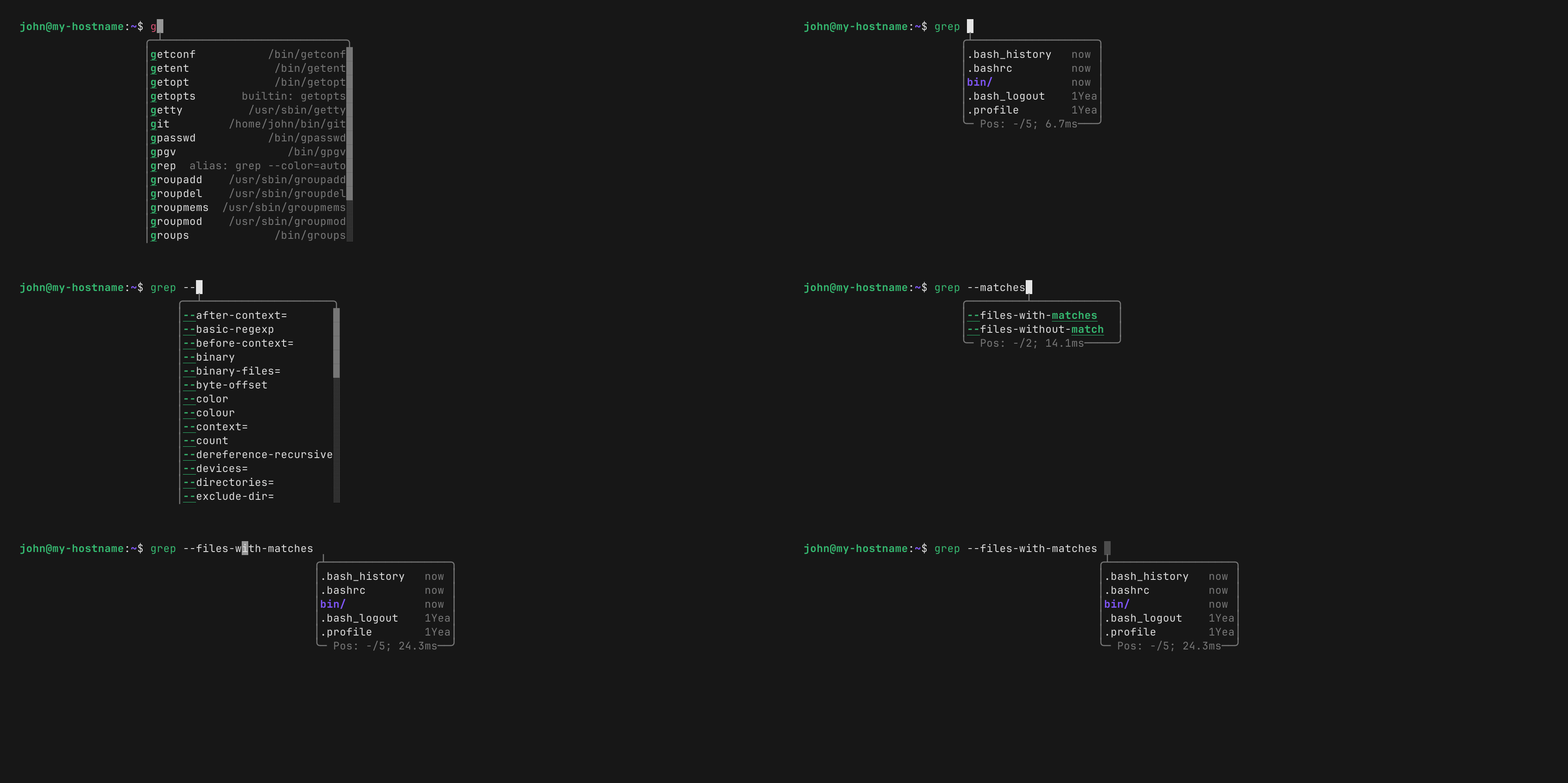
### Intellisense 风格的自动建议
Flyline 可以在你输入时自动启动 Tab 补全建议。此演示展示了自动启动的建议、确认建议、使用 Escape 忽略以及提交命令的过程。
[](https://github.com/HalFrgrd/evp)
这类似于 [inshellisense](https://github.com/microsoft/inshellisense),但它使用的是 Bash 的补全系统,并且在与 Bash 相同的进程中运行。
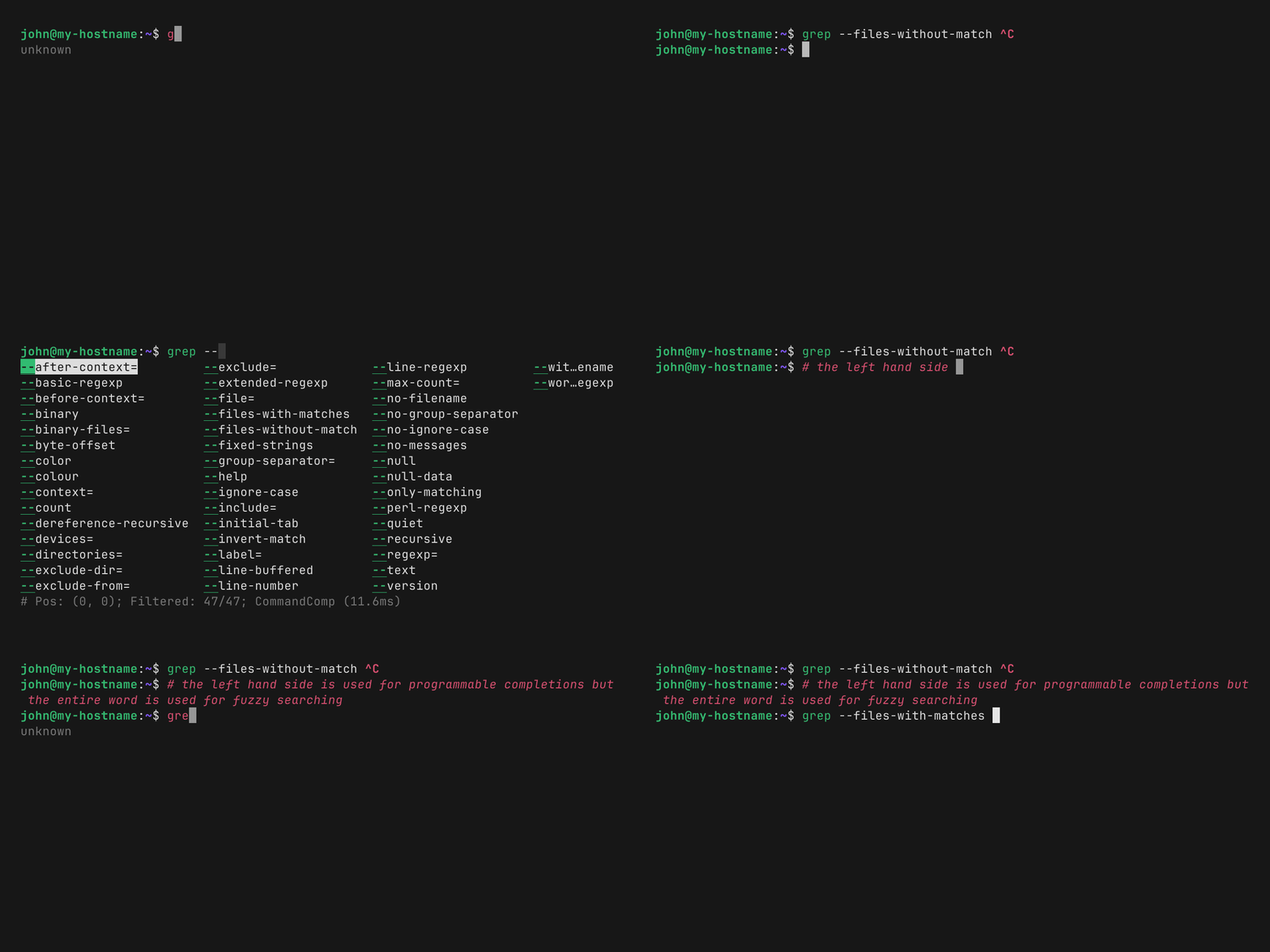
### 模糊 Tab 补全搜索
当你看到建议时,你可以输入内容以在列表中进行模糊搜索:
[](https://github.com/HalFrgrd/evp)
你可以使用 `flyline suggestions set-fuzzy-mode` 命令自定义模糊匹配行为。它接受三个选项:
- `all`(默认):对所有补全建议启用模糊匹配。
- `none`:完全禁用模糊匹配(回退到不区分大小写的前缀匹配)。
- `folder-prefixes`:文件夹使用不区分大小写的前缀匹配,而常规文件和其他建议仍保持模糊匹配开启。
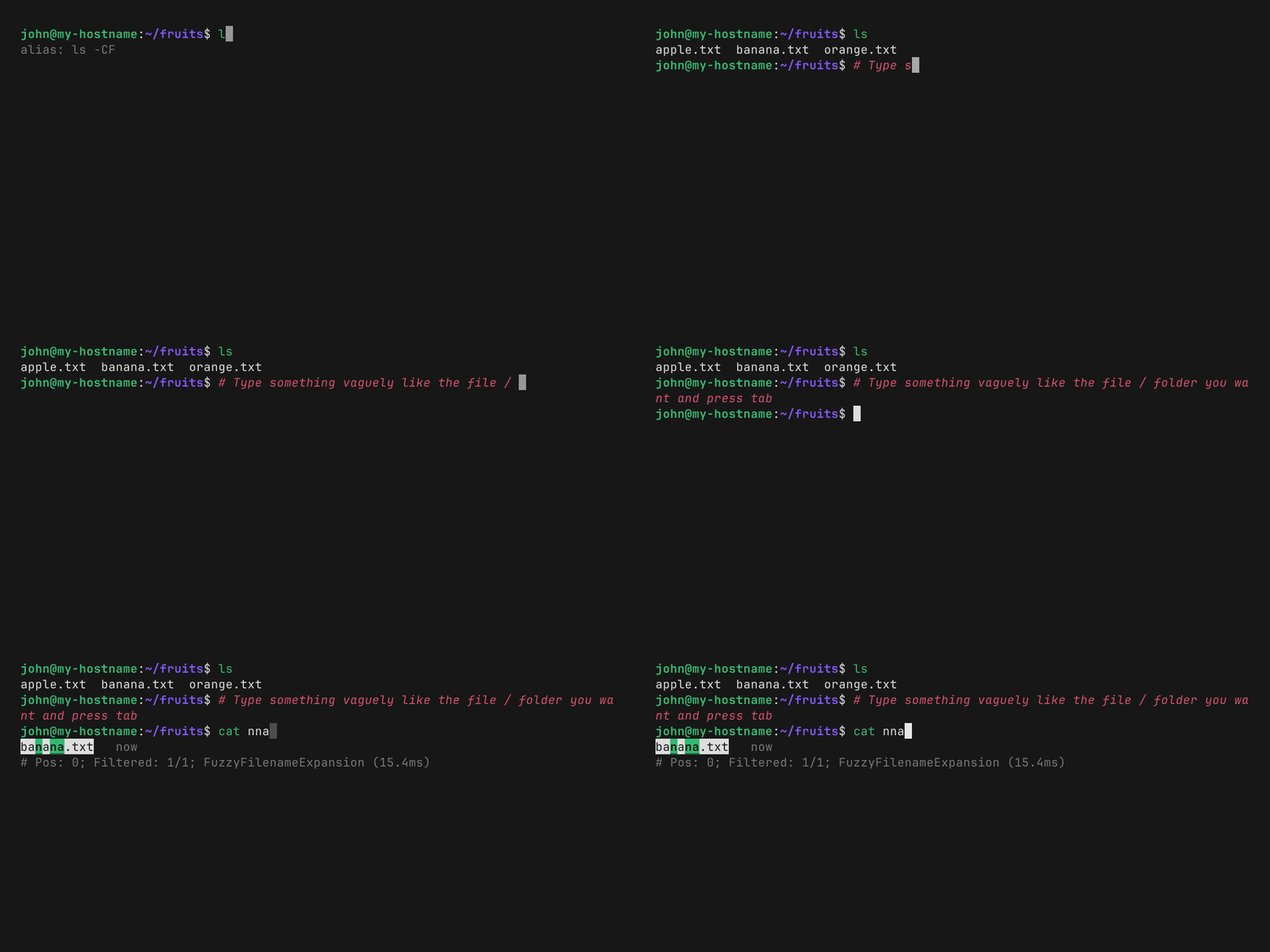
### 模糊路径补全
从光标到末尾的最后几段路径会根据目录内容进行模糊匹配:
[](https://github.com/HalFrgrd/evp)
### 别名展开
在尝试 Tab 补全之前会展开别名,以便 Bash 调用所需的补全函数。
例如,如果 `gc` 是 `git commit` 的别名,`gc --verbo` 将按预期工作。
### 嵌套命令上下文
Flyline 支持 subshell、命令替换和进程替换表达式内的 Tab 补全。
例如,`ls $(grep --)` 会调用 `grep` 的 Tab 补全逻辑(如果已设置)。
### 动态描述
如果建议包含制表符,flyline 会将制表符后的内容显示为描述。如果有多个制表符,flyline 将以 24fps 的帧率为每个制表符分隔的帧添加动画。尝试输入 `flyline set-cursor --interpolate-easing ` 查看示例:
[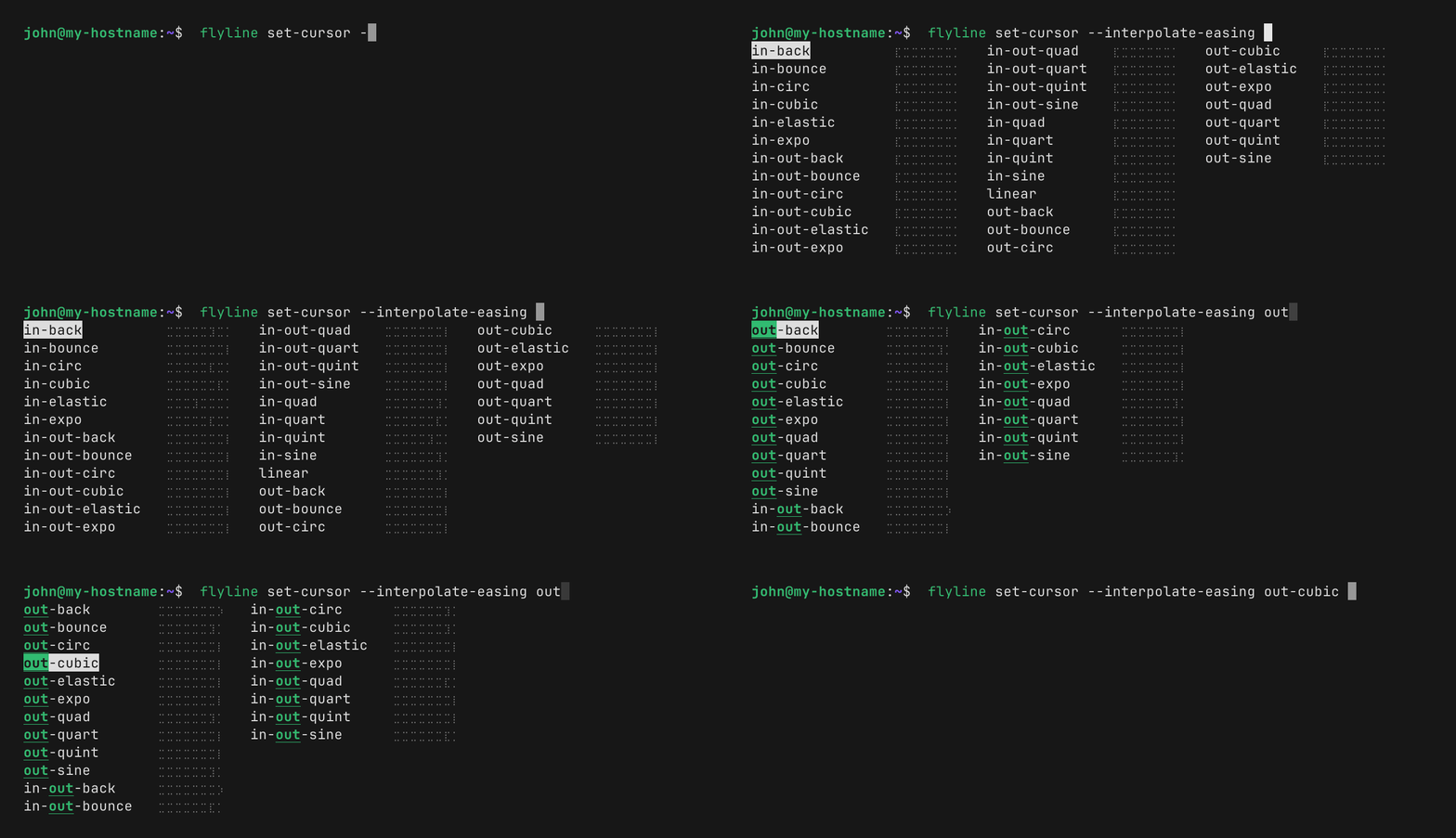](https://github.com/HalFrgrd/evp)
描述支持 样式:制表符分隔的描述文本中嵌入的任何 ANSI 颜色/样式转义码都将被渲染为 ratatui 样式化的 spans。
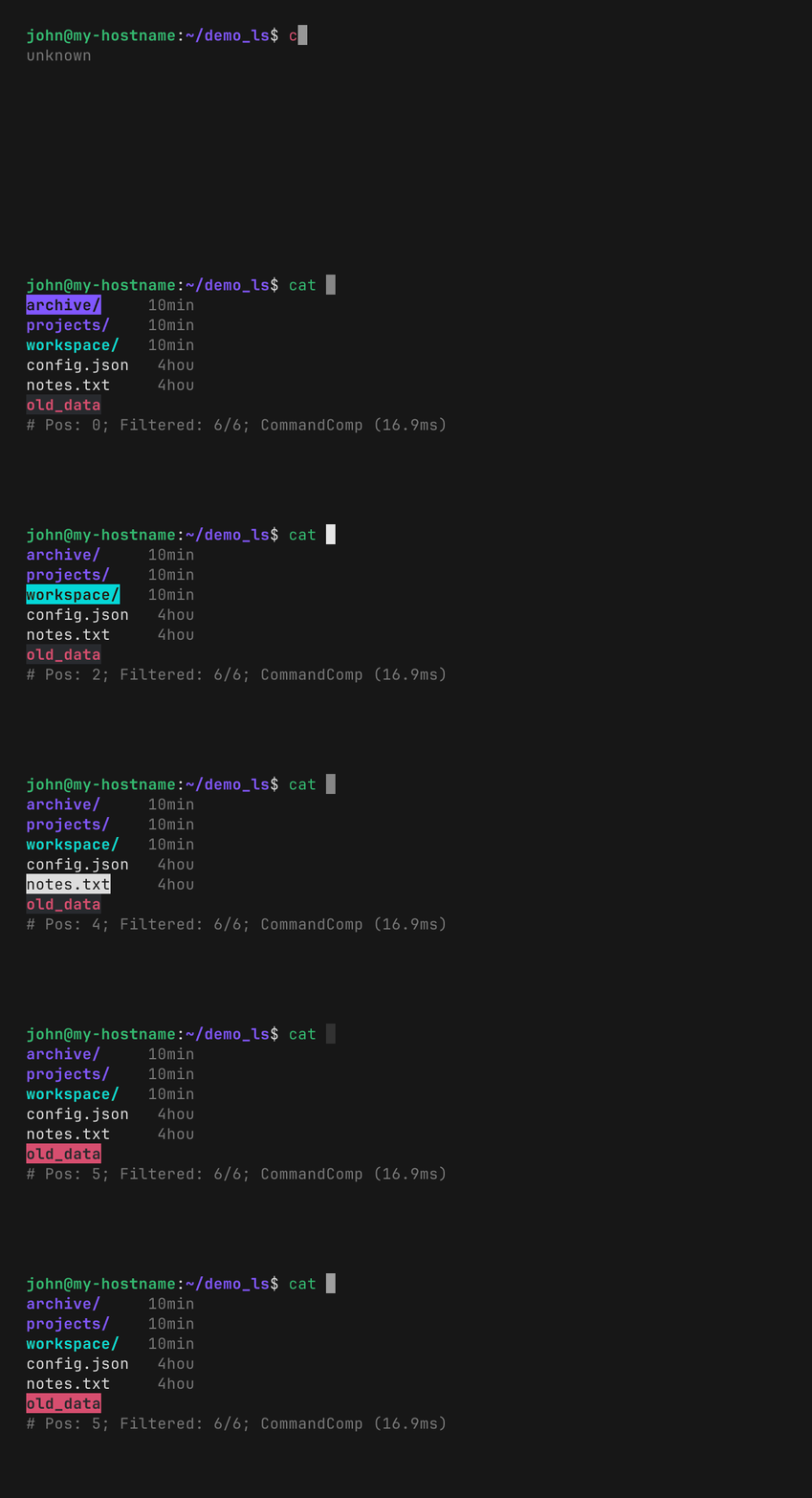
文件的描述是其上次修改至今的时间。
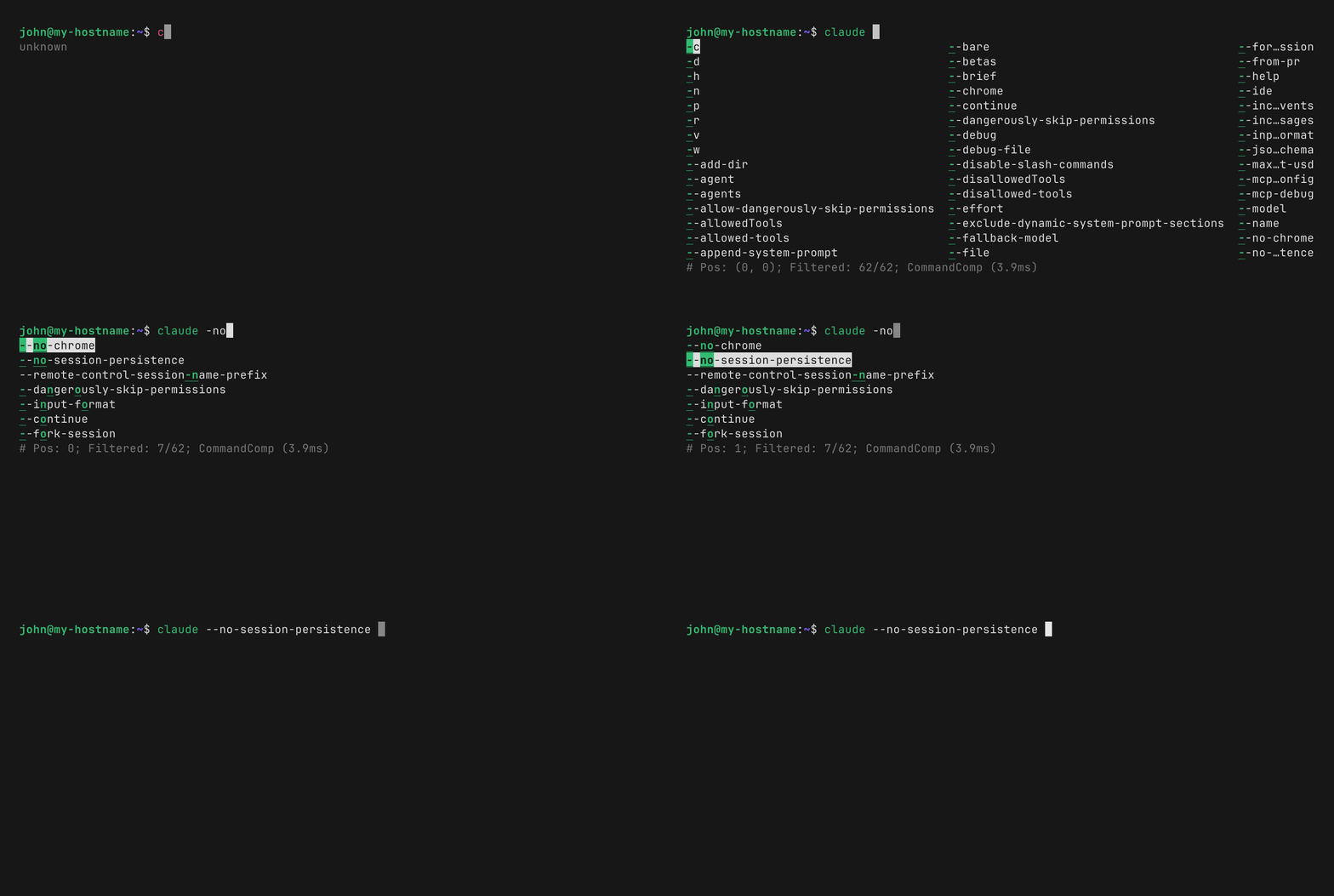
### 自动补全合成
如果命令缺少补全脚本,flyline 可以调用 [flycomp](https://github.com/HalFrgrd/flycomp),通过解析其 `--help` 输出和 man 手册来动态合成一个。你输入命令名,按下 Tab,然后 flyline 会提示你运行 flycomp 来生成补全规范:
[](https://github.com/HalFrgrd/evp)
### `LS_COLORS` 样式
Flyline 会根据 `$LS_COLORS` 对你的文件名 Tab 补全结果进行样式设置:
[](https://github.com/HalFrgrd/evp)
# 命令历史
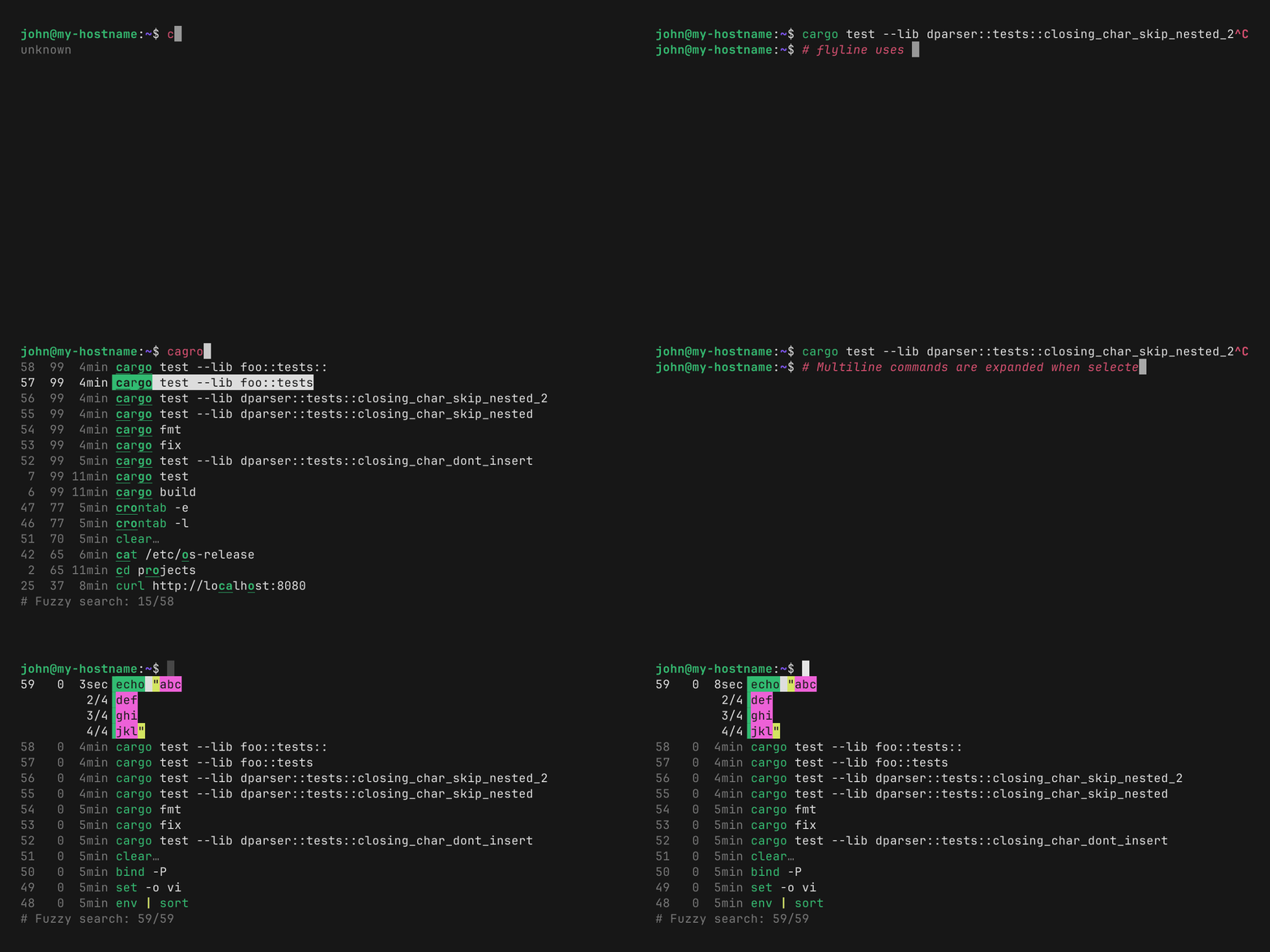
**模糊历史搜索:**
Flyline 提供类似于 fzf 或 skim 的模糊历史搜索,可通过 `Ctrl+R` 访问:
[](https://github.com/HalFrgrd/evp)
你可以使用 `Alt+R` 访问当前 Bash 会话中你在编辑时按下 Ctrl+C 取消的命令列表。
如果你开始编写一个命令,意识到你想先运行另一个命令,但你又不想丢失你的第一个命令,这会很有用。
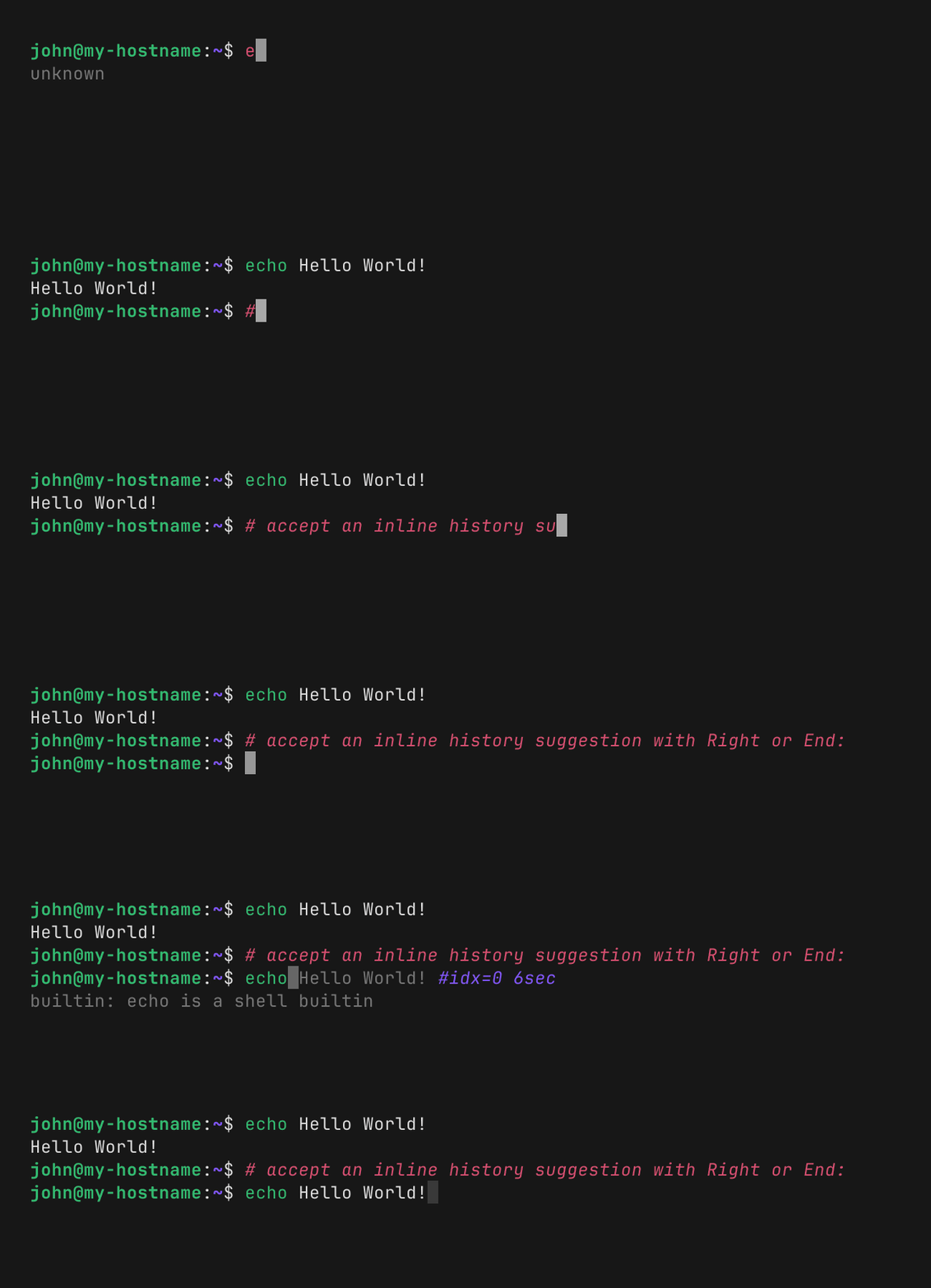
**内联建议:**
内联建议会在你输入时根据最近匹配的历史条目出现。通过将光标移动到行尾并按下 `Right`/`End` 来接受它们。
[](https://github.com/HalFrgrd/evp)
**浏览前缀匹配:**
按 `Up` 将滚动浏览与当前命令前缀匹配的历史条目。
**Zsh 历史条目:**
可选择读取 Zsh 历史条目,使迁移到 Bash 更容易。
# 光标动画和样式
Flyline 可以配置光标样式、颜色和插值/缓动动画。当移动光标或删除/插入字符时,光标会动态地滑动并产生动画效果移动到其新位置。
你可以使用 `flyline set-cursor` 命令配置样式和动画效果:
[](https://github.com/HalFrgrd/evp)
例如,要配置具有弹性插值和淡入淡出效果的自定义颜色:
```
flyline set-cursor --backend flyline --style "#33ccff" --effect fade --effect-easing in-out-sine --interpolate-easing out-elastic --interpolate 2
```
要查看所有可用选项(例如终端原生光标后端或其他缓动方程):
```
flyline set-cursor --help
```
# 终端模拟器说明
## Kitty:
在 Kitty 中运行时,强烈建议使用 terminal 光标后端:
```
flyline set-cursor --backend terminal
```
默认情况下,Flyline 会检测它是否在 Kitty 中运行,并默认使用 `terminal` 后端。在 Kitty 中使用自定义的 `flyline` 光标后端会隐藏终端的原生硬件光标,这会阻止 Kitty 检测 shell 提示符,导致它在关闭终端窗口时要求确认。
## VS Code:
推荐设置
- [`terminal.integrated.minimumContrastRatio = 1`](vscode://settings/terminal.integrated.minimumContrastRatio) 以防止单元格的前景色在光标下发生变化。
- 你可能需要设置 [`terminal.integrated.macOptionIsMeta`](vscode://settings/terminal.integrated.macOptionIsMeta),以便 `Option+` 快捷键能被正确识别。
- 启用 [`terminal.integrated.enableKittyKeyboardProtocol`](vscode://settings/terminal.integrated.enableKittyKeyboardProtocol) 以便集成终端[能正确将按键转发给 flyline](https://code.visualstudio.com/updates/v1_109#_new-vt-features)。你需要设置 [`workbench.settings.alwaysShowAdvancedSettings = 1`](vscode://settings/workbench.settings.alwaysShowAdvancedSettings) 才能找到此设置。
- 启用 [`terminal.integrated.textBlinking`](vscode://terminal.integrated.textBlinking)。很少有终端模拟器支持这个很棒的文本样式选项,所以尽情享受吧!
- 如果快捷键无法正常工作,你可以通过[切换键盘快捷键疑难解答](https://code.visualstudio.com/docs/configure/keybindings#_troubleshooting-keyboard-shortcuts)来进行调试。
我发现如果 flyline 在使用某些设置运行时,Copilot 无法与终端交互。如果你遇到此问题,请将以下内容添加到你的 `.bashrc` 的末尾:
```
if [[ -n "${COPILOT_TERMINAL:-}" ]]; then
RPS1=''
flyline set-cursor --backend terminal --interpolate none
flyline editor --show-inline-history false
flyline suggestions --auto-suggest false
fi
```
并在你的 `settings.json` 中设置此项:
```
"chat.tools.terminal.terminalProfile.linux": {
"env": {
"COPILOT_TERMINAL": "1"
},
"path": "bash",
}
```
## macOS
`Command+` 快捷键通常被终端模拟器捕获,而不会转发到 shell。
两种可能的解决方法是:
- 在你的终端模拟器设置中将 `Command+` 映射为 `Control+`。
- 使用支持 [Kitty 的扩展键盘协议](https://sw.kovidgoyal.net/kitty/keyboard-protocol/)的终端模拟器。这允许 flyline 接收 `Command+` 事件。
## Shell 集成
Flyline 会输出 [OSC 133](https://sw.kovidgoyal.net/kitty/shell-integration/#notes-for-shell-developers) 和 [OSC 633](https://code.visualstudio.com/docs/terminal/shell-integration#_supported-escape-sequences) 转义码,以便将 shell 与终端集成。这些默认处于开启状态,可以使用 `flyline --send-shell-integration-codes none` 禁用。
# 设置
下面的代码块由 `flyline --help` 自动生成:
```
Usage: flyline [OPTIONS] [COMMAND]
Commands:
time Print a timestamp.
set-agent-mode Configure AI agent mode.
create-prompt-widget Create a custom prompt widget.
set-style Configure the colour palette.
set-cursor Configure the cursor appearance and animation.
key Manage keybindings.
log Logging commands: dump, configure level, or stream logs.
run-tutorial Run the interactive tutorial for first-time users.
editor Configure the inline editor.
suggestions Configure suggestion behavior.
mouse Configure mouse options and debugging.
perf Performance profiling commands: start, stop, or dump stats.
changelog Display the changelog of user-facing changes.
upgrade Display instructions to upgrade flyline.
help Print this message or the help of the given subcommand(s)
Options:
--version
Show version information
--load-zsh-history []
Load Zsh history in addition to Bash history. Optionally specify a PATH to the Zsh history file
--show-animations []
Show animations
[possible values: true, false]
--matrix-animation []
Run matrix animation in the terminal background. Use `on` to always show it, `off` to disable it, or an integer number of seconds to show it after that many seconds of inactivity (no keypress or mouse event). Defaults to `off`; passing the flag without a value is equivalent to `on`
--set-frame-rate
Render frame rate in frames per second (1–120, default 24)
--send-shell-integration-codes []
Send shell integration escape codes (OSC 133 / OSC 633): none, only-prompt-pos, or full
Possible values:
- none: Send no shell integration codes
- only-prompt-pos: Only send the escape codes that report prompt start/end positions
- full: Send the full set of shell integration codes: prompt positions, execution start/end codes, and cursor-position reporting
--enable-extended-key-codes []
Whether to request the use of extended (kitty-protocol) keyboard codes during startup. Enabled by default; pass `--enable-extended-key-codes false` to disable it on terminals that misbehave when the request is sent
[possible values: true, false]
-h, --help
Print help (see a summary with '-h')
Read more at https://github.com/HalFrgrd/flyline
```
## 调色板
Flyline 附带两种内置的颜色预设(深色和浅色),并允许你覆盖单个颜色。
### 预设
```
flyline set-style --default-theme dark # original palette, optimised for dark terminals
flyline set-style --default-theme light # preset optimised for light terminals
```
### 自定义颜色
样式字符串遵循 [rich](https://rich.readthedocs.io/en/stable/style.html) 语法:以空格分隔的属性和颜色列表。
支持的属性:`bold`、`dim`、`italic`、`underline`、`blink`、`reverse`、`strike`。
颜色可以通过名称(`red`、`green`、`blue`、`magenta`、`cyan`、`yellow`、`white`、`black`、`bright_red`,……)指定,也可以作为 256 色索引(`color(196)`)指定,或作为 RGB 十六进制代码(`#ff5500`)或 `rgb(r,g,b)` 形式指定。
```
flyline set-style inline-suggestion="dim italic"
flyline set-style --default-theme light matching-char="bold blue"
flyline set-style recognised-command="green" unrecognised-command="bold red"
flyline set-style secondary-text="dim" tutorial-hint="bold italic"
flyline set-style bash-reserved="bold yellow"
```
## 快捷键
使用 `flyline key list` 列出所有快捷键。
Flyline 允许通过 `flyline key bind [KEY SEQUENCE] [CONTEXT_EXPR]=[ACTION]` 子命令配置快捷键。
上下文表达式是由 `+` 分隔的 camelCase 上下文变量链(每个变量可以选择加 `!` 前缀来表示否定)。
只有当快捷键的上下文表达式计算为 true 时,它才会触发。
这允许相同的按键序列在不同的情况下触发不同的操作。
例如:
```
flyline key bind Enter always=submitOrNewline
flyline key bind Enter tabCompletionAvailable=tabCompletionAcceptEntry # defined last -> higher priority
```
当你按下 `Enter` 时,如果 `tabCompletionAvailable` 为 true(即你当前正在浏览 Tab 补全建议),flyline 将接受该 Tab 补全条目。
如果 `tabCompletionAvailable` 为 false,那么它将尝试 `Enter` 的下一个快捷键,并在其上下文表达式计算为 true 时运行该操作。
`always` 上下文变量始终为 true。
对于 Tab 补全,当恰好只有一个 Tab 补全结果时,`tabCompletionOneResult` 为 true。
一个上下文表达式可以用 `+` 组合多个变量:
```
flyline key bind Tab inlineSuggestionAvailable+cursorAtEnd=inlineSuggestionAccept
```
在变量前面使用 `!` 来否定它(例如 `!textSelected`)。不支持括号。
可以通过以下方式完全重新映射单个按键和完整的按键事件:
```
# Individual key
flyline key remap Alt Ctrl # Pressing Alt now acts like pressing Ctrl
flyline key remap Ctrl Alt # With the above command, Alt and Ctrl are effectively swapped
# Full key event
flyline key remap Ctrl+p Up # Pressing Ctrl+p will trigger any keybinding that Up would trigger
```
按键序列和上下文/操作参数都存在 Tab 补全,这使得编写快捷键更加容易。
# 许可协议
本项目采用多重许可:
* **源代码:** 本仓库中的原始源代码采用 [MIT License](LICENSE-MIT) 许可。你可以根据这些条款自由修改和重用源码逻辑。
* **预编译二进制文件和组合作品:** 由于此 builtin 会动态加载到 GNU Bash(采用 GPLv3 许可)中并与其符号进行链接,因此任何分发的已编译二进制文件或组合作品均受 [GNU General Public License v3](LICENSE-GPLv3) 约束。
[](https://github.com/HalFrgrd/flyline/actions/workflows/ci.yml)

[](https://github.com/HalFrgrd/flyline/releases)
[](https://ratatui.rs/)
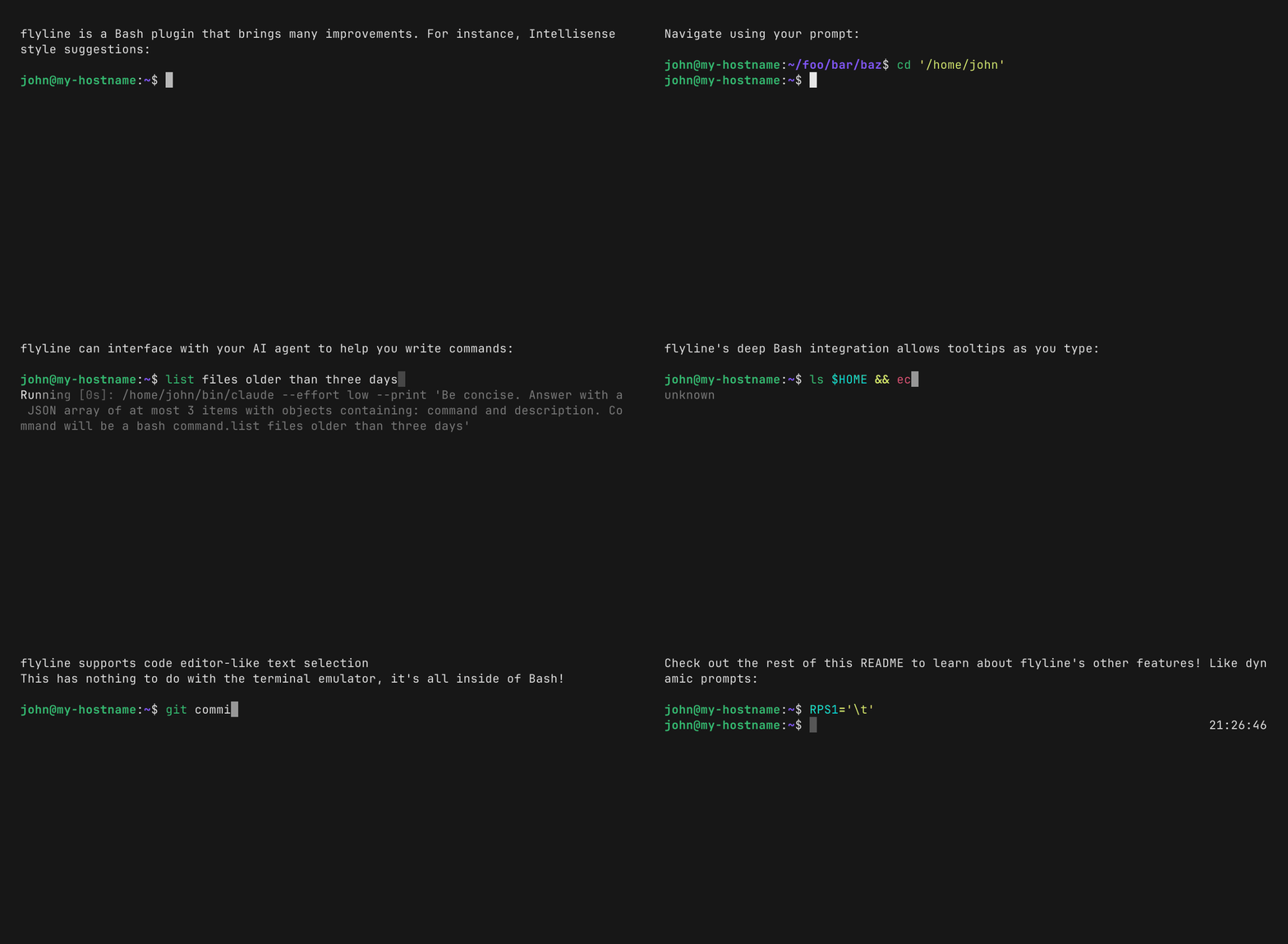
**一个用于现代命令行编辑的 Bash 插件。**
[](https://github.com/HalFrgrd/evp)
当 Bash 提示你输入命令时,一个名为 [readline](https://www.gnu.org/software/bash/manual/html_node/Command-Line-Editing.html) 的库会处理你的按键。readline 缺少许多用户期望的功能。Flyline 是一个 readline 替代品,它通过以下功能提供增强的行编辑体验:
- [Intellisense 风格的自动建议](#intellisense-style-auto-suggestions)
- 使用你的提示符更改目录
- [丰富的提示符自定义、(异步 widget)和动画](#rich-prompts)
- [模糊历史搜索](#command-history)
- [鼠标支持(点击移动光标、选择文本)](#mouse-support)
- [对 Bash 的 Tab 补全进行改进](#tab-completion-improvements)
- 使用 [flycomp](https://github.com/HalFrgrd/flycomp) [合成 Tab 补全建议](#automatic-completion-synthesis-flycomp)
- [Agent 辅助编写命令](#agent-mode)
- 提示信息
- 文本选择
- 自动闭合括号和引号
- 语法高亮
- 在与 Bash 相同的进程中运行
- [光标动画和样式](#cursor-animations-and-styles)
Flyline 类似于 [ble.sh](https://github.com/akinomyoga/ble.sh),但它是用 Rust 编写的,并使用 [ratatui.rs](https://ratatui.rs/) 更轻松地绘制复杂的用户界面。
### 它适合谁?
1. 你希望获得开箱即用的优秀 shell 体验,而不想费力去设置一堆插件、插件管理器、快捷键和启动脚本(其中任何一个可能都会进行网络回传)。
2. 你是一名终端高级用户,希望通过使用像 Rust 这样的现代语言来微调你的 shell 体验。Flyline 可以作为你的起步平台;[欢迎贡献代码](https://github.com/HalFrgrd/flyline/discussions)!
# 安装
### 快速安装:`install.sh`
```
curl -sSfL https://github.com/HalFrgrd/flyline/releases/latest/download/install.sh | sh
```
在 macOS 上,你必须首先安装一个支持自定义 builtins 的 Bash 版本:`brew install bash`
### Arch Linux
Arch 用户可以安装 [AUR 包](https://aur.archlinux.org/packages/flyline):
```
paru -S flyline
```
### 从 releases 下载
从 [releases 页面](https://github.com/HalFrgrd/flyline/releases)为你的系统下载最新的 `libflyline.so`。如果你使用的是 Linux,除非你确定你使用的是基于 `musl` 的 Linux 发行版(例如 Alpine、Chimera),否则你可能需要 `gnu` 版本。
然后,在你的 `.bashrc` 中(或在当前的 Bash 会话中):
```
enable -f /path/to/libflyline.so flyline
flyline run-tutorial
```
### 从源码构建
克隆仓库并运行:
```
cargo build
enable -f /path/to/flyline_checkout/target/debug/libflyline.so flyline
flyline run-tutorial
```
安装说明
使用 `enable -d flyline` 禁用 flyline。 #### BASH_LOADABLES_PATH 摘自 https://www.gnu.org/software/bash/manual/bash.html: Bash 4.4 引入了 `BASH_LOADABLES_PATH` Bash 5.2-alpha 为 `BASH_LOADABLES_PATH` 添加了默认值。 使用以下命令检查你的 Bash 版本:`bash --version` 因此,在至少为 5.2 的 Bash 版本上,如果你将 flyline 安装到以下位置之一: - /opt/local/lib/bash - /opt/pkg/lib/bash - /usr/lib/bash - /usr/local/lib/bash - /usr/pkg/lib/bash 那么你只需运行 `enable flyline` 即可。标签:Bash插件, Rust, SOC Prime, 代码补全, 可视化界面, 应用安全, 开发工具, 终端UI, 网络流量审计, 语法高亮, 通知系统