BarutSRB/OmniWM
GitHub: BarutSRB/OmniWM
OmniWM 是一款 macOS 平铺式窗口管理器,提供 Niri 滚动列和 Hyprland BSP 两种布局引擎,同时保持企业级的签名公证安全性。
Stars: 2195 | Forks: 85
## 演示视频
[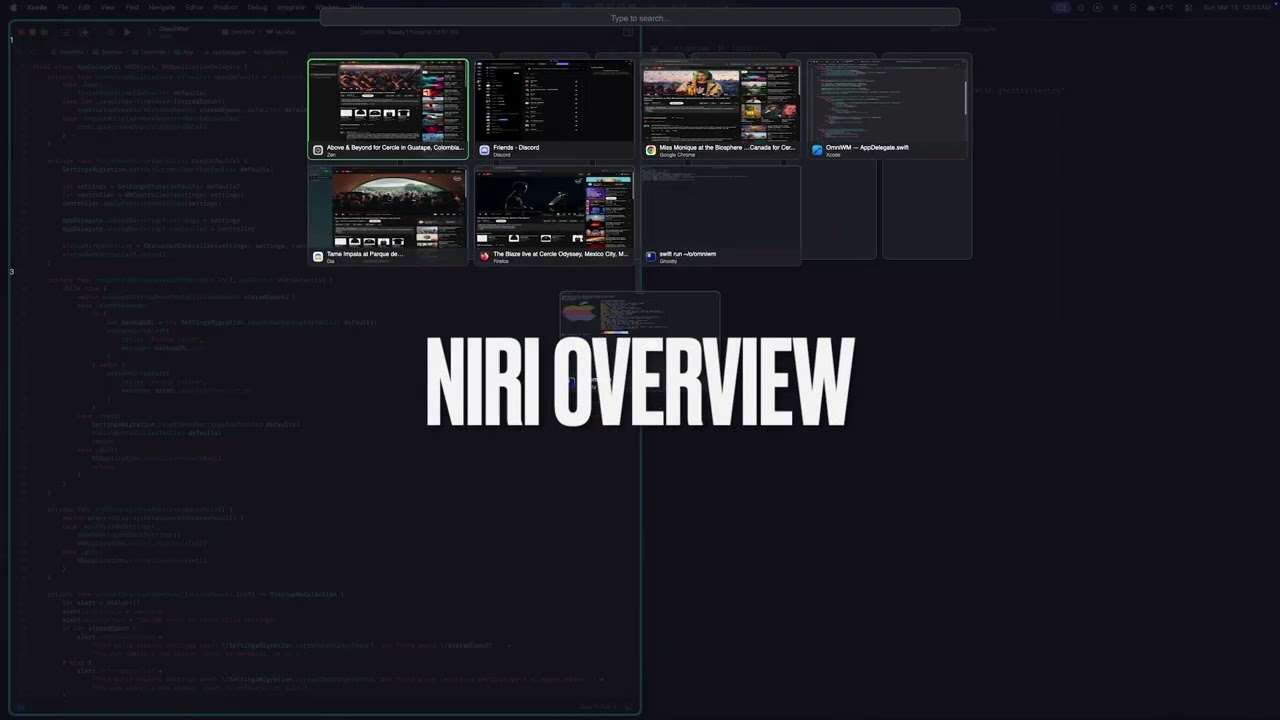](https://youtu.be/WcHjGkuD2Fc)
## 已知限制
- **手势/触控板** - Magic Mouse 和触控板手势由于没有匹配的硬件而未在本地进行验证,但目前尚未收到问题反馈。
## 性能与信任
OmniWM 旨在实现高响应速度以及流畅、清晰的动画效果。
- **私有 API** - 只要在技术上可行,OmniWM 就会利用 Apple 的私有 API,以降低延迟并提升窗口管理的响应速度。
- **感知刷新率的动画** - OmniWM 以真正的显示器刷新节奏(例如 60/120/144Hz)为目标播放动画。
- **无需禁用 SIP** - OmniWM 不需要禁用系统完整性保护(SIP),而且永远也不会。
- **官方发布始终经过公证** - 官方的 OmniWM 发布版本均经过开发者签名并由 Apple 公证,并将保持如此。
- **永久免费,没有任何限制** - OmniWM 现在是,而且将来也永远免费使用,没有订阅、功能付费墙、试用限制或使用上限。
## 系统要求
- macOS 15+ (Sequoia)
- 辅助功能权限(启动时会提示)
- 使用 System Hyper Trigger 时需要输入监控权限
- 显示器拥有单独的空间 **开启**(macOS 的默认设置;在启用此选项之前,OmniWM 会暂停窗口管理)
## 安装说明
### Homebrew
```
brew tap BarutSRB/tap
brew install omniwm
```
### GitHub Releases
1. 从 [Releases](https://github.com/BarutSRB/OmniWM/releases) 下载最新的 `OmniWM.zip`
2. 解压并将 `OmniWM.app` 移至 `/Applications`
3. 在系统设置 > 桌面与程序坞 > 调度中心 中,**开启** `显示器拥有单独的空间`
4. 注销 macOS 并重新登录以使更改生效,除非你之前已经开启了该选项
5. 启动 OmniWM,并在出现提示时授予辅助功能权限
6. 若要使用 System Hyper Trigger,请在设置 > 快捷键 中授予输入监控权限
## 更新
OmniWM 默认会检查更新。
- 每次启动时,OmniWM 每天最多会轮询一次最新的 GitHub release。
- 更新保持手动。OmniWM 不会自动下载或自动安装新版本。
- 当有新版本可用时,OmniWM 会显示一个居中弹窗,包含版本说明以及 `打开发布页面`、`复制 brew upgrade omniwm`、`跳过此版本` 和 `暂不` 等操作。
- 你可以在 `设置 > 通用 > 更新` 中控制此功能,也可以从状态栏菜单中选择 `检查更新...` 来触发手动检查。
## 文档
文档中心位于 [`docs/index.md`](docs/index.md)。
- [文档首页](docs/index.md)
- [架构指南](docs/ARCHITECTURE.md)
- [IPC 与 CLI 参考](docs/IPC-CLI.md)
- [贡献文档](docs/CONTRIBUTING.md)
- [官方贡献指南](CONTRIBUTING.md)
## IPC 和 CLI
OmniWM 内置了 CLI 工具 `omniwmctl`,可用于自动化和脚本编写。
IPC 默认处于禁用状态。在使用 CLI 或任何自动化功能之前,请从菜单栏启用 `Enable IPC`。
有关设置、安装选项、命令、查询、规则、订阅和安全详细信息,请参阅 [docs/IPC-CLI.md](docs/IPC-CLI.md)。
## 快速开始
1. 从“应用程序”文件夹启动 OmniWM
2. 在系统设置 > 桌面与程序坞 > 调度中心 中,**开启** `显示器拥有单独的空间`
3. 注销 macOS 并重新登录以使更改生效,除非你之前已经开启了该选项
4. 在系统设置 > 隐私与安全性 > 辅助功能 中授予辅助功能权限
5. 窗口将自动按列平铺
6. 每个显示器保留一个 macOS Space,并使用 OmniWM 的工作区进行导航;支持容纳额外的原生 Space(其中的窗口交由 macOS 处理,不进行平铺)
7. 使用 `键盘快捷键` 中的默认快捷键在窗口之间导航
8. 点击菜单栏图标访问设置,包括 `设置 > 通用 > 更新`
9. 随时从状态栏菜单中使用 `检查更新...` 运行手动更新检查
10. 万一你发现状态栏图标不见了,别慌张,右键点击 OmniWM 的状态栏图标,按住 CMD 并拖动图标到它左侧的“/”之前,因为 OmniWM 像 **Ice Bar** 一样会隐藏状态栏图标。
## 用户指南
### 布局模式
OmniWM 提供了两种布局引擎,你可以按工作区进行切换:
**Niri(滚动列)** - 窗口排列在垂直列中并水平滚动。每列可以有多个堆叠的窗口,或者呈“标签页”状态(多个窗口,同一时间只显示一个)。最适合宽屏显示器和大量窗口。
**Hyprland Dwindle (BSP)** - 递归划分屏幕空间的二进制空间分区布局。每个新窗口将空间平分一半。最适合具有可预测布局的传统平铺方式。
使用下方的 `切换工作区布局` 快捷键可以为每个工作区切换布局,或者在 GUI 设置中进行配置。
### 键盘快捷键
所有快捷键均可在 设置 > 快捷键 中自定义。`Hyper` 即字面上的 `Control + Option + Shift + Command` 组合键。你也可以选择一个 **System Hyper Trigger** —— 单个按键(Caps Lock、F13–F20,或左侧/右侧修饰键)或一个额外的鼠标按钮,按住时可作为 `Hyper` 使用(这需要输入监控权限)。如果你已经通过其他方式(例如 Karabiner Elements 重映射)生成了 `Hyper`,请将触发器保留为 `None`。下表列出了所有默认快捷键:
布局说明:
- `Shared` 适用于任何活动布局。
- `Niri` 仅在活动工作区使用 Niri 布局时有效。
- `Dwindle` 仅在活动工作区使用 Dwindle 布局时有效。
#### 工作区
| 操作 | 默认快捷键 | 布局 |
|--------|------------------|--------|
| 切换到工作区 1-9 | `Option + 1-9` | `Shared` |
| 将窗口移动至工作区 1-9 | `Option + Shift + 1-9` | `Shared` |
| 切换到上一个工作区(来回切换) | `Control + Option + Tab` | `Shared` |
| 切换到下一个工作区 | `未分配` | `Shared` |
| 切换到上一个工作区(顺序) | `未分配` | `Shared` |
| 将窗口移动至上方工作区 | `Control + Option + Shift + 上方向键` | `Shared` |
| 将窗口移动至下方工作区 | `Control + Option + Shift + 下方向键` | `Shared` |
| 将列移动至工作区 1-9 | `未分配` | `Niri` |
| 将列移动至上方工作区 | `Control + Option + Shift + Page Up` | `Niri` |
| 将列移动至下方工作区 | `Control + Option + Shift + Page Down` | `Niri` |
#### 焦点
| 操作 | 默认快捷键 | 布局 |
|--------|------------------|--------|
| 聚焦 左 / 右 / 上 / 下 | `Option + 方向键` | `Shared` |
| 聚焦上一个窗口 | `Option + Tab` | `Niri` |
| 向后遍历 | `未分配` | `Niri` |
| 向前遍历 | `未分配` | `Niri` |
| 聚焦第一列 | `Option + Home` | `Niri` |
| 聚焦最后一列 | `Option + End` | `Niri` |
| 聚焦列 1-9 | `Control + Option + 1-9` | `Niri` |
| 切换命令面板 | `Control + Option + Space` | `Shared` |
| 在任意位置打开菜单 | `Control + Option + M` | `Shared` |
| 切换工作区栏 | `未分配` | `Shared` |
| 切换隐藏栏 | `未分配` | `Shared` |
| 切换 Quake 终端 | `` Option + ` `` | `Shared` |
| 切换概览 | `Option + Shift + O` | `Shared` |
#### 移动窗口
| 操作 | 默认快捷键 | 布局 |
|--------|------------------|--------|
| 移动 左 / 右 / 上 / 下 | `Option + Shift + 方向键` | `Shared` |
#### 显示器
| 操作 | 默认快捷键 | 布局 |
|--------|------------------|--------|
| 聚焦下一个显示器 | `Control + Command + Tab` | `Shared` |
| 聚焦上一个显示器 | `未分配` | `Shared` |
| 聚焦上一个显示器 | `` Control + Command + ` `` | `Shared` |
#### 布局
| 操作 | 默认快捷键 | 布局 |
|--------|------------------|--------|
| 切换全屏 | `Option + Return` | `Shared` |
| 切换原生全屏 | `未分配` | `Shared` |
| 平衡尺寸 | `Option + Shift + B` | `Shared` |
| 移至根节点 | `未分配` | `Dwindle` |
| 切换分割方向 | `未分配` | `Dwindle` |
| 交换分割方向 | `未分配` | `Dwindle` |
| 向 左 / 右 / 上 / 下 延伸 | `未分配` | `Dwindle` |
| 向 左 / 右 / 上 / 下 缩小 | `未分配` | `Dwindle` |
| 延伸 / 缩小聚焦窗口 | `未分配` | `Dwindle` |
| 预选 左 / 右 / 上 / 下 | `未分配` | `Dwindle` |
| 清除预选 | `未分配` | `Dwindle` |
| 提升所有浮动窗口 | `Option + Shift + R` | `Shared` |
| 切换聚焦窗口浮动状态 | `未分配` | `Shared` |
| 将聚焦窗口分配至 Scratchpad | `未分配` | `Shared` |
| 切换 Scratchpad 窗口 | `未分配` | `Shared` |
| 切换工作区布局 | `Option + Shift + L` | `Shared` |
#### 列
| 操作 | 默认快捷键 | 布局 |
|--------|------------------|--------|
| 向左 / 向右移动列 | `Control + Option + Shift + 左 / 右方向键` | `Niri` |
| 切换列标签页模式 | `Option + T` | `Niri` |
| 正向循环列宽 | `Option + .` | `Shared` |
| 反向循环列宽 | `Option + ,` | `Shared` |
| 切换列全宽 | `Option + Shift + F` | `Niri` |
在 Niri 中,`向左 / 向右移动` 会将聚焦的窗口移出多窗口列,或者将单窗口列合并到相邻列中。`向上 / 向下移动` 保留当前列内重新排序的行为。
#### Quake 终端(终端内)
| 操作 | 快捷键 |
|--------|----------|
| 新建标签页 | `Cmd + T` |
| 关闭标签页 | `Cmd + W` |
| 下一个标签页 | `Cmd + Shift + ]` |
| 上一个标签页 | `Cmd + Shift + [` |
| 下一个标签页(备选) | `Ctrl + Tab` |
| 上一个标签页(备选) | `Ctrl + Shift + Tab` |
| 选择标签页 1-9 | `Cmd + 1-9` |
| 分割面板(水平) | `Cmd + D` |
| 分割面板(垂直) | `Cmd + Shift + D` |
| 关闭面板 | `Cmd + Shift + W` |
| 平均分割 | `Cmd + Shift + =` |
| 导航面板 | `Cmd + Option + 方向键` |
### 功能
#### Quake 终端
一个真正的 Quake/置顶终端(由 Ghostty 的 libghostty 提供支持),可从屏幕边缘滑入并且:
- 通过 `键盘快捷键` 中显示的全局快捷键进行切换
- 支持在标签页内创建多个标签页和分割面板
- 标签页和面板的快捷键列在 **Quake 终端(终端内)** 中
- 鼠标拖动边缘调整大小;按住 `Option + 拖动` 进行移动(会记住每个显示器的尺寸/位置)
- 在设置中配置位置(上/下/左/右/居中)、大小和不透明度
- 失去焦点时自动隐藏(可选)
命令面板
从一个共享面板快速搜索窗口或应用菜单:
- 通过 `键盘快捷键` 中显示的全局快捷键打开
- 当菜单搜索可用时,使用 `Cmd + 1` 切换到 `窗口`,使用 `Cmd + 2` 切换到 `菜单`
- 输入即可按窗口标题、应用名称或菜单项进行模糊搜索
- 菜单结果在可用时始终显示键盘快捷键
- `上` / `下` 移动选择项
- `回车` 激活选中的结果
- `Shift + 回车` 在可用时将选中的窗口召唤到右侧
- `Escape` 关闭面板
#### 菜单随处可用
通过键盘访问任何应用程序的菜单:
- 全局快捷键在光标处显示原生菜单
#### 概览模式
通过缩略图同时查看所有窗口:
- 通过 `键盘快捷键` 中显示的全局快捷键打开
- 点击窗口使其获得焦点
- 输入以过滤/搜索窗口;`Backspace` 删除搜索文本
- Alt + Shift + 鼠标滚轮可放大/缩小
- `方向键` 导航选择项;`Tab` / `Shift + Tab` 水平移动
- `回车` 激活选中的窗口
- `Escape` 首先清除搜索,当搜索为空时则关闭概览
#### 工作区栏
显示你的工作区的视觉指示器:
- 显示每个工作区打开的应用
- 点击以切换工作区或跳转到该应用
- 如果开启了去重选项,点击应用图标会弹出一个列表,包含其所有窗口供跳转
- 在设置中配置位置、高度和外观
#### 隐藏栏
使用分隔符项目隐藏或显示状态栏图标:
- 右键点击 OmniWM 菜单栏图标进行切换
- 提供可选的全局热键,初始状态为未分配
### 提示
- **工作区** - 在设置中创建命名工作区,以按项目或上下文进行组织(你可以使用 emoji 🥳)
- **应用规则** - 将有问题的应用排除在平铺之外,或者将它们分配到特定的工作区
- **鼠标** - `Option + 拖动` 可交换平铺的窗口;`Option + Shift + 拖动` 可将窗口插入到列中(Niri)
- **鼠标调整大小** - 按住 `Option` 并右键拖动平铺的窗口进行调整(Niri)
- **滚动手势(鼠标)** - 按住 `Option + Shift + 鼠标滚轮`(默认,可配置)并水平滚动浏览列
- **触控板手势** - 使用 2/3/4 根手指进行水平手势操作(可配置);方向可以反转(本地硬件验证有限)
## 配置
点击 OmniWM 的状态栏图标并选择 **设置** 或 **应用规则** 来访问设置。
鼠标和手势设置可在设置中找到。
OmniWM 将其可编辑的配置存储在 `${XDG_CONFIG_HOME:-$HOME/.config}/omniwm/settings.toml`;该文件是权威的设置来源,从编辑器保存时会实时重新加载。
- **显示设置文件** 和 **编辑设置文件** 会打开权威的 TOML 文件,如果文件被删除,它会根据运行中的设置重新创建该文件。
- `updateChecksEnabled` 是持久化设置模型的一部分,因此它会通过 `settings.toml` 进行往返处理。
- 剪贴板历史记录、最后检查时间戳、跳过版本状态、隐藏栏状态以及持久化的窗口恢复目录都位于 `${XDG_STATE_HOME:-$HOME/.local/state}/omniwm` 中,并且不保存在面向 dotfile 的配置存储中。
## 应用规则
在 设置 > 应用规则 中配置每个应用程序的行为:
- **始终浮动** - 强制特定应用始终浮动(例如:计算器、偏好设置窗口)
- **分配至工作区** - 将第一个匹配的应用窗口在特定工作区上打开;后续窗口跟随应用当前的工作区,除非明确应用了规则
- **最小尺寸** - 防止布局引擎将窗口尺寸调整为低于某个阈值
## 从源码构建
要求:
- 带有 Swift 6.4+ 的 SwiftPM
- macOS 15.0+
- Ghostty 的通用版 `libghostty.a`(构建 Ghostty 并将其复制到 `Frameworks/GhosttyKit.xcframework/macos-arm64_x86_64/libghostty.a`,以便同时包含 `arm64` 和 `x86_64`)
## 相关分支
- **[Nehir](https://github.com/apphane-dev/nehir)** 是一个受认可的 OmniWM 分支,专注于更狭窄、更具主观性的 Niri 风格滚动列工作流。对于希望获得引导式默认设置和较少功能、更适合初学者的用户来说,它可能更友好;而 OmniWM 仍然是更广泛的上游项目,具有多种布局模式和完整的功能集。
- **[choru-k/OmniWM](https://github.com/choru-k/OmniWM)** 是一个有趣的个人 OmniWM 分支,它在上游 OmniWM 之上尝试启用可选的工作流层,包括 Niri 条的区域锚点、可配置的 F13-F20 导键组合菜单、标签页列键盘循环,以及对触控板友好的修饰键调整大小功能。最好将其看作是面向高级用户的工作流分支,而不是主要 OmniWM 版本的替代品。
## 报告 Bug
报告 Bug 的最佳方式是从 OmniWM 内部进行:打开状态栏菜单并选择 **报告 Bug…**。它会记录可选的诊断跟踪信息,创建并显示一个诊断包供你附加,并打开一个预填写的 GitHub issue —— OmniWM 绝不会看到你的 GitHub 登录信息。
更喜欢使用网页?[GitHub issue 表单](https://github.com/BarutSRB/OmniWM/issues/new/choose) 也可以;请在表单中附上你的 OmniWM 和 macOS 版本。
## 许可证
OmniWM 采用 [GNU General Public License v2.0-only](LICENSE) 授权。版权所有 (C) 2026 BarutSRB — https://github.com/BarutSRB/OmniWM。
每个源文件均带有 SPDX 许可证头部。分支和重新分发必须保留这些声明和 `LICENSE` 文件,并保持 GPL-2.0 且公开源代码。
标签:CVE监控, 平铺式窗口管理器, 桌面环境, 用户体验, 系统工具