【视频教程】羊了个羊PC过关小工具 自动获取Token 附C#源码
作者:FancyPig | 发布时间: | 更新时间:
杂谈
很多热心网友还是比较懒惰的,手动过关可能有些困难,因此,今天热心网友分享了C#实现的全自动的PC小工具,我们来体验一下咯!
相关阅读
data-postsbox="{"id":23730,"title":"【视频教程】羊了个羊 IOS快速通关教程","author":"FancyPig","author_id":1,"cover_image":"https://static.pigsec.cn/wp-content/uploads/2022/09/20220921010236180.png","cover_video":"","views":5806,"comment_count":29,"category":"knowledge","is_forum_post":false}">{"id":23730,"title":"【视频教程】羊了个羊 IOS快速通关教程","author":"FancyPig","author_id":1,"cover_image":"https://static.pigsec.cn/wp-content/uploads/2022/09/20220921010236180.png","cover_video":"","views":5806,"comment_count":29,"category":"knowledge","is_forum_post":false}
data-postsbox="{"id":23290,"title":"全网首发 羊了个羊在线版 附前后端代码/通关思路/通关脚本 持续更新","author":"FancyPig","author_id":1,"cover_image":"https://static.pigsec.cn/wp-content/uploads/2022/09/20220915025258637.png","cover_video":"","views":22874,"comment_count":1297,"category":"srccode","is_forum_post":false}">{"id":23290,"title":"全网首发 羊了个羊在线版 附前后端代码/通关思路/通关脚本 持续更新","author":"FancyPig","author_id":1,"cover_image":"https://static.pigsec.cn/wp-content/uploads/2022/09/20220915025258637.png","cover_video":"","views":22874,"comment_count":1297,"category":"srccode","is_forum_post":false}
data-postsbox="{"id":23577,"title":"羊了个羊 免抓包通关在线工具 附源码","author":"FancyPig","author_id":1,"cover_image":"","cover_video":"","views":5365,"comment_count":53,"category":"knowledge","is_forum_post":false}">{"id":23577,"title":"羊了个羊 免抓包通关在线工具 附源码","author":"FancyPig","author_id":1,"cover_image":"","cover_video":"","views":5365,"comment_count":53,"category":"knowledge","is_forum_post":false}
工具界面
游戏而已,请不要占用过多游戏服务资源!


视频演示
工具下载
源码使用
代码来自Github
您如果想再次打包生成exe文件发送给热心网友,则需要使用Visual studio

visual studio使用的常见问题可以参考之前的文章
data-postsbox="{"id":23659,"title":"如何解决Visual Studio Installer下载没有网络?","author":"FancyPig","author_id":1,"cover_image":"","cover_video":"","views":1830,"comment_count":6,"category":"project","is_forum_post":false}">{"id":23659,"title":"如何解决Visual Studio Installer下载没有网络?","author":"FancyPig","author_id":1,"cover_image":"","cover_video":"","views":1830,"comment_count":6,"category":"project","is_forum_post":false}
代码修改
打开项目.sln文件后,您可以找到Form1.cs文件

上面可以看到可视化的界面窗口,譬如我想修改右下角的logo、链接,双击一下

发现就跳转代码部分了,logo则在SheepSheep\Resources文件夹中的icons8-github-24.png

左上角的图标也可以自行修改

接口更换
很多热心网友更关心的是接口问题,由于羊了个羊确实更新太快了,如何维护这个接口呢?我们来看下代码部分
在Form1.cs右键查看代码

这样我们就可以看到里面的详细代码了
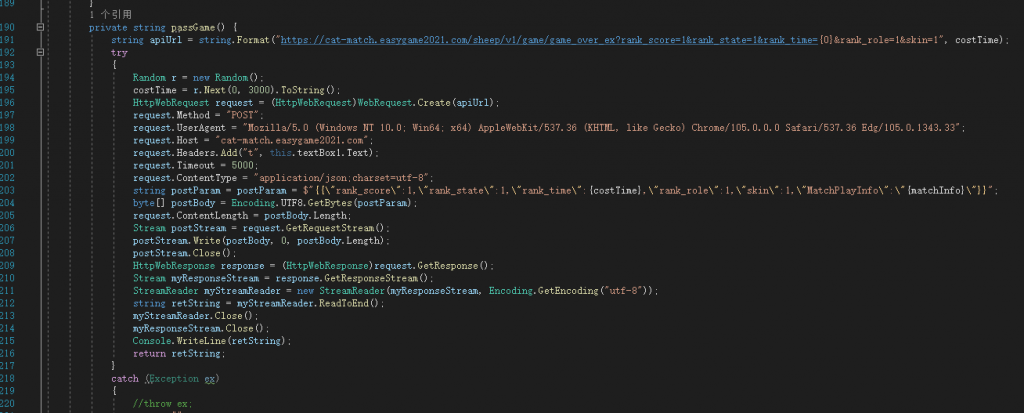
private string passGame() {
            string apiUrl = string.Format("https://cat-match.easygame2021.com/sheep/v1/game/game_over_ex?rank_score=1&rank_state=1&rank_time={0}&rank_role=1&skin=1", costTime);
            try
            {
                Random r = new Random();
                costTime = r.Next(0, 3000).ToString();
                HttpWebRequest request = (HttpWebRequest)WebRequest.Create(apiUrl);
                request.Method = "POST";
                request.UserAgent = "Mozilla/5.0 (Windows NT 10.0; Win64; x64) AppleWebKit/537.36 (KHTML, like Gecko) Chrome/105.0.0.0 Safari/537.36 Edg/105.0.1343.33";
                request.Host = "cat-match.easygame2021.com";
                request.Headers.Add("t", this.textBox1.Text);
                request.Timeout = 5000;
                request.ContentType = "application/json;charset=utf-8";
                string postParam = postParam = $"{{\"rank_score\":1,\"rank_state\":1,\"rank_time\":{costTime},\"rank_role\":1,\"skin\":1,\"MatchPlayInfo\":\"{matchInfo}\"}}";
                byte[] postBody = Encoding.UTF8.GetBytes(postParam);
                request.ContentLength = postBody.Length;
                Stream postStream = request.GetRequestStream();
                postStream.Write(postBody, 0, postBody.Length);
                postStream.Close();
                HttpWebResponse response = (HttpWebResponse)request.GetResponse();
                Stream myResponseStream = response.GetResponseStream();
                StreamReader myStreamReader = new StreamReader(myResponseStream, Encoding.GetEncoding("utf-8"));
                string retString = myStreamReader.ReadToEnd();
                myStreamReader.Close();
                myResponseStream.Close();
                Console.WriteLine(retString);
                return retString;
            }
            catch (Exception ex)
            {
                //throw ex;
                return "";
            }
        }
可以看到这里提交的接口代码为
其中https://cat-match.easygame2021.com/sheep/v1/game/game_over_ex?rank_score=1&rank_state=1&rank_time={0}&rank_role=1&skin=1中的{0}为我们传入的过关耗时的变量
生成的0-3000的随机数
costTime = r.Next(0, 3000).ToString();这里可以看到Token写在请求头里了
request.Headers.Add("t", this.textBox1.Text);
下面则是提示我们加入羊群的次数
       private void passTheGame(int passTimes)
        {
            //string apiUrl = string.Format("https://cat-match.easygame2021.com/sheep/v1/game/game_over?rank_score=1&rank_state=1&rank_time={0}&rank_role=1&skin=1", costTime);
            for (int i = 0; i < passTimes; i++)
            {
                if (stateGame == 0)
                {
                    return;
                }
                if (passWay == 0)
                {
                    getMatchInfo();
                    if (passGame().Contains("\"err_code\":0"))
                    {
                        this.Invoke(new Action(() =>
                        {
                            toolStripStatusLabel1.Text = "加入次数: " + (i + 1).ToString();
                        }));
                    }
                }
            }
        }
最终用于显示到左下角

常见问题
如果遇到Nuget包还原错误的相关问题


点击右下角的导出所选证书

下载好后双击打开证书

点击安装证书

选择本地计算机

点击浏览

选择受信任人
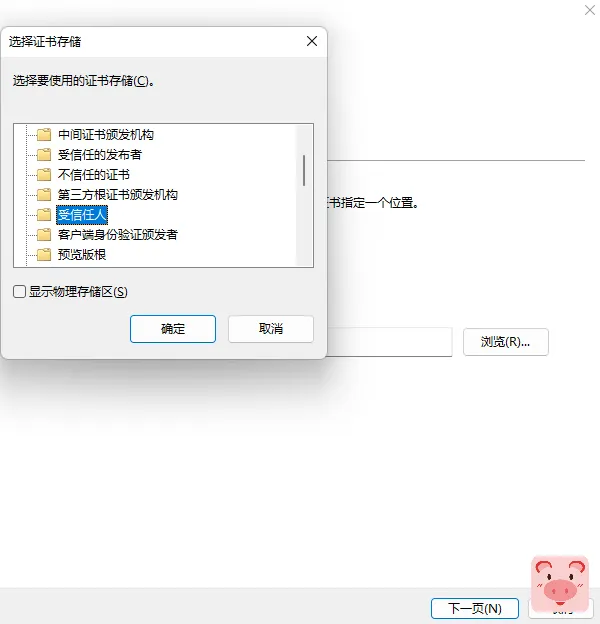
之后在打包就完事了